


All doc

System Applications

Jobs and Requisitions
Jobs and Requisitions
Interview&Offer
Candidates&Talent pool
Candidates&Talent pool
Recruitement Process
Hiring Manager
Operation Manual
BI Report
Basic Instruction
Common Questions

Why did the Candidate not Receive the offer attachment docum
Why did the Candidate not Receive the offer attachment docum
Whether a candidate's rejection of an Offer is automatically
Whether a candidate's rejection of an Offer is automatically
How to View Closed Position
How to View Closed Position
How to Modify an Interview
How to Modify an Interview
Can an Offer be Sent Only after it is Approved?
Can an Offer be Sent Only after it is Approved?
How to wnload the onboarding registration form (or application form)
How to wnload the onboarding registration form (or application form)
How to Add a Candidate to Blacklist
How to Add a Candidate to Blacklist
How to Download Candidate CVs
How to Download Candidate CVs
How to Add a Candidate
How to Add a Candidate
How to Add a New Position
How to Add a New Position
How to Manage the Reasons for Eliminating Candidates
How to Manage the Reasons for Eliminating Candidates
Will Deleting a Candidate Send a Rejection Letter?
Will Deleting a Candidate Send a Rejection Letter?
How to Modify Job Requisitions (HC Content)
How to Modify Job Requisitions (HC Content)
How to Operate Archived Candidate
How to Operate Archived Candidate
Recipients don't Receive Emails
Recipients don't Receive Emails
How to Activate Candidates in the Talent Pool
How to Activate Candidates in the Talent Pool
How to Switch and Log in Your Other Companies?
How to Switch and Log in Your Other Companies?
How to Create a New Arrangement Assessment Template
How to Create a New Arrangement Assessment Template
Team Member Permissions List
Team Member Permissions List
How to Close a Position (End a Recruitment)
How to Close a Position (End a Recruitment)
How to Cancel an Interview
How to Cancel an Interview
Headhunter elf-check function and why the status of headhunter recommended resume appears to be refused
Headhunter elf-check function and why the status of headhunter recommended resume appears to be refused
How to Modify The Interview Invitation Template
How to Modify The Interview Invitation Template
The Application Scene of Registration Form
The Application Scene of Registration Form
Send Rejection Letter/Set Rejection Letter Template
Send Rejection Letter/Set Rejection Letter Template
How to Set up HR Access to Recruiting Channel
How to Set up HR Access to Recruiting Channel
Headhunter Protection Period is Not Set But Still Shows.
Headhunter Protection Period is Not Set But Still Shows.
How to Manage Job Authority
How to Manage Job Authority
How to Batch Jobs
How to Handover the Account
How to Handover the Account
Note from the Candidate Owner
Note from the Candidate Owner
How to Add Tags to a Candidate? How Tags are Managed?
How to Add Tags to a Candidate? How Tags are Managed?
The Account is Already Occupied When Adding a New Account
The Account is Already Occupied When Adding a New Account
How to Use Internal Referrals
How to Use Internal Referrals
How to Use Headhunter Management
How to Use Headhunter Management

How to Activate Candidates in the Talent Pool
Last updated 2023/11/28 Reading number 8


1. Background
The company accumulates a large number of resumes during the recruitment process, which are often stored scattered on various computers and are not effectively used. HR can activate candidates for different positions through manual activation. When you create a new position, Or when job recruitment progress is not satisfactory, you can come to the talent pool for talent activation.
2. Operation Path
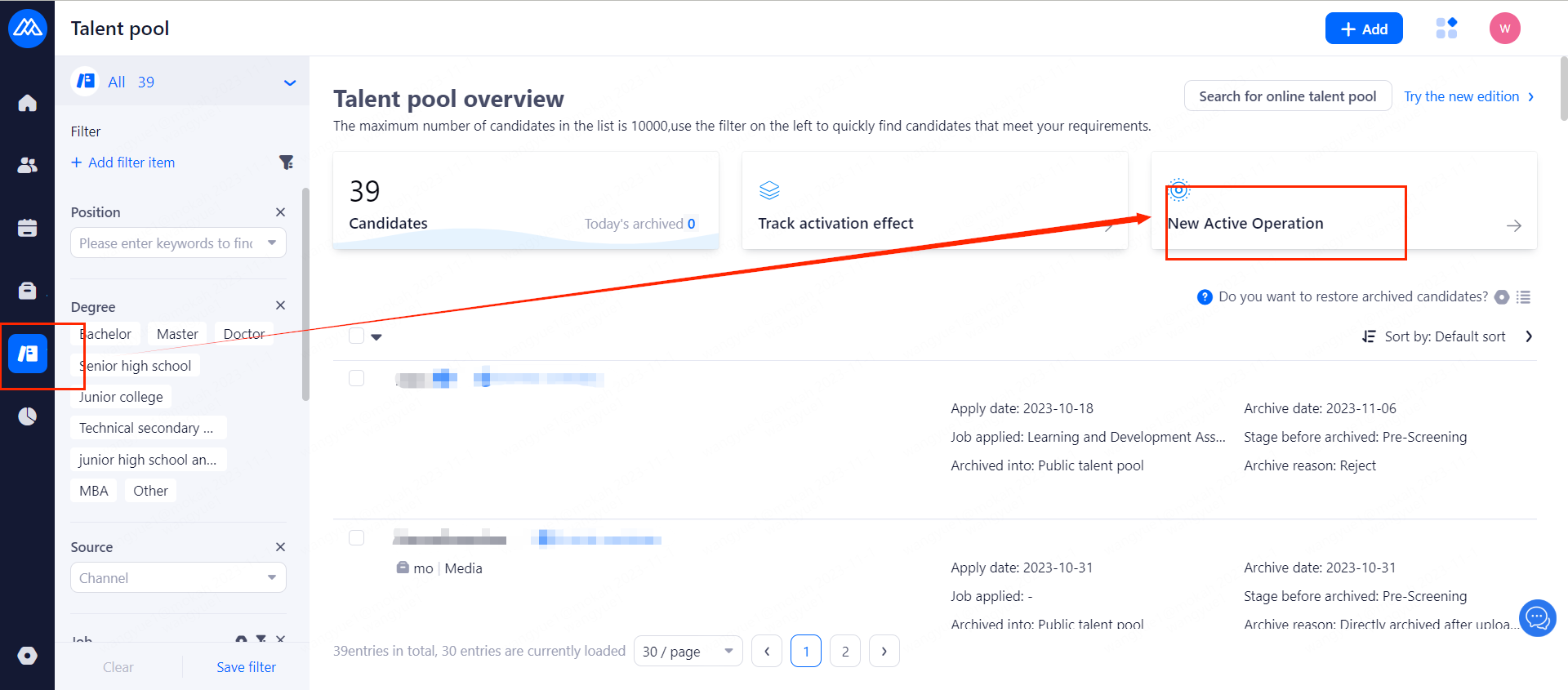
2.1 Open the talent pool and click the "New Activation" button on the right.
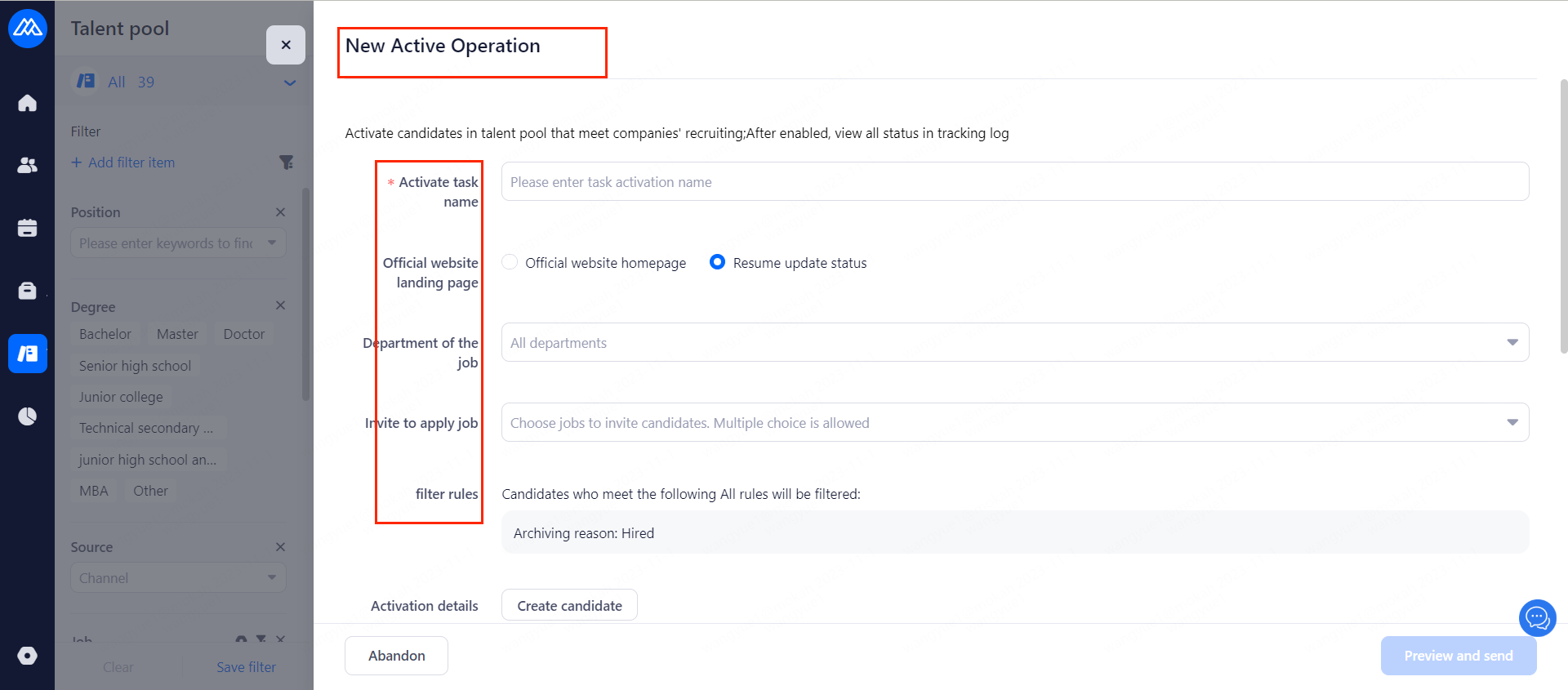
2.2 Enter various activation conditions in the pop-up page.
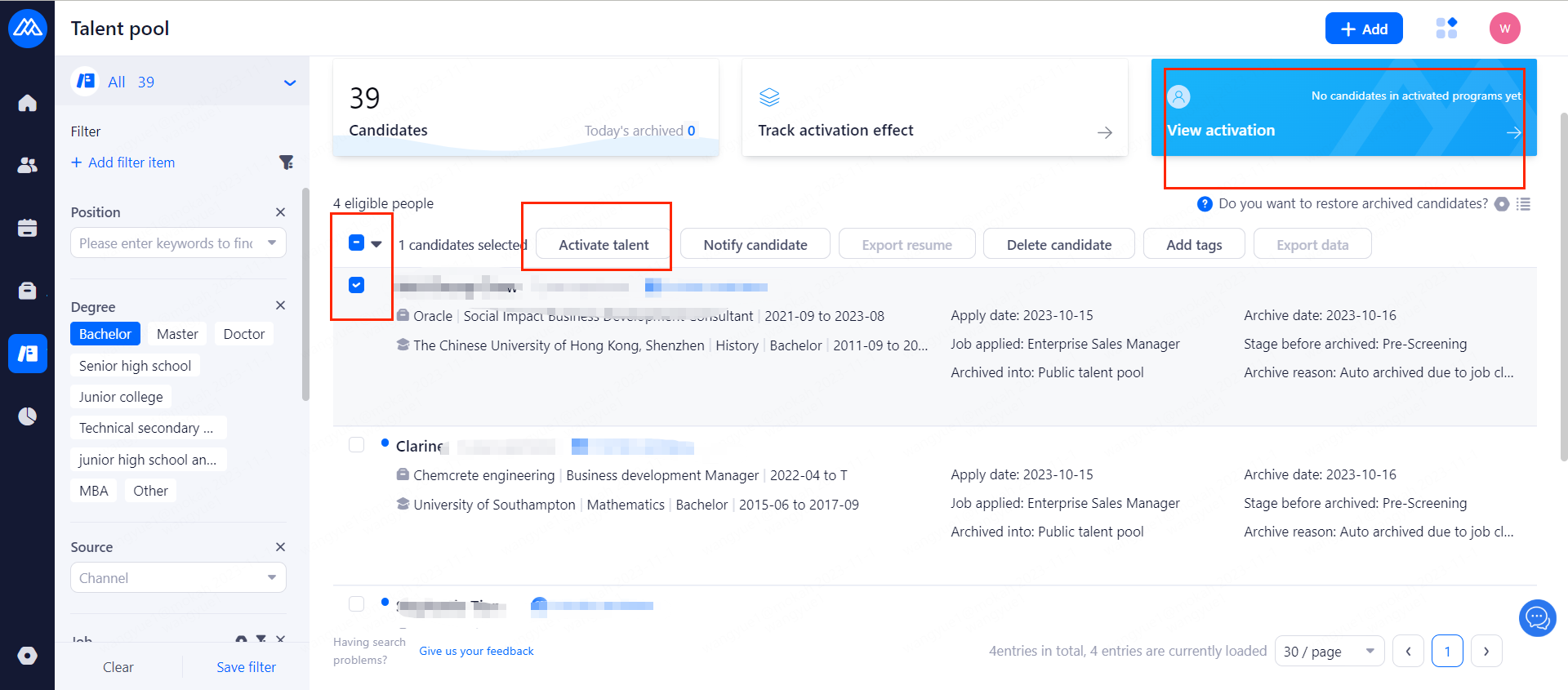
2.3 Select the corresponding candidate in the talent pool and click to [activate talent].
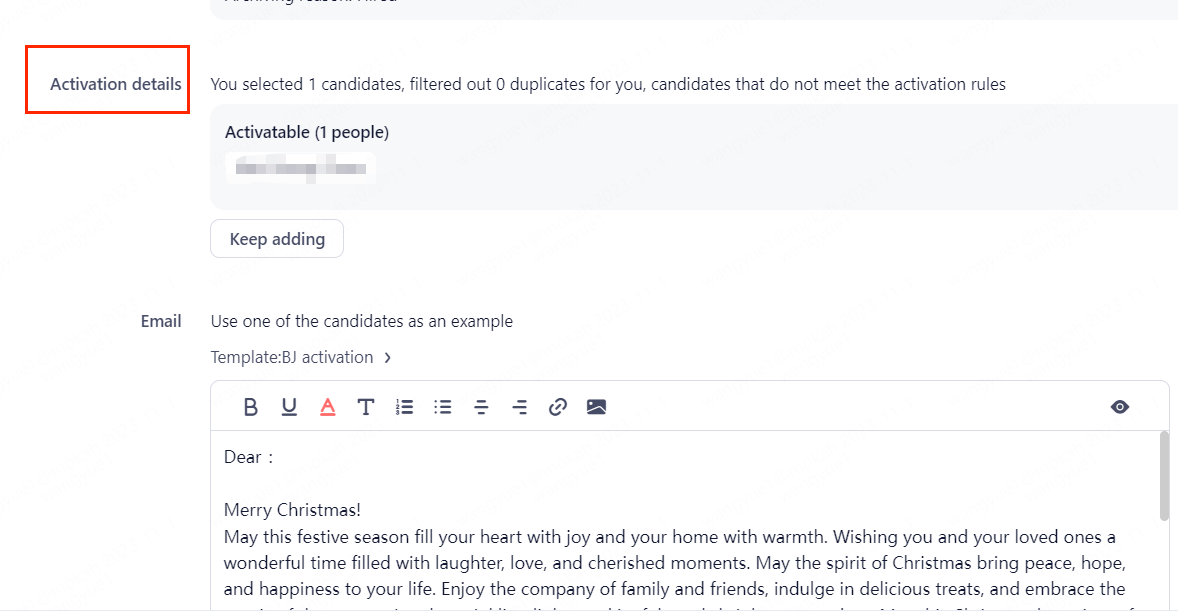
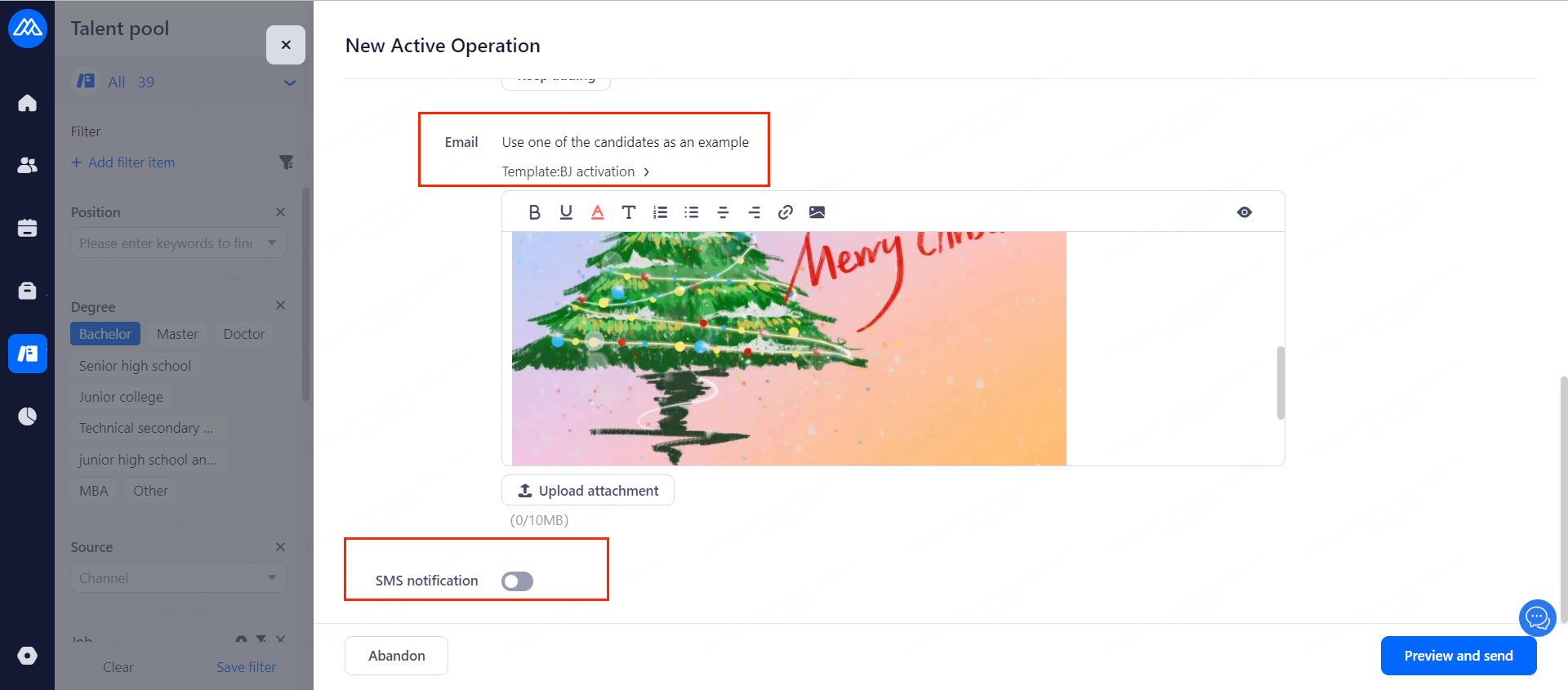
You can send information to the candidate through email and SMS. Please keep in mind that the email activation time is automatically sent at a fixed time by the system.
Evaluate this document
Helpful
No help