

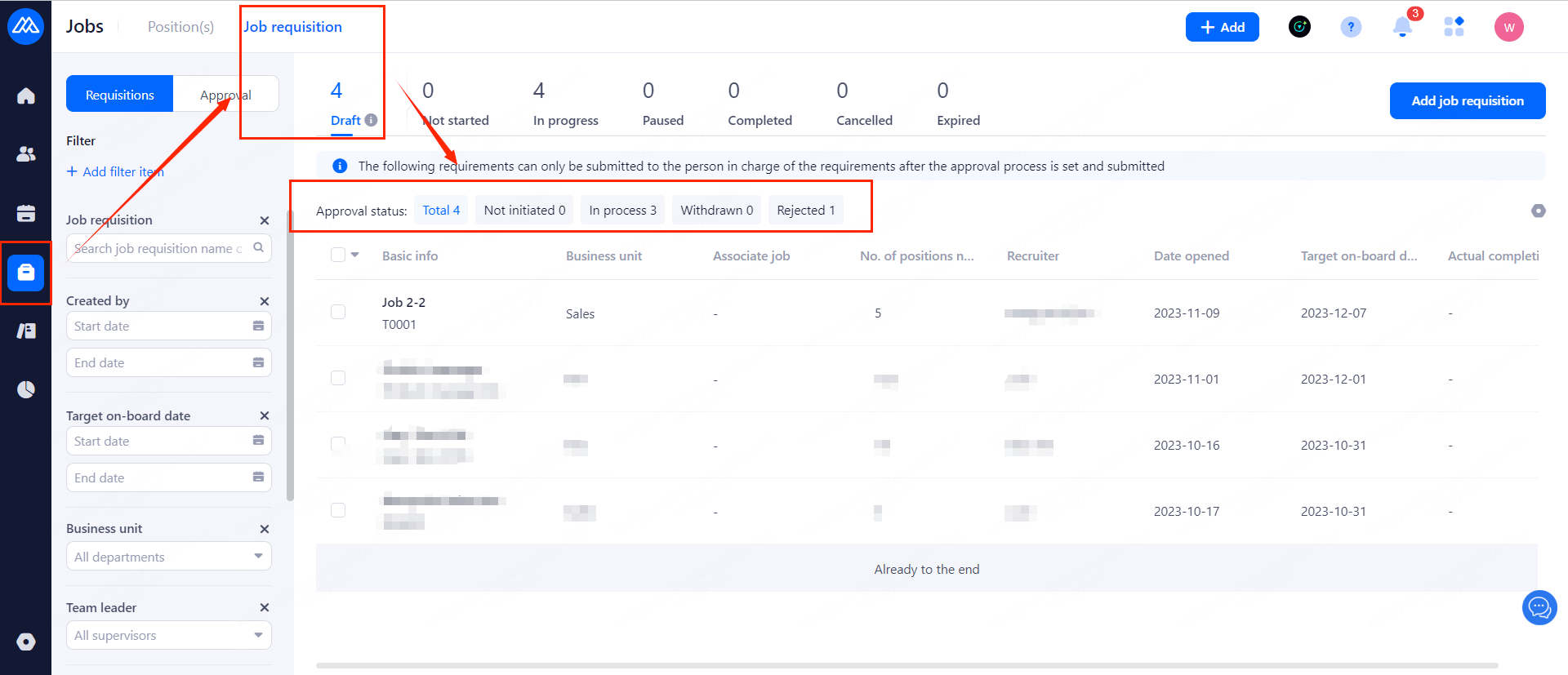
1. Job Requisition in draft
The requisition for approval has not been initiated after creation (you need to re-add the approval process or re-initiate the added approval process and wait for approval before re-publishing)
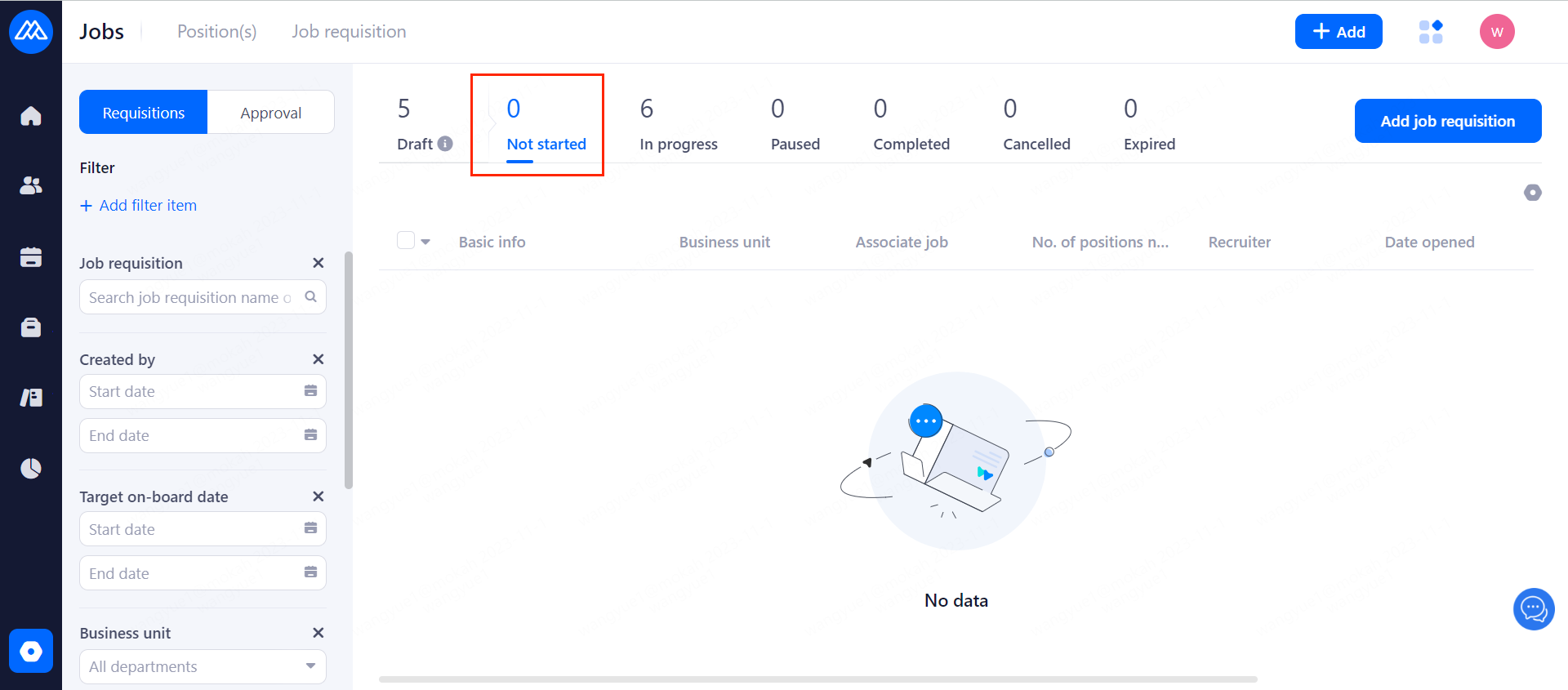
2. Not Started
If you modify the approval-required fields of a requisition that is not in [Draft] status and need to initiate approval again, the approval progress can be viewed through the filters below.
3. Completed
When the number of onboardings under the requisition equals the number of requisitions, the status changes to [Completed].
Note: Even if the number of Onboarding candidates is less than the required number, you can manually adjust it to the completed status.
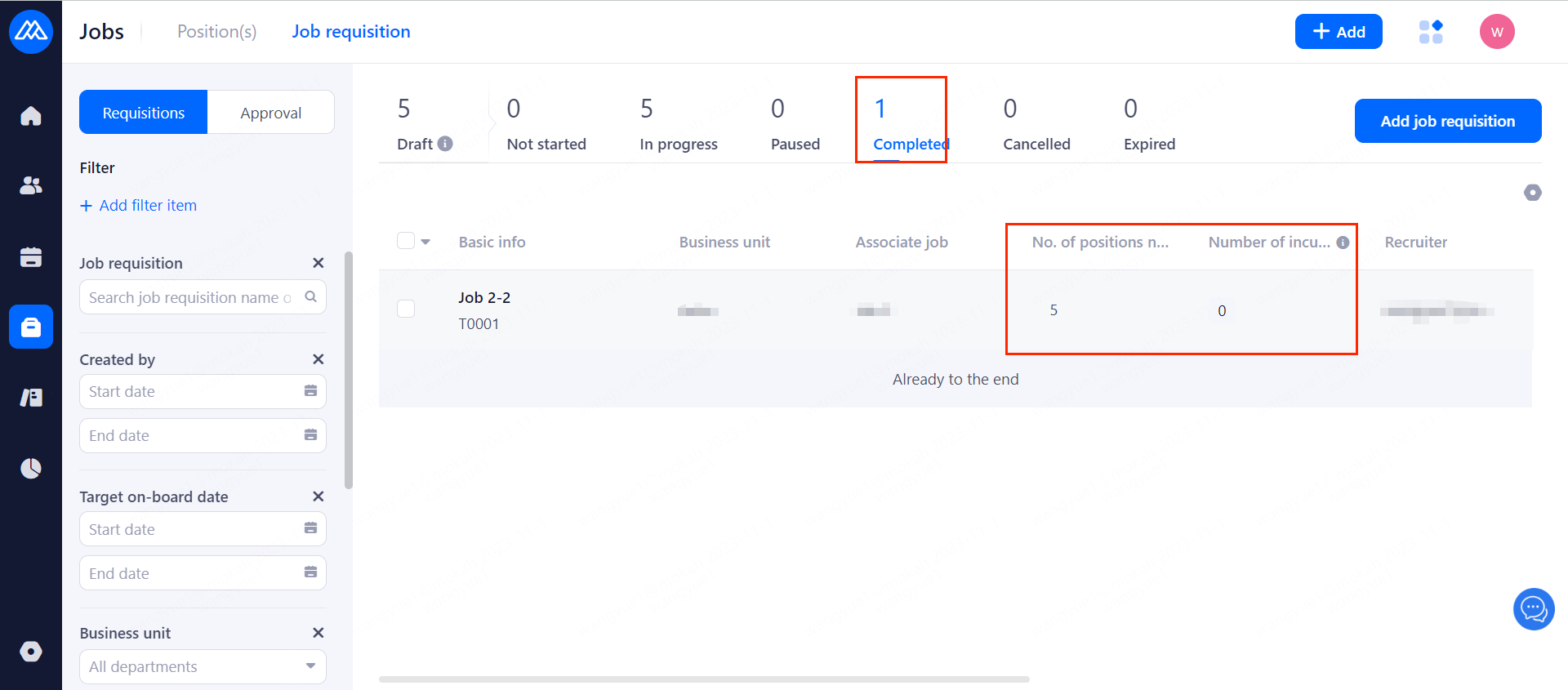
4. Select any requirement and you can adjust its status
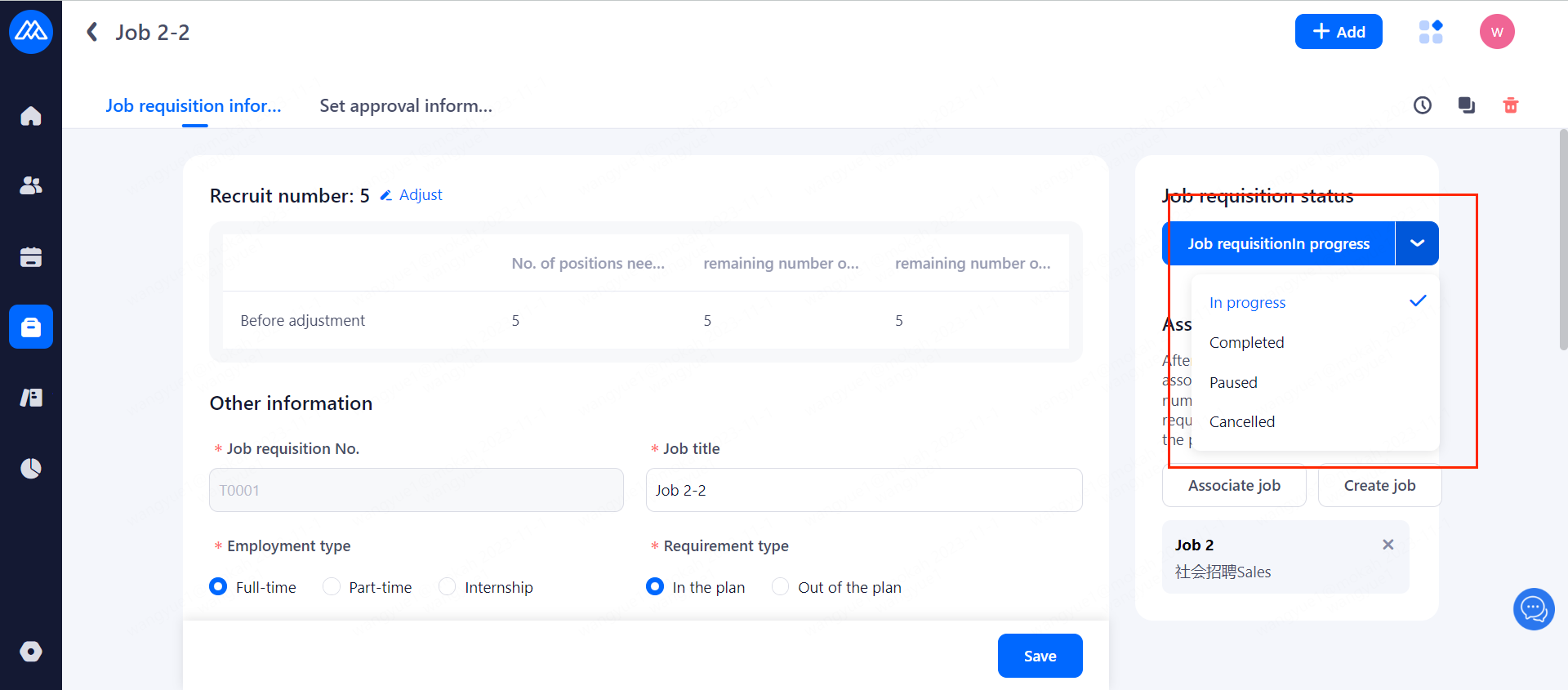
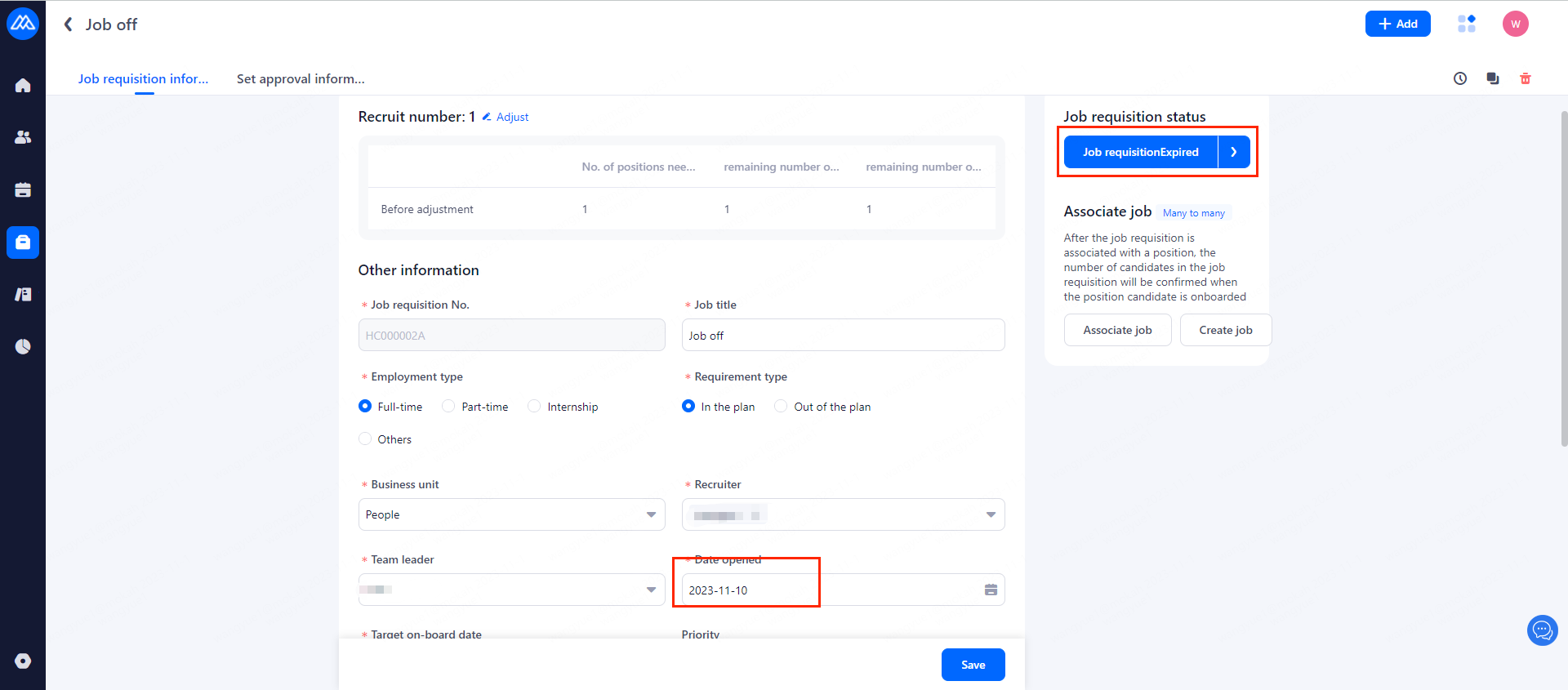
5. Unable to adjust expired requisition
If you want to adjust an overdue requisition to “in progress”, you need to set the target completion time of the requisition to a future time and then do the status adjustment.
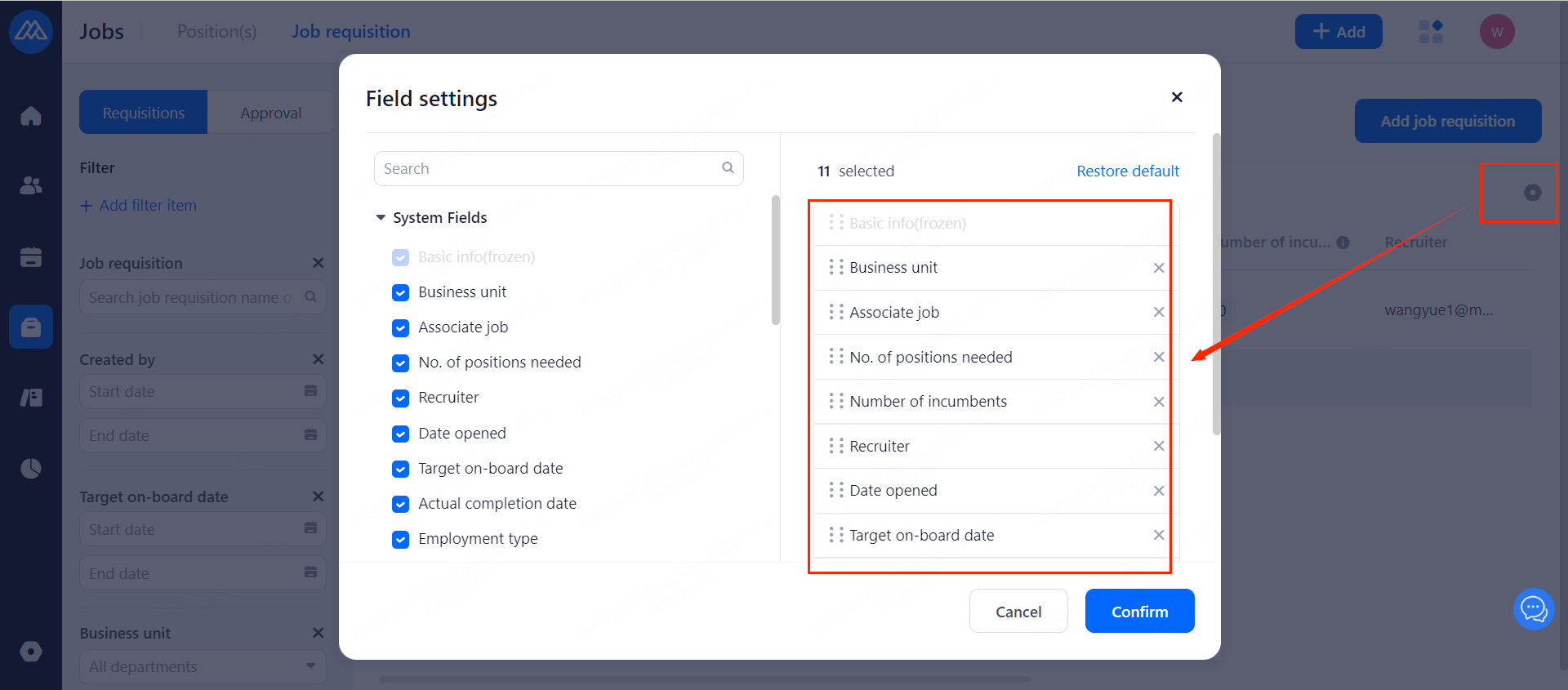
6. Fields display settings on the requisition page
You can adjust and sort the fields you want to display according to your needs and drag to adjust order.
7. How to search for your job requisition
7.1 You can use number of job requisition and search.
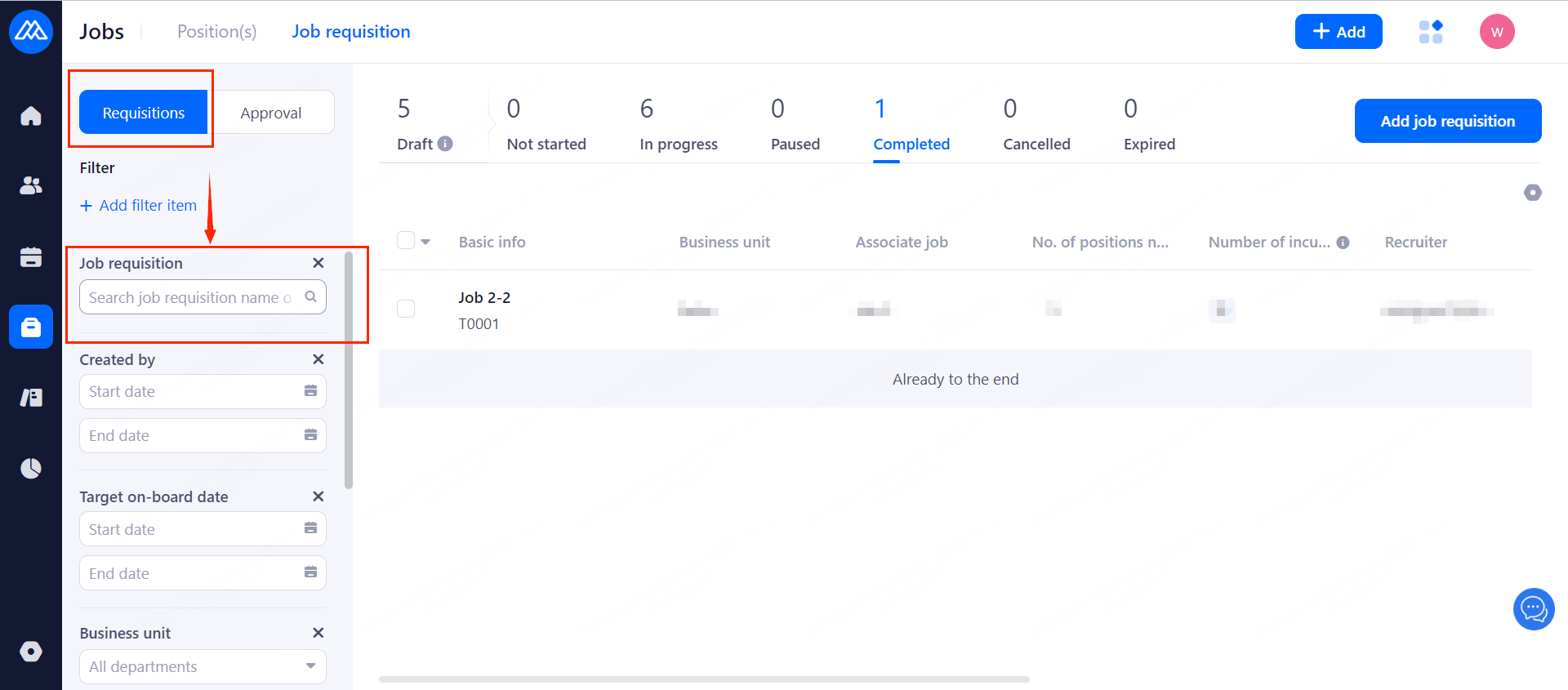
7.2 If your job requisition cannot be searched
then check:
1) Whether the department of job requisition is consistent with the department to which the account belongs
2) Whether the job requisition are synchronized from PP or other API interfaces
3) Account permission setting (a function required for job requisition)
8. How to add other filter items for screening
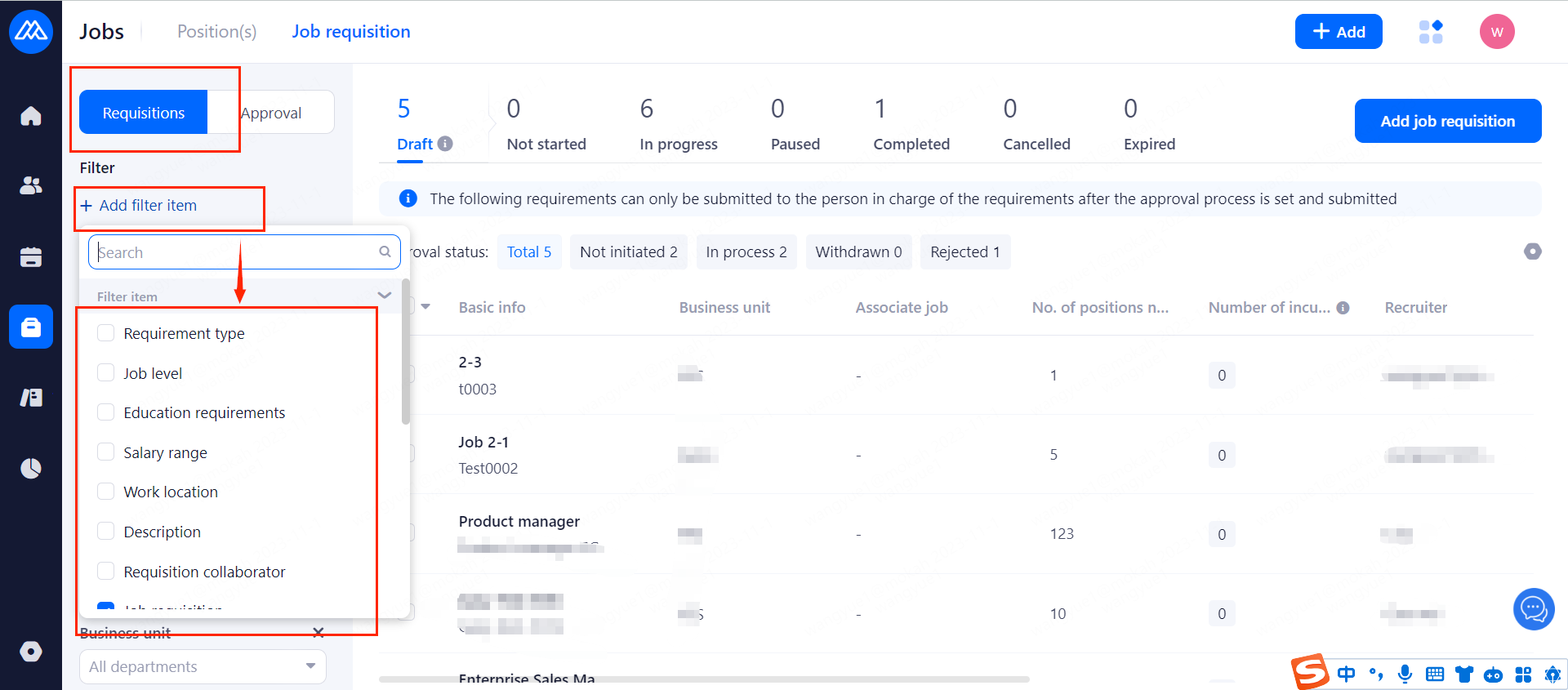
There are filters in the left bar of the job requisition page.
Note: Filter items of the field based on the [Job requisition field Association] settings], you can customize the field and choose to add screening items)