


1. How to create a job requisition
1.1 Operation path for HR
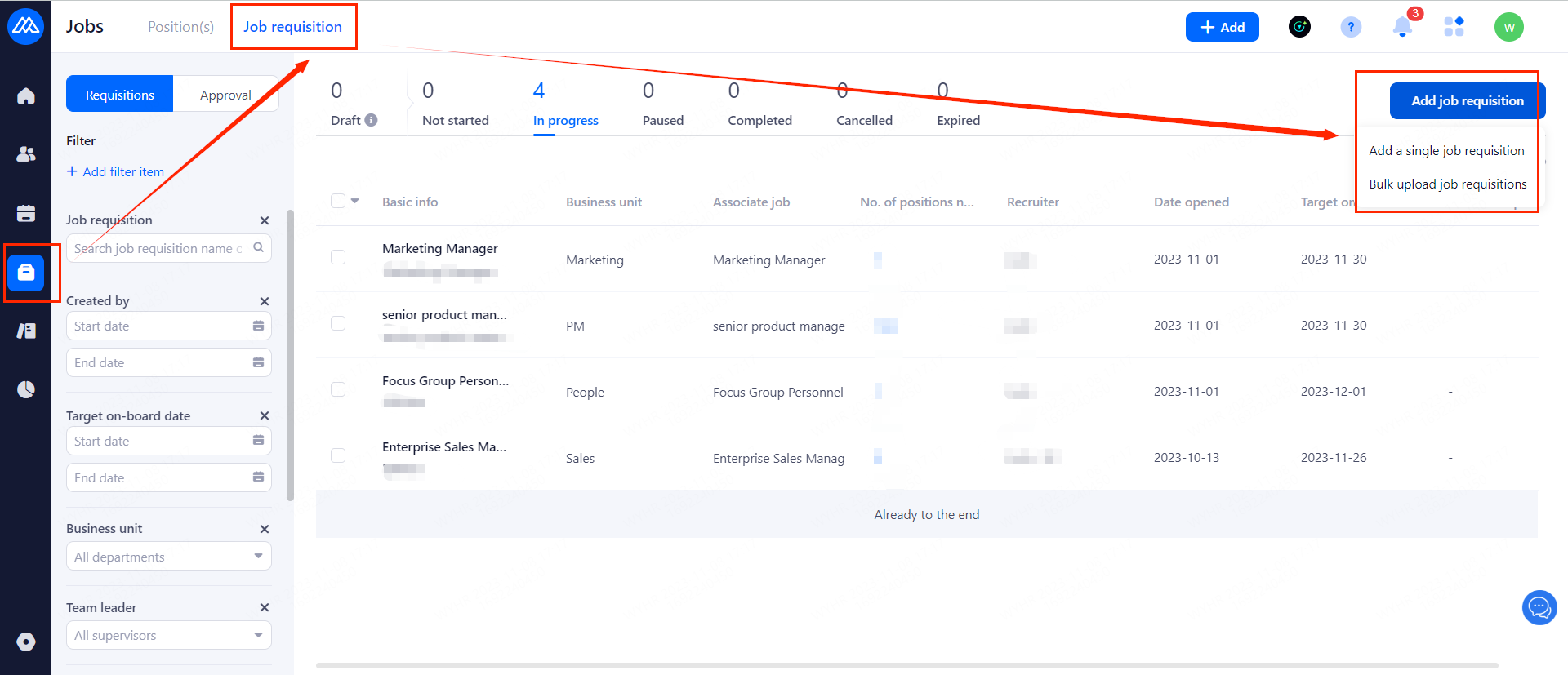
[Jobs]--[Job requisition]--[Add job requisition] (as shown below), you can add a single or upload multiple requisitions.
1.2 Operation path for HM
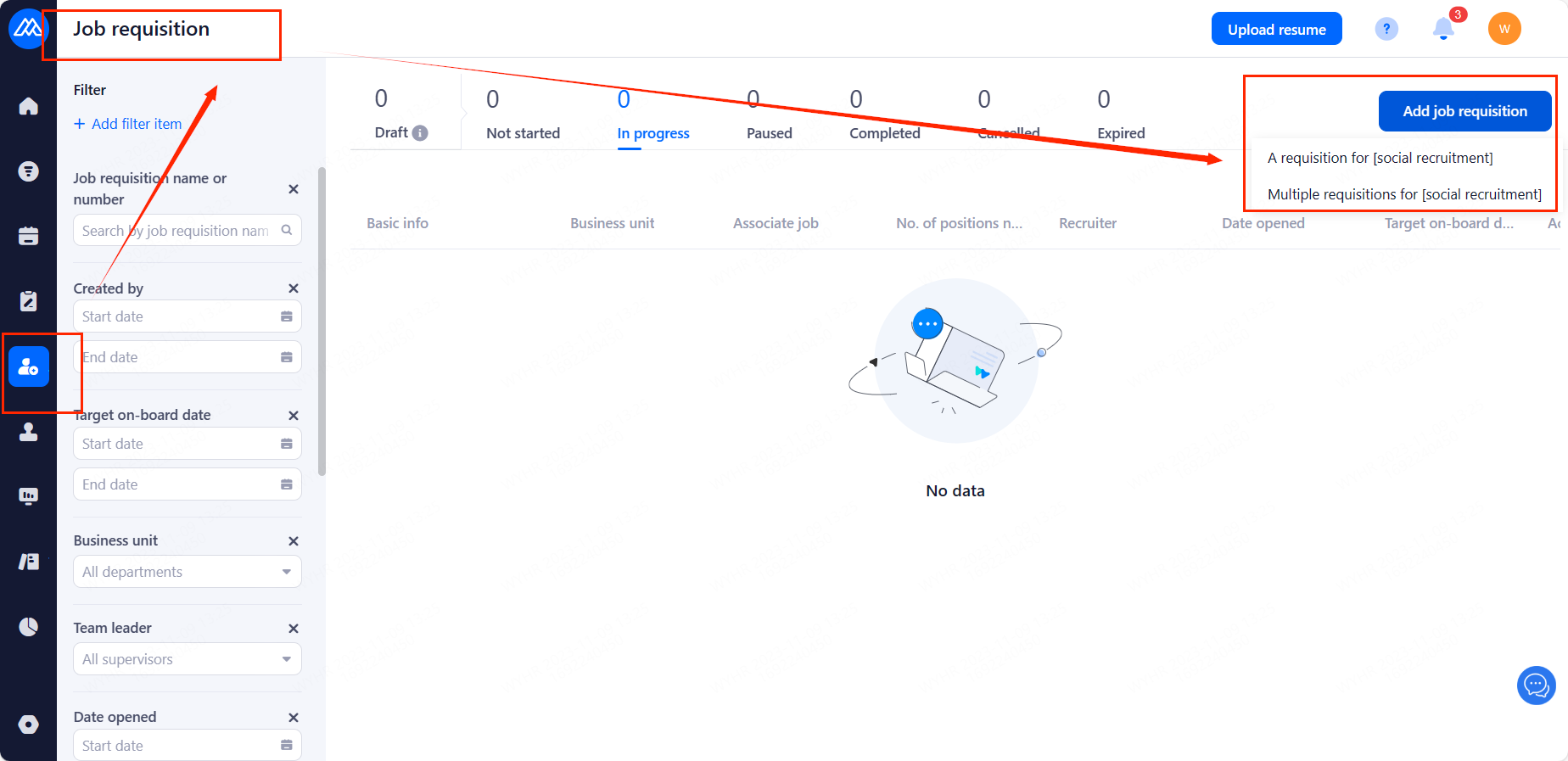
[Job requisition]--[Add job requisition]
1.3 Create a single job requisition(Both HR and HM)
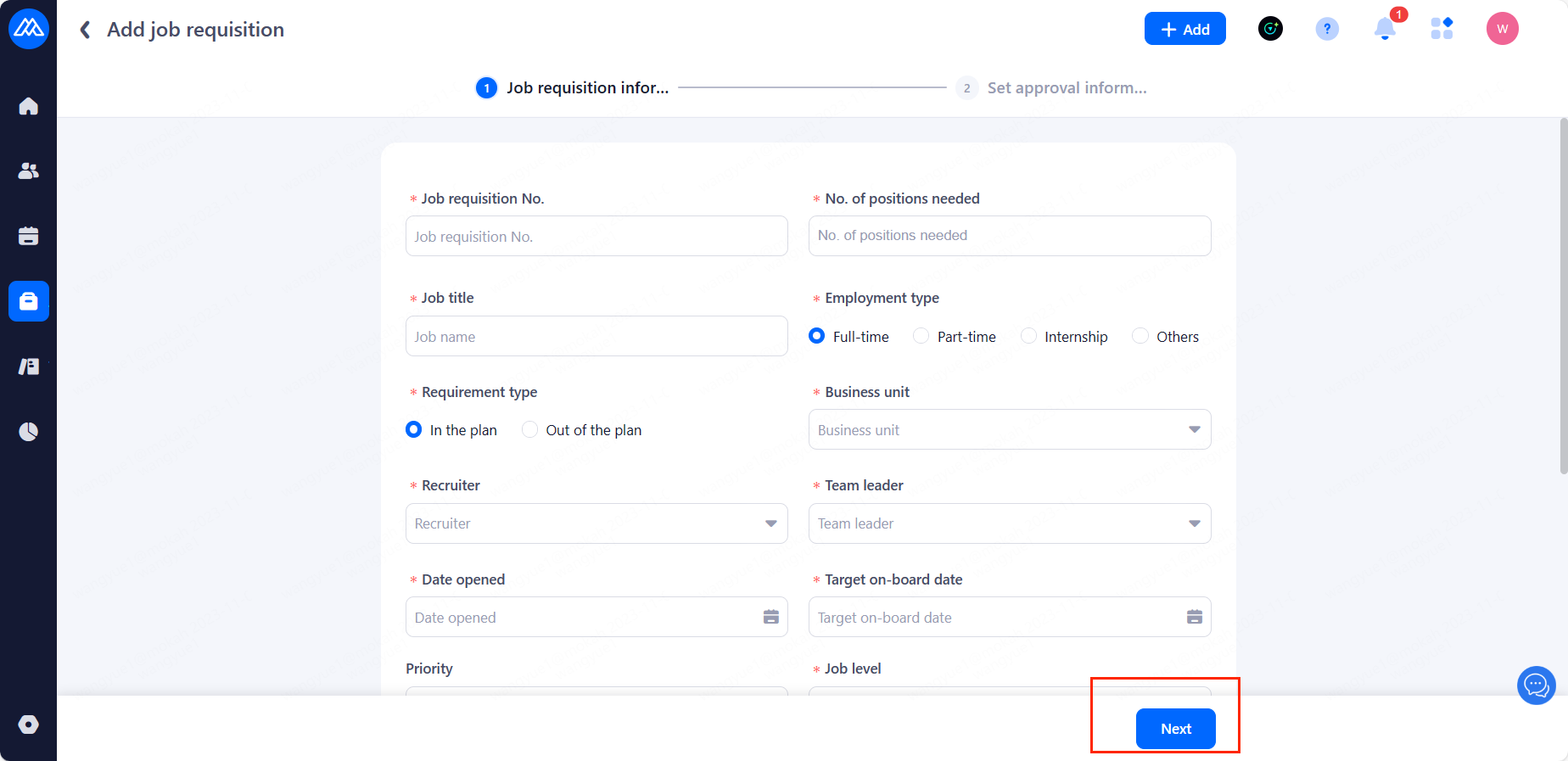
Just fill in the required content and click [Next].
1.4 Upload multiple job requsitions(Both HR and HM)
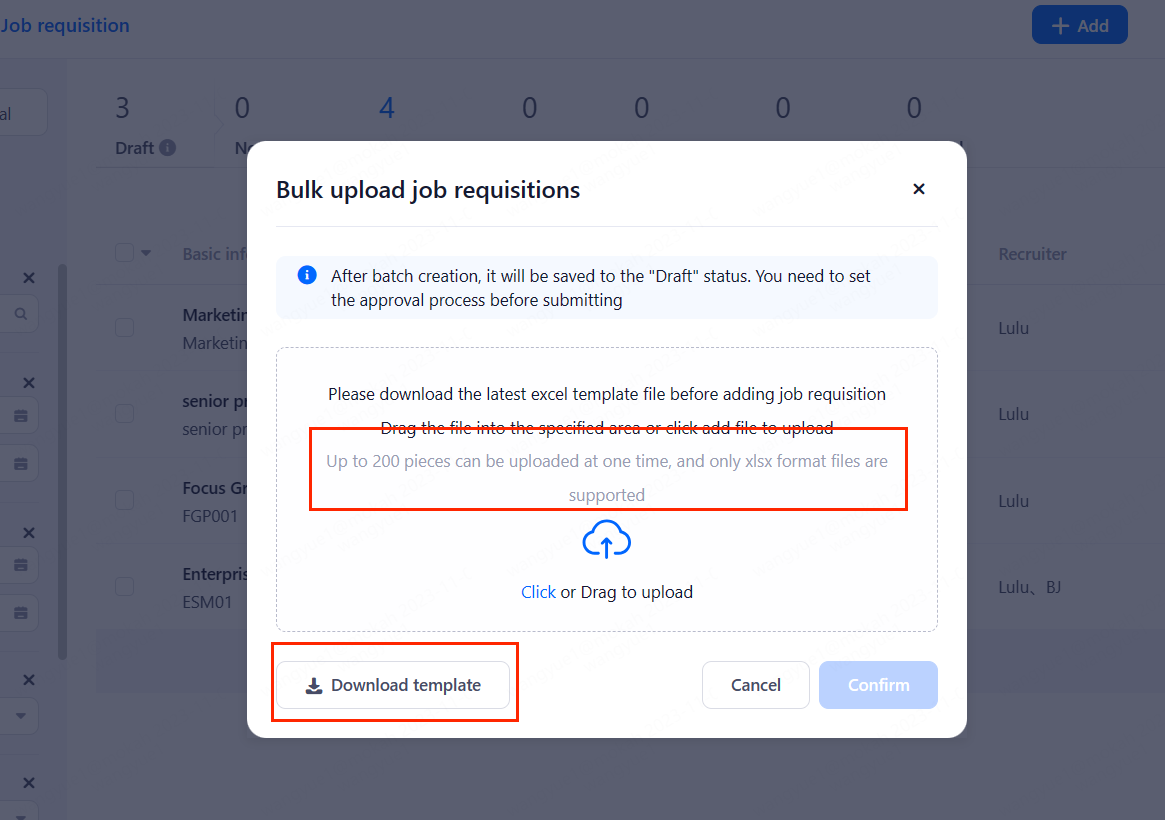
You need to download the template list and fill it in, and then import and add it by uploading the template file.
Attention: Up to 200 pieces can be uploaded at one time, only xlsx format files are supported.
2. How to Initiate Requisition Approval
Tip: Both HR and HM can initiate an approval.
2.1 Enter the page of setting approval process
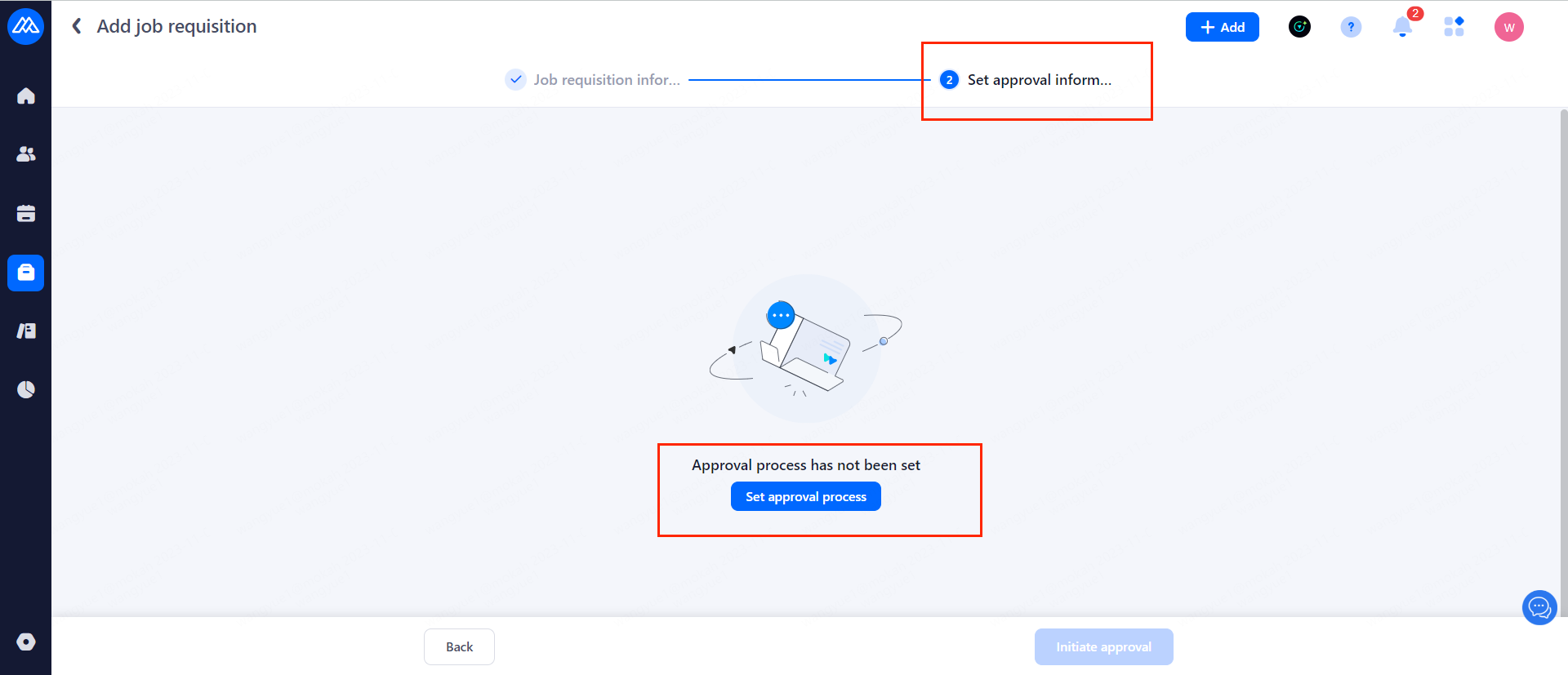
After finishing the requisition Information, you can click Next to enter the following page.
2.2 Select approval process
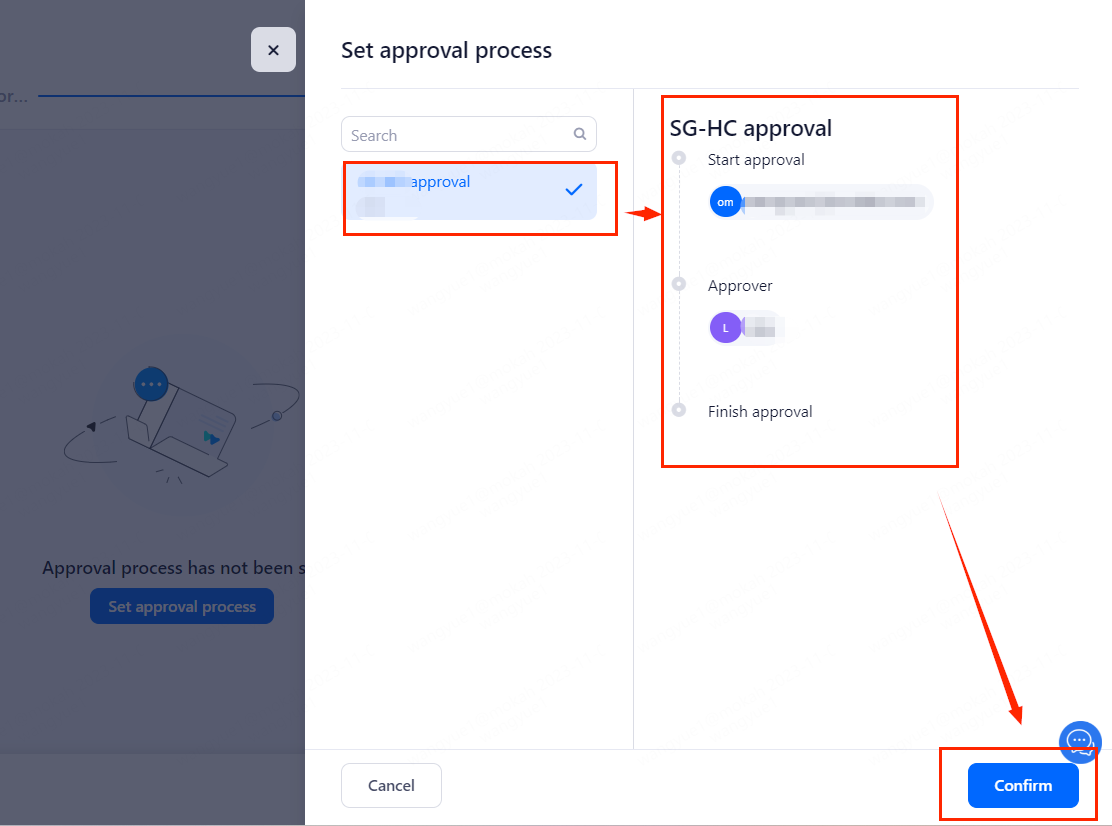
Click [Set Approval Process] to open the page for selecting the approval process for the requisition. The page can be searched based on the process name keywords. After selecting the approval process, click [Confirm].
2.3 Confirm initiation of approval
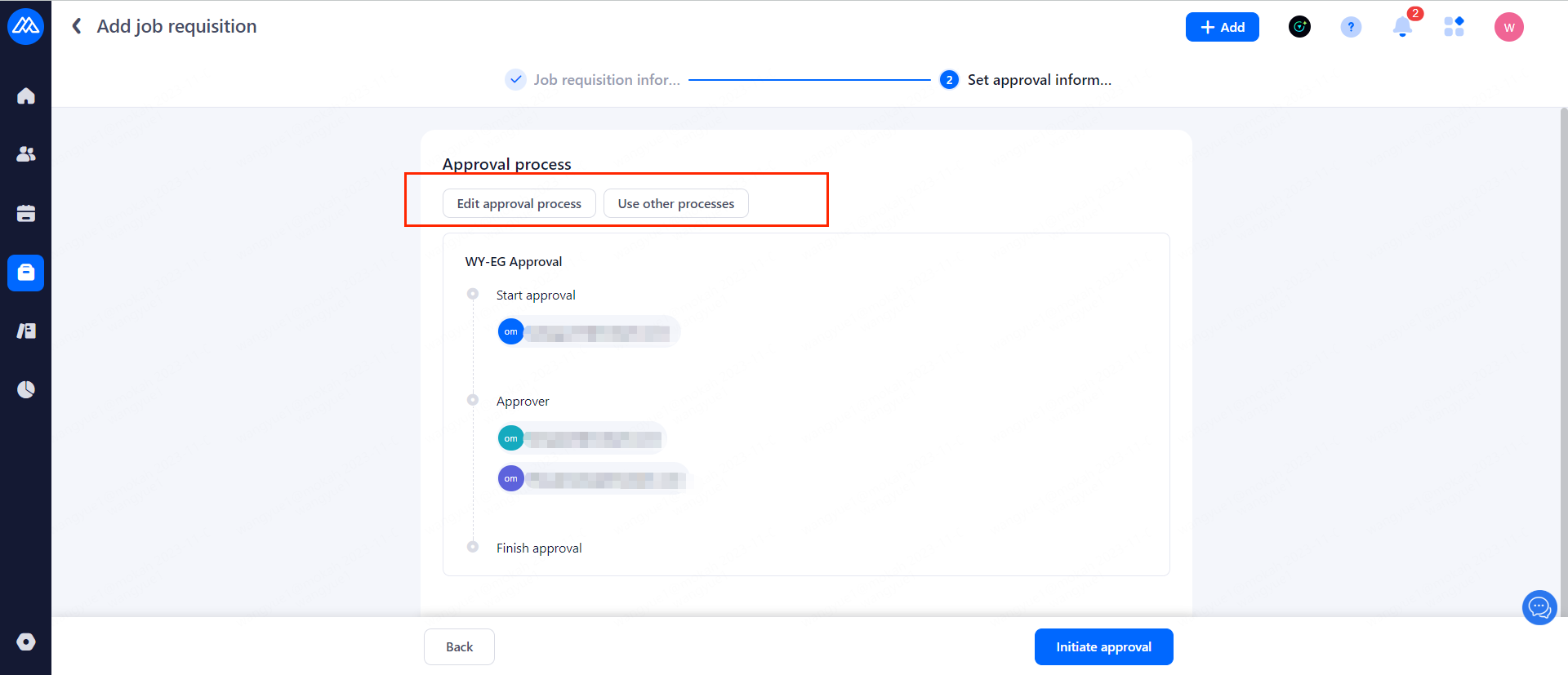
Confirm that the approval process is selected correctly and then you can hit [Initiate Approval]
If you change your mind, you can modify or choose other approval processes:
● Modify the approval process: modify the approvers of the process or add or delete approvers;
● Use other processes: Select another approval process;
2.4 Check after approval is initiated
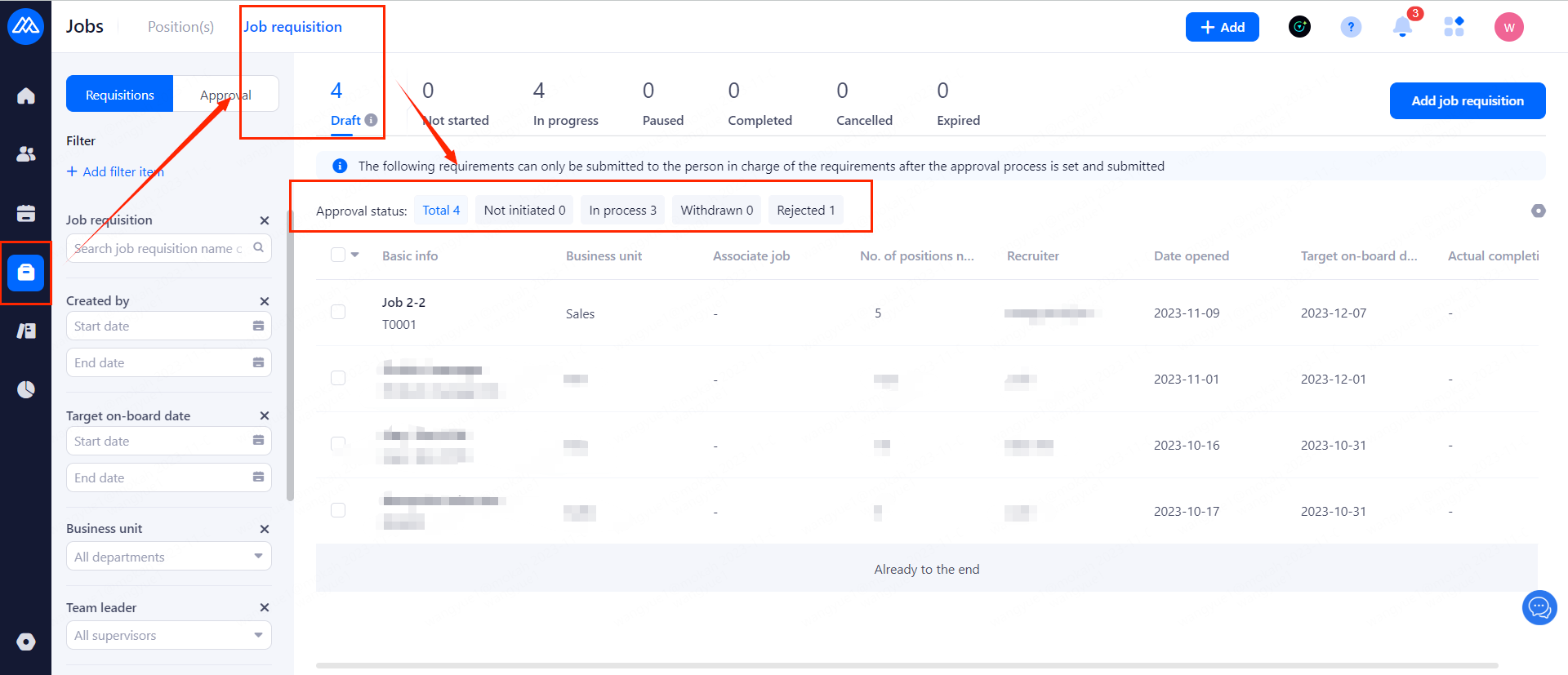
Job requisitions that have been initiated for approval but have not been completed or failed to pass the approval can be viewed on the [Draft] page, which can be filtered based on the [Approval Status].
3. Approval of requisition
Approval can be completed by both HM and HR side.
3.1 Initial approval of Job requisition
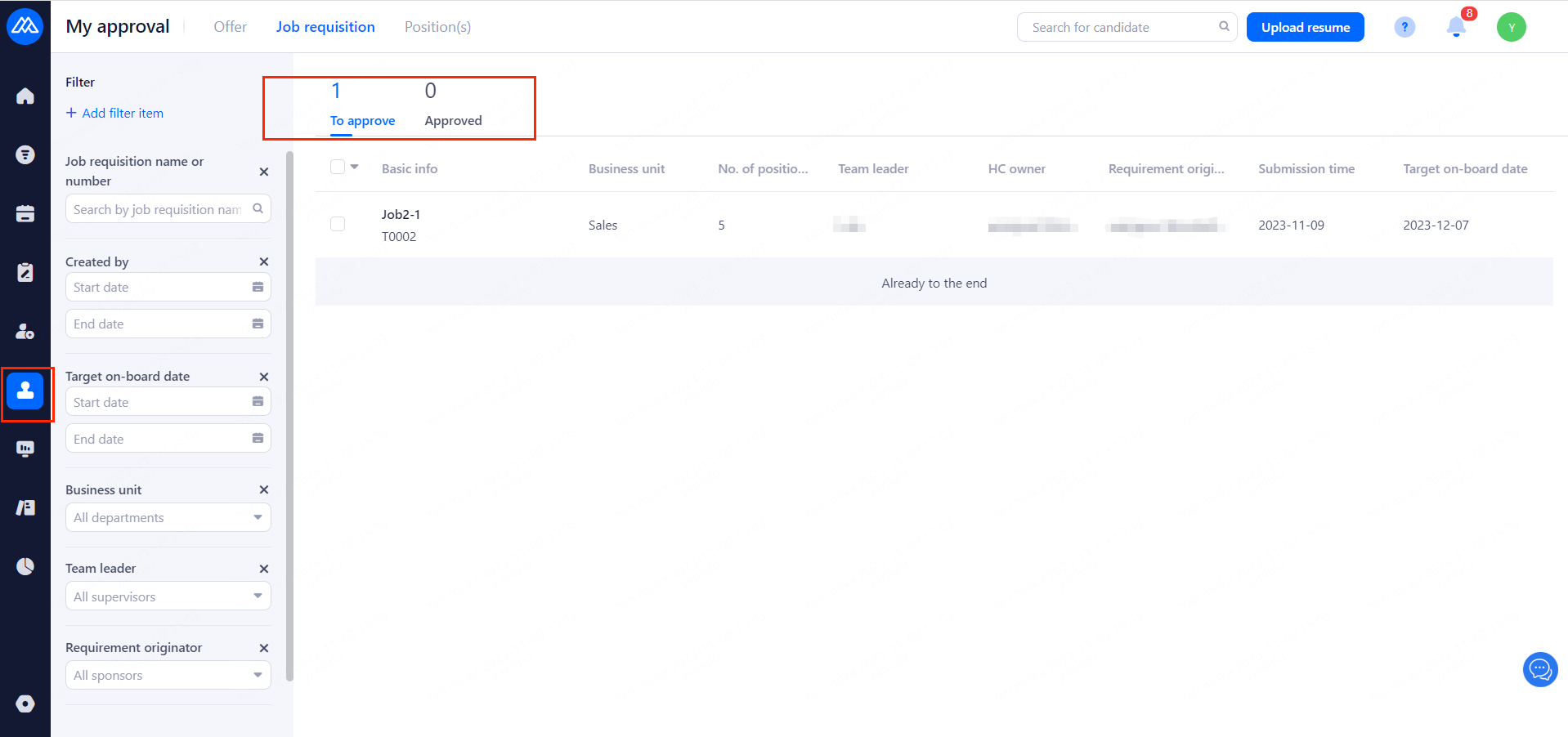
a. On the [My approval] page, you can see there are requisitions that are waiting for your approval and those that you have approved.
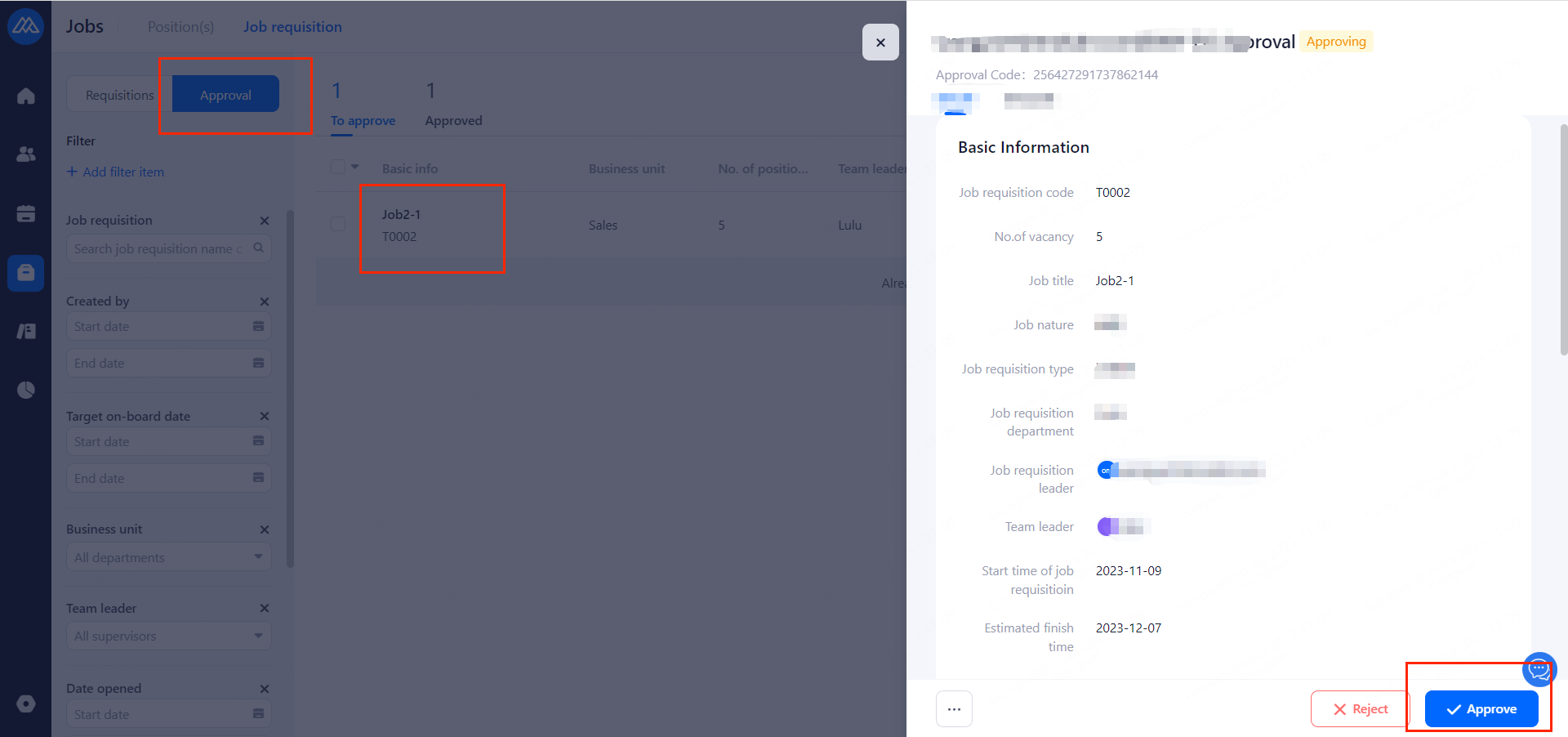
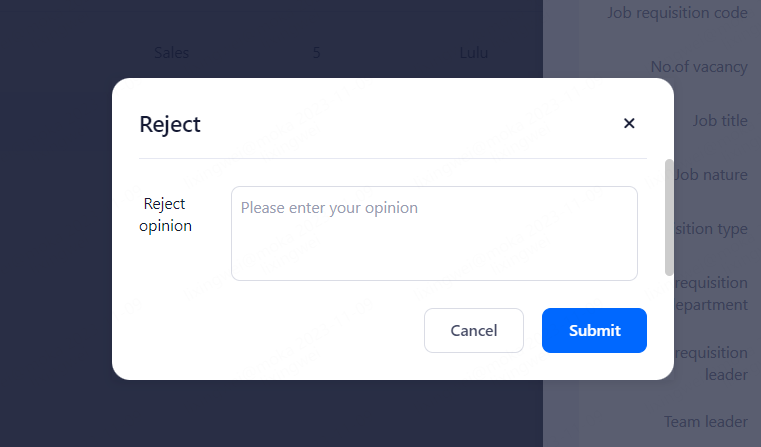
b. Click on requisition to view the approval details.
3.2 Re-approval after re-editing requisitions
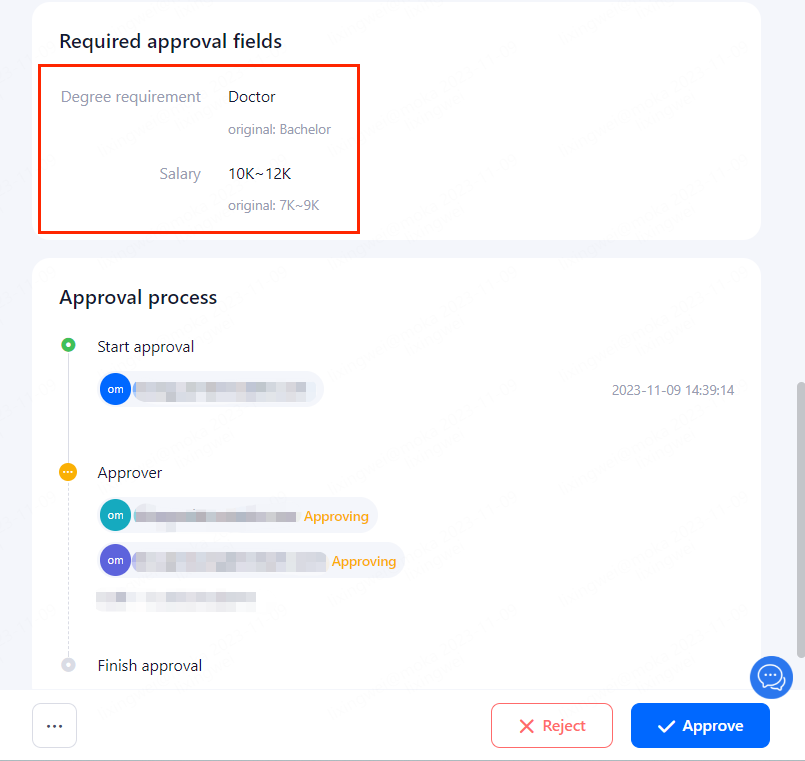
After modifying the required fields of a requisition, the job requisition must be approved again. The approver can see the information before and after the modification of the required fields in the [Required Approval Fields].
4. Common problems
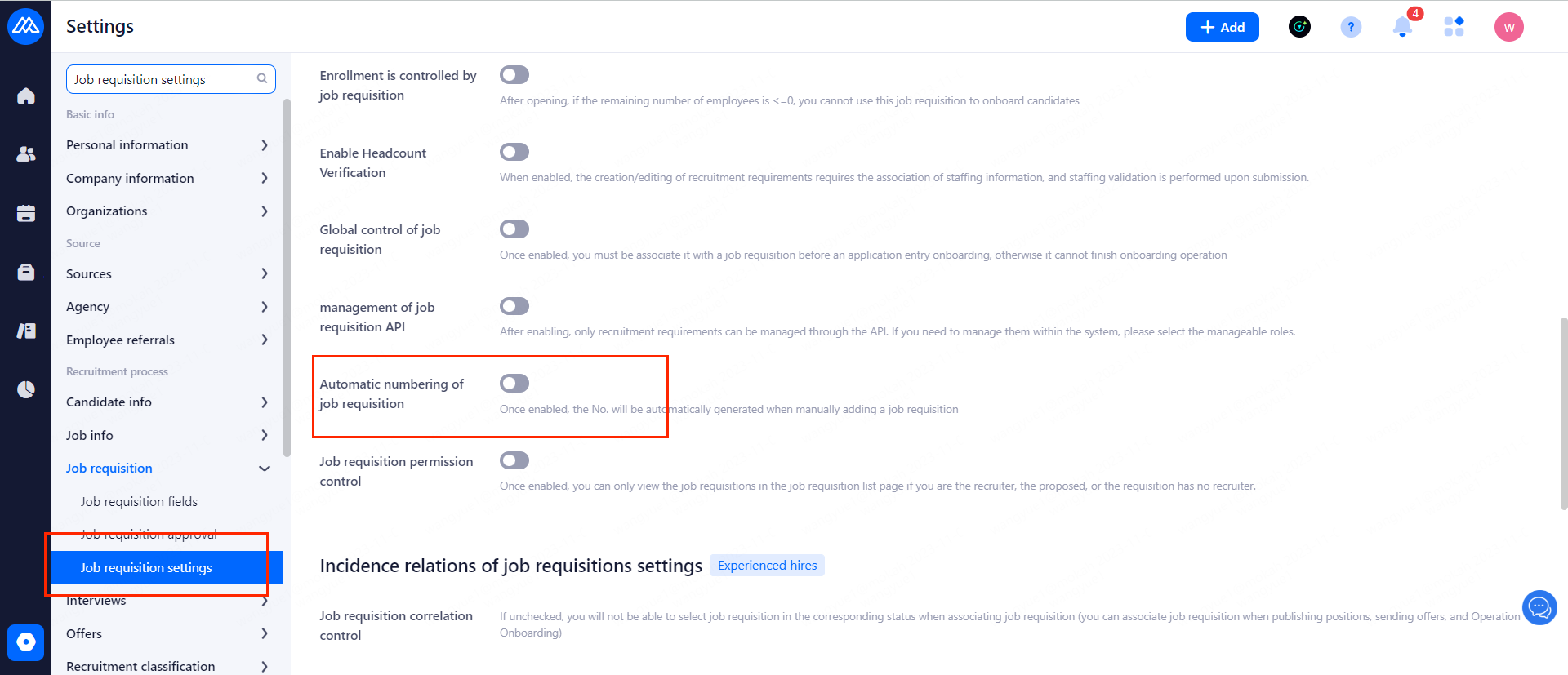
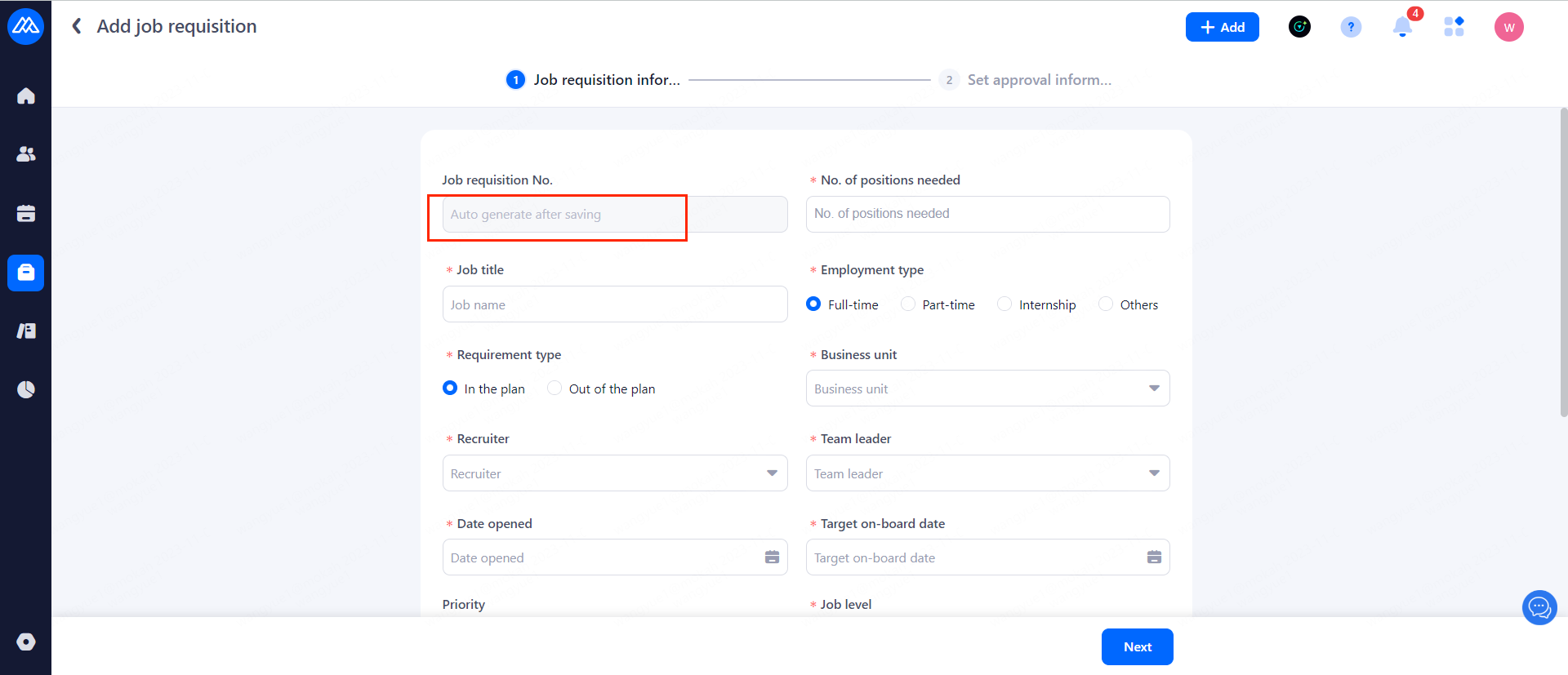
4.1 The job requisition number cannot be filled in manually or how to automatically generate the number
Check on the [Job requisition settings] page, you can choose turn on/off the button [Automatic numbering of job requisition].
4.2 There is no [Add job requisition] button on the page?
Check if:
a. Whether or not you have turned on the HR side of the job requisition management function
b. Verify the account roles and check whether the corresponding account role permissions are enabled or not.
4.3 Job Requisition Fields Settings
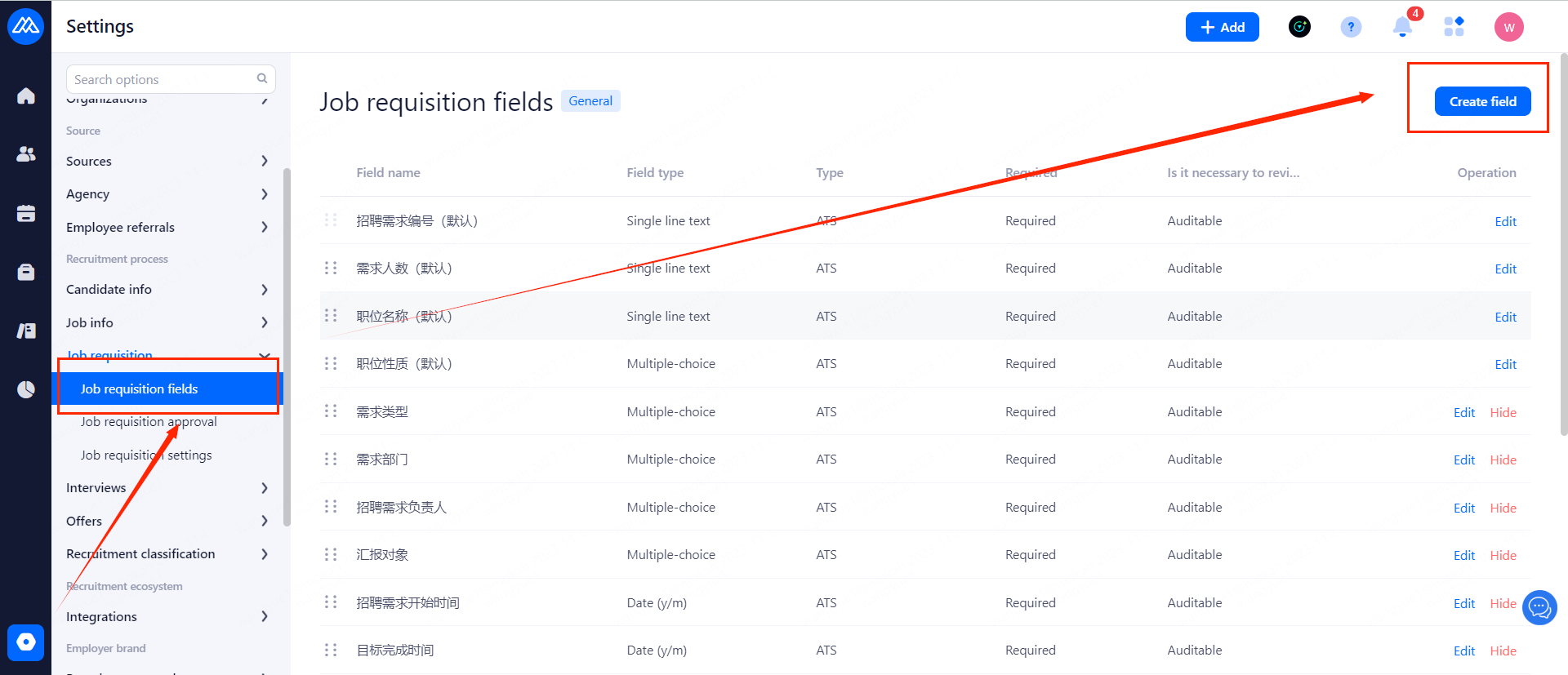 (1) Requisition field management takes effect generally
(2) Click the [Add Field] button to create custom fields
(3)Support dragging to change field order
(4) List header: field name, field type, whether it is required, whether it is required to be approved
(5) Unnecessary fields can be hidden
Note: When you click [Edit] on a newly added custom field, you can no longer modify the field type. Only the added content and whether it is a required item or a approval required item can be modified.