


1.Register as a Moka User
When a user registers as a Moka user for the first time, the system will register the user after the user's first login, which is used to improve the user's information.
1.1.New Moka users
For companies who newly open Moka, the first super admin needs to complete personal information first when he/she enters the system for the first time, including basic information and binding the email adress for receiving resumes.
1.1.1.Complete basic information
Configuration Instructions:
Name: required
Address: optional
Email: required
Mobile: optional. Mobiles are not allowed to be duplicated within the same company, but are allowed between different companies.
1.1.2.Bind the e-mail address for receiving resumes
Configuration instructions:
Mailbox number : required
Mailbox password : required
1.2.Register and activate Moka team account
When there is a new team member joining the company, it is necessary for the super admin or general administrator to add and send a mail invitation, through which the invited person will activate the account and check the initial password of the account.
Login page: https://app.mokahr.com/login
1.2.1.Add new team members
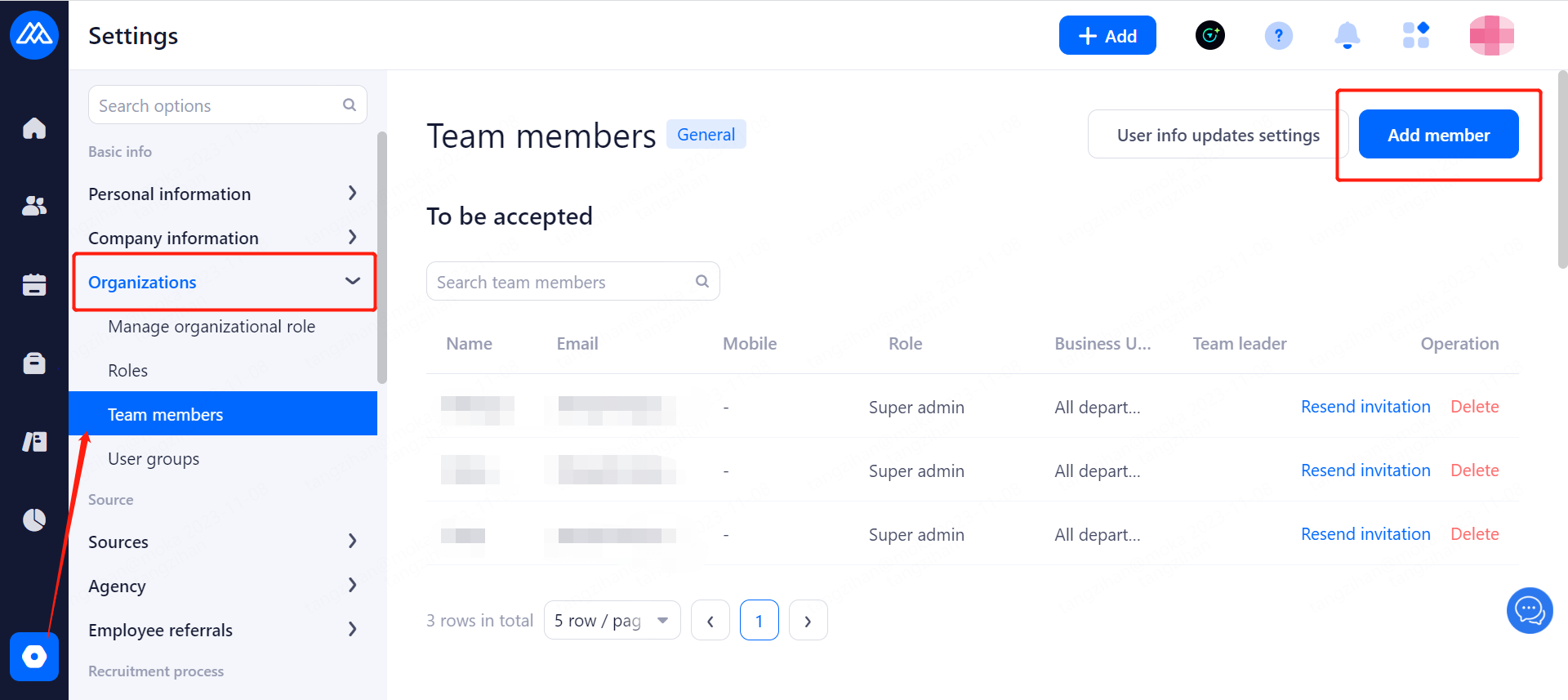
Go to Settings>Organization Management>Team Personnel Management.
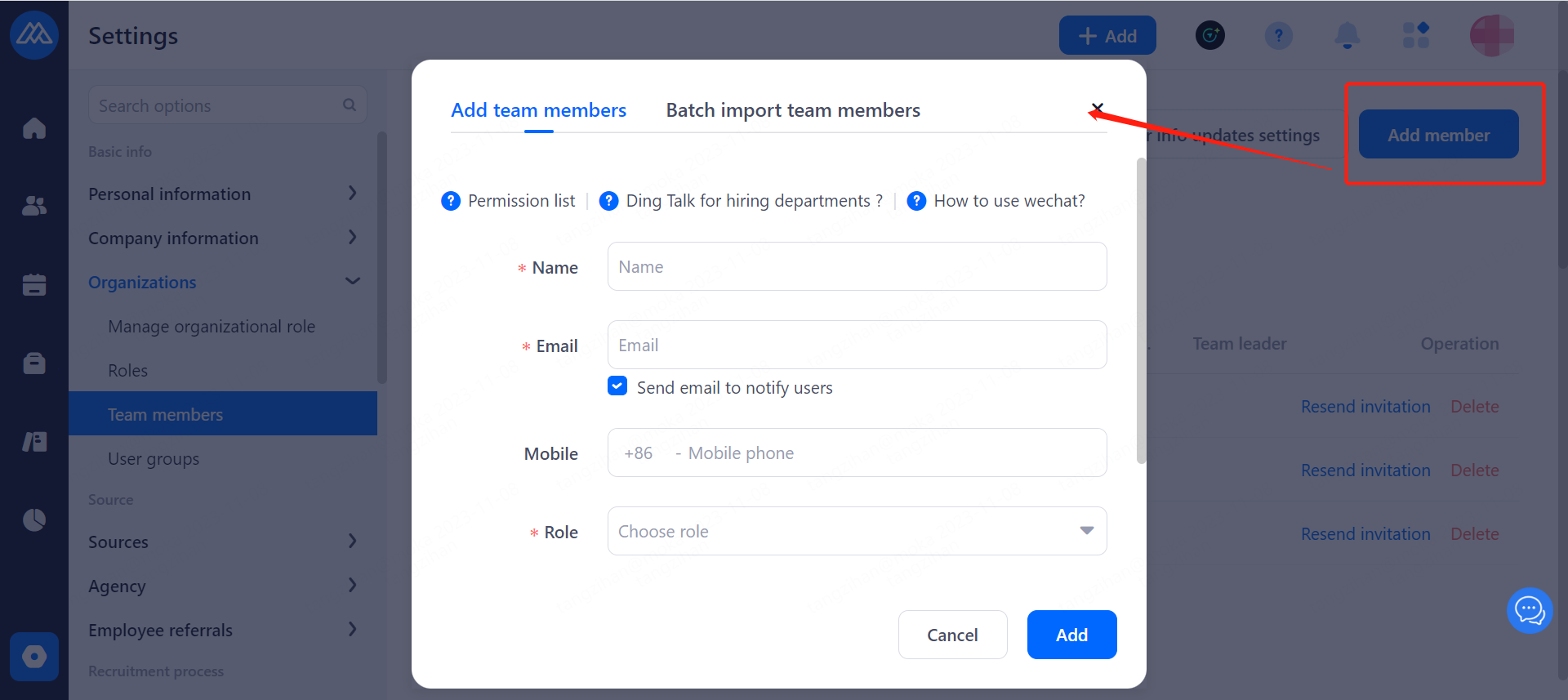
Click button "Add" to add and maintain team personnel.
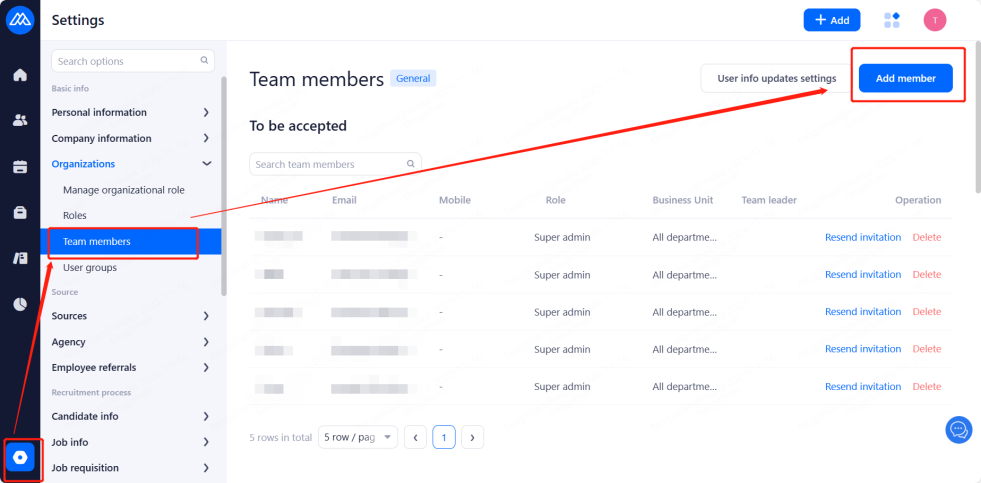
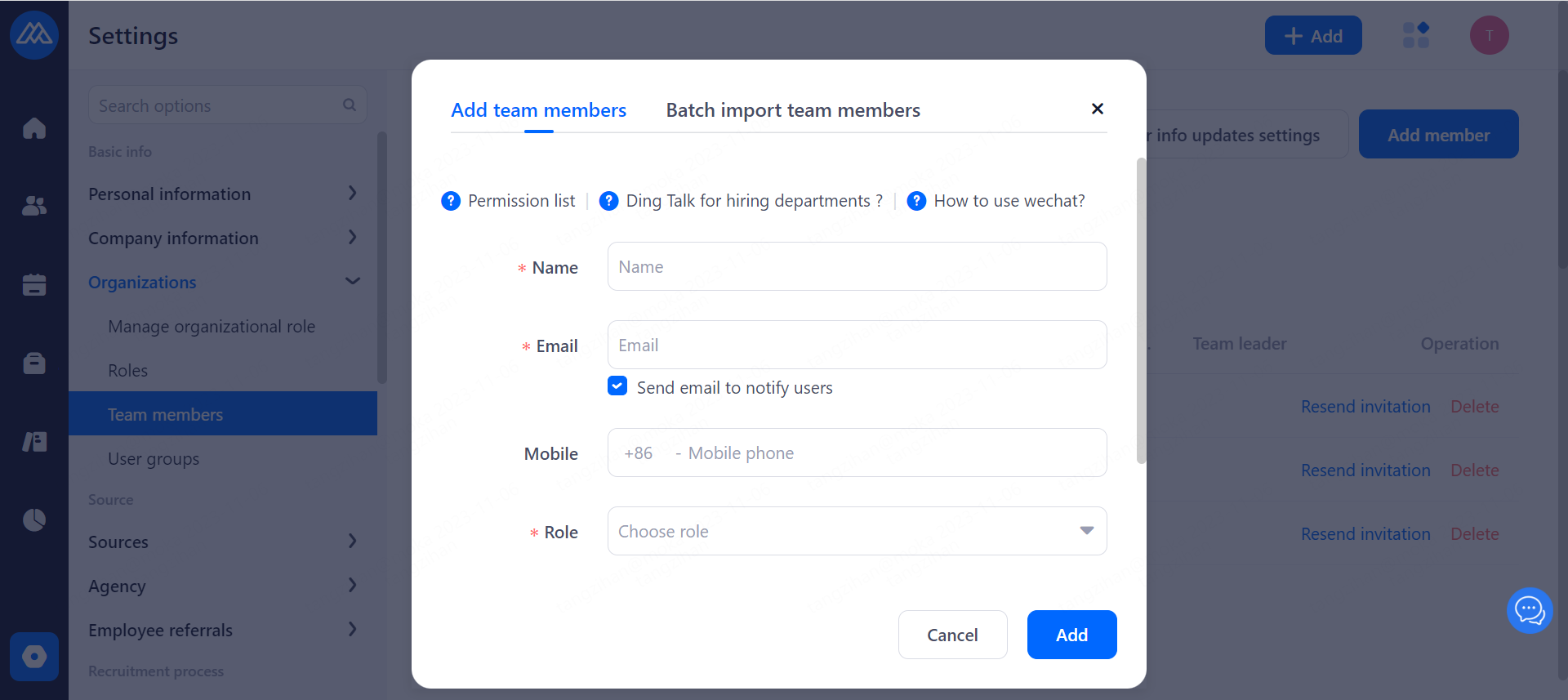
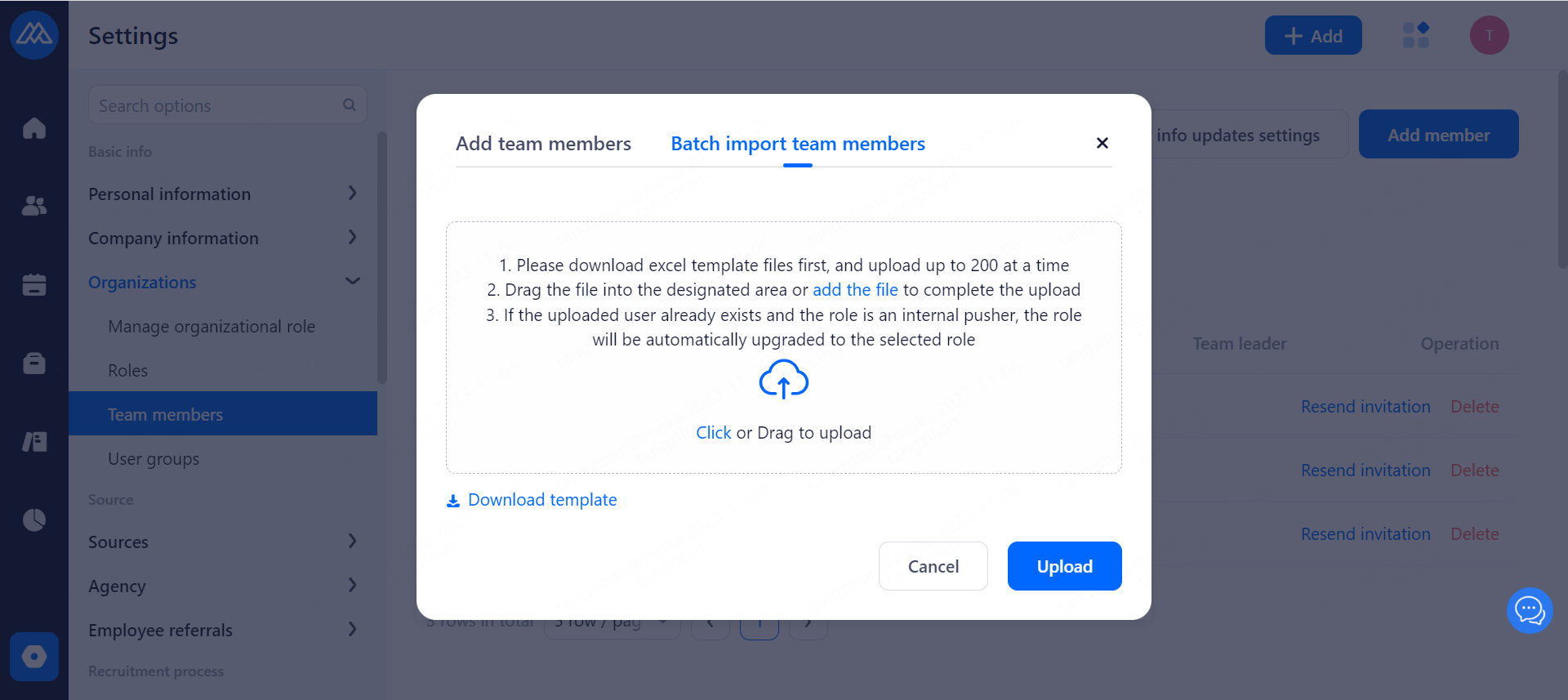
Interviewers can be imported in bulk through supplementing the template downloaded and uploading it. The telephone number of interviewer and hiring manager does not have to be filled in.
Note: Interviewer and hiring manager do not take up the paid account amounts.
Configuration instructions:
Name: required
Email: required
Telephone number: optional
Role: required
Employee number: optional
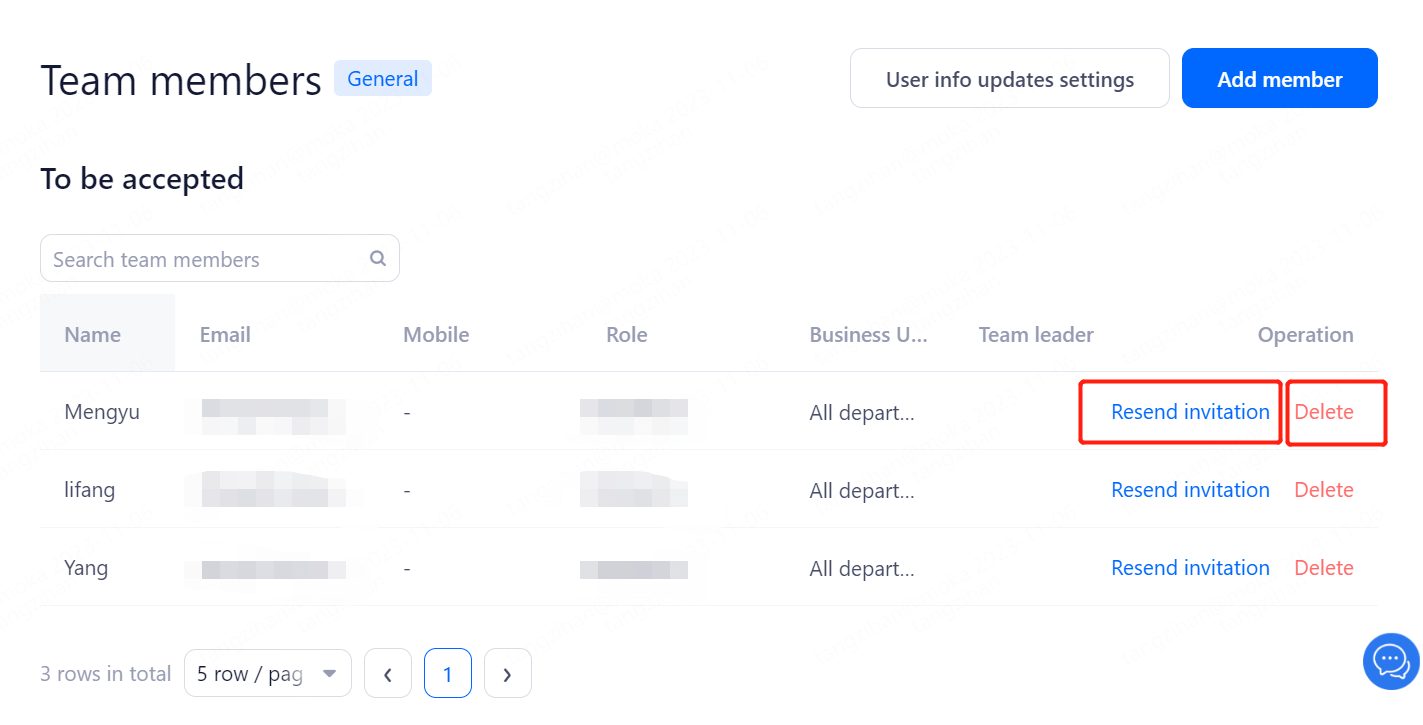
After filling in the form and clicking the button "Add" at the bottom right, the list of members to be invited will be displayed, and you can re-send and delete the invitations you have already sent.
1.2.1.1.Activate account for invited Super Admins, Senior Managers, and HR
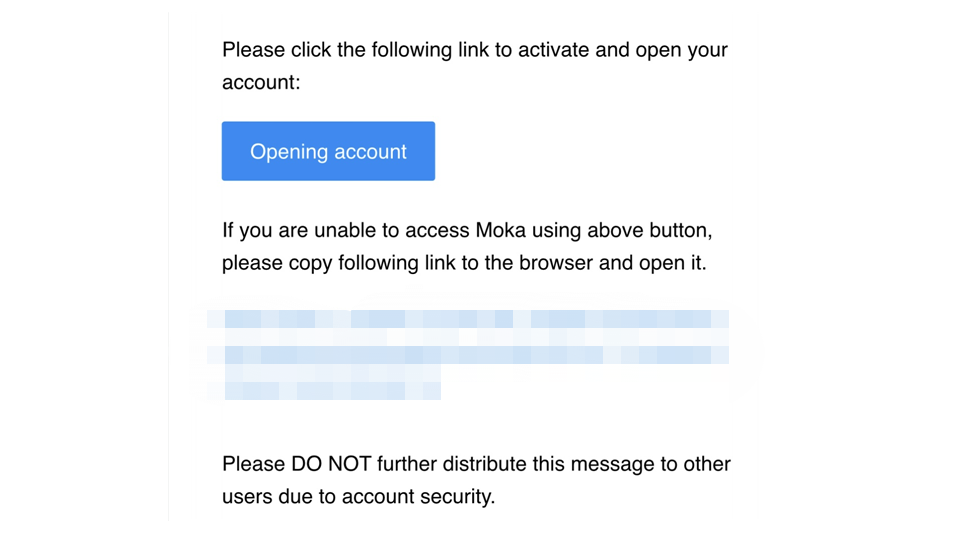
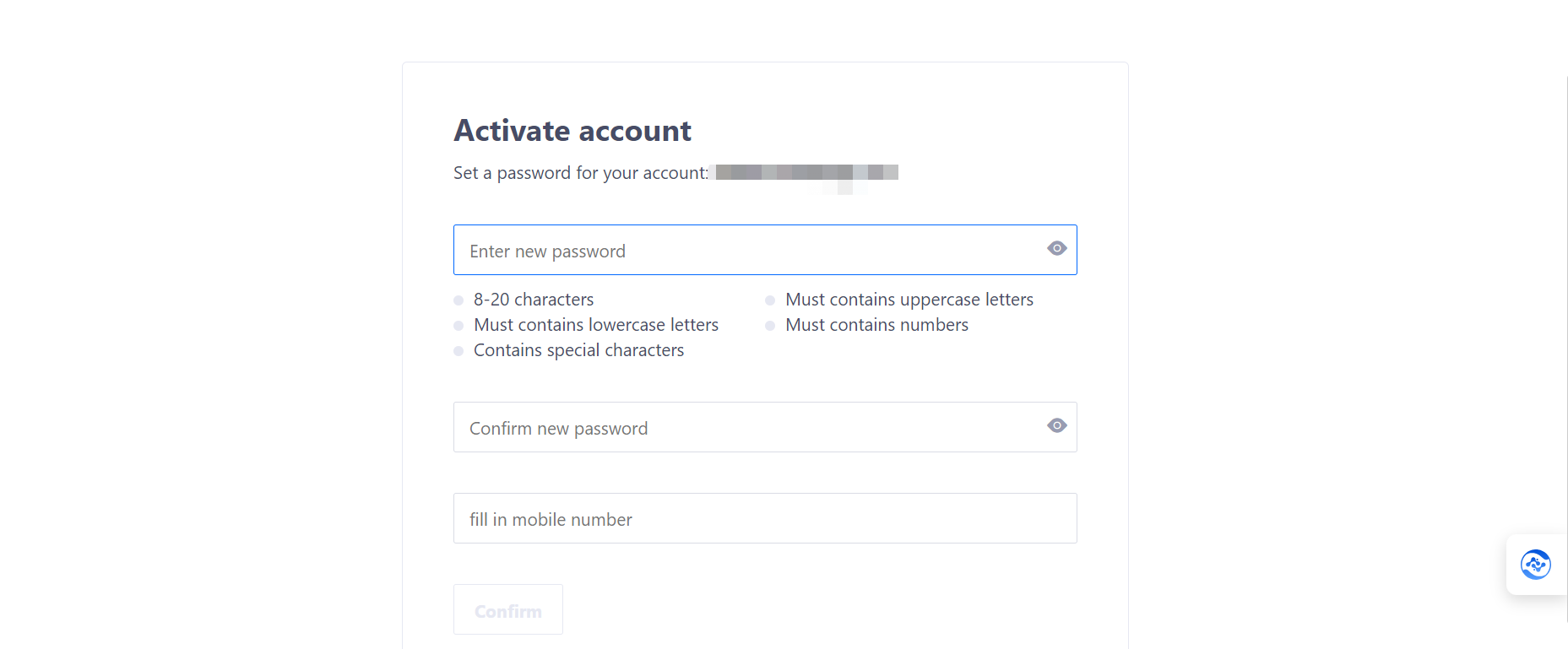
Once the invited members receive the email, click on "Open Account" in the body of the email to activate the account and set the login password.
1.2.1.2.Initial Password for invited hiring manager, interviewer, and receptionist
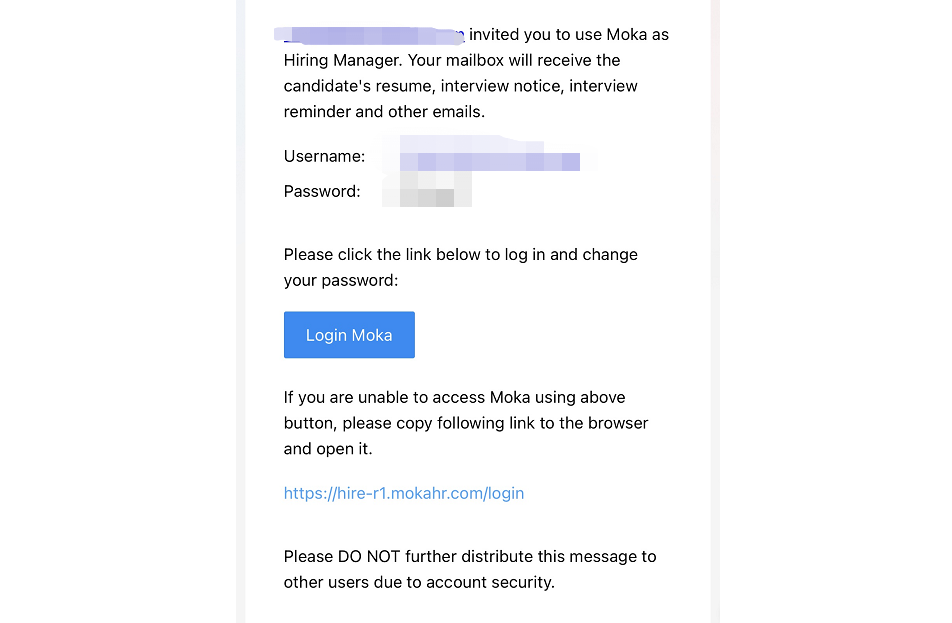
After the invited members receive the email, click the link in the body of the email to reset the initial password.
2.System setup menu
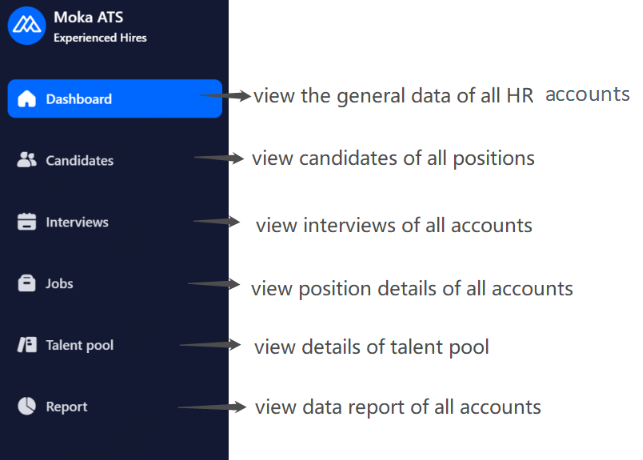
Both super admin and admin can view the menu on the left but the difference is that while the super admin can view all the positions, the admin can only view positions and create data in their own department.
3.Basic information
3.1.Personal Information Management
3.1.1.Personal Settings
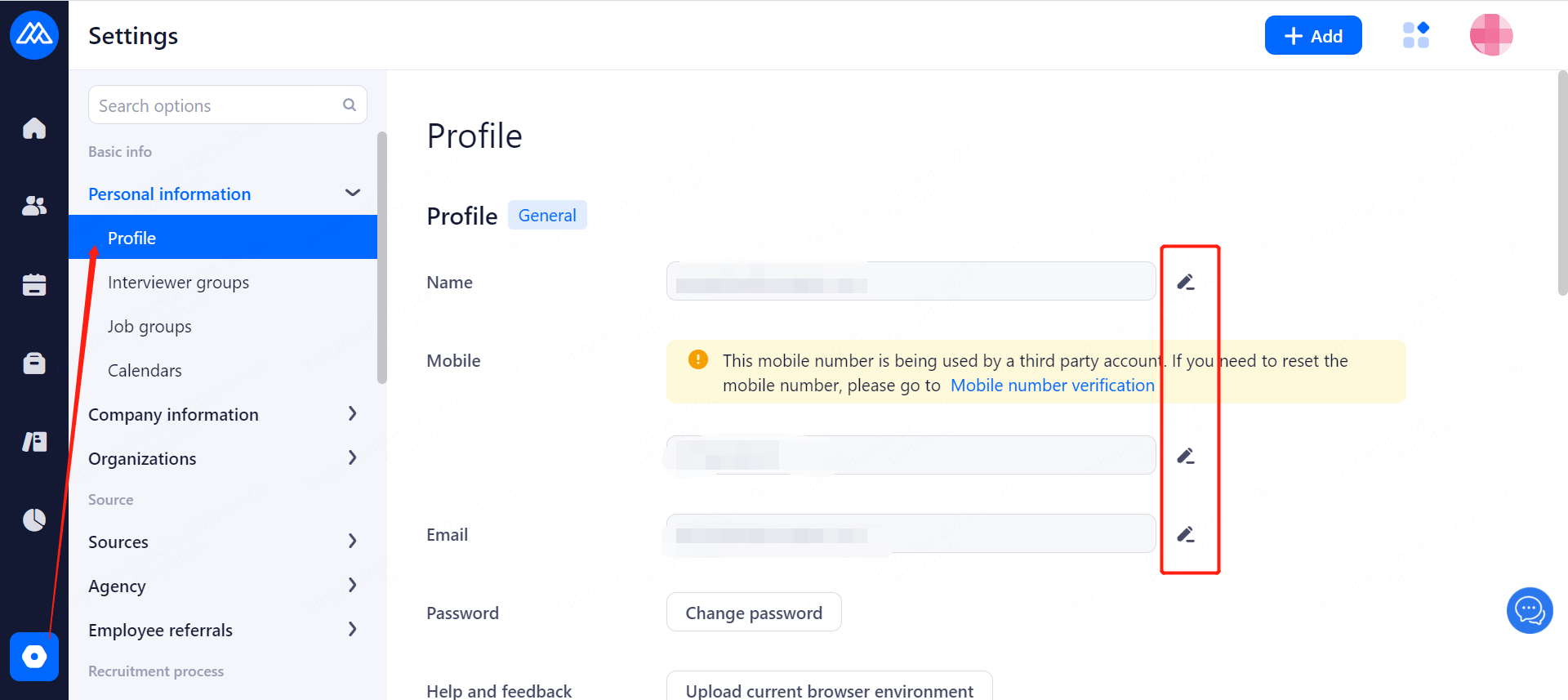
Configuration Notes:
Used for maintenance of personal information, email and password.
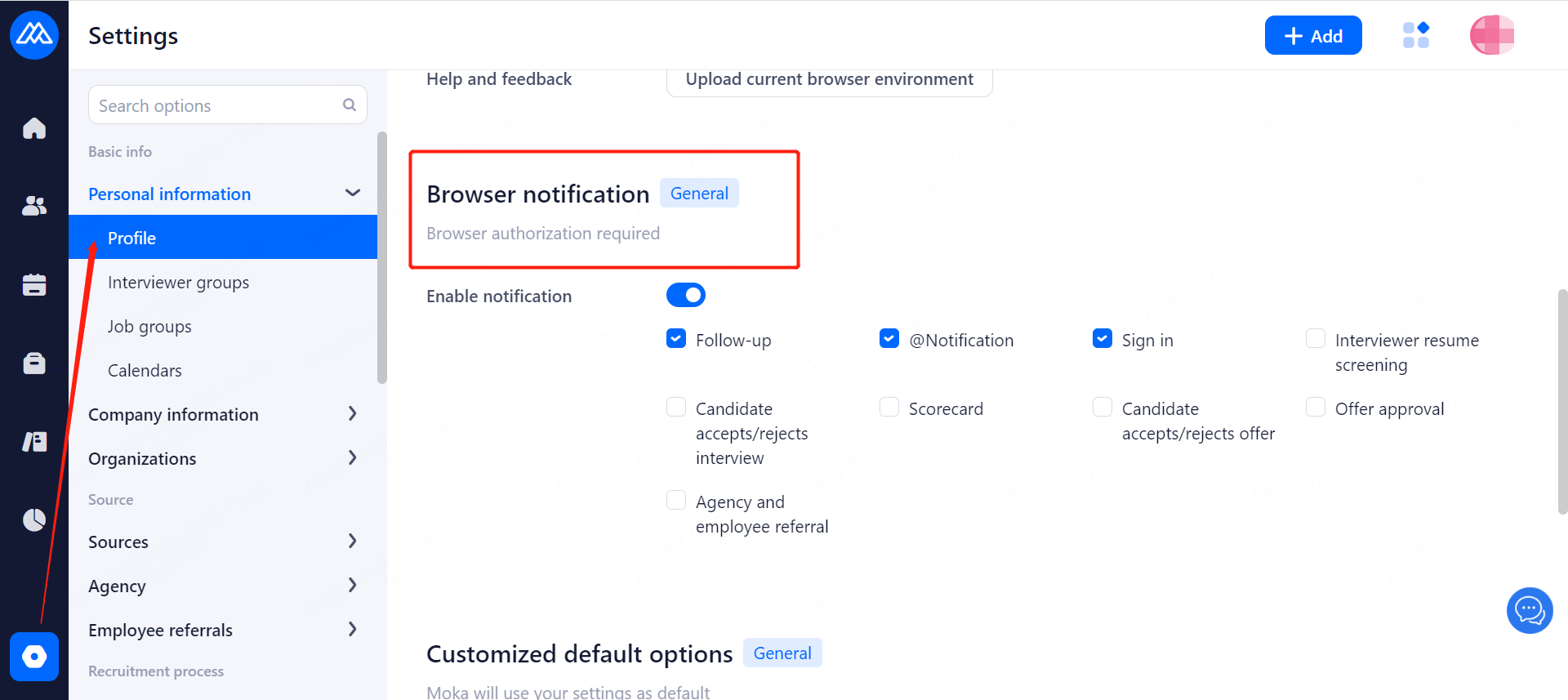
Configuration Notes:
Browser notification: Set the notification reminder on the web page during the whole recruitment process. After the corresponding functions are checked, the notification reminder is triggered and made through the browser you logged in.
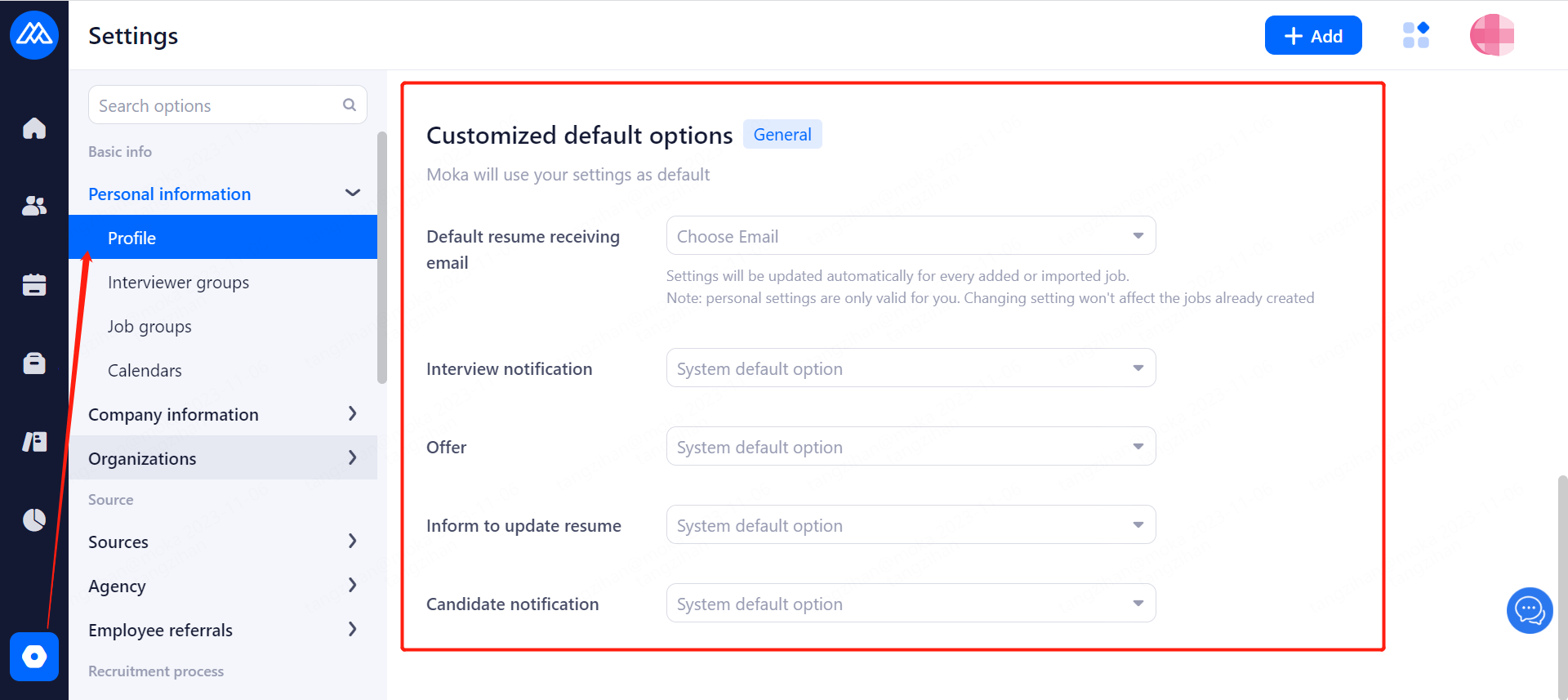
Configuration Notes:
Customized default option: If set, the relevant options in the system will comply to your settings; if not set, the system default options will be preferred, which can largely avoid the repeated input of information in the future.
Default resume receiving email: Company Information Management>Resume Receiving Email
Interview notification template: Recruitment Classifieds>Message Template Management>Interview Notification template
Offer template: Recruitment Classifieds>Message Template Management>Offer Template
Invitation template to update resume: Recruitment Classifieds>Message Template Management>Invitation Template to Update Resume
Candidate notification template: Recruitment Classifieds>Message Template Management>Candidate notification template
3.1.2.Interviewer groups
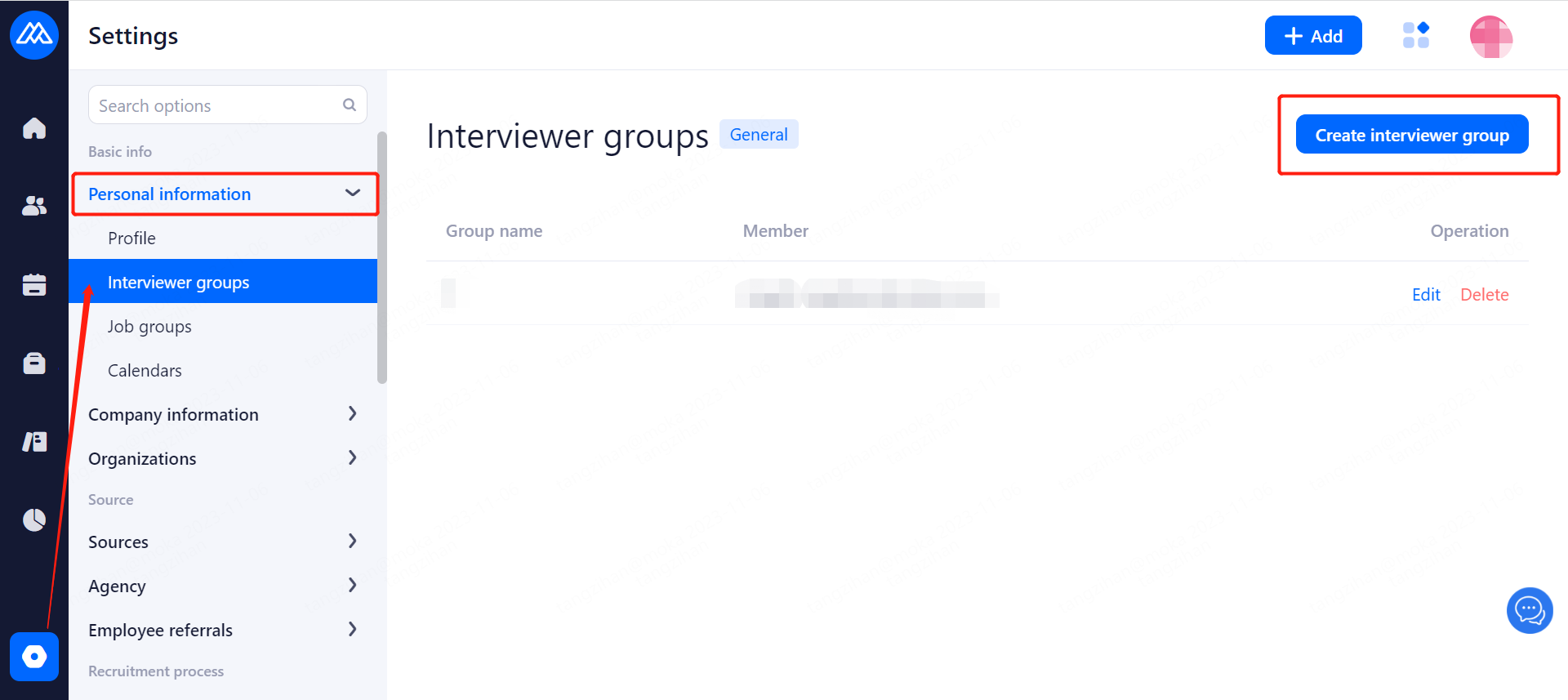
Configuration Notes:
Interviewer groups: Mostly used for scheduling a multi-round interview for a candidate. Interviewers can be set up as a group for better cooperation.
3.1.3.Job groups
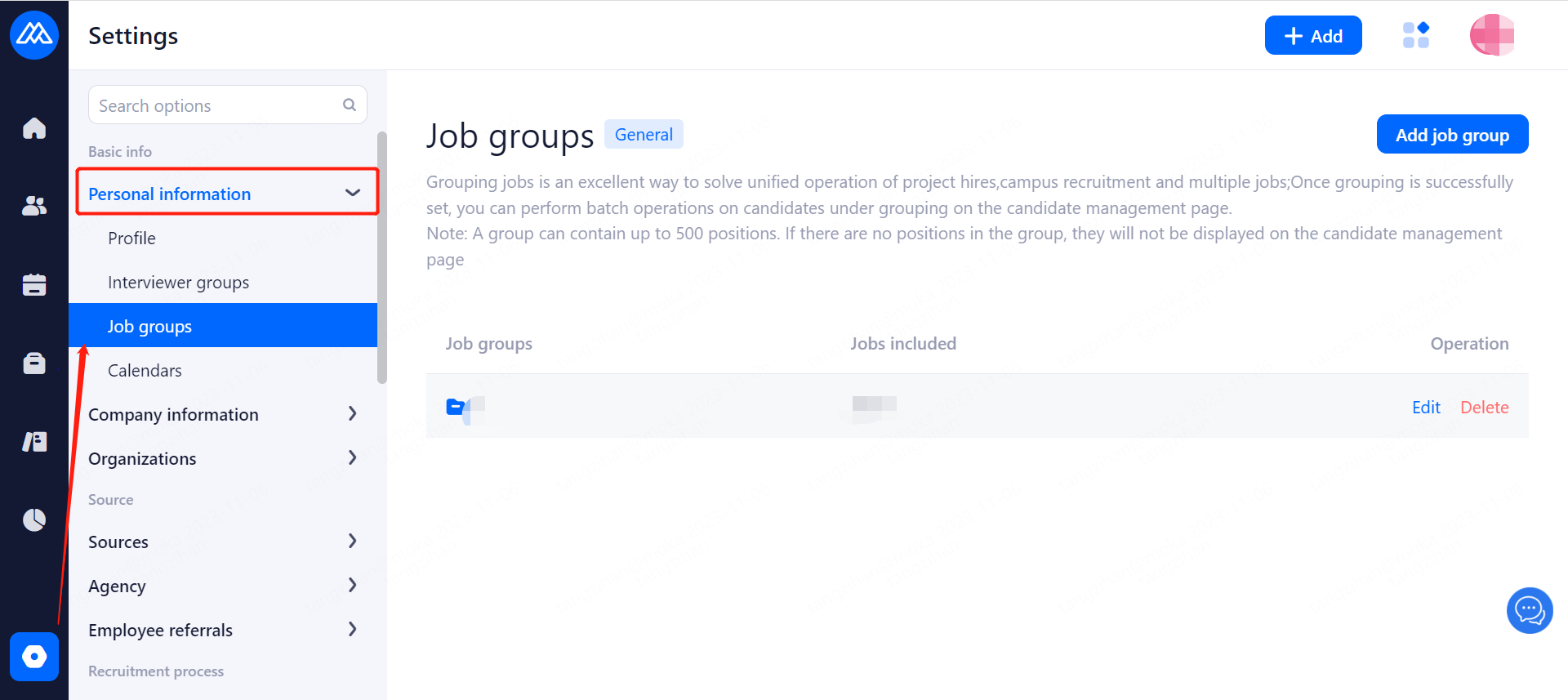
Grouping jobs is an excellent way to solve unified operation of project recruitment, campus recruitment and multiple jobs; Once grouping is successfully set, you can perform batch operations on candidates under grouping on the candidate management page.
Note: A group can contain up to 500 positions. If there are no positions in the group, they will not be displayed on the candidate management page.
3.1.4.Calendar Settings
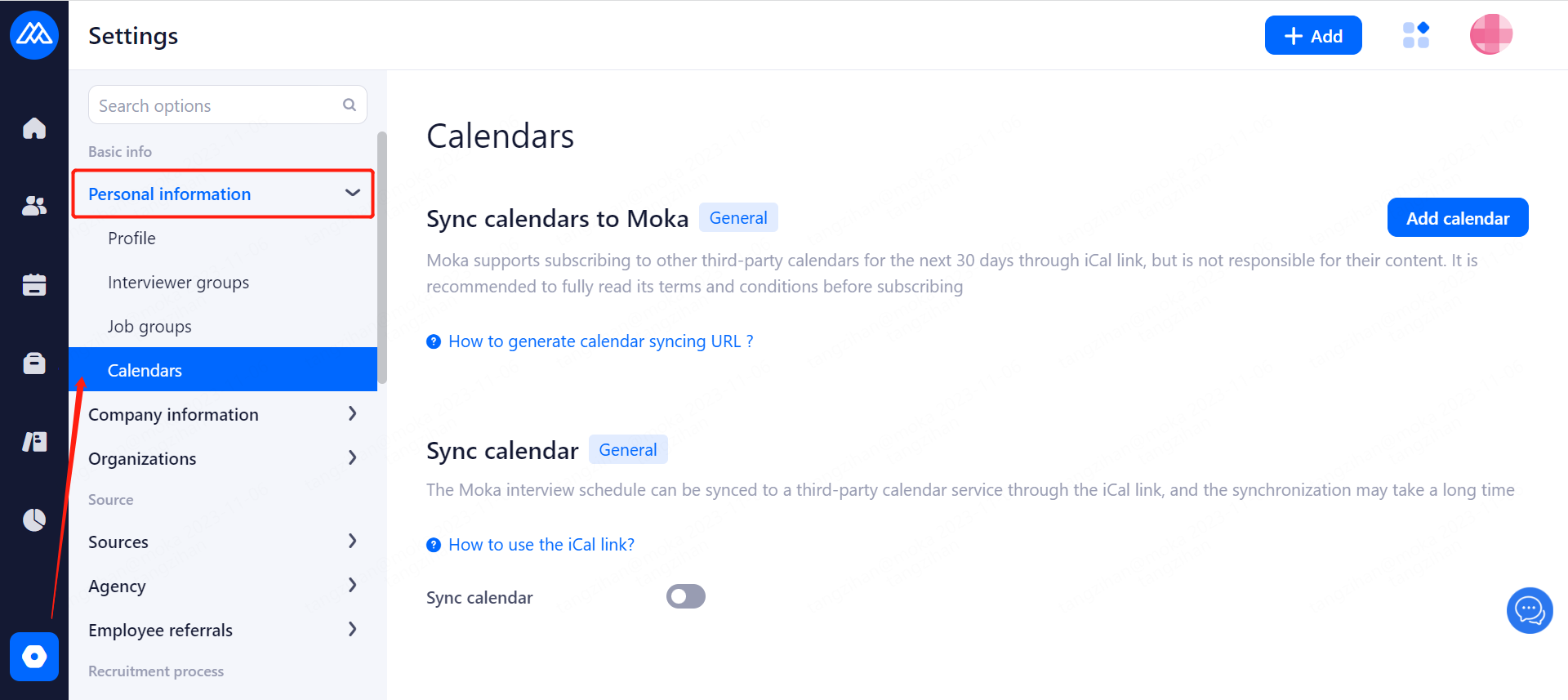
Configuration Notes:
Sync calendars to Moka: Add your personal schedule to the Moka system for consolidation through other schedule management tools via their iCal links to manage your work and life more efficiently.
Sync calendar: Add your personal schedule to other calendar management tools via iCal link from the Moka system to merge them.
3.2.Company Information Management
Moka Recruitment System supports unified management of company-related information, brand, address, email and other related content to ensure the unity of the company's external release of information.
3.2.1.Company Info
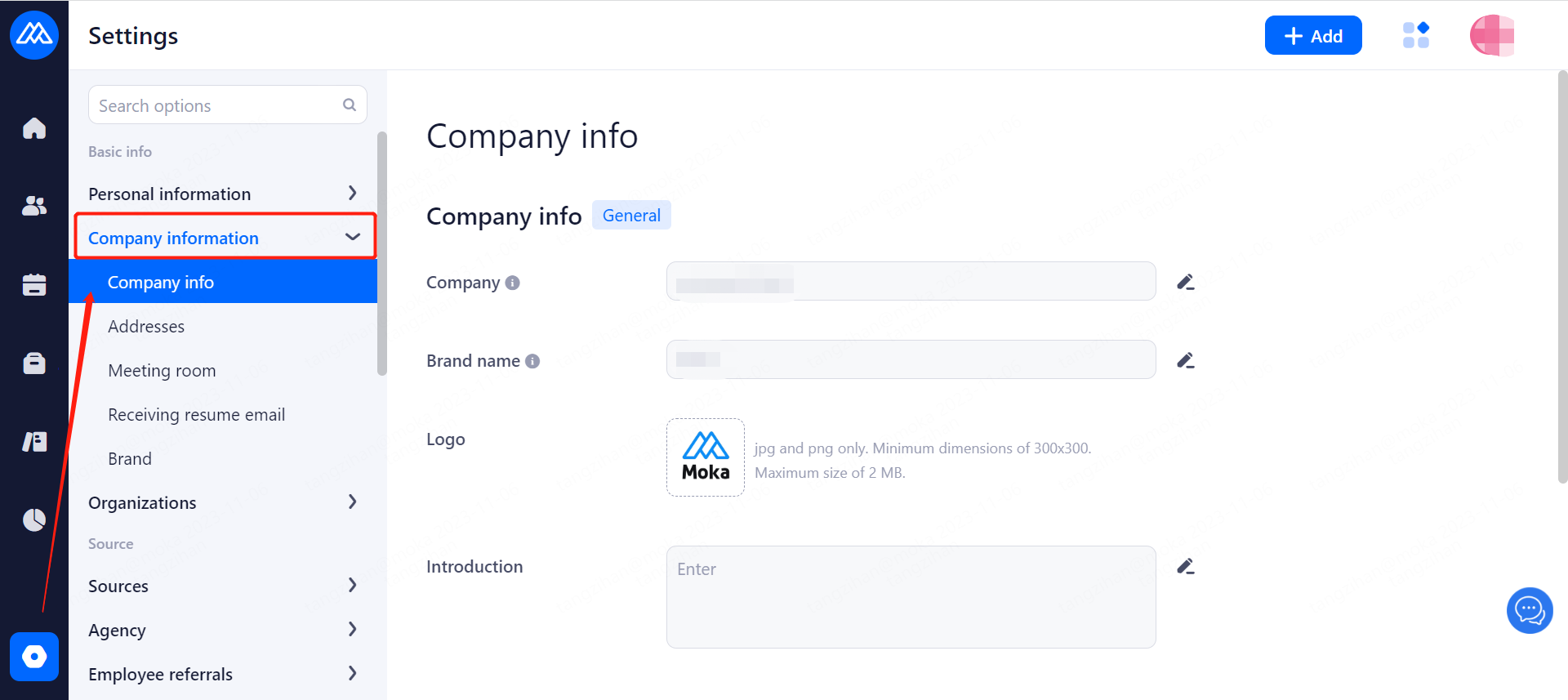
Maintain information such as company name, logo, profile, etc. Meanwhile, the company's account usage, number of remaining SMS messages and Moka video interviews allowed are also displayed in this interface.
3.2.2.Company Address
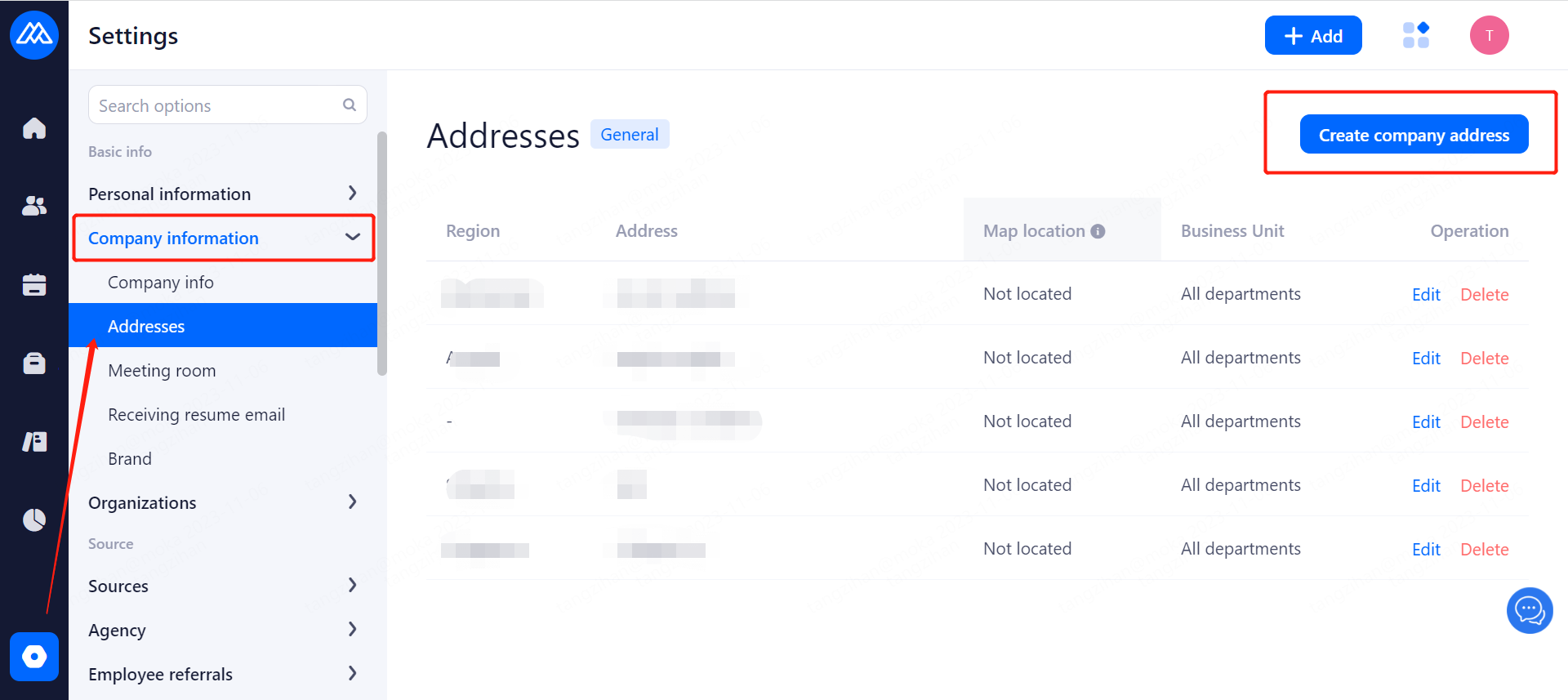
The information maintained here including address and map location will appear at the bottom of the email when the interview notification/offer email is sent.
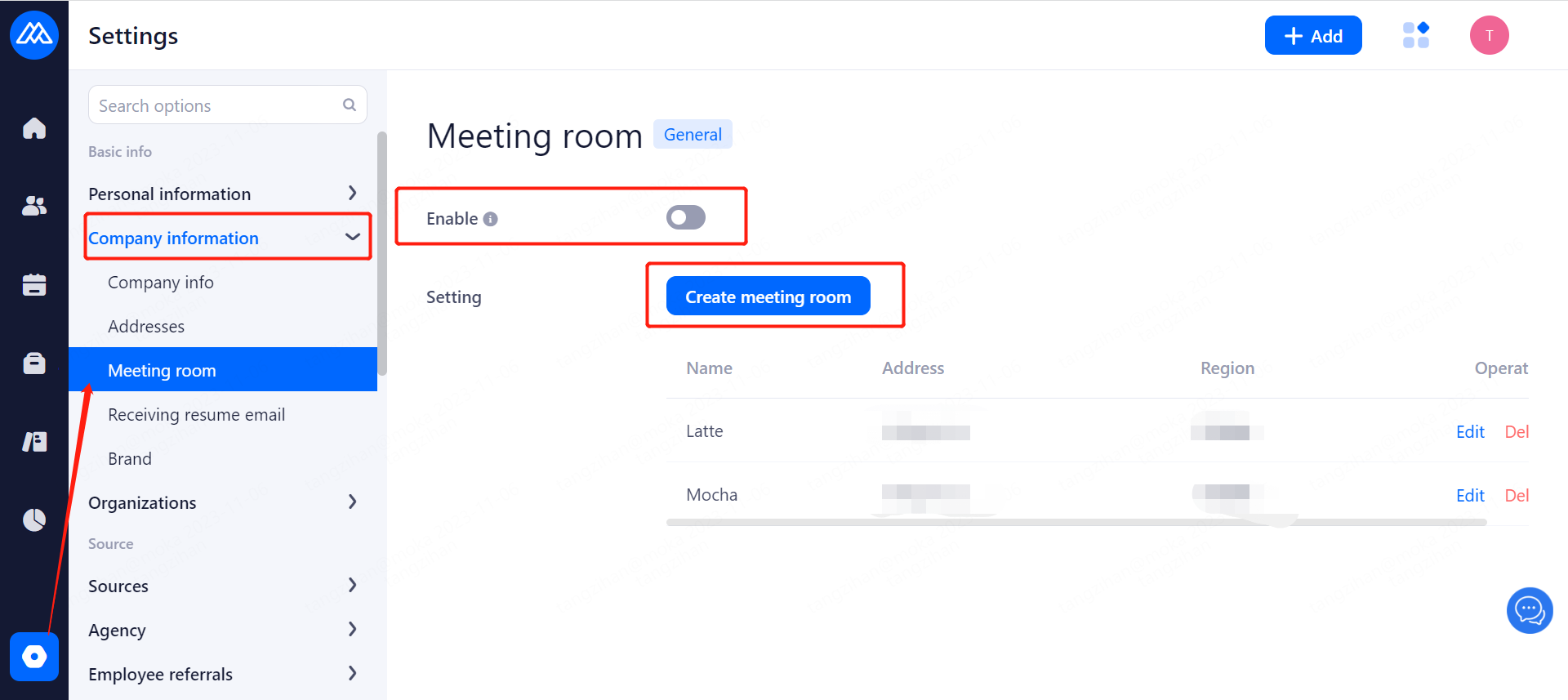
3.2.3.Meeting Room
A switch can be used to control whether or not a selected meeting room is used, and multiple meeting rooms can be added to the same address. With the switch turned on, the conference room can be selected when scheduling an on-site interview.
3.2.4.Receiving resume email
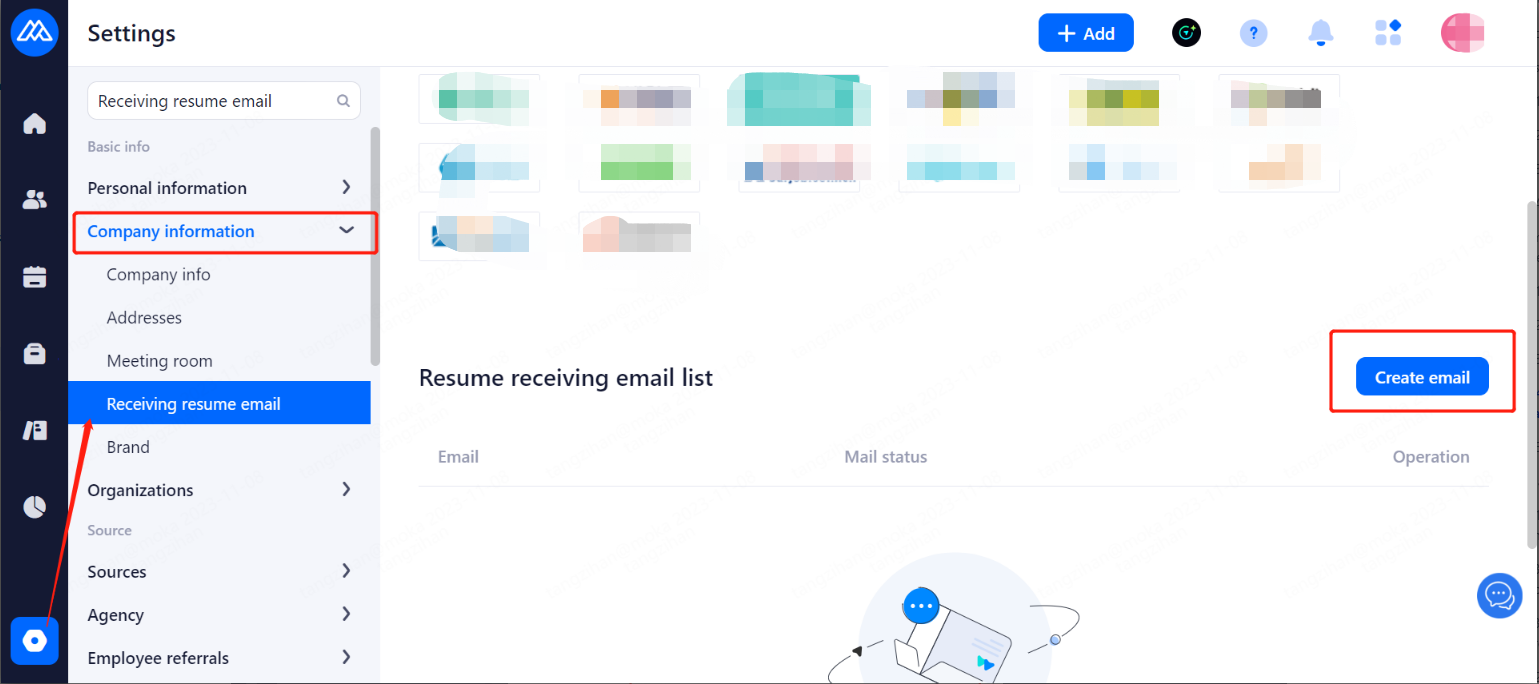
Configuration Notes:
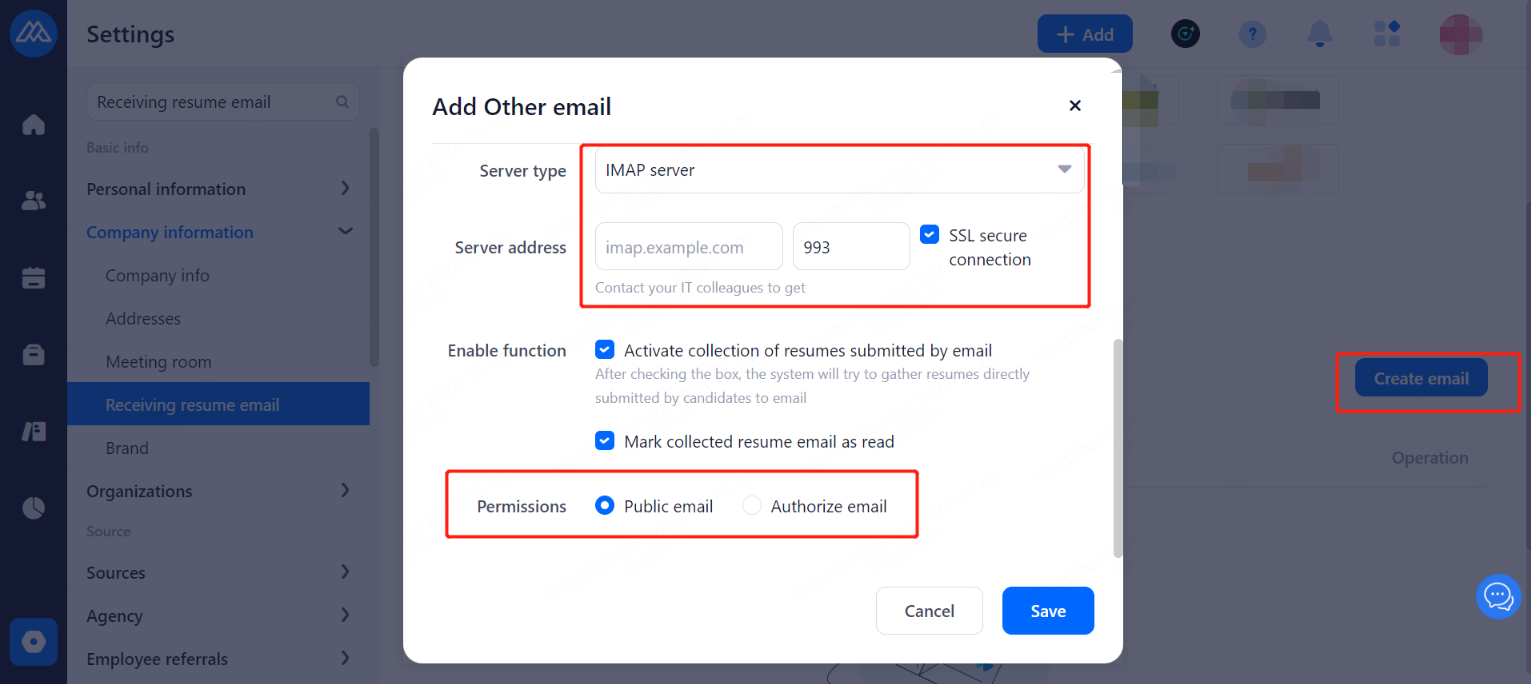
Used for receiving subsequent delivery of resumes from recruitment channels. When adding mailboxes, you need to choose the type of mailbox permission:
Public email: Everyone can see the resumes to be assigned from this mailbox.
Authorize email: Only authorized users can see the resumes to be assigned from this mailbox.
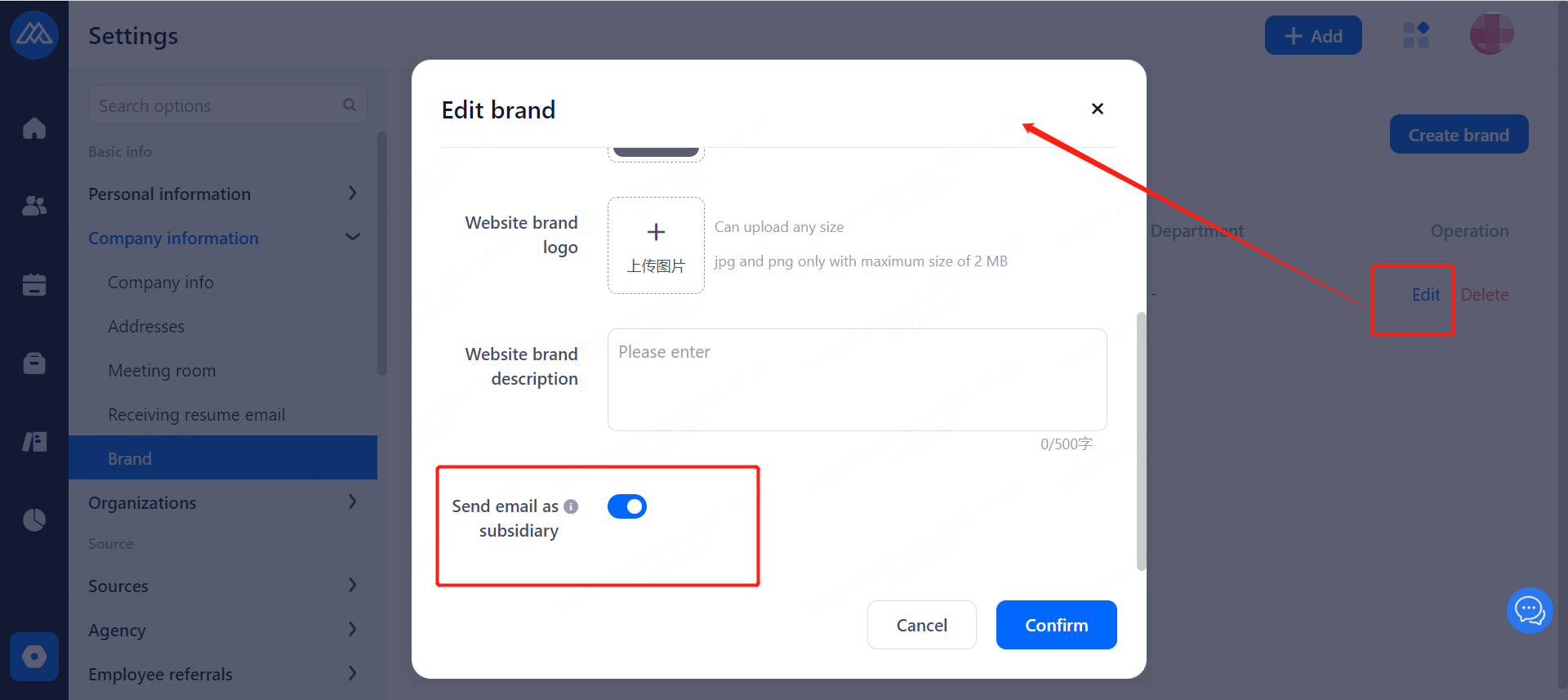
3.2.5.Brand
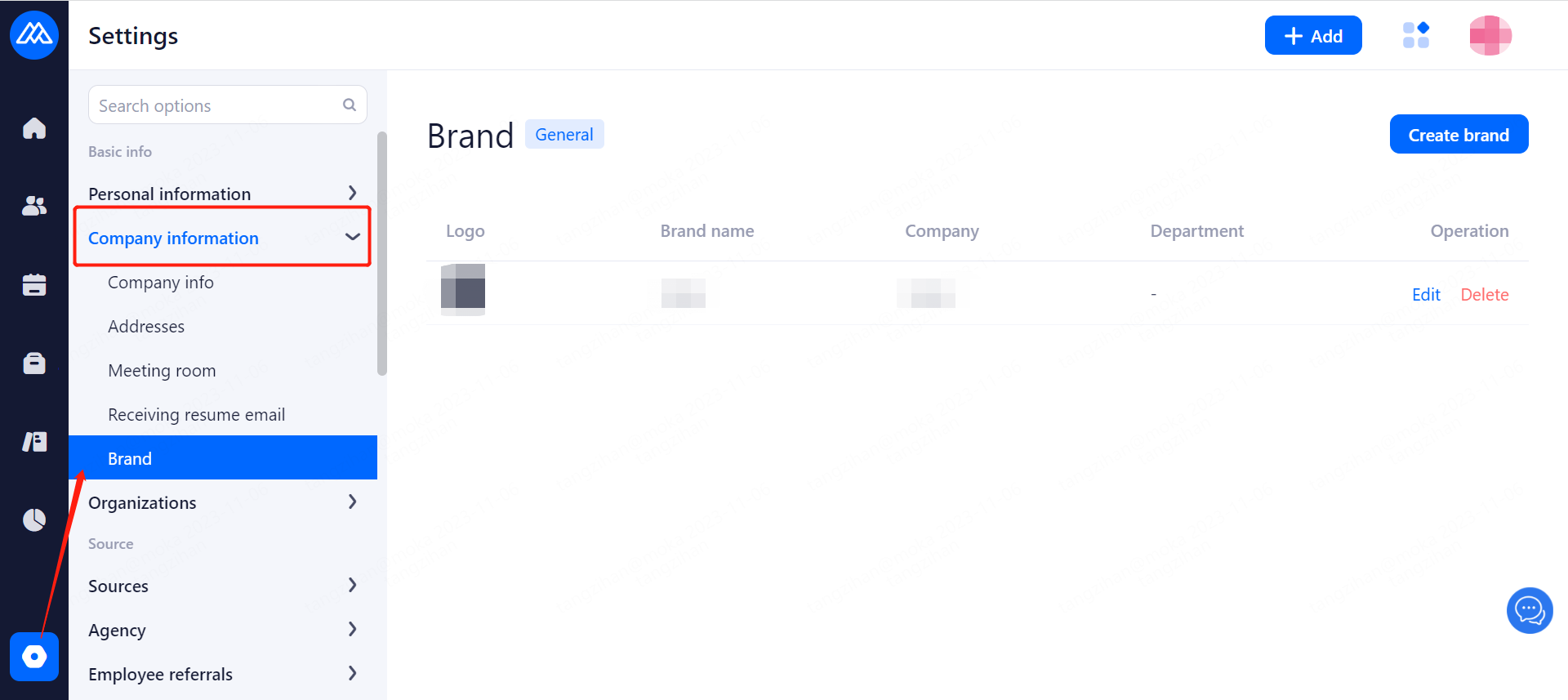
This function is designed for companies with multiple sub-brands, where you can standardize the management of your own brands.
Send email as subsidiary: With it set, subsidiary brand will be shown in the email in the title, sender and content of the email.
3.3.Organization Management
Organizational structure is a reflection of hierarchical structure of enterprise management along with essential dimensions including job affiliation, team members, authority control, etc.
3.3.1.Organizational Position Management
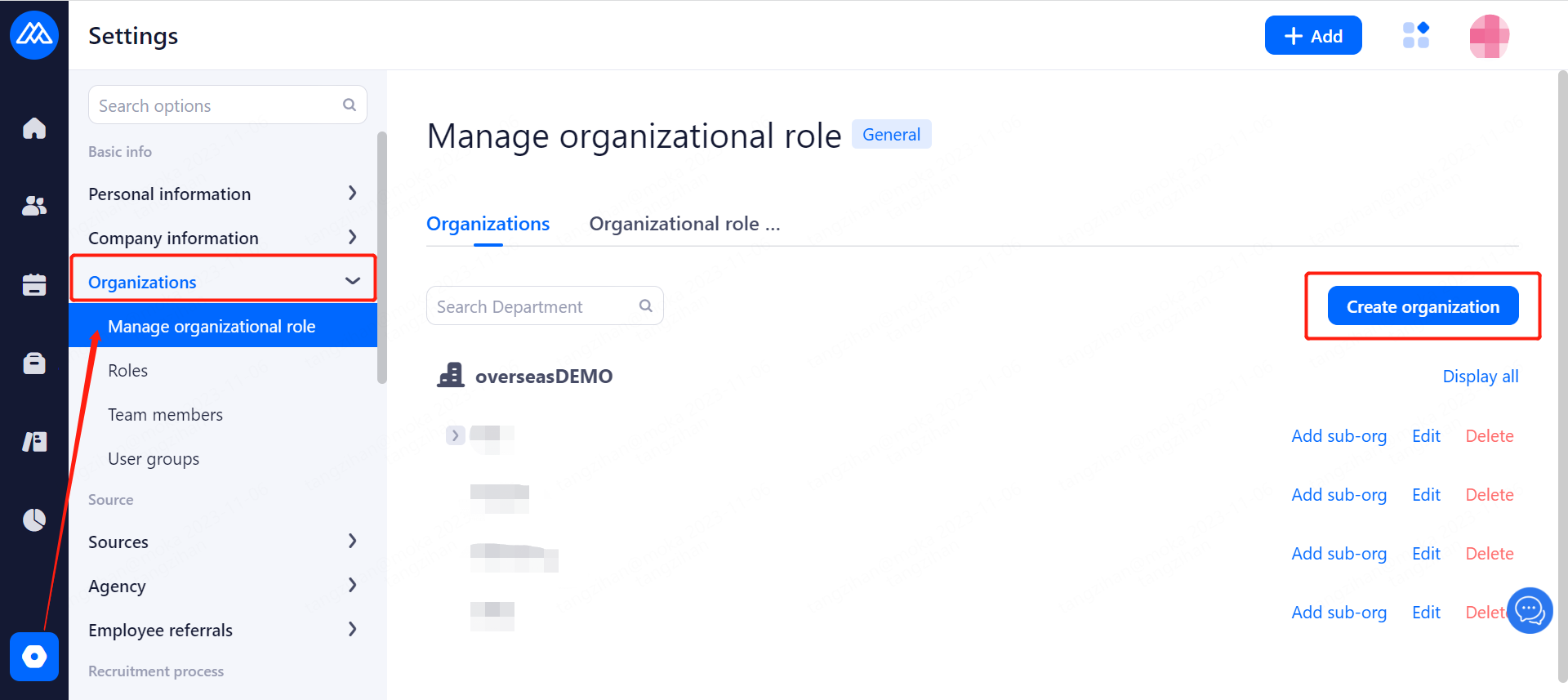
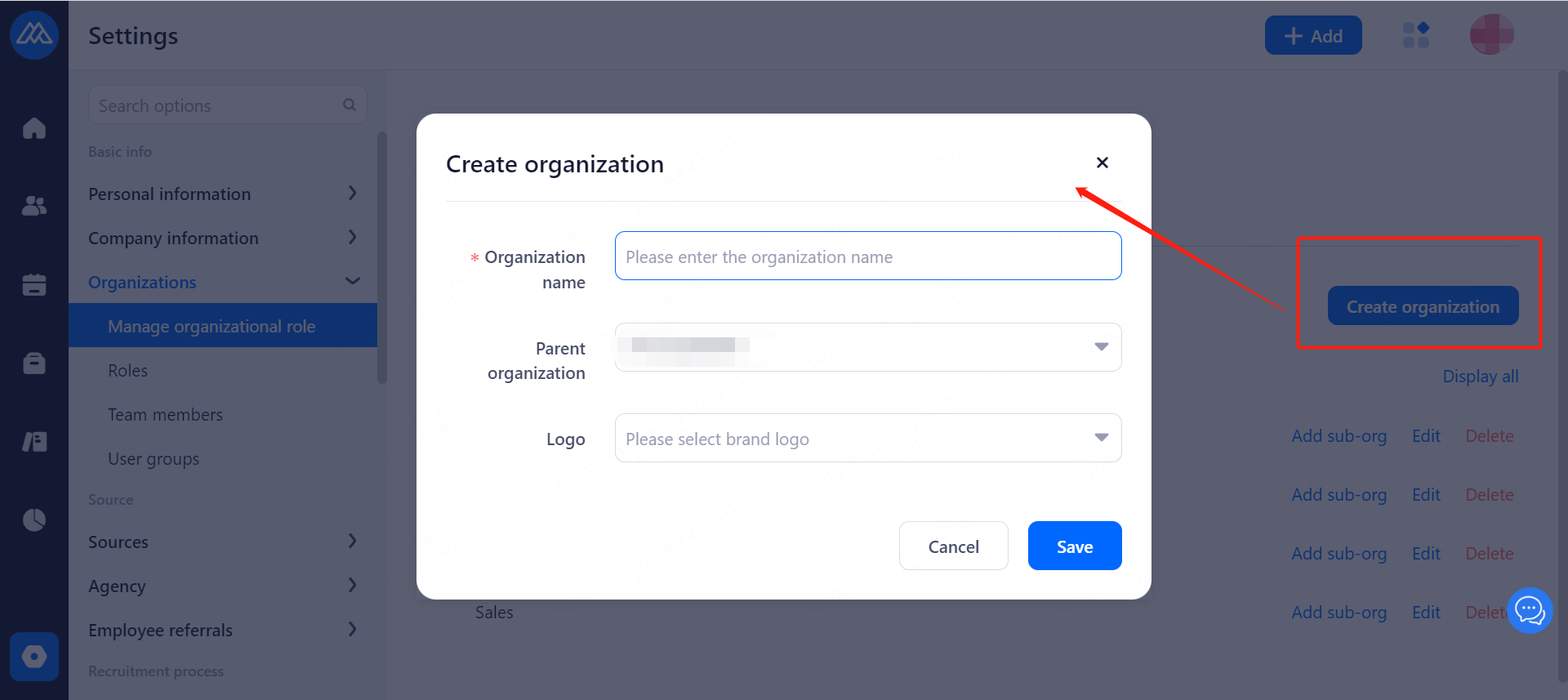
3.3.1.1.Manage organizational role
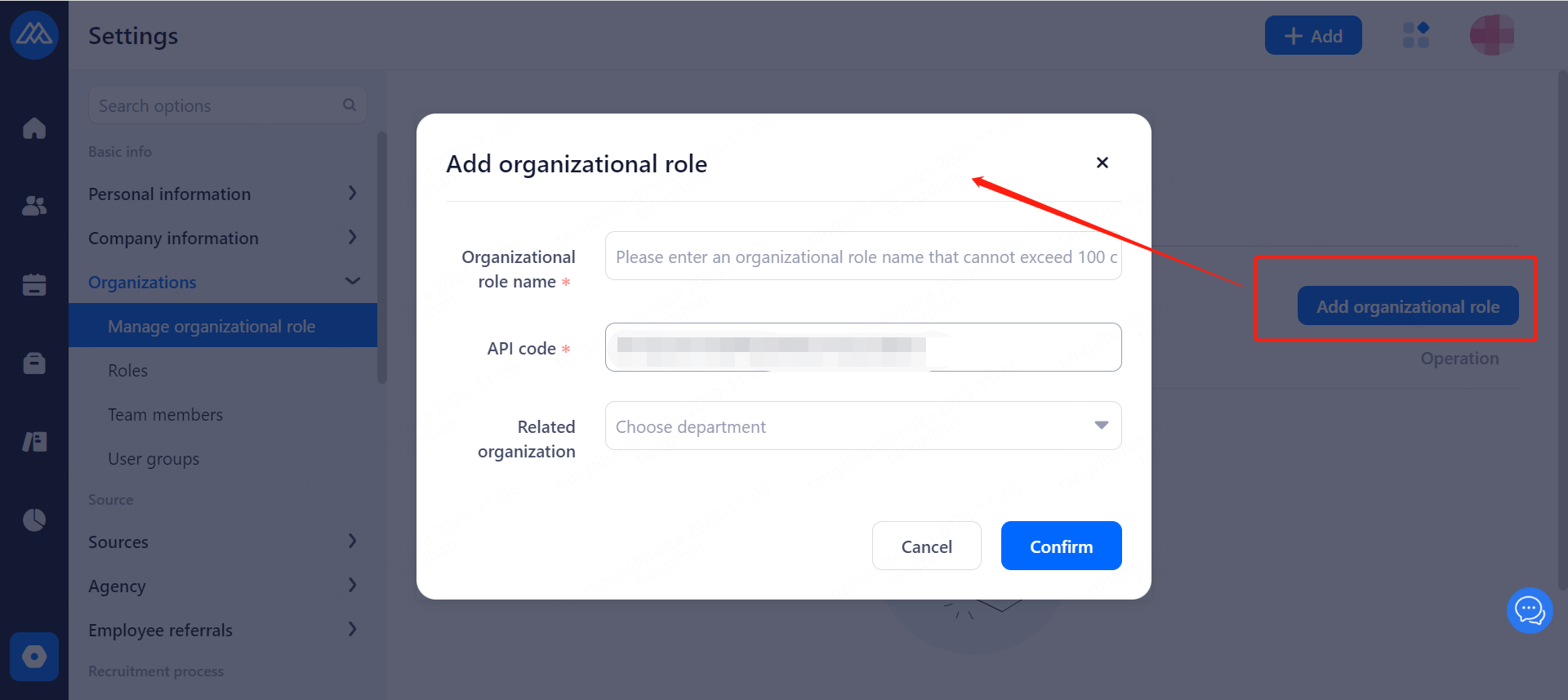
The organization can be added and specified providing the organization's nature, name, superior and other information.
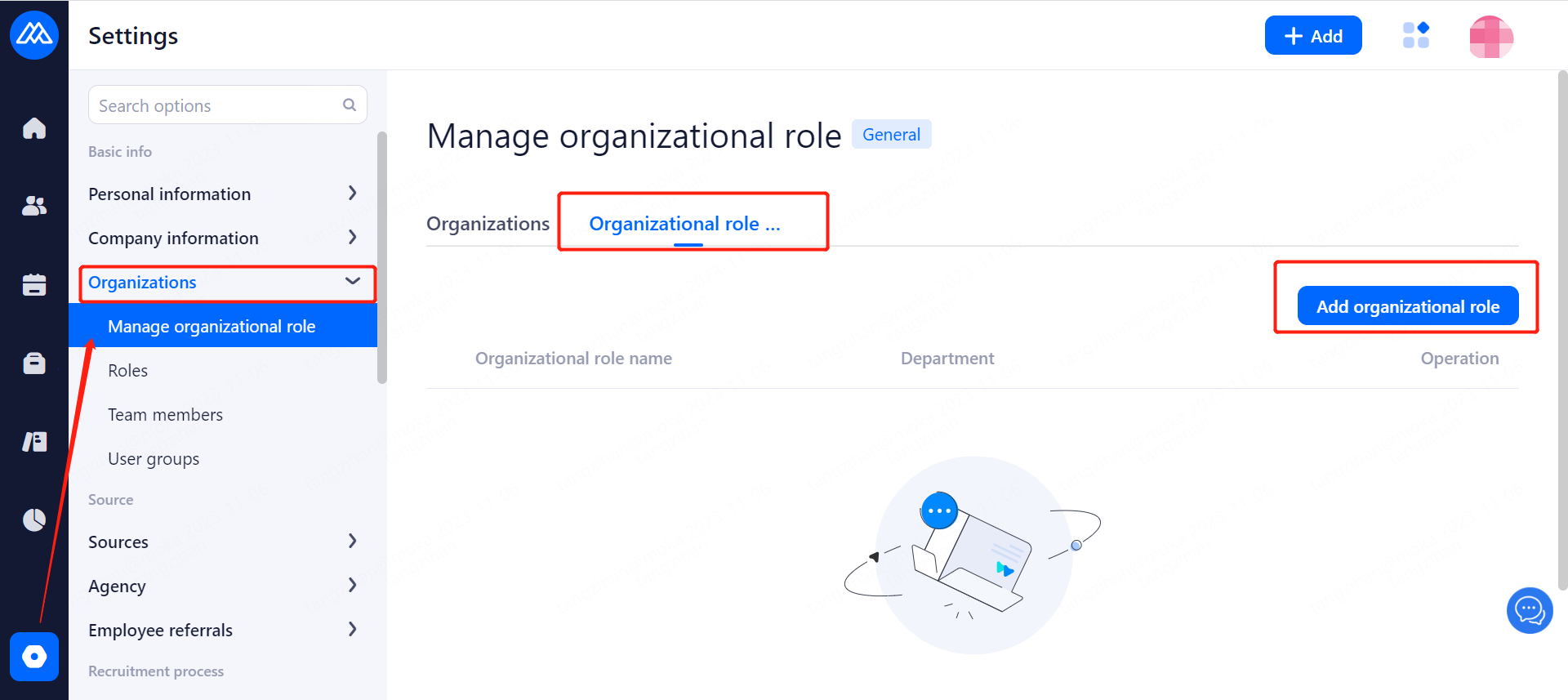
3.3.1.2.Organizational role manage
Organiazation role manageris used for HR to differentiate personnel in various departments or branches by position, add new position types and associate them to the corresponding departments.
3.3.2.Roles
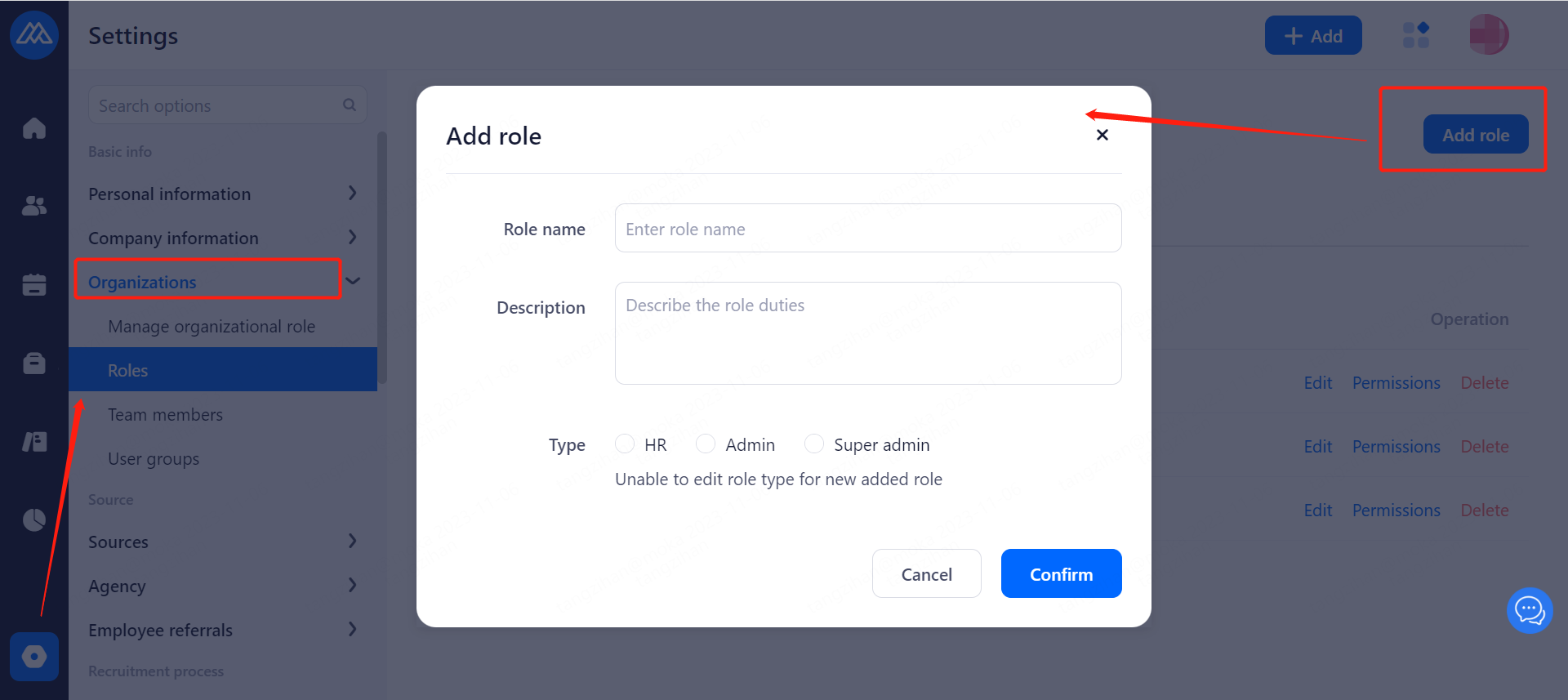
The system has built-in roles, and also supports users to customize roles and limits authority to operate according to actual needs.
3.3.2.1.System role
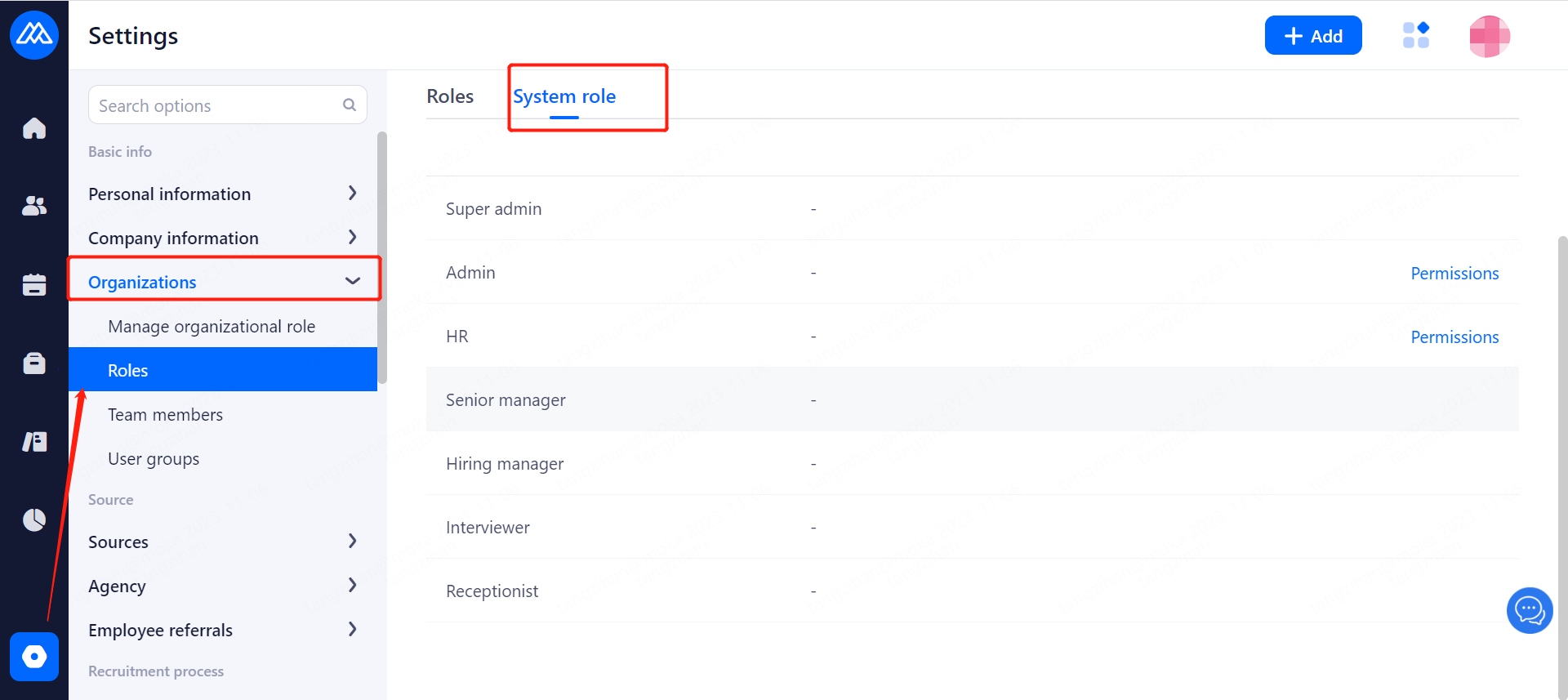
Super admin: You have the highest authority to manage team members and view all candidate information. (usually the director of HR)
Admin: You can view the positions and the relevant candidates within the authorized department and can manage the team members as well. (usually the HR director of the branch or division)
Senior manager: You can add candidates, view resumes, screen resumes, recommend resumes, arrange interviews, fill out and view interview evaluation.
Hiring manager: You can add candidates, screen resumes, approve offers, fill out the interview feedback and view all the interview feedback, data reports and talent pools. (generally the head of hiring department)
Interviewer: You can add candidates, screen resumes, fill out the interview feedback, approve offer and view all the interview feedback, data reports, talent pools. (usually the supervisor of hiring department)
3.2.2.2.Customized role
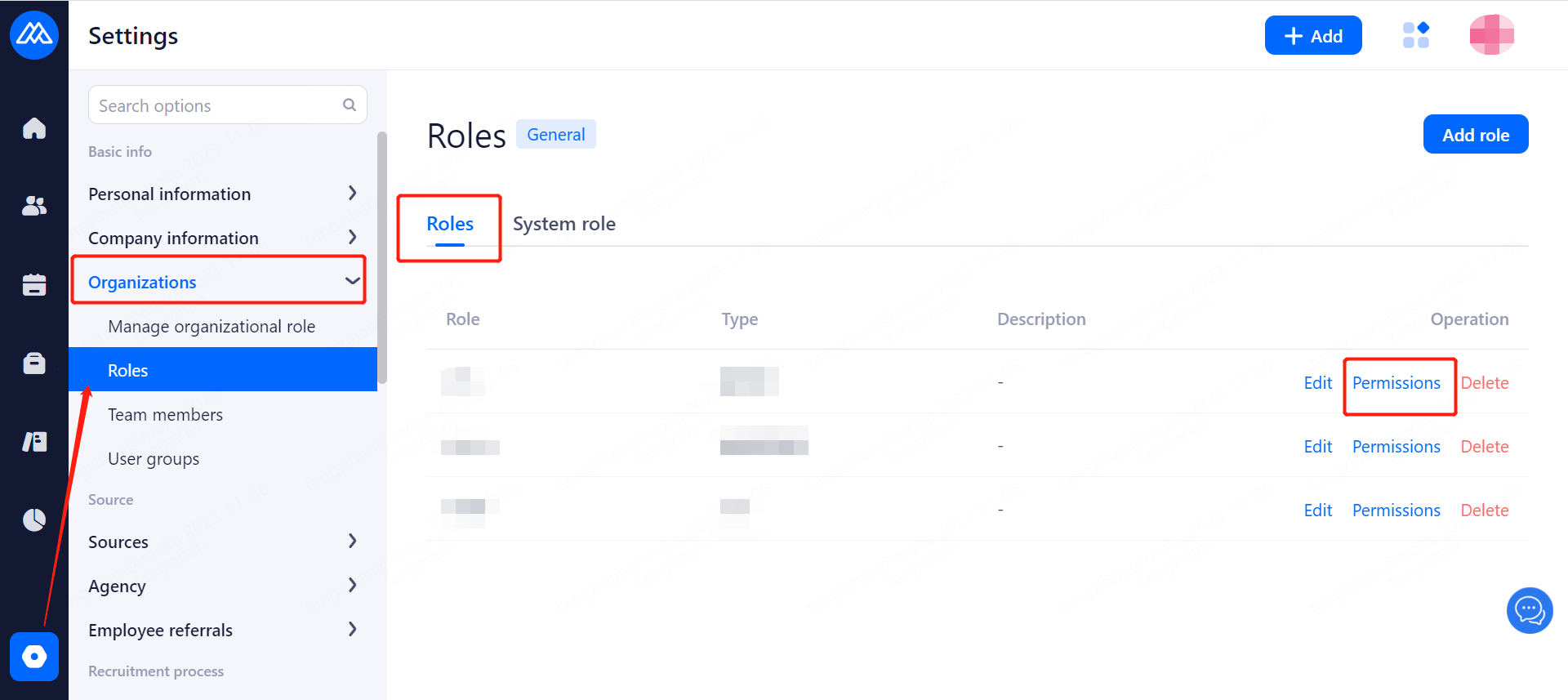
3.2.2.3.Set and modify permission
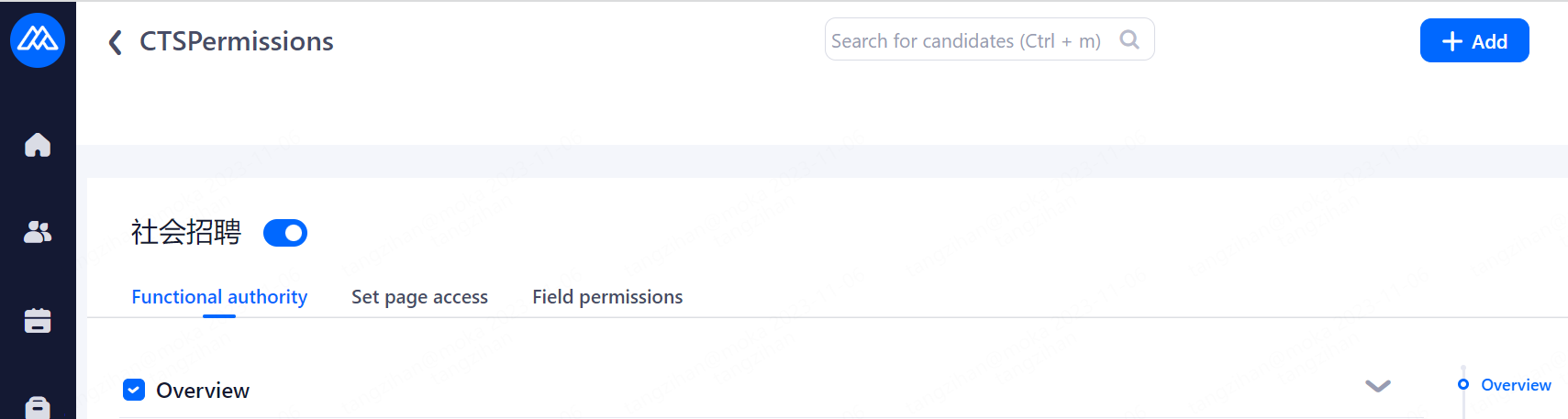
3.3.3.Team members
Configuration Notes:
Add team member addition and activate account. Go to 1.2.Register and activate Moka team account for details.
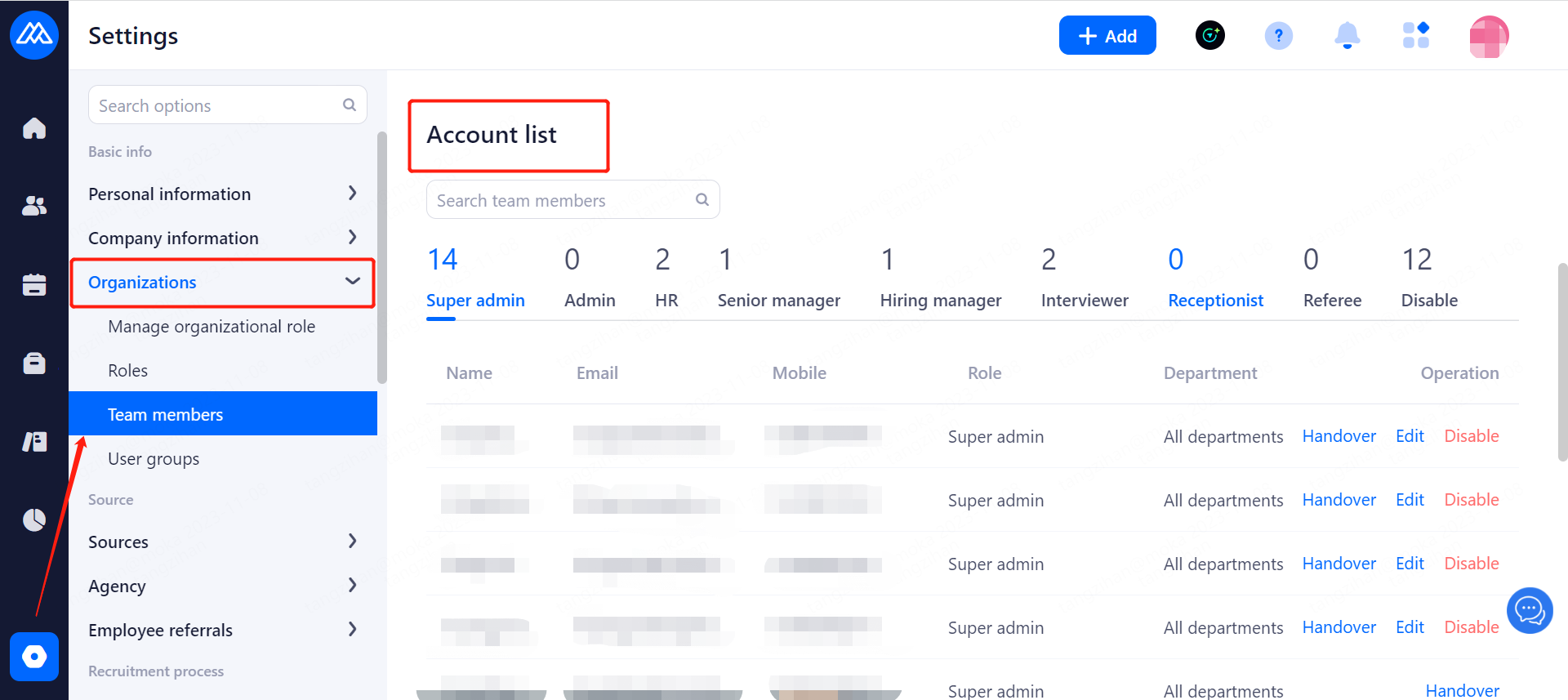
Account viewing and management: You can view information and manage accounts for various roles within the company.
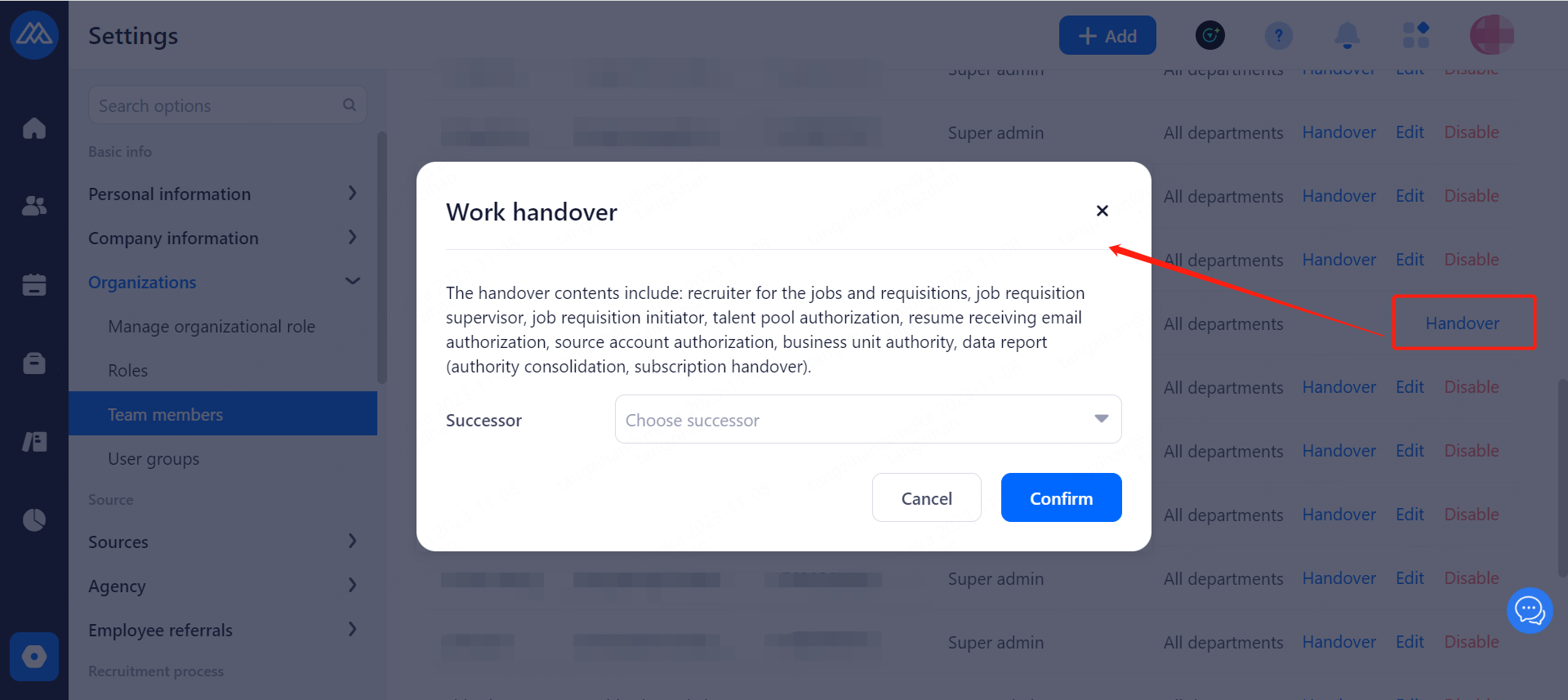
Work handover: Users can quickly change their privileges.
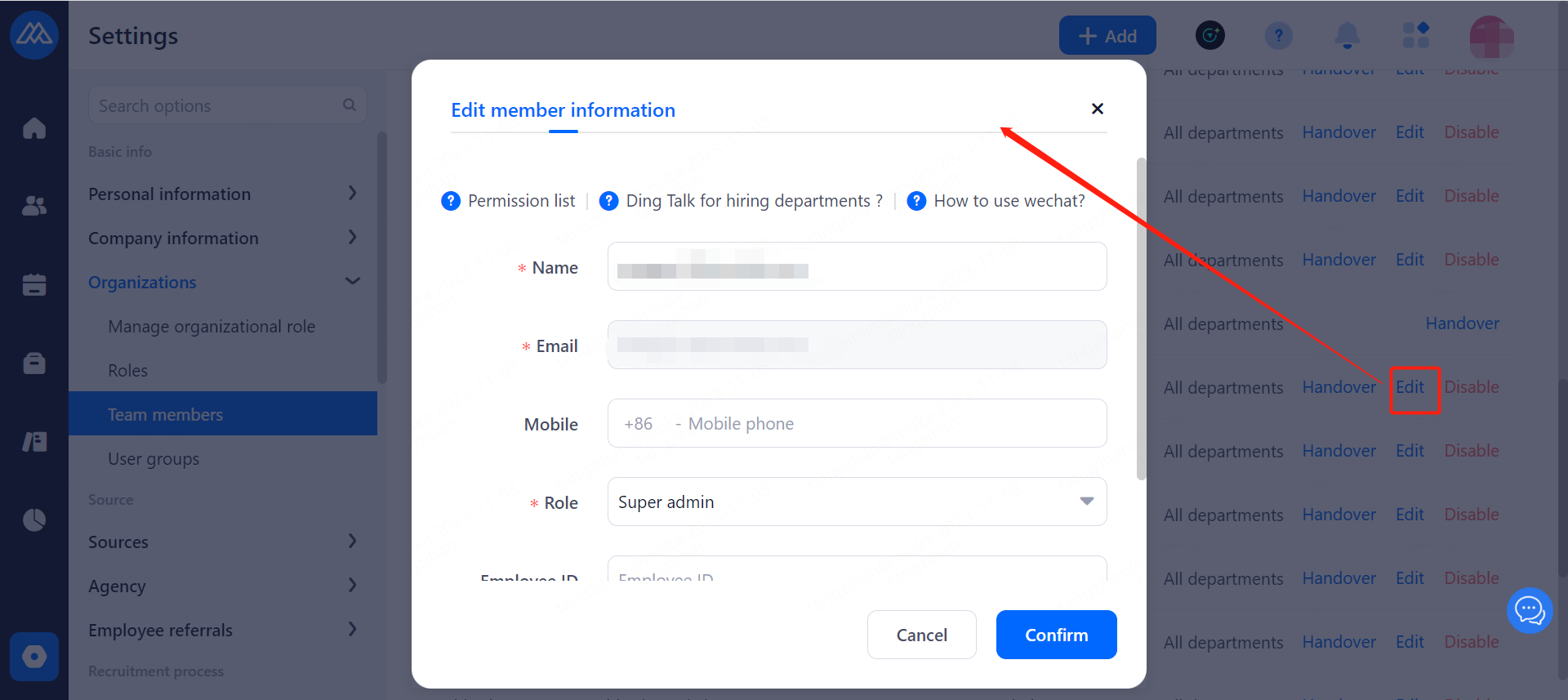
Permission modification: All information can be modified except email.
4.Source
4.1.Sources
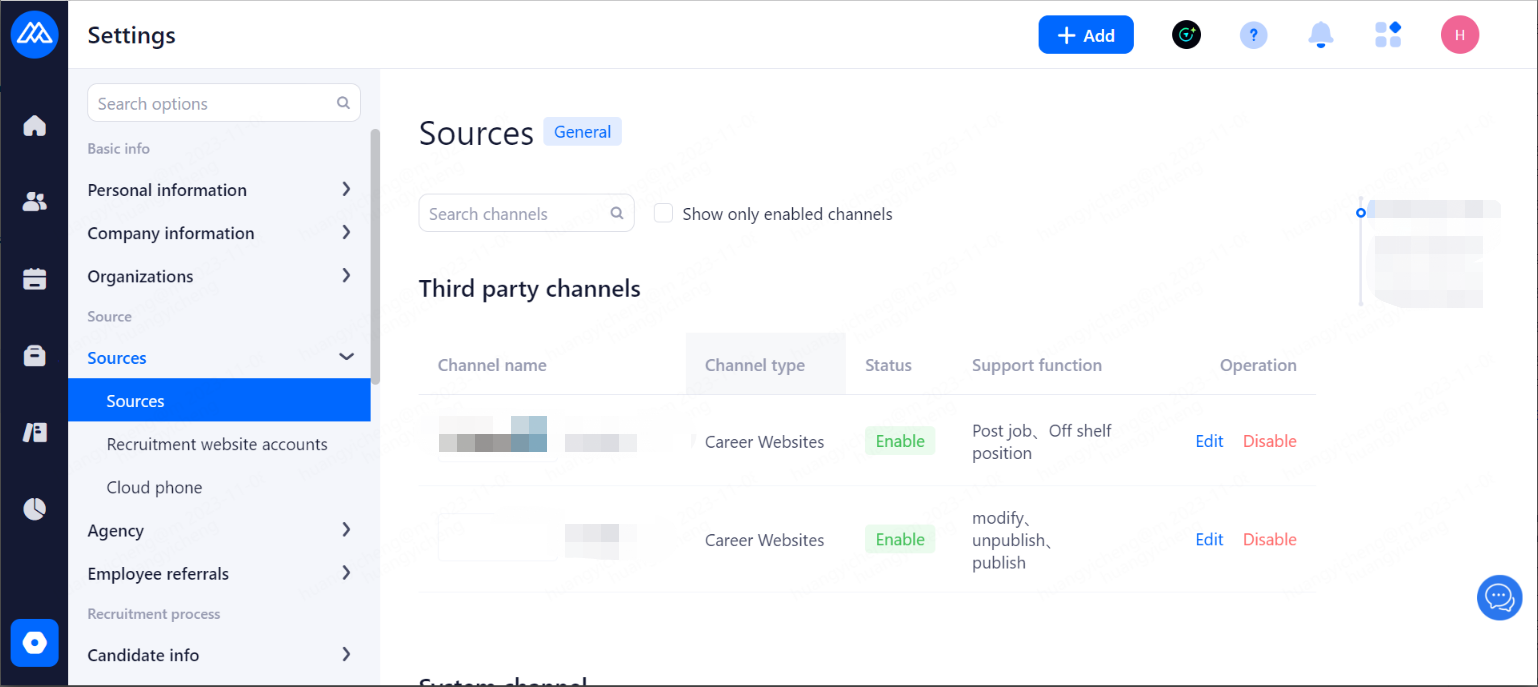
The main settings enable and disable existing dockable channels, and can be used to differentiate the channel source of resumes.
4.2.Recruitment Website Accounts
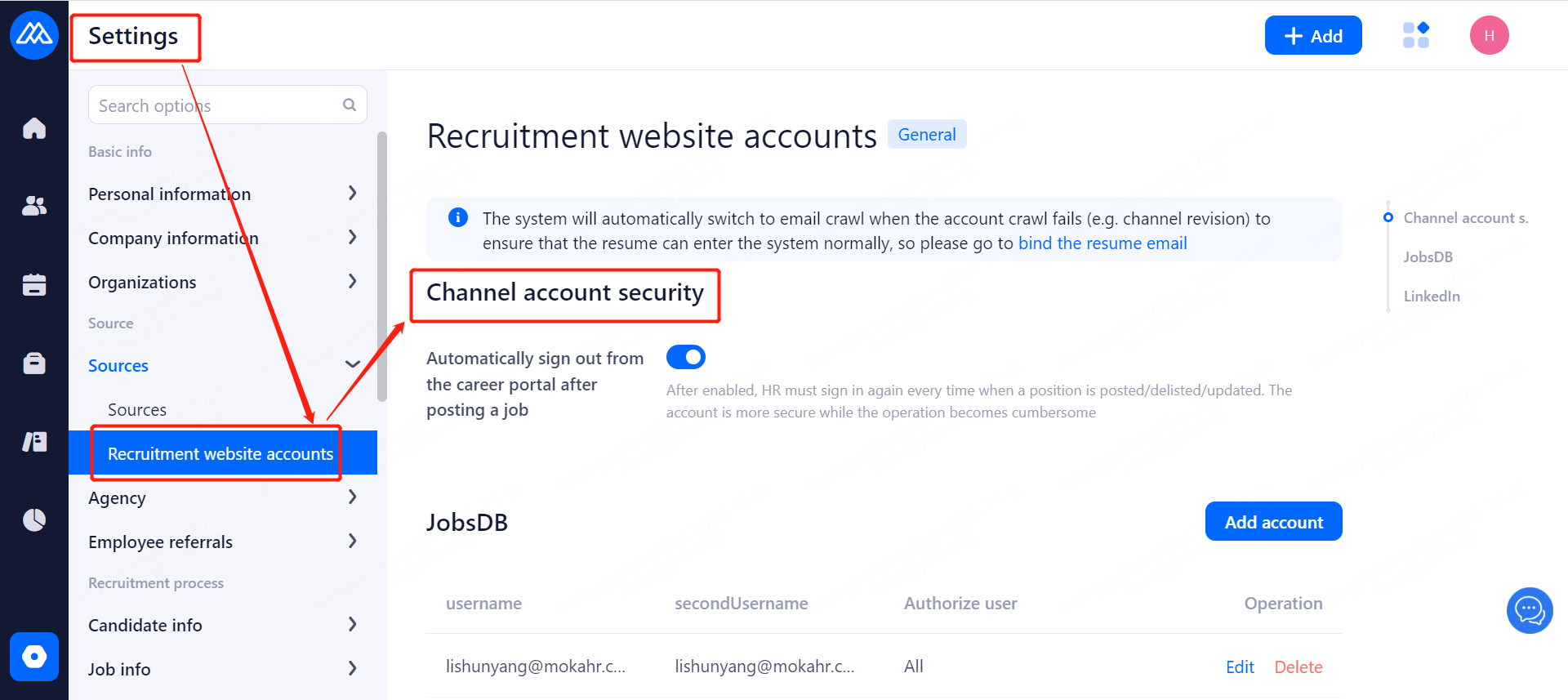
4.2.1.Channel Account Security Settings
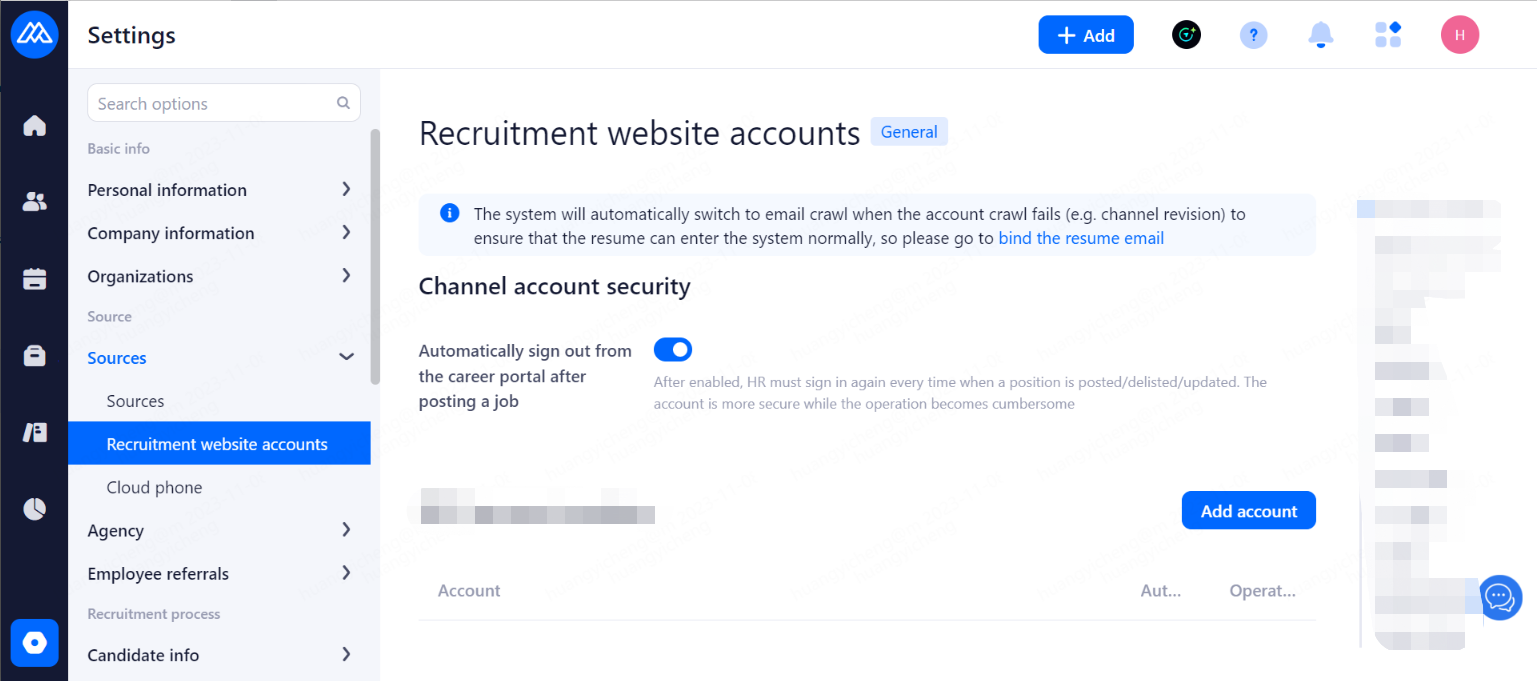
AuthorizeMokatoobtainlogininformationincookies:Afterauthorization,Mokawillobtainthelogininformationinyourbrowser's cookies through the "Jian Cang" plug-in, and use it only to update the contact information of the resumes entered into the system for you.
Tip: If you confirm the authorization, it is recommended to turn off the "Automatically logout from channel site after posting job" switch,otherwise it will greatly affect the acquisition of login information in cookies.
Automatically log out from the channel website after posting a job:
After a successful job posting, a successful job drop, or a successful job update, the account will be automatically logged out from the channel website, and you will need to log in again the next time you visit the channel website.
Tip: After enabling this feature, every time you post a job, HR must log in again to the channel website, the account is more secure, but the operation also becomes cumbersome.
4.2.2.Add Account Website Account
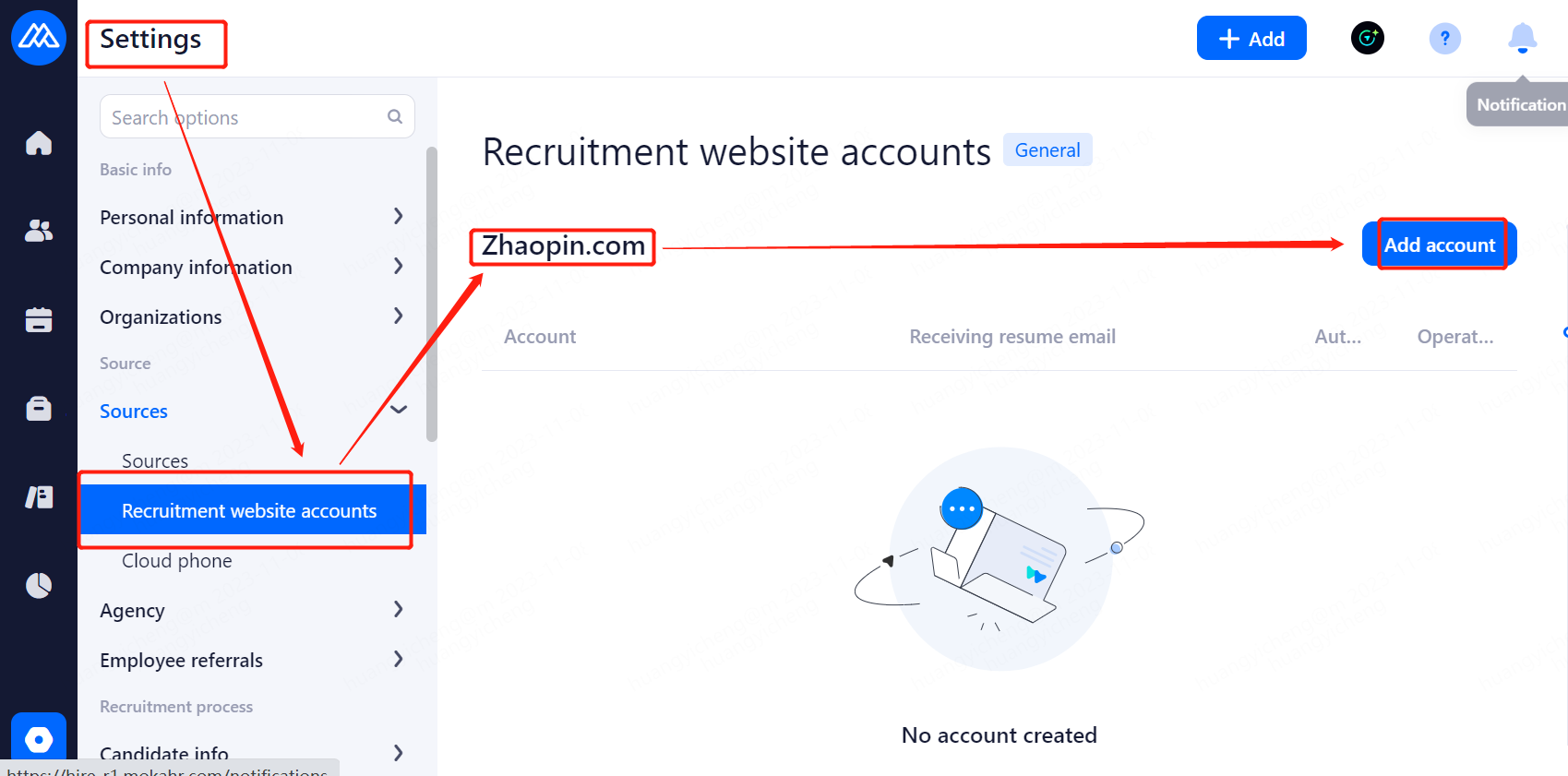
Please click "Recruitment Site Account Management" under the "Channel Management" menu, and then click the "Add Account" button in each corresponding website channel, and a dialog box will pop up to add a new channel account. dialog box, according to the prompts to fill in the corresponding account password and other information can be. For example, add a JobsDB account, as shown in the figure:
Mind:
Each channel can add more than one account, please ensure that each channel account is bound to the resume receiving mailbox has been added to the Moka system to receive resumes in the mailbox, otherwise "Jian Cang" plug-ins can not capture the submitted resume.
4.3.Headhunter Member Management
4.3.1.Headhunters
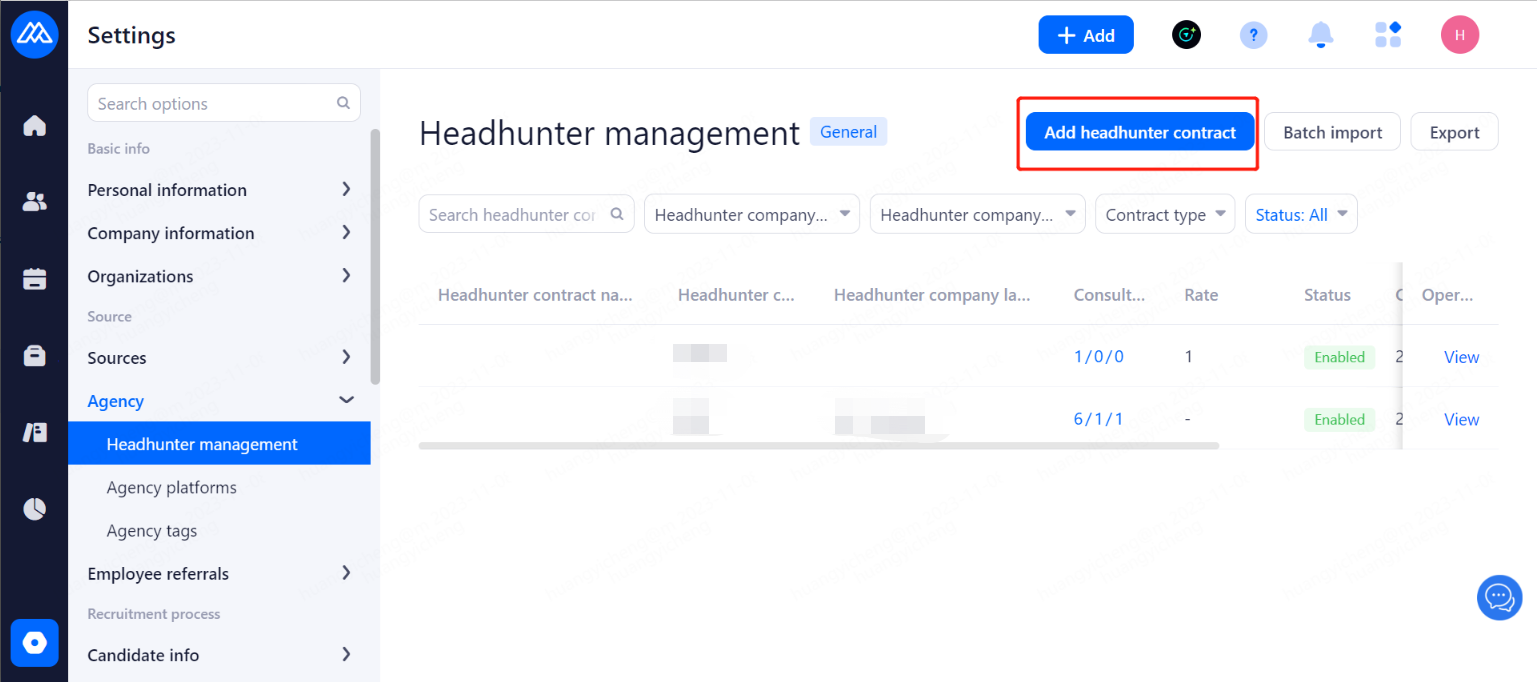
4.3.1.1.Adding Headhunters
Configuration Notes:
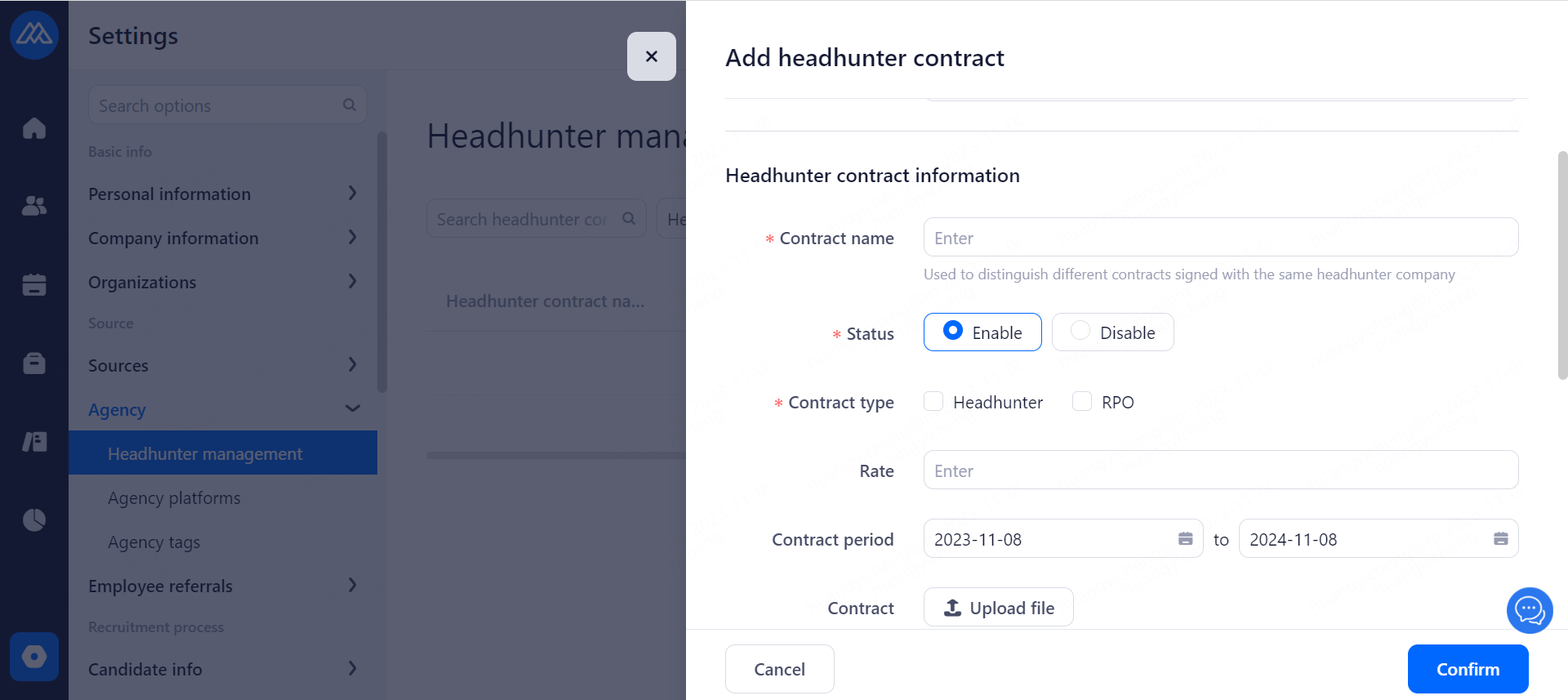
Headhunter name: Name of the headhunting company.
Status:
Enabled
Consultants under this headhunter can log into the headhunting platform normally.
This headhunter will be displayed in the headhunter list.
Not enabled
This headhunter will not be shown in the headhunters list (if "Show deactivated headhunters" is not enabled).
Consultants under this headhunter can not log in the headhunting platform, and the message is "No service company".
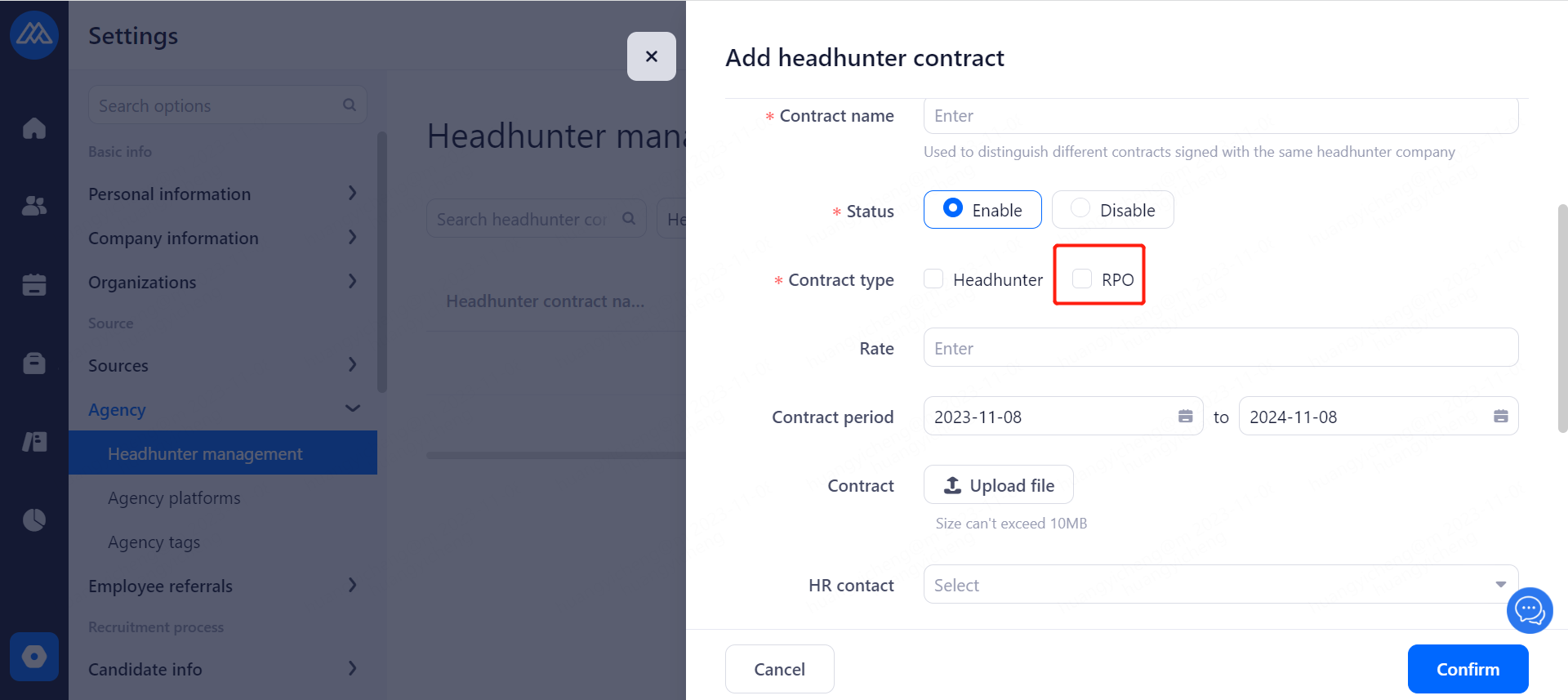
Recruitment Process Outsourcing (RPO): when adding or editing a headhunter, check whether to enable it or not, it is unchecked by default.
Rate: the rate of headhunting resume recommendation.
Contract term: the term of the service contract signed with the headhunter.
Headhunting Contract: Attachment to the service contract signed with the headhunting company.
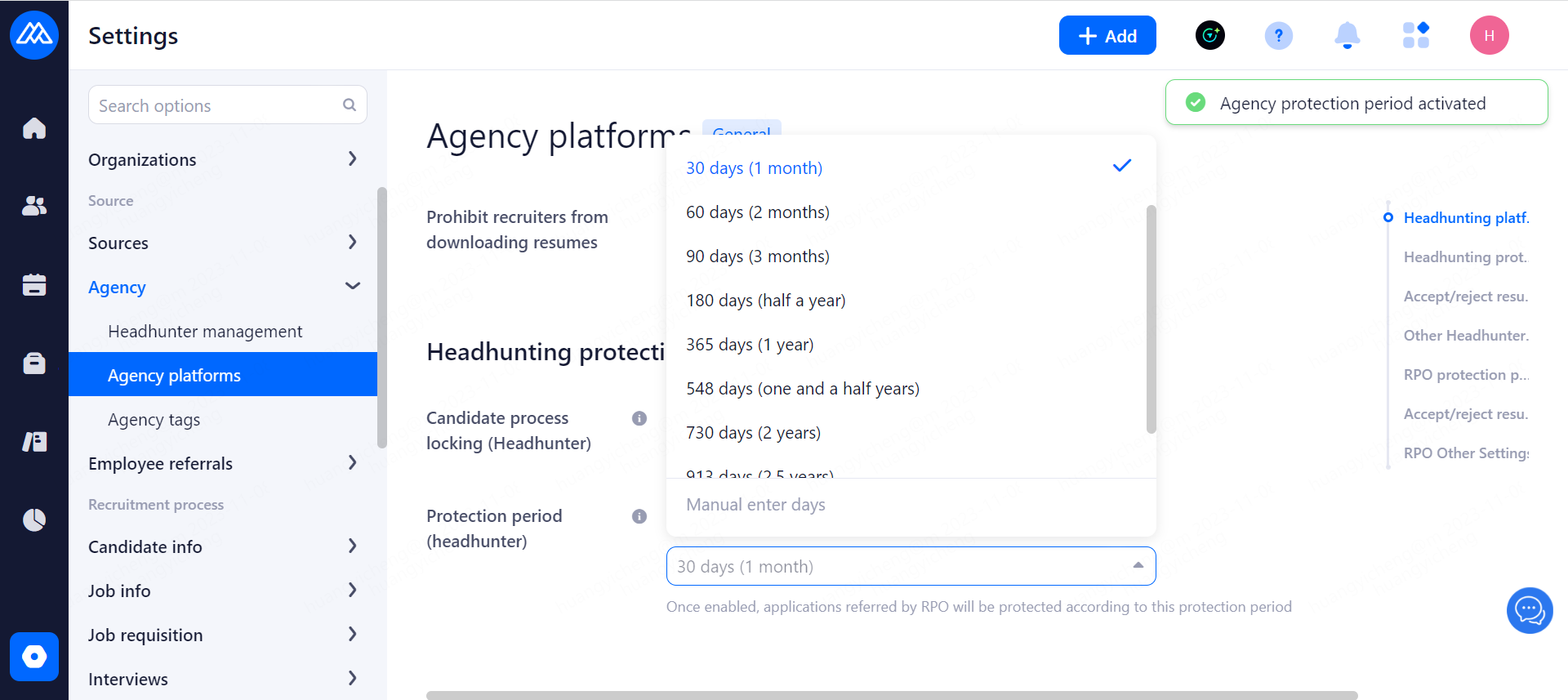
Headhunter protection period: Here the corresponding protection period is set for a single headhunter, if not set, the protection period set in the headhunting platform shall prevail. In the protection period selection component, add customized input days.
Matchmaker: Corporate and Headhunter Matchmaker (only available for in-company paid accounts).
Contact: Headhunter contact.
contact email: headhunter company contact email.
contact cell phone number: headhunter contact cell phone number.
contact landline number: headhunter contact landline number.
Headhunting protection period: you can manually set the number of days or choose according to the system number of days
permission settings:
Public Headhunter: all HR can use this headhunter.
permission headhunting: only authorized HR can use this headhunting.
4.3.1.2.View Headhunters
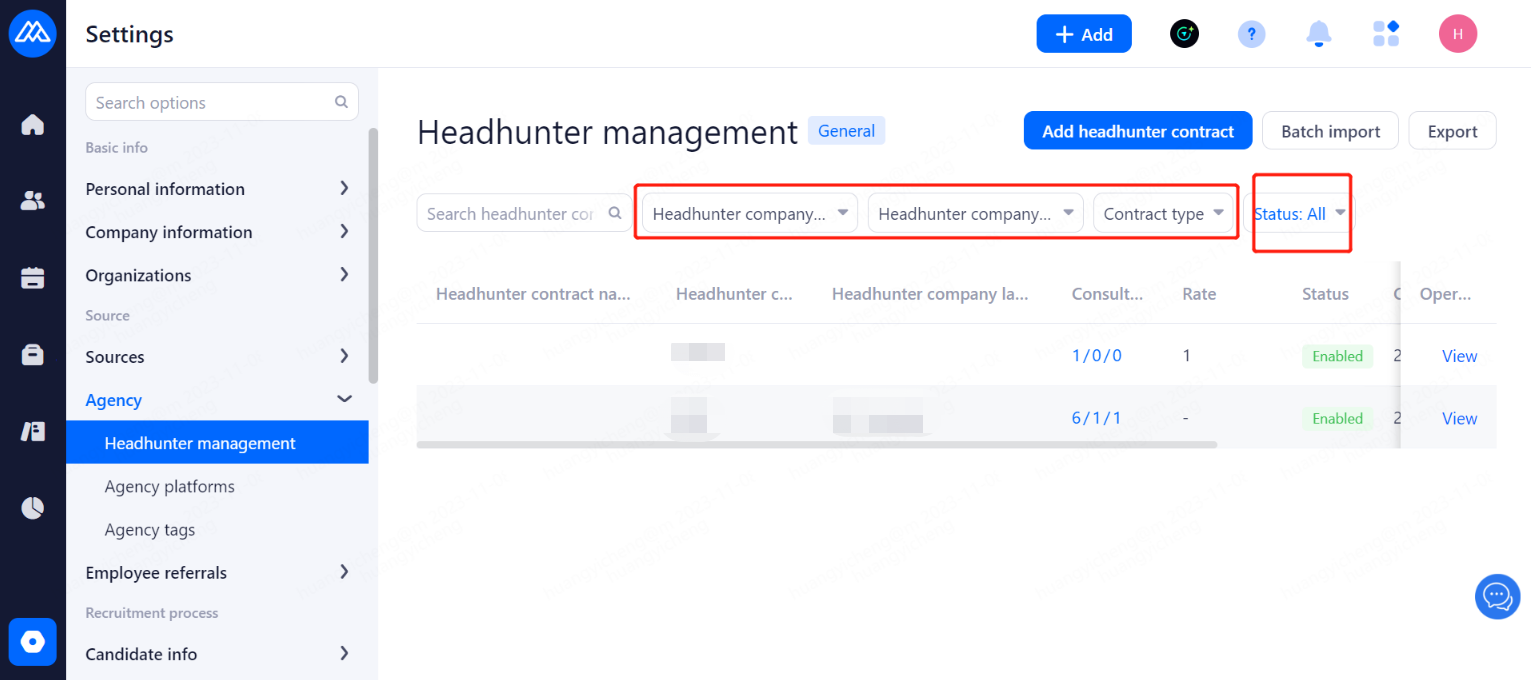
Configuration Notes:
Fuzzy search by directly entering the name of the headhunting company.
filters by "Tag" and "RPO" status.
Filter by "Show deactivated headhunters" switch.
4.3.1.3.Viewing Consultant Status Statistics Under Headhunters
Configuration Notes:
Counselor headcount display:
The first number of is the total number of consultants under this headhunter (indicated in black).
The second number of shows the total number of consultants with disabled accounts under this headhunter (shown in red).
The third number of is the total number of consultants with inactivated accounts with the headhunter (shown in yellow).
4.3.2.Headhunting Consultants
4.3.2.1.Adding an Executive Search Consultant Account
Click a headhunter in the headhunter list interface to enter the headhunter details interface to maintain the information of the headhunter consultant.
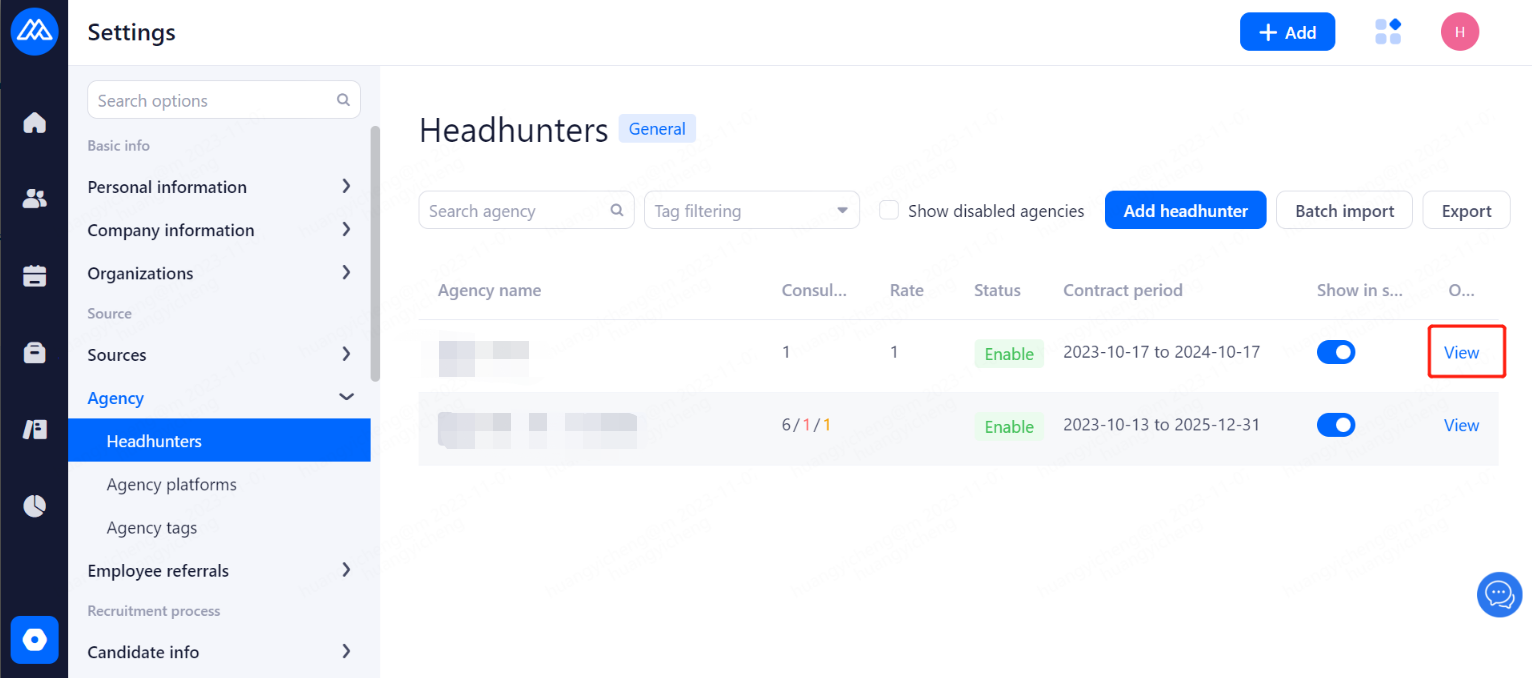
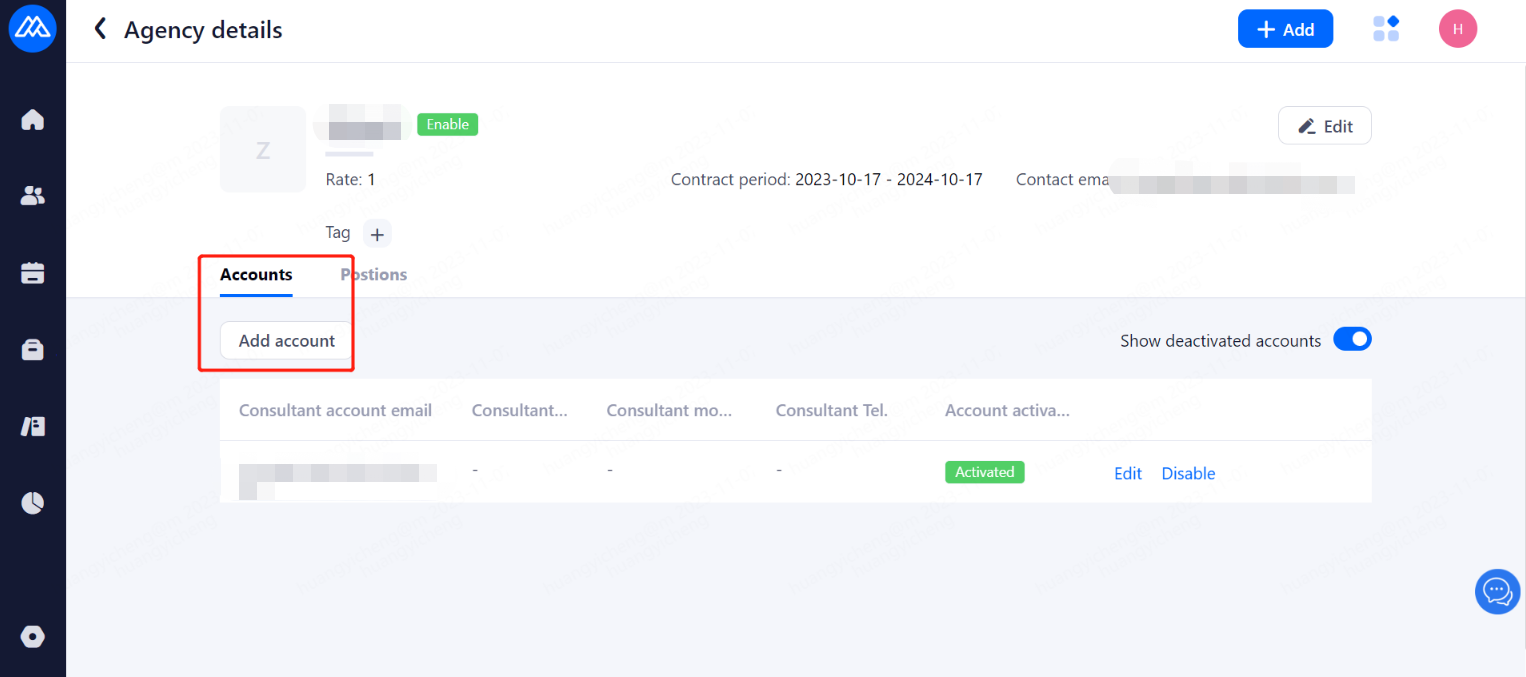
Batch add and export headhunter accounts
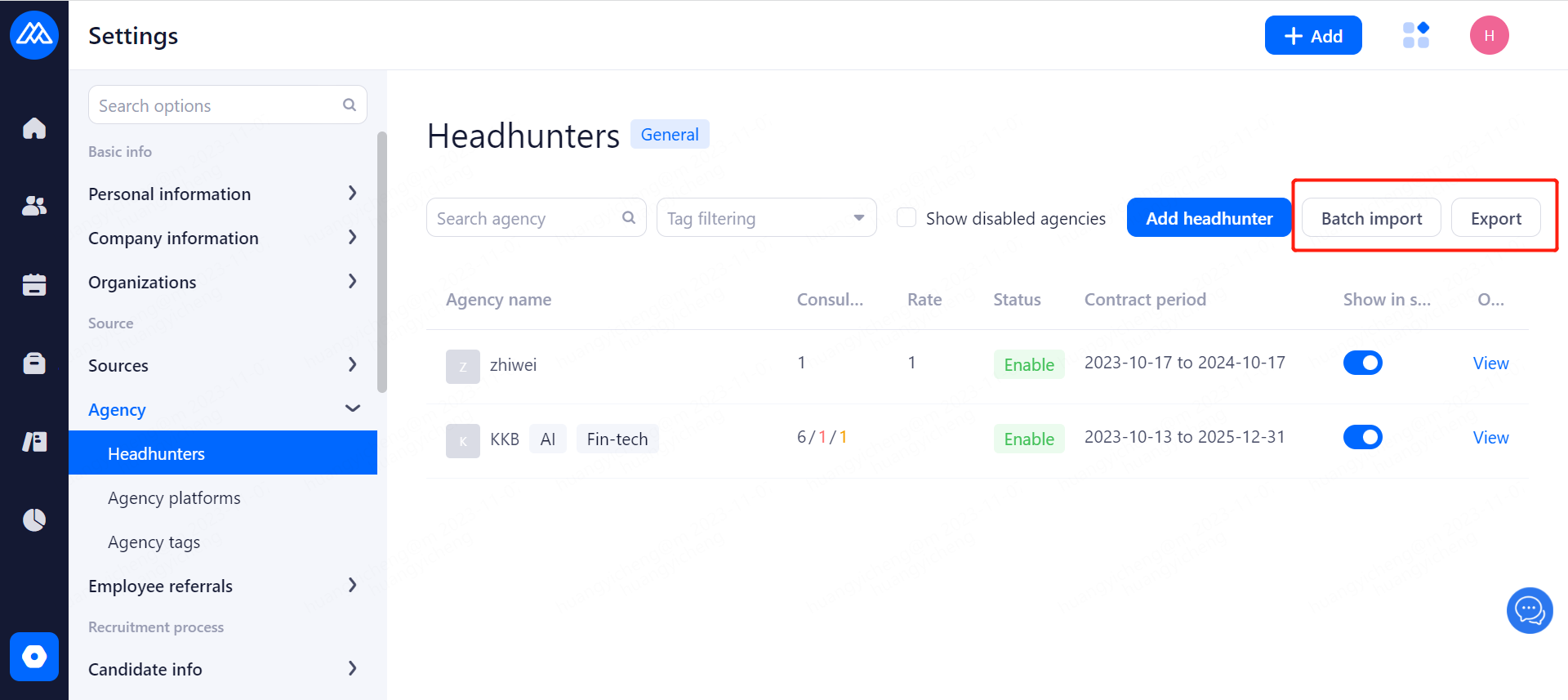
4.3.2.2.Managing Executive Search Consultant Accounts
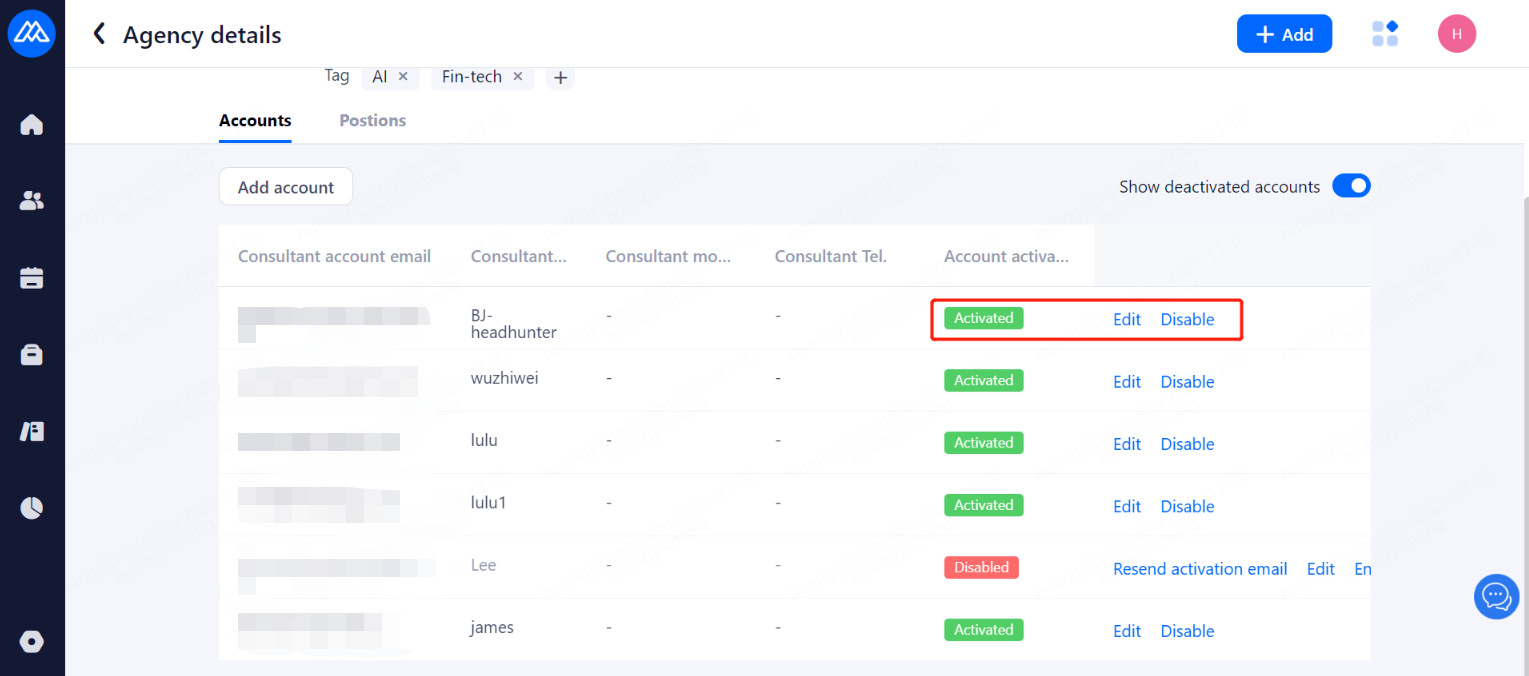
Configuration Notes:
After adding an account to , the corresponding advisor account email address will receive an email confirming activation.
After is activated, the account activation status will show "Activated".
If is not activated, you can click "Resend Activation Email" to resend the email.
If you change your headhunter's contact at , the activation email will be sent again.
After deactivating an account at , the consultant will be prompted with "No companies
served" when logging into the executive search platform.
An activation email is required to activate the account.
The search results are filtered by the "Show deactivated accounts" switch.
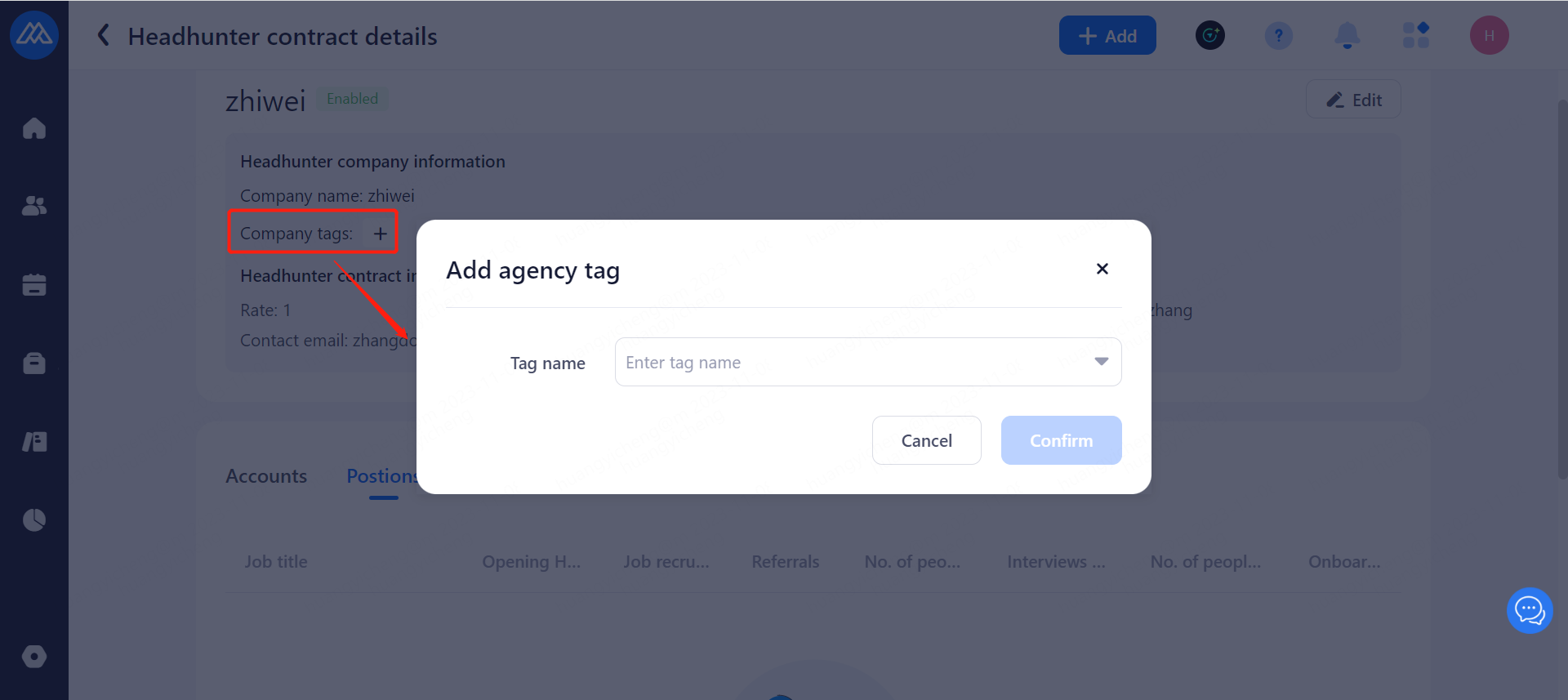
You can maintain the label of the headhunter by clicking the "Label" button on the top of "Account Management".
4.3.2.3.Executive Search Consultant Job Search
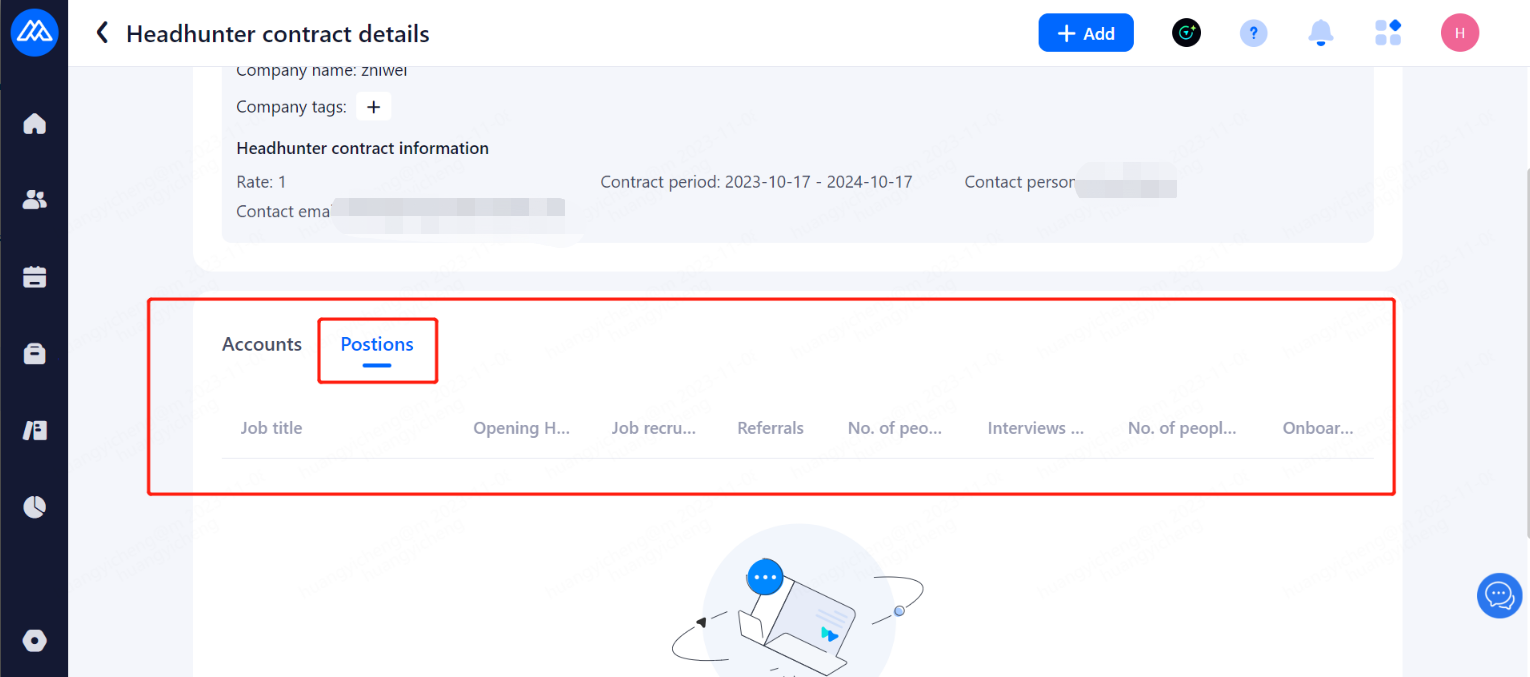
Configuration Notes:
to view information on applications for all stages of recommended positions within the consultant's purview.
When a job title turns gray it indicates that the position is closed for recruitment.
4.3.3.Headhunting Platform Settings
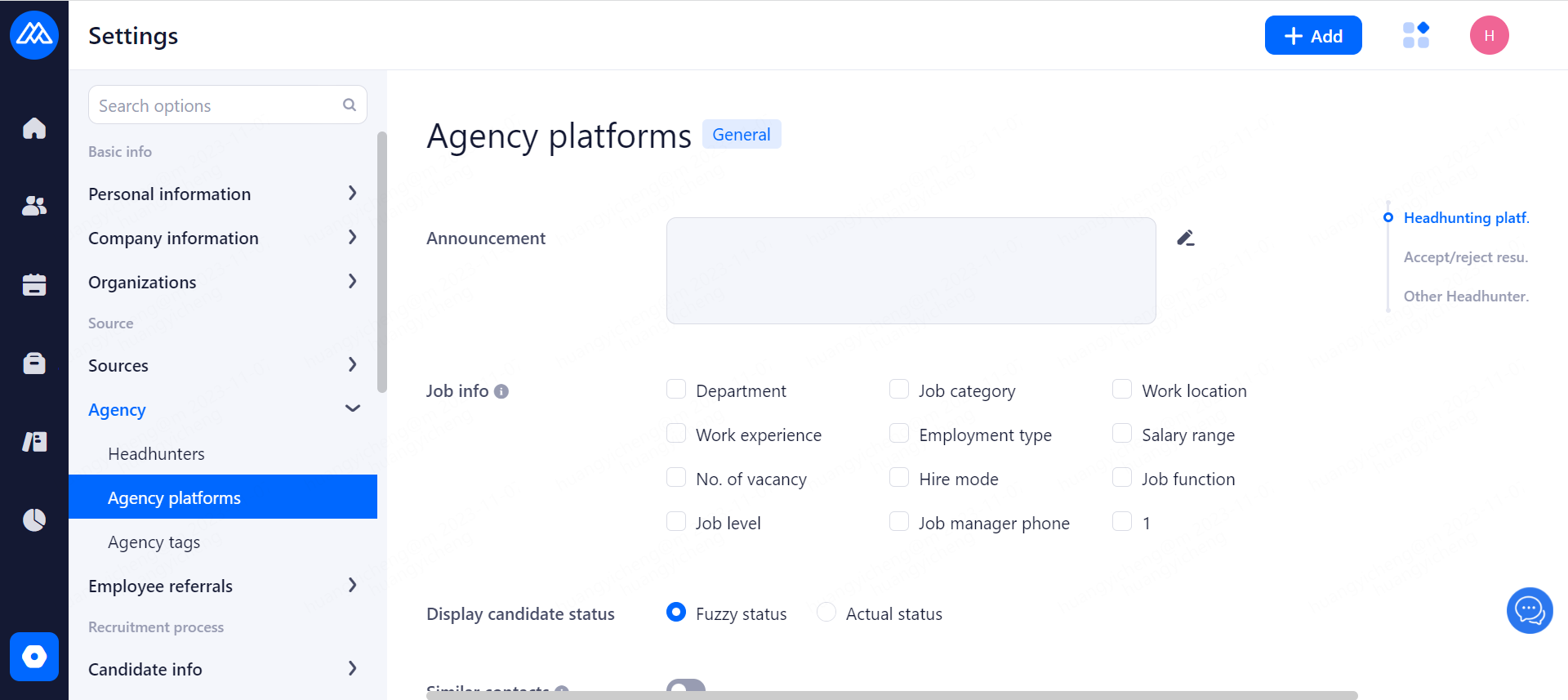
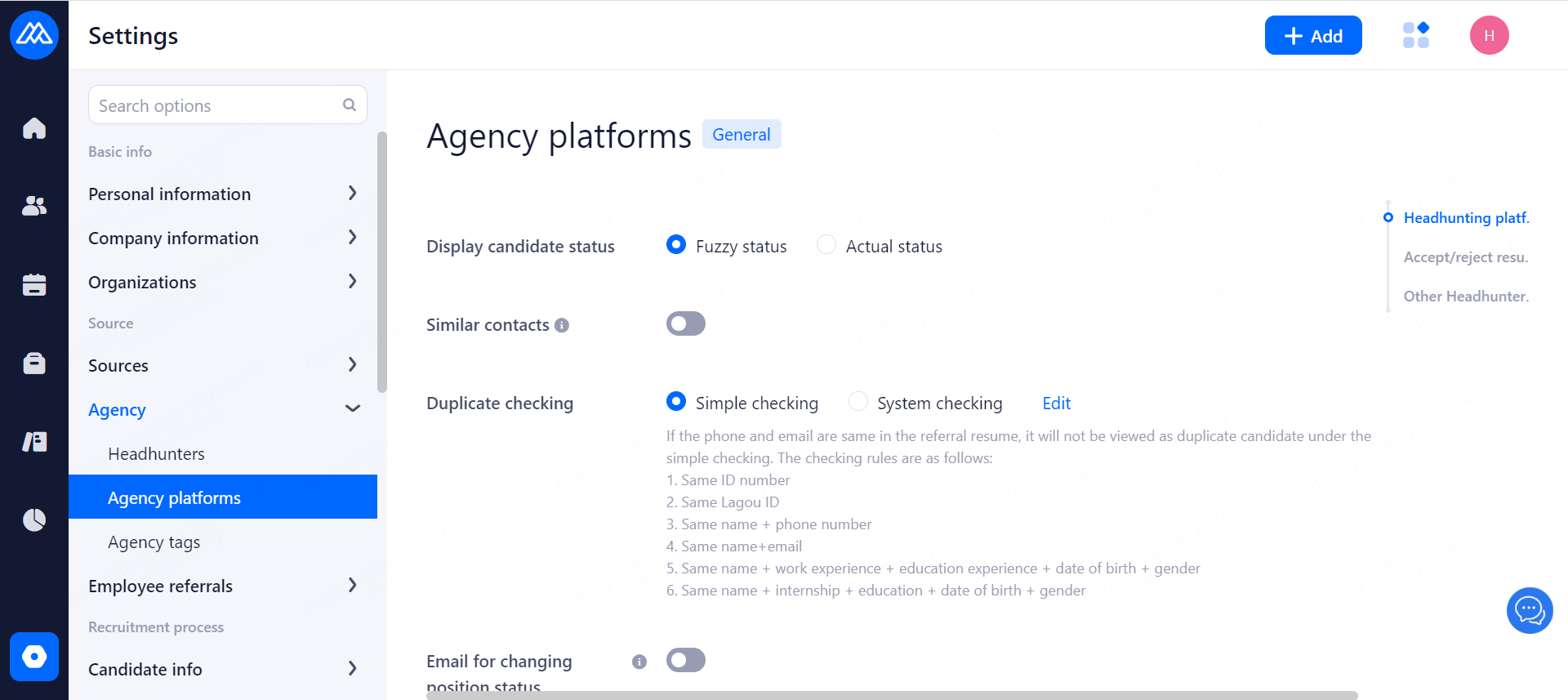
Configuration Notes:
Headhunter announcements: set up to be able to send announcements to headhunters.
Position Information: can display the position information to the headhunters.
candidate status display:
fuzzy status, when the headhunter side view this candidate in the process, it will always show as in progress.
real status, the headhunter can see all the real process status of this candidate.
contact information is suspicious: cell phone and email as long as one and the system duplicates that will be marked as suspicious.
headhunters recommend resume checking
simple check
"Name "+"Email "is not repeated
"name" + "cell phone number" is not duplicated
Strict weight checking
"Name" + "Email" for duplicates.
"Name "+"cell phone number "is not duplicated
whether "e-mail" + "cell phone number" is duplicated.
Note: If you allow headhunters to fill in the contact information of the headhunter consultant when recommending resumes, the use of "strict check" mode may result in the headhunter not being able to recommend resumes.
Position Email Push: Enable or disable sending emails to the headhunter after the position is turned on or off.
Headhunter delivery limit: you can set the same headhunter is only allowed to recommend the same candidate to the same company in a certain time.
Headhunter protection period: after opening in the protection period can not be repeated recommended, if some headhunters do not set up a separate protection period, then use the headhunting platform unified protection period.
Candidate locking process: after opening in the process of the candidate can not be recommended.
Headhunter resume acceptance/rejection: after opening the headhunter recommended resume in the confirmation of receipt before entering the subsequent process.
Show reasons for elimination: the headhunting platform will show the reasons for elimination after it is turned on.
Headhunter self-checking: RPO part does not support this function for the time being.
Headhunting Recommended Fields: Uploading resume is a required field in the system.
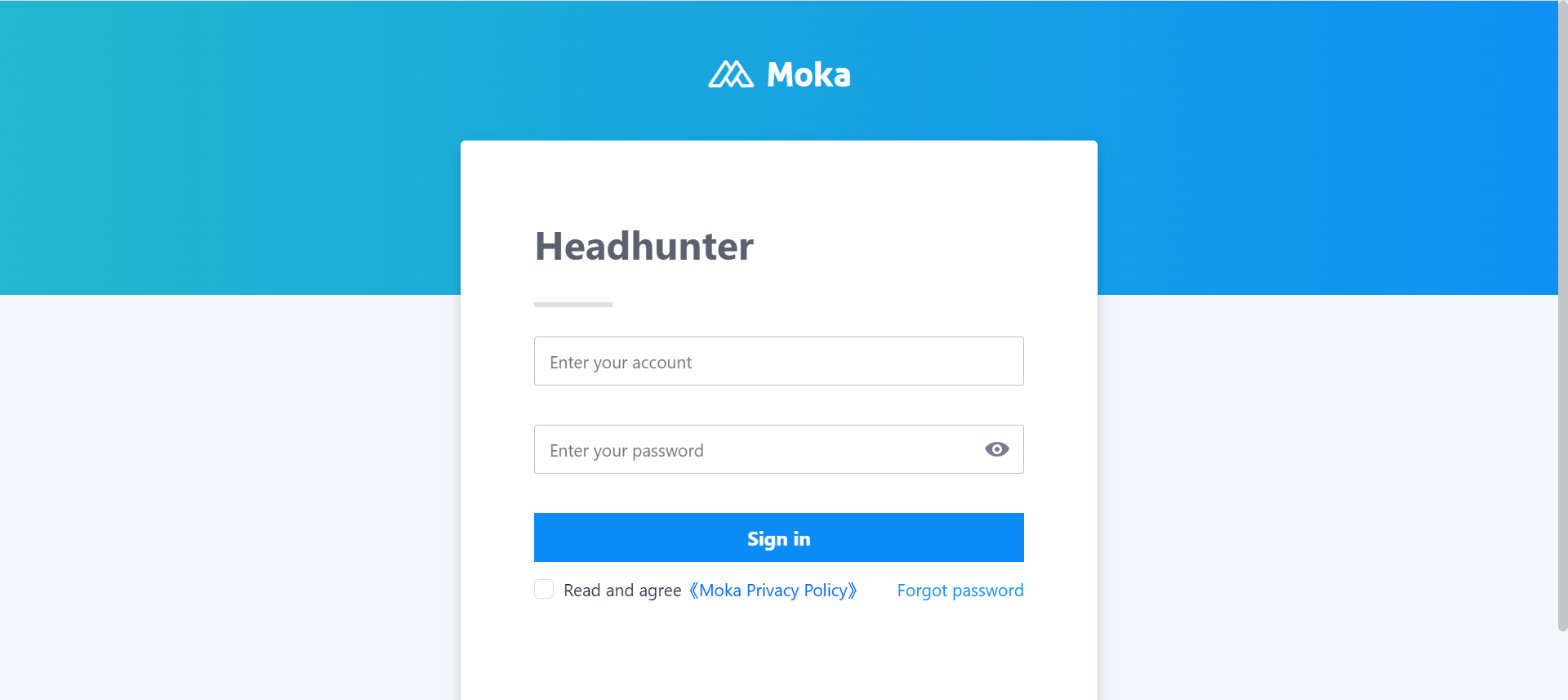
4.3.4.Headhunting Consultant Self-service Terminal
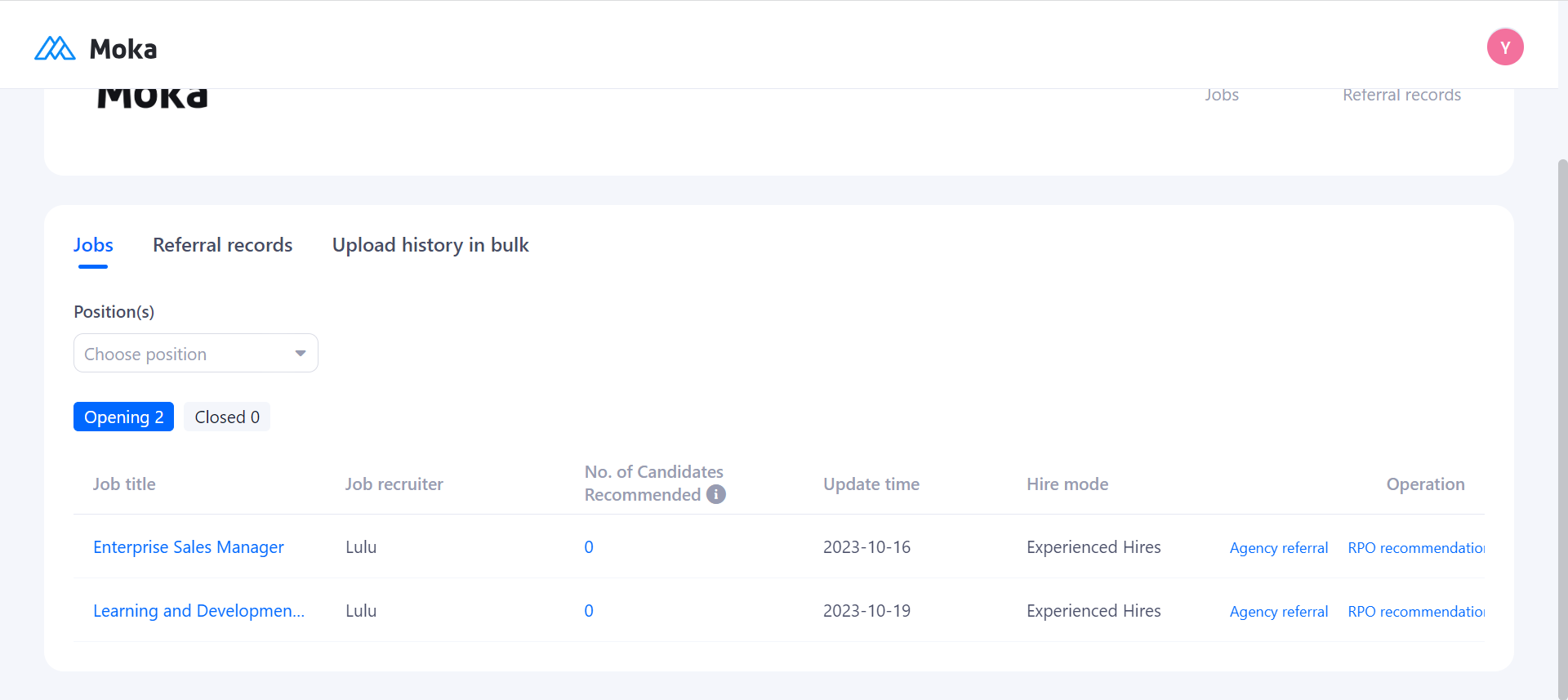
Headhunters recommend candidates according to the relevant positions, recommendation history can view the status of candidates, click on the communication can leave a message to HR, online update the candidate's resume information.
Visit https://hire-r1.mokahr.com/headhunters/
4.3.5.Recruitment Process Outsourcing (RPO)
When adding or editing a headhunter, you can check whether to enable Recruitment Process Outsourcing (RPO), which is unchecked by default.
4.3.6.Batch Upload In Excel mode
Configuration Notes:
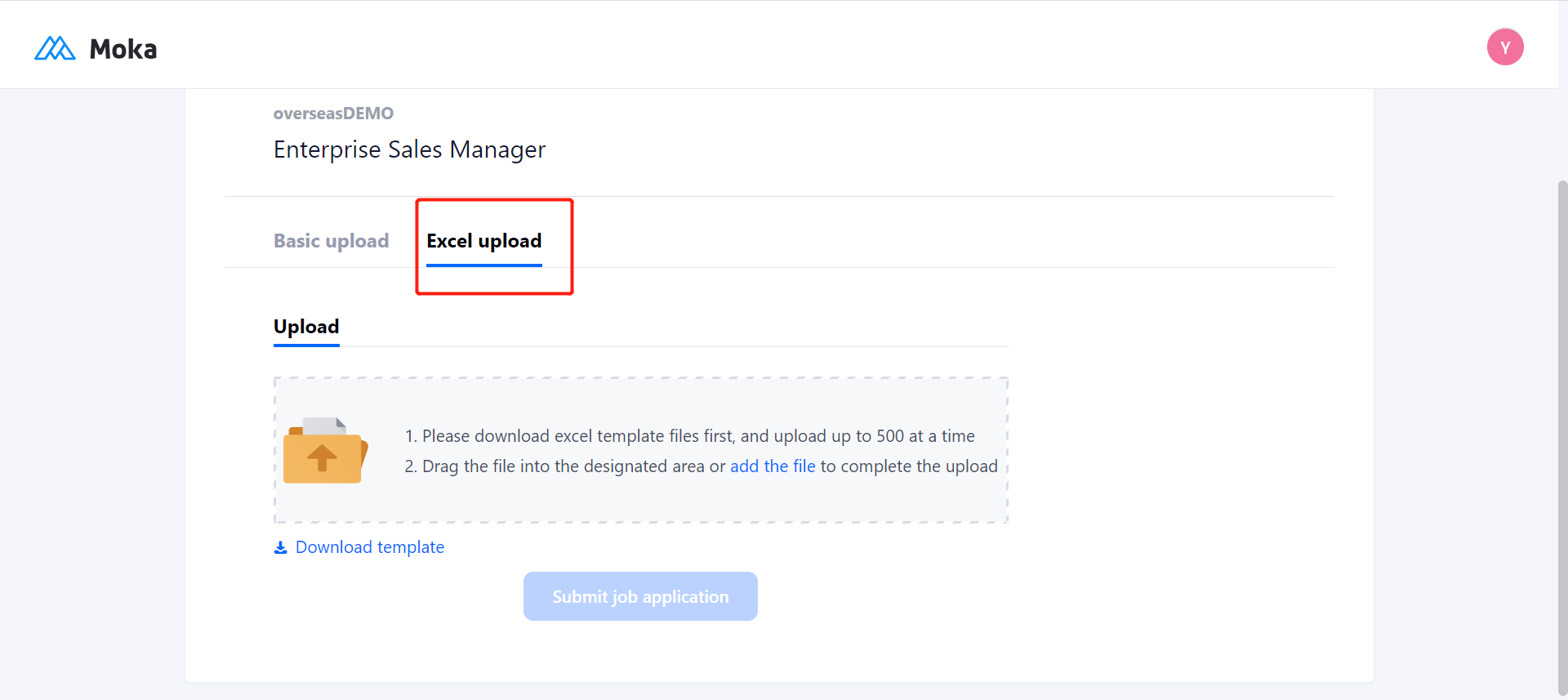
When is turned on, it allows the headhunter to upload candidates in bulk, and in the recommended candidates page, there is an extra "Excel Upload" tab for RPO.
The name in excel is required.
Upload up to 500 candidates at a time.
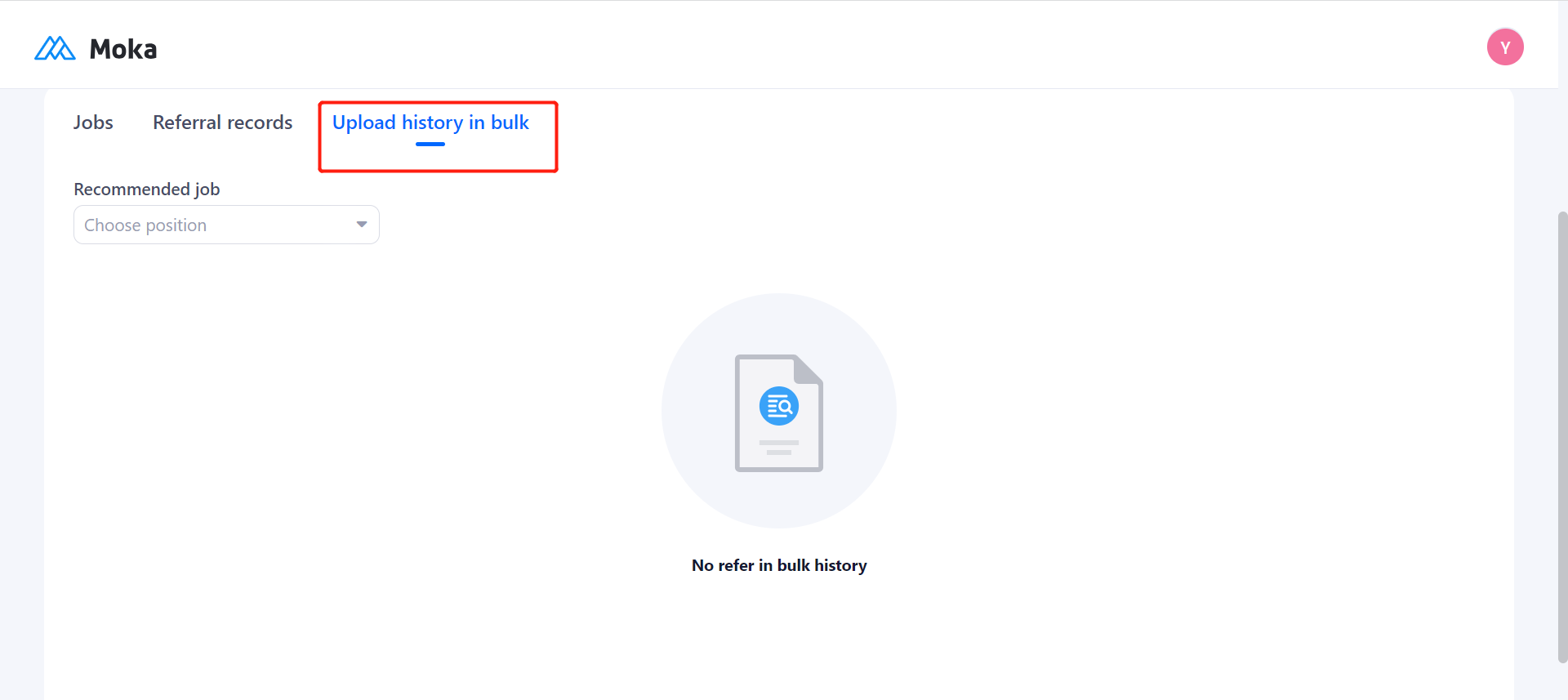
See the history of batch uploads
4.3.7.Agency tags
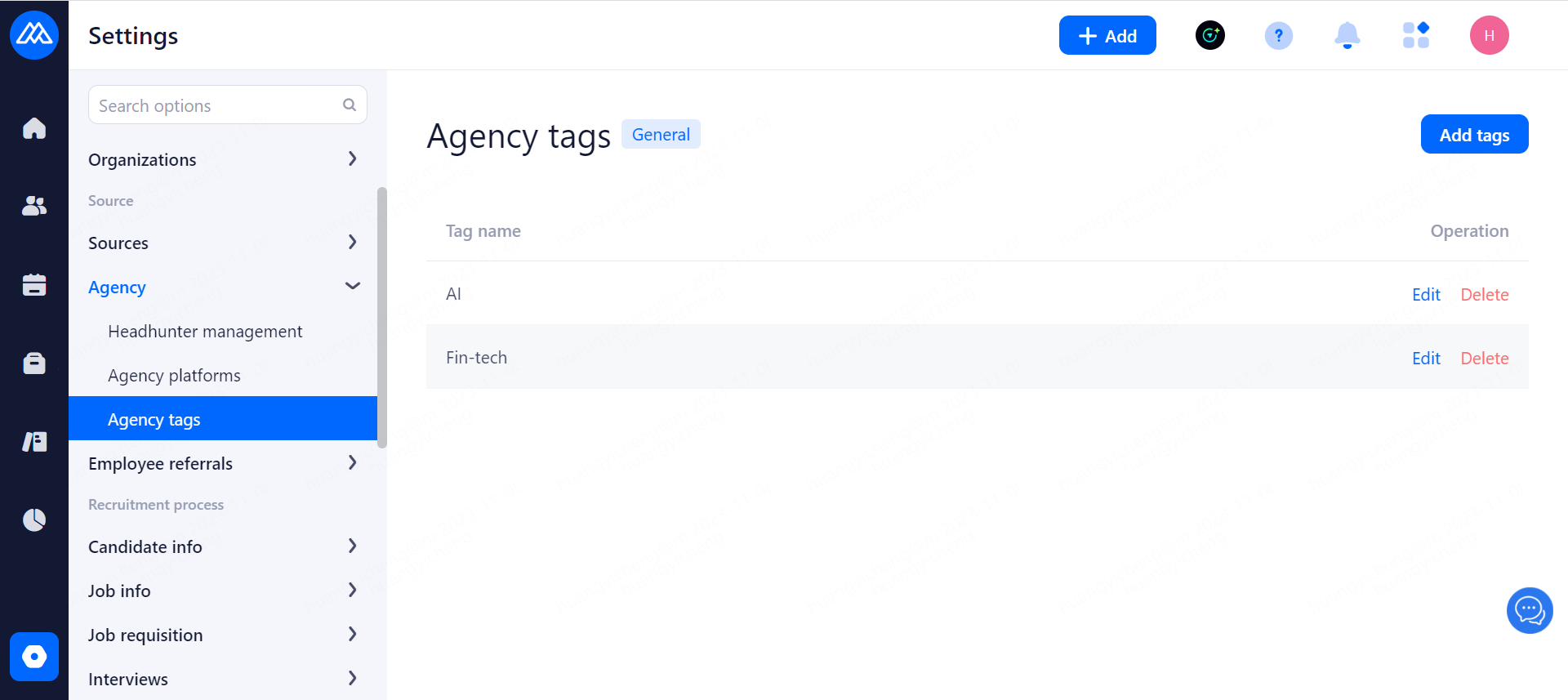
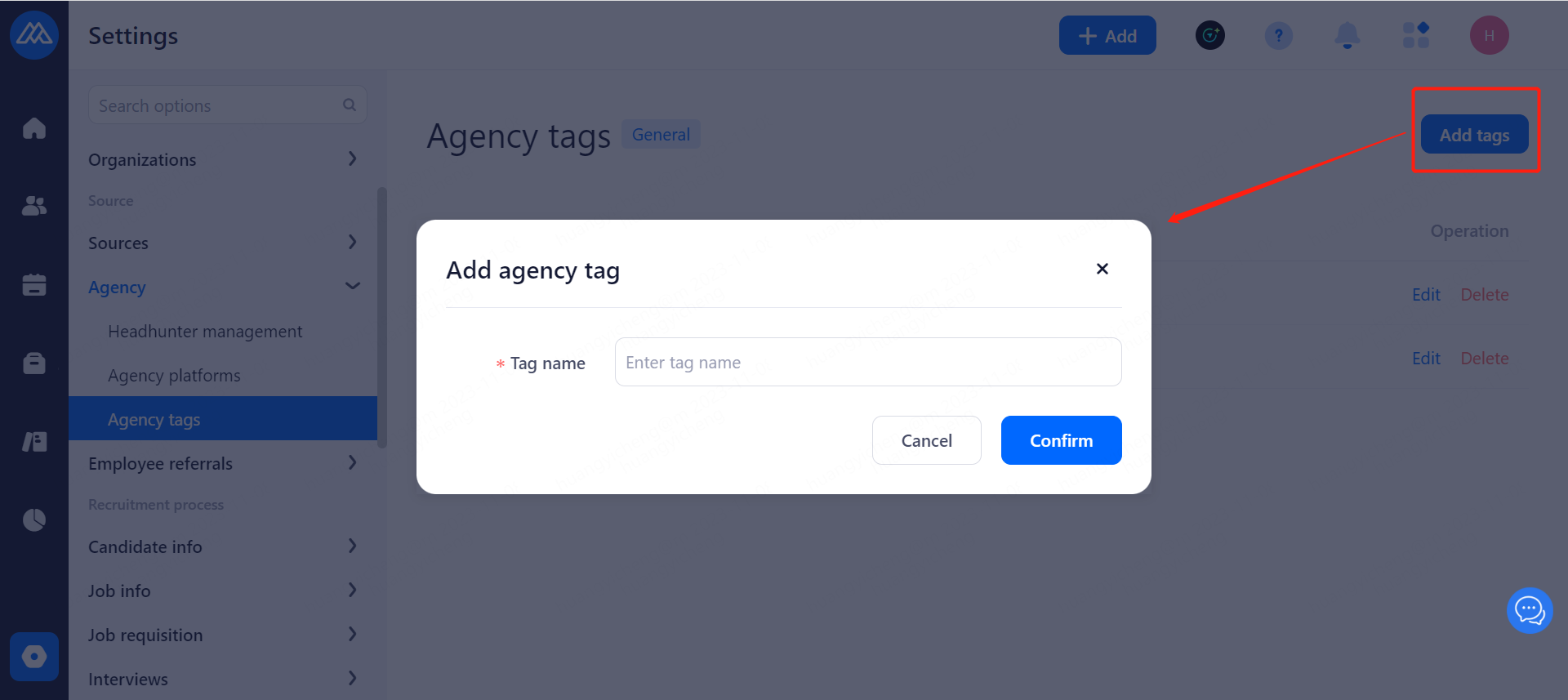
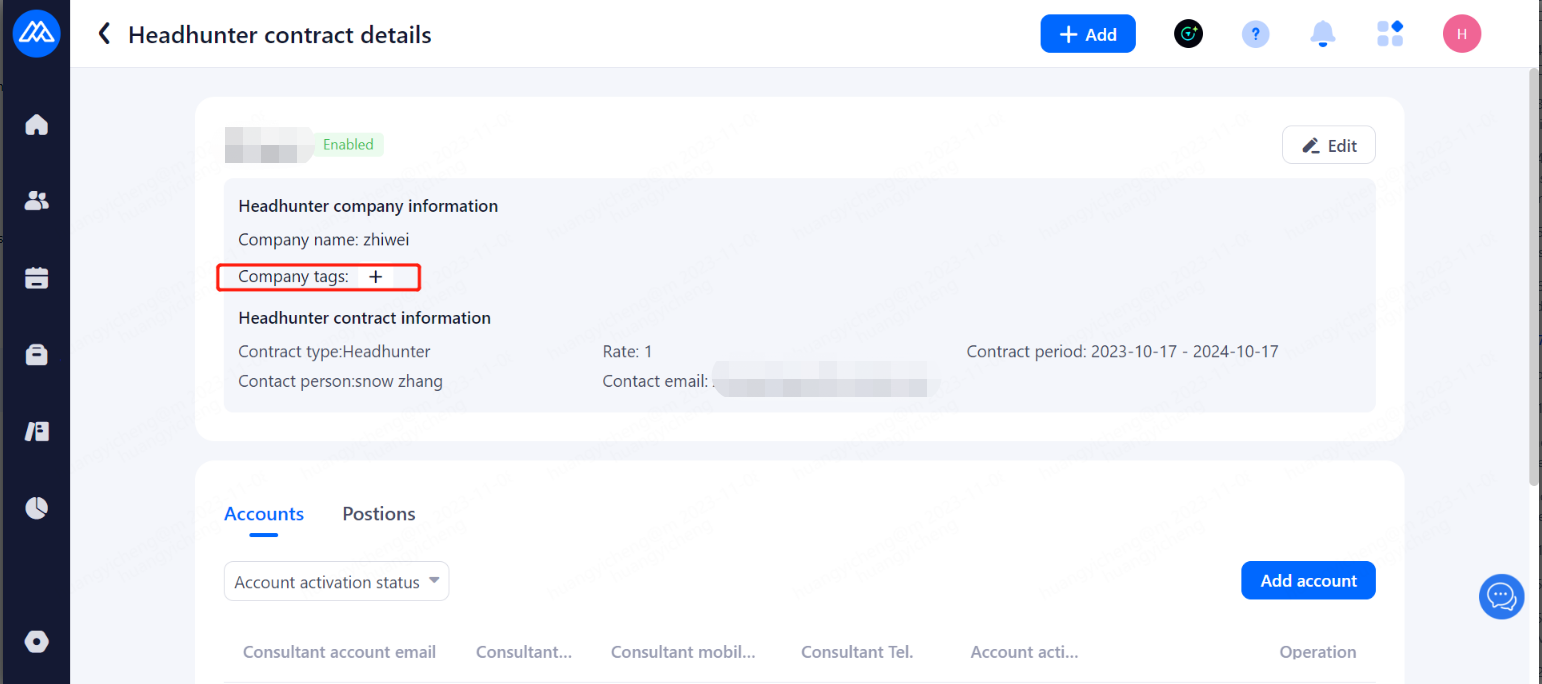
In Headhunter management >> Headhunter Details, you can add a headhunter tag to a headhunter company
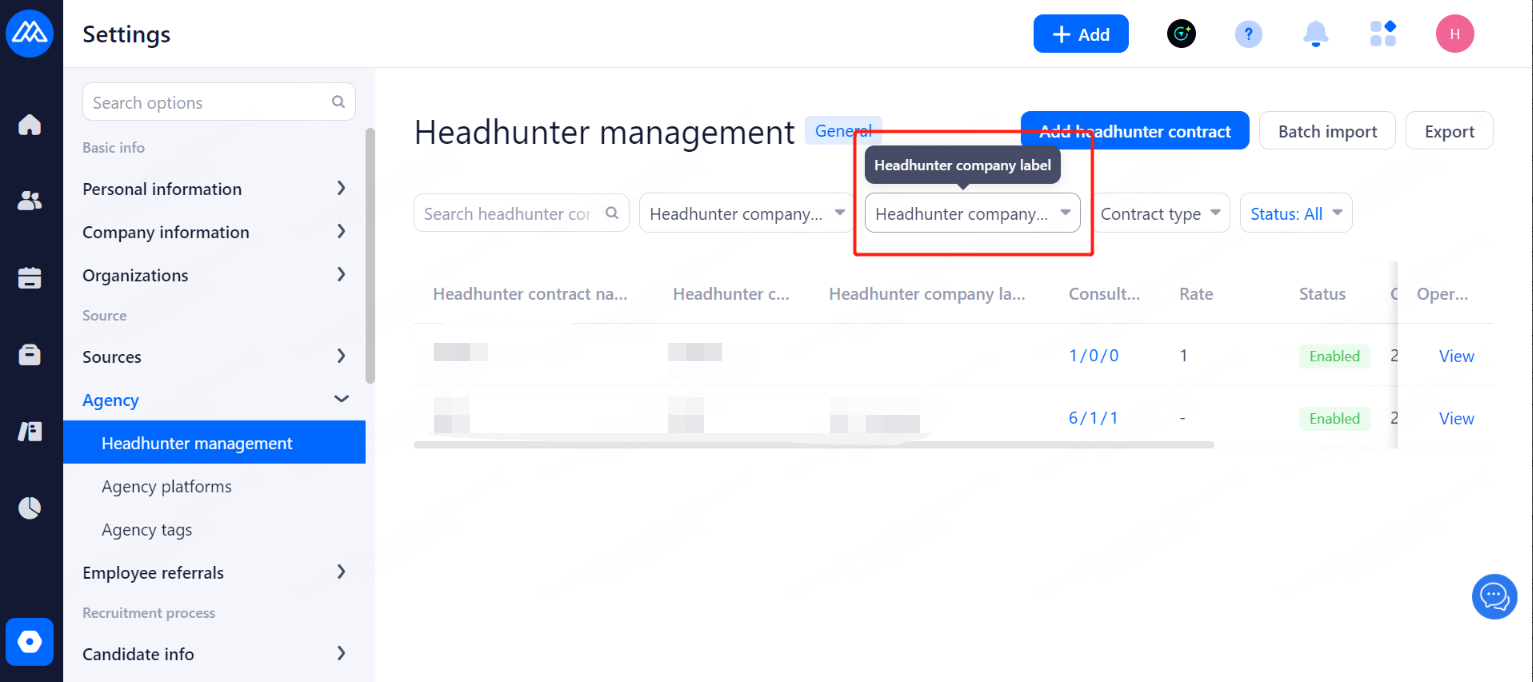
In the Headhunter management, headhunters can be filtered according to tags
4.4.Employee Refferals
4.4.1.Employee Refferals
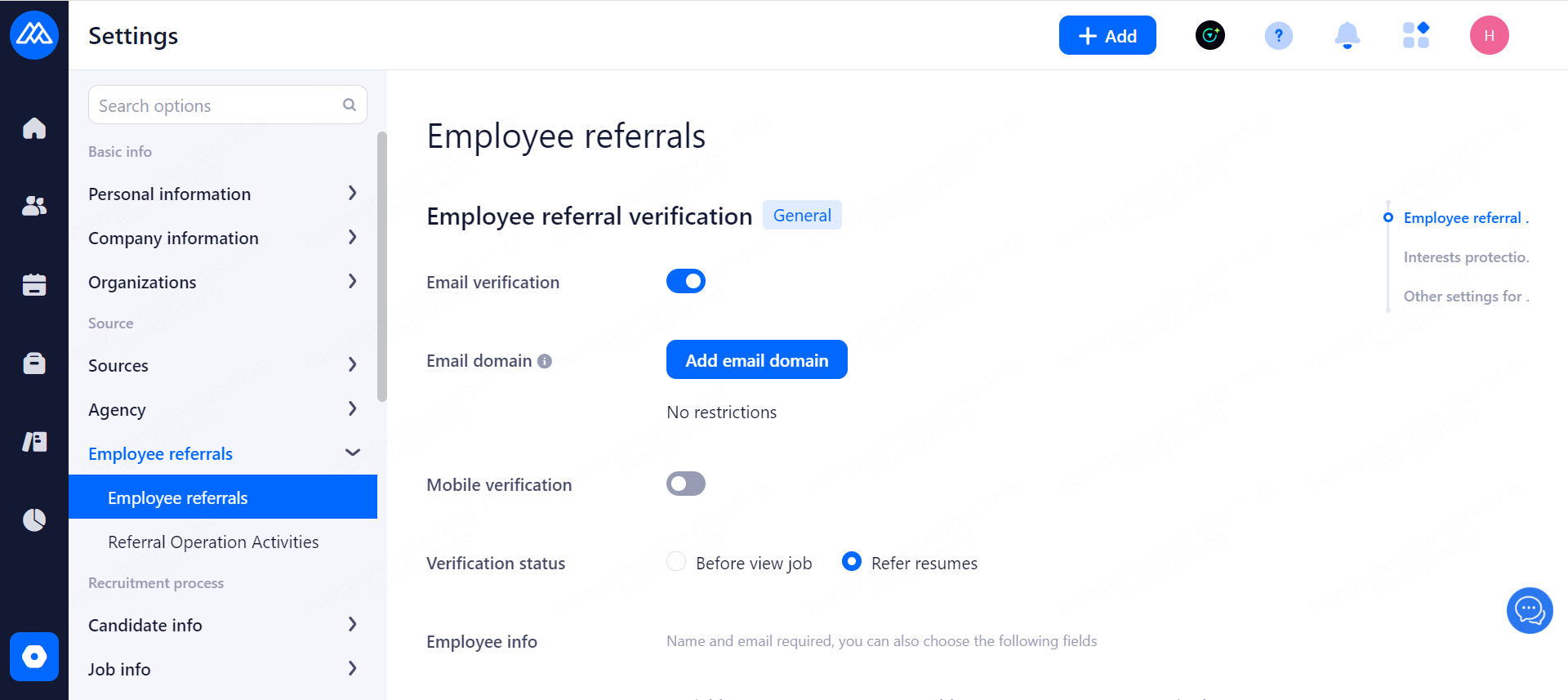
Configuration Notes:
mailbox authentication
has mailbox authentication turned on, and you can also set which mailbox suffixes are allowed for authentication, or unrestricted if not set. The authentication of mailbox suffixes is only for newly bound mailboxes, and mailboxes that have been bound as insiders before this are not subject to the authentication restrictions of this mailbox suffix.
A mailbox can only be bound to one company, otherwise it will prompt that it has been bound to another company.
Certification before viewing jobs: you will be asked to log in when you log in to the official website of Intranet.
Authentication when recommending resumes: you can view the official website and will be asked to log in when clicking the recommend button on the job details page.
Reward Display: Set the reward display content. You can set "Show reward amount" and "Show reward detail amount".
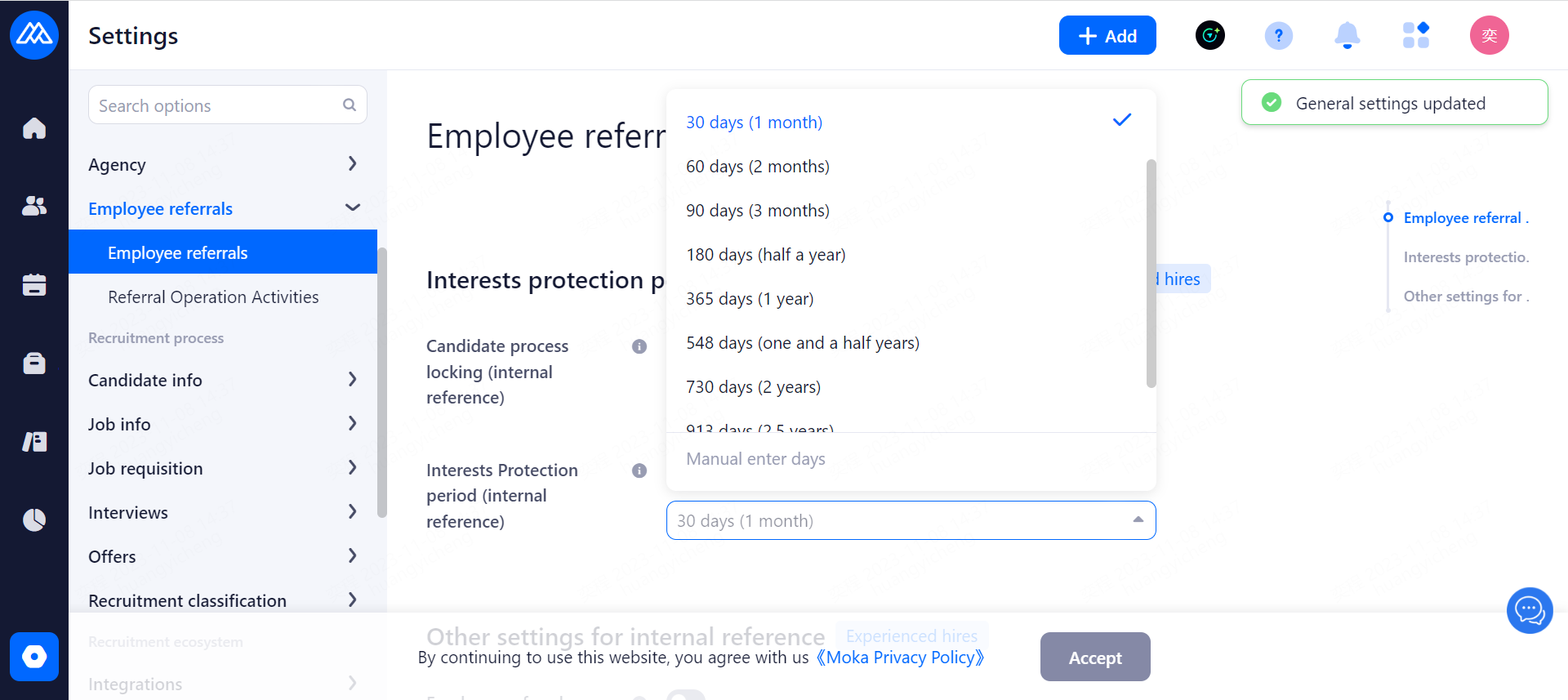
Insider Protection Period: when turned on, insiders are unable to recommend candidates who are already in the system from other channels. Within the Protection Period selection component, add a customized number of days to be entered.
Internal Recommendation Change Email Notification: Sends an email to the recommender after a change in the stage the candidate is in after opening.
Internal Recommendation Employee Information: Set the information of internal recommendation employees, in addition to name and email required can also set the phone, work number and department field permissions.
Inward Employee Department Display: Inward employee departments are displayed by level, and the departments that are not displayed are displayed by default.
Recommendation Reason: Set whether the recommendation reason can be maintained, and whether it is required.
Show reason for elimination: when enabled, the recommender will be notified when the candidate is eliminated.
5.Recruitment Process Management
5.1.Candidate Information Management
5.1.1.Field Management
5.1.1.1.Maintaining Fields
In addition to the fields built into the system, users can add customized fields to each information module according to the actual business.
Note: The system fields cannot be modified, and the added custom fields can be modified by clicking Edit.
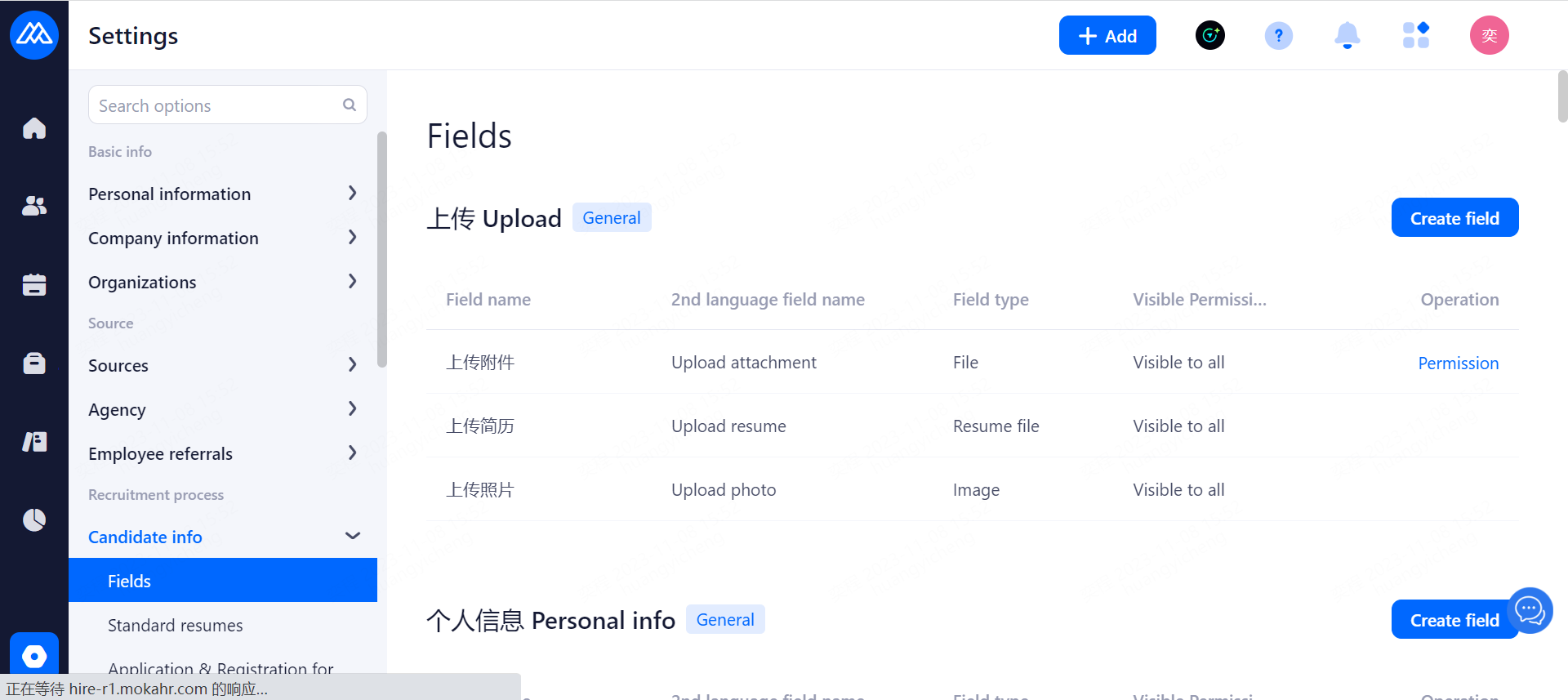
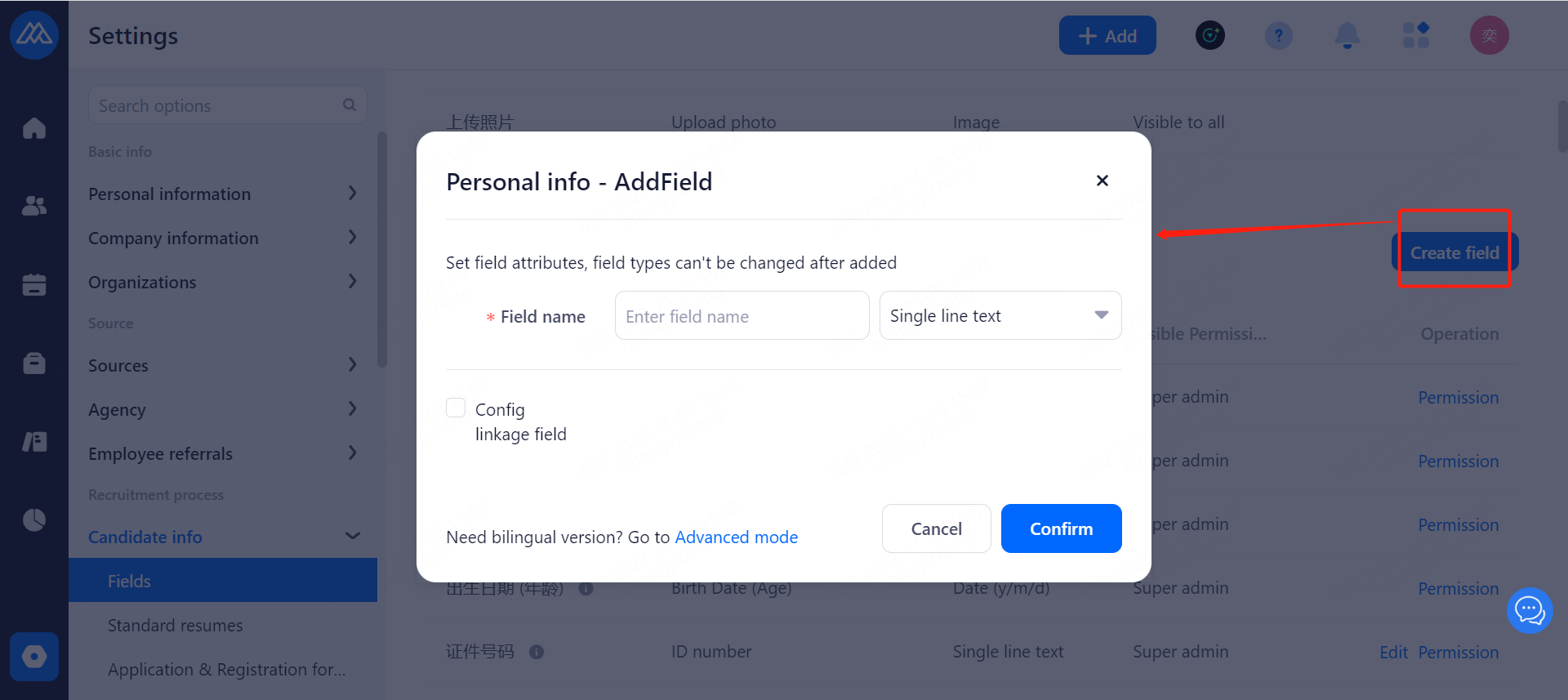
Configuration Notes:
General Field Just enter the field name and field type and save.
For English version, you need to click Advanced Mode to maintain the corresponding English field name.
Field types cannot be modified once saved.
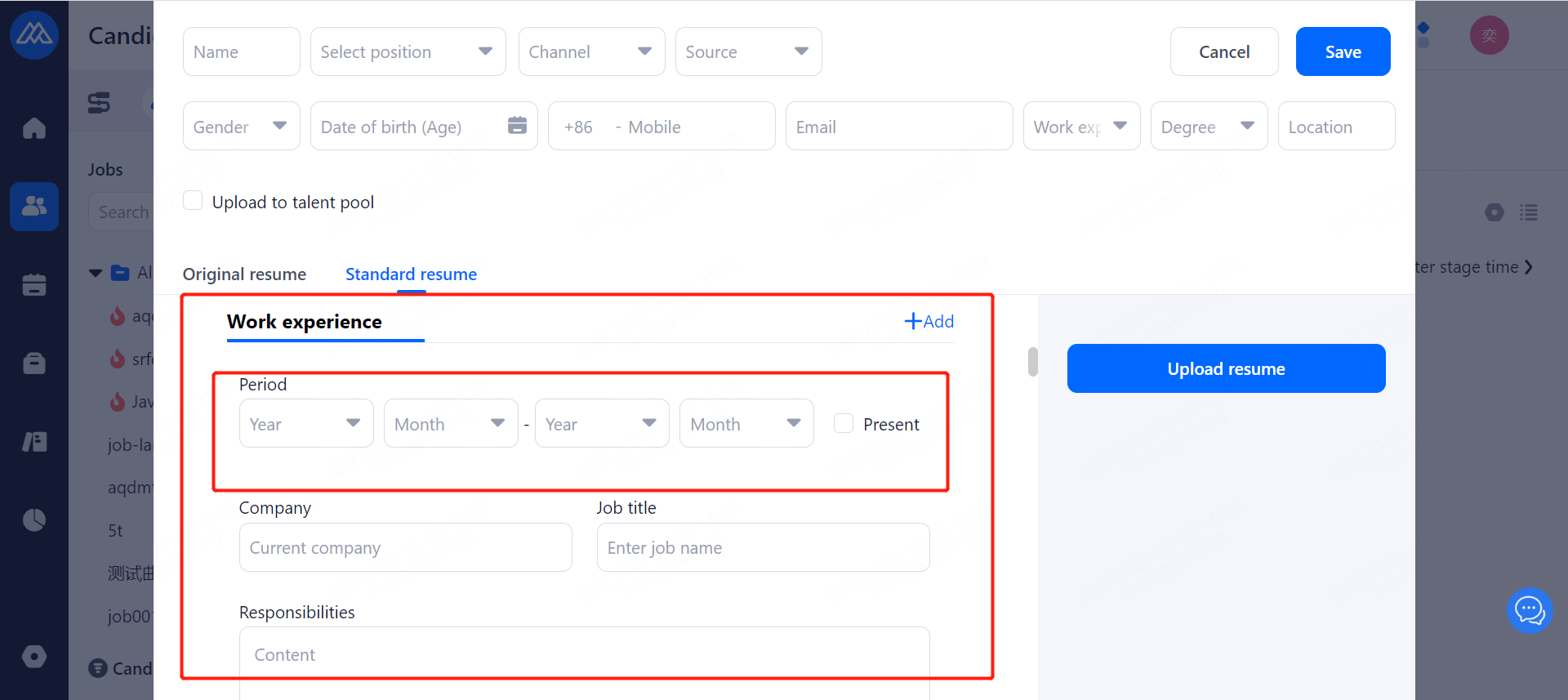
5.1.1.2.[Candidate] Customize Module Settings to Support Multiple Segments or Not
When configuring the registration form, the user can set it to support multiple segments of information for the Customized Registration Form module.
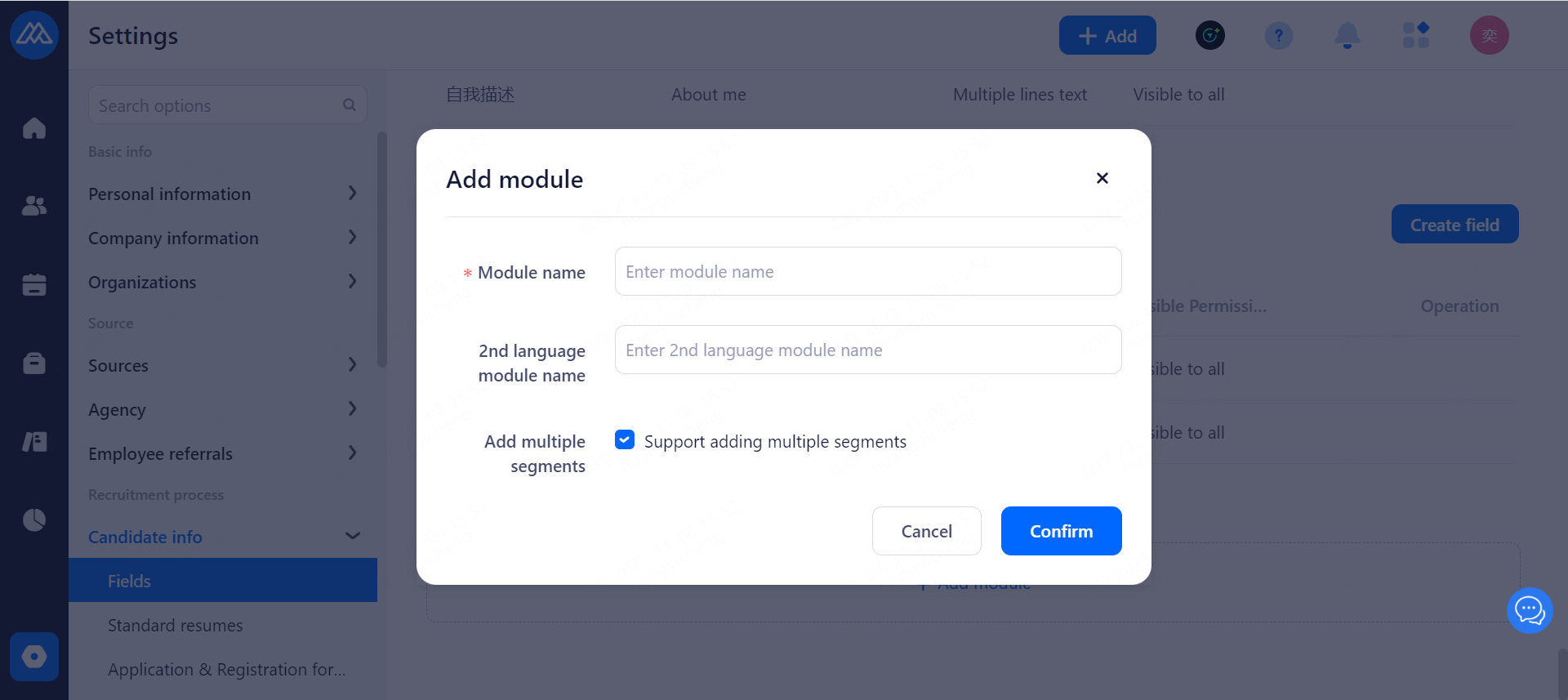
For example, if you click "Add" in the work experience, you can add multiple work experiences.
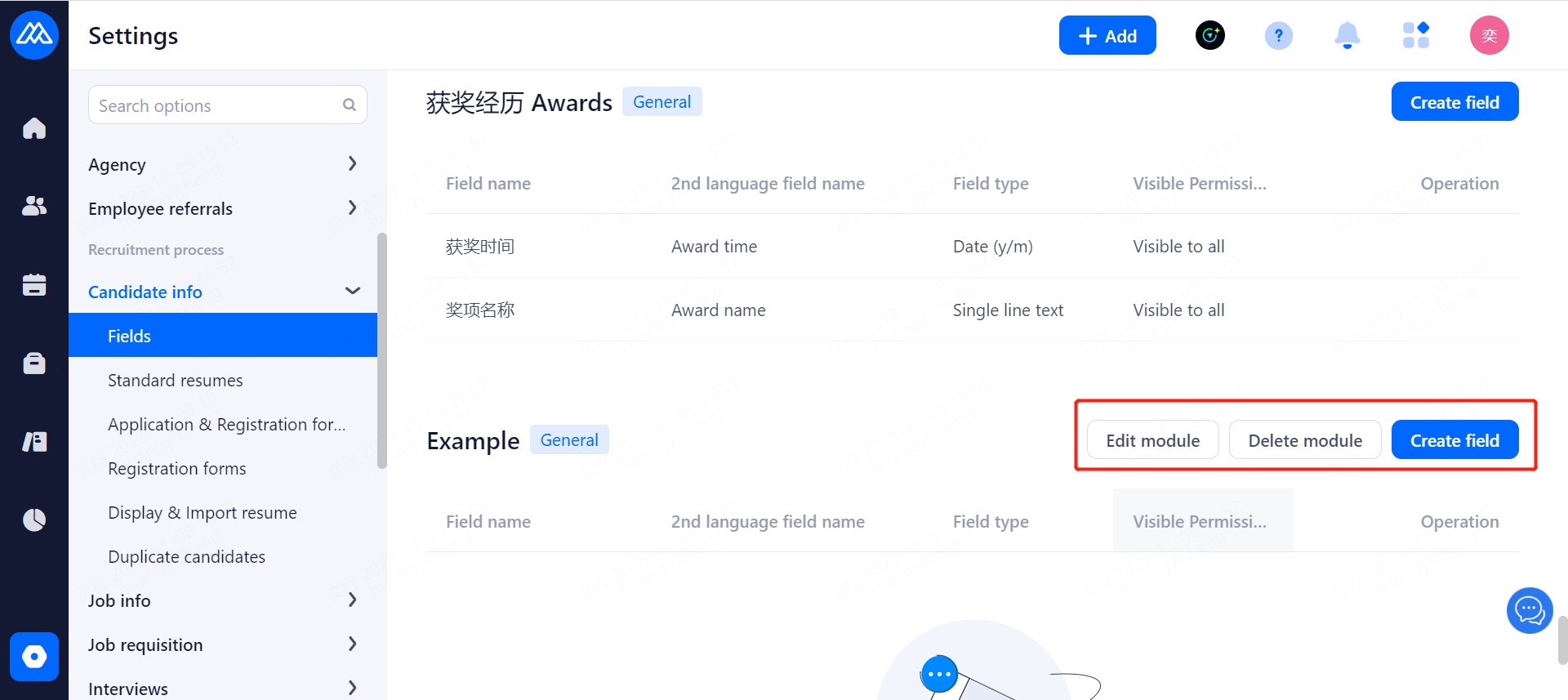
5.1.1.2.Maintenance Modules
In addition to the system's built-in information modules, users can add modules and related field information according to actual business needs.
Configuration Notes:
The system built-in module is not editable for module information.
Custom modules can be edited and deleted.
5.1.2.Standard Resumes
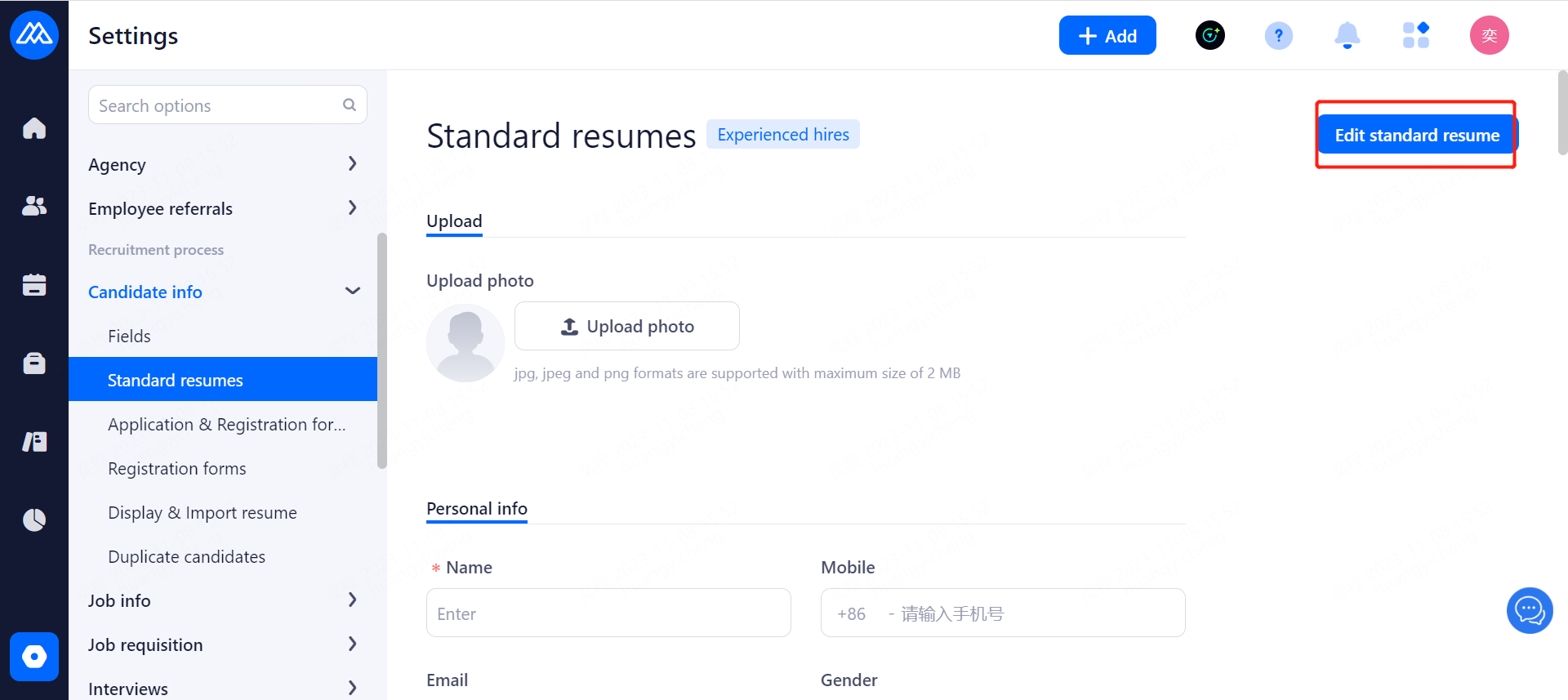
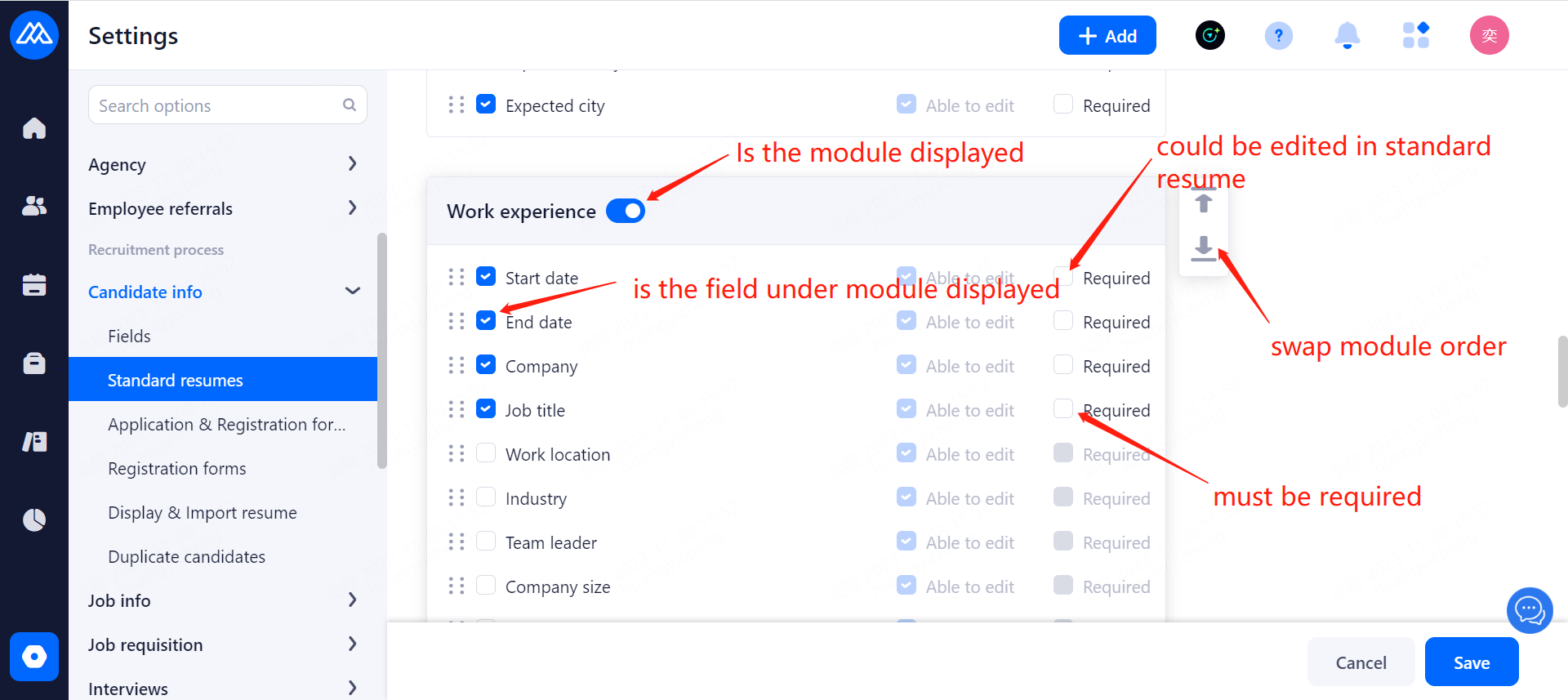
Configuration Notes:
Optional information modules and fields are maintained by the Field Administration Service.
5.1.3.Application & Registration Form Settings
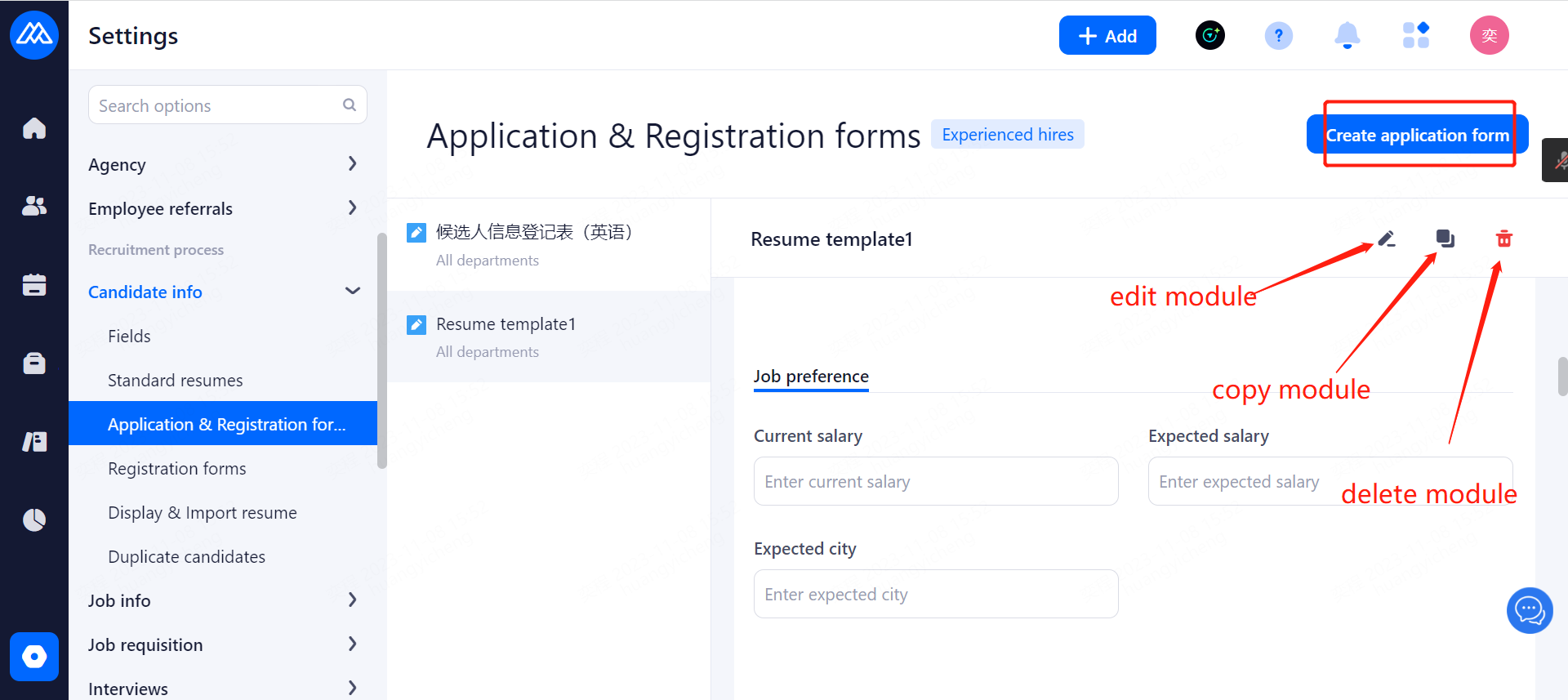
Configuration Notes:
Added: Templates are maintained as standard resumes.
Department: the department where this template is used.
Application and registration form use location:
5.1.4.Registration Forms
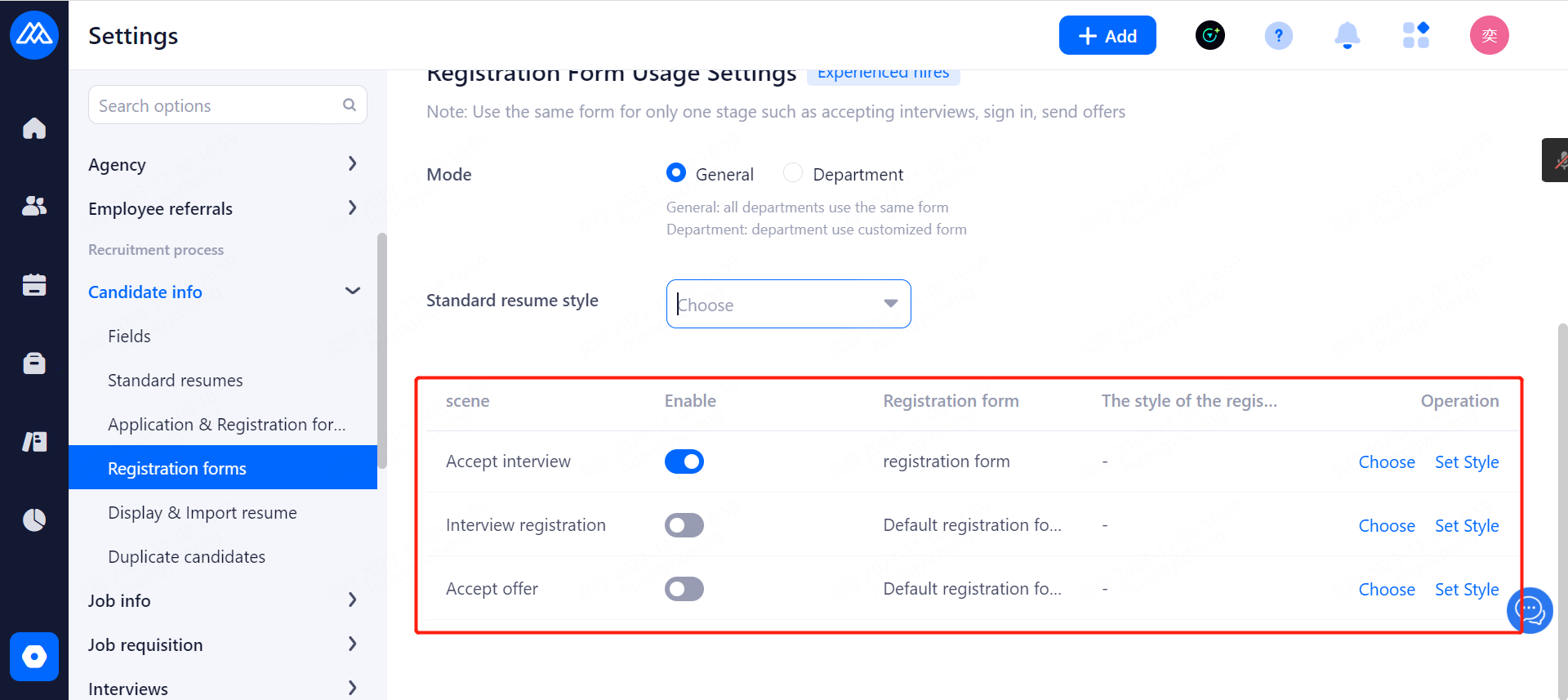
Note: Enablement and registration form style can be selected according to different scenarios
Configuration Notes:
Usage Settings: see Application Form and Registration Form Settings for template configuration.
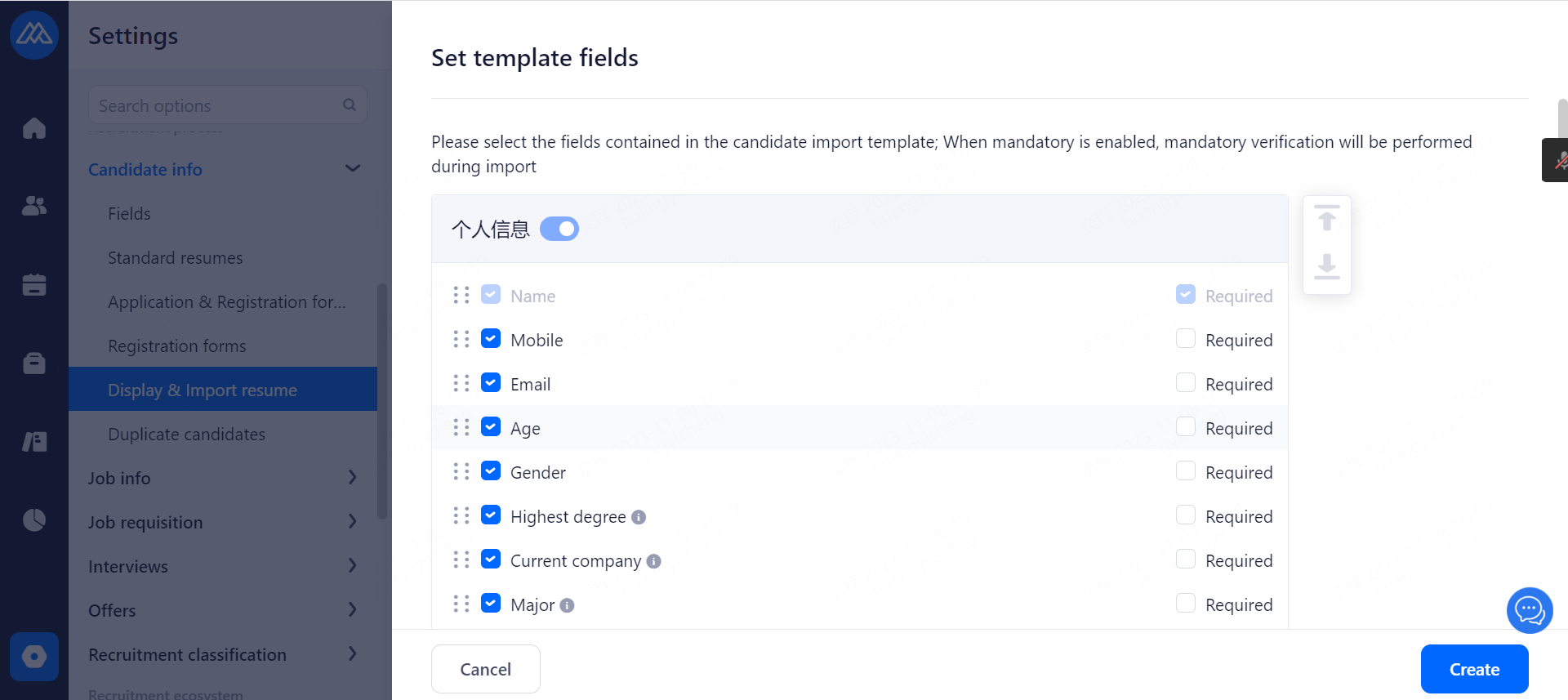
5.1.5.Display & Import Resume
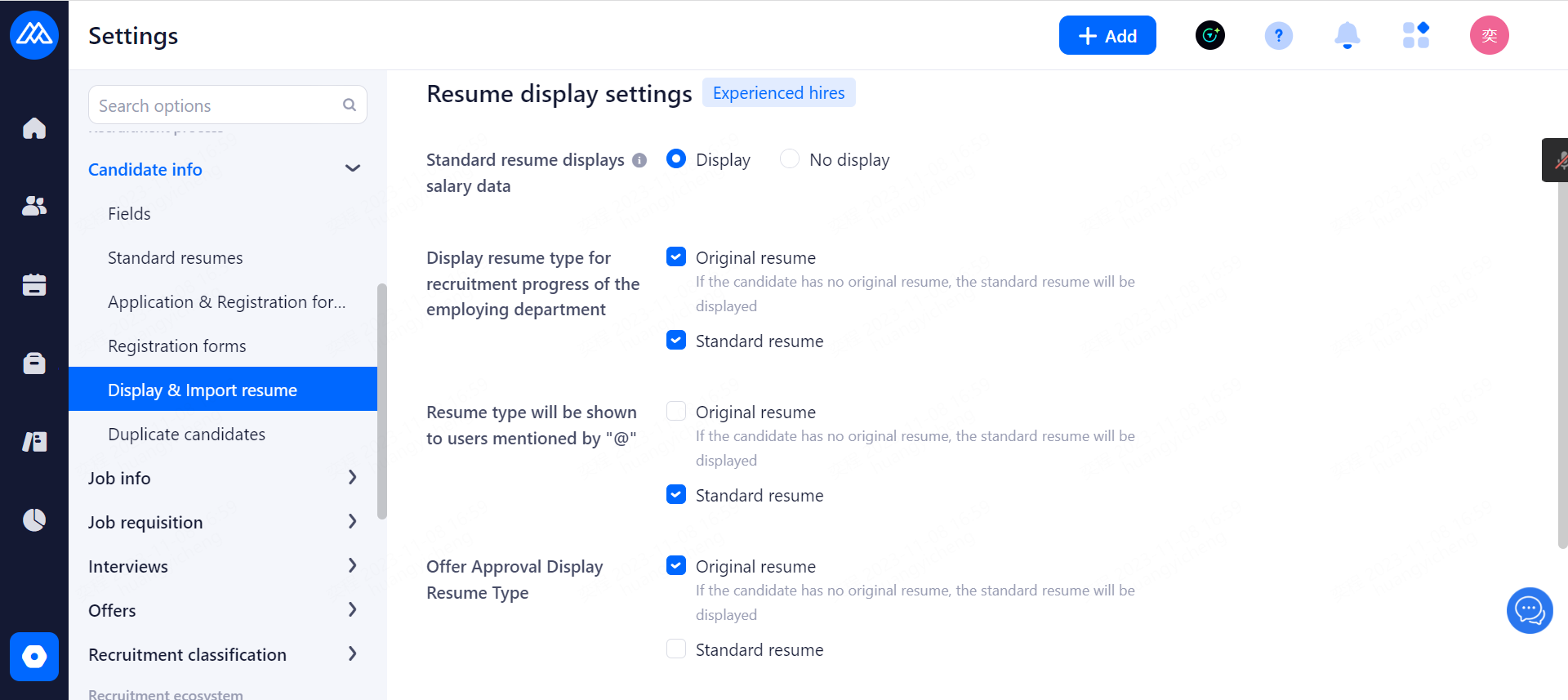
Configuration Notes:
The payroll data contains current and expected payroll.
Candidate resumes as seen by the hiring department manager in the hiring progress.
It is recommended to follow the above setup to circumvent salary sensitive data in the hiring progression, as typically the original resume will contain the candidate's current and expected salary data.
Resume Import Settings allows you to set up the template to be used when importing candidates and configure the available fields according to your specific needs.
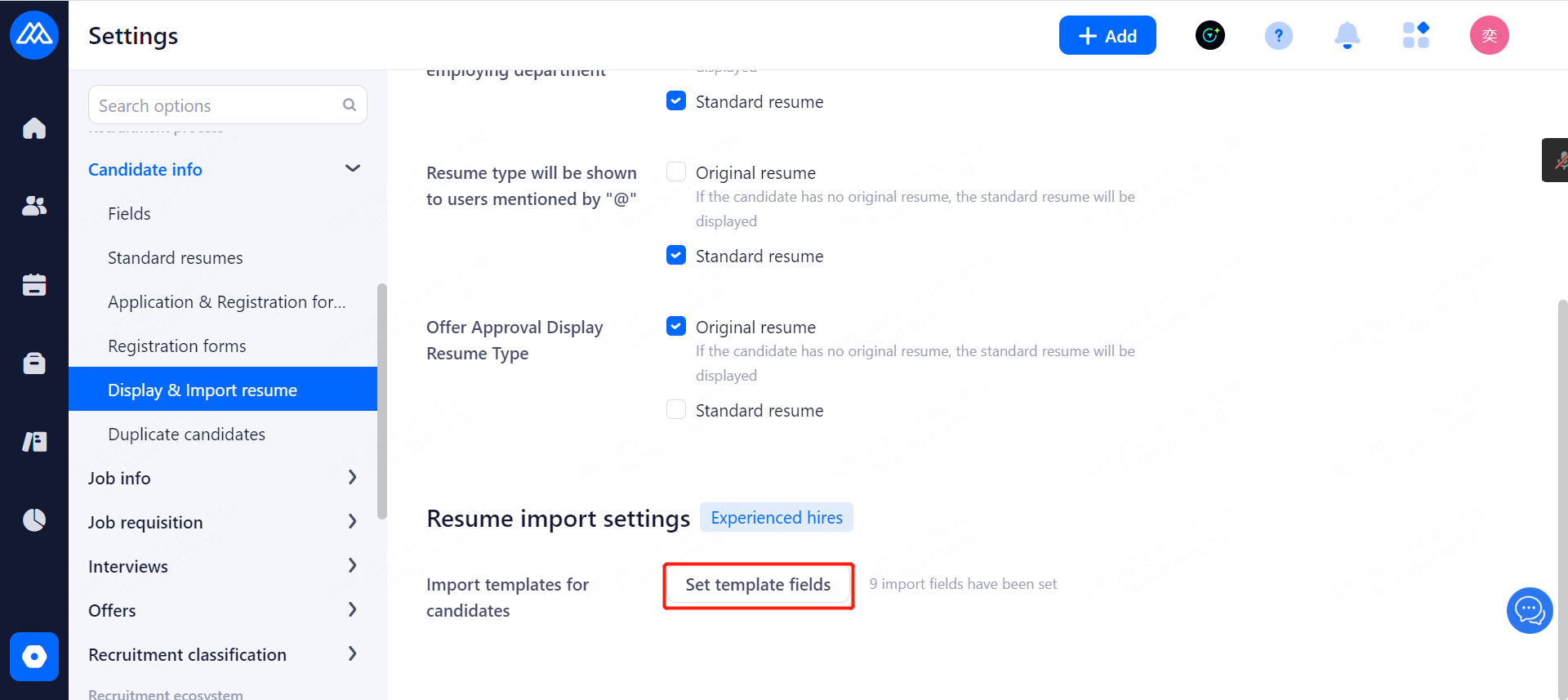
5.1.7.Duplicate Candidates
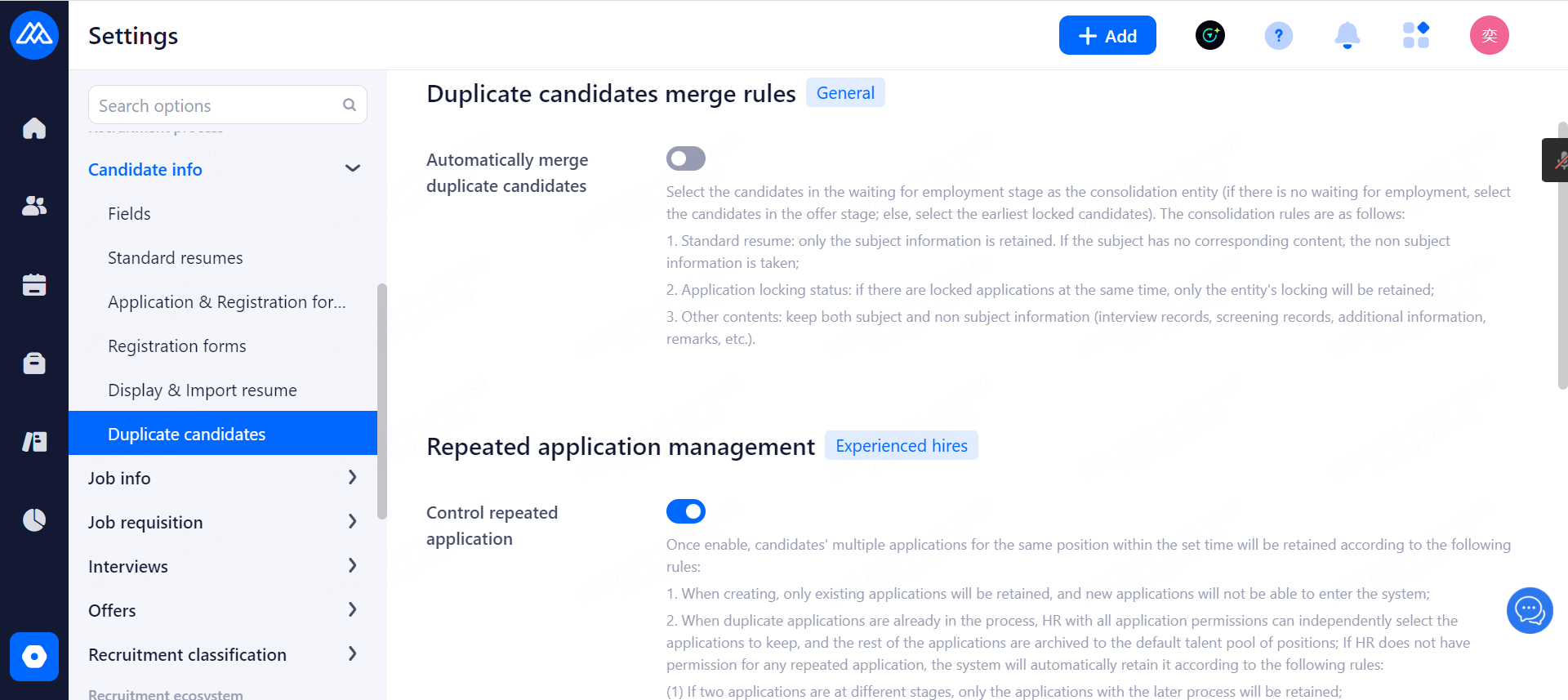
Automatic merging of duplicate candidates: when enabled, duplicate candidates can be automatically merged according to the merging rules
Control duplicate applications: when enabled, applications for the same position will be controlled at a set time.
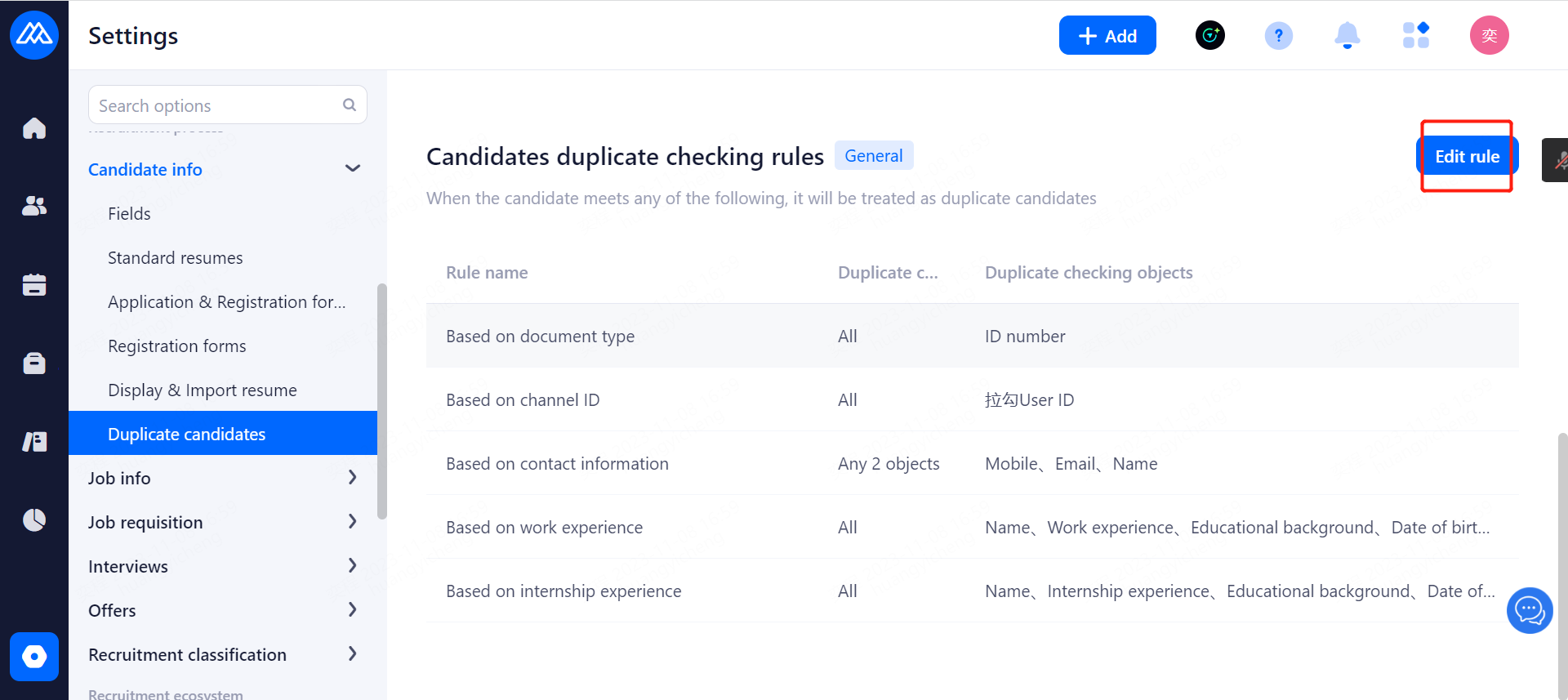
Candidate checking rules: You can edit the rules according to your needs.
5.2.Job Information Management
5.2.1.Job Field Management
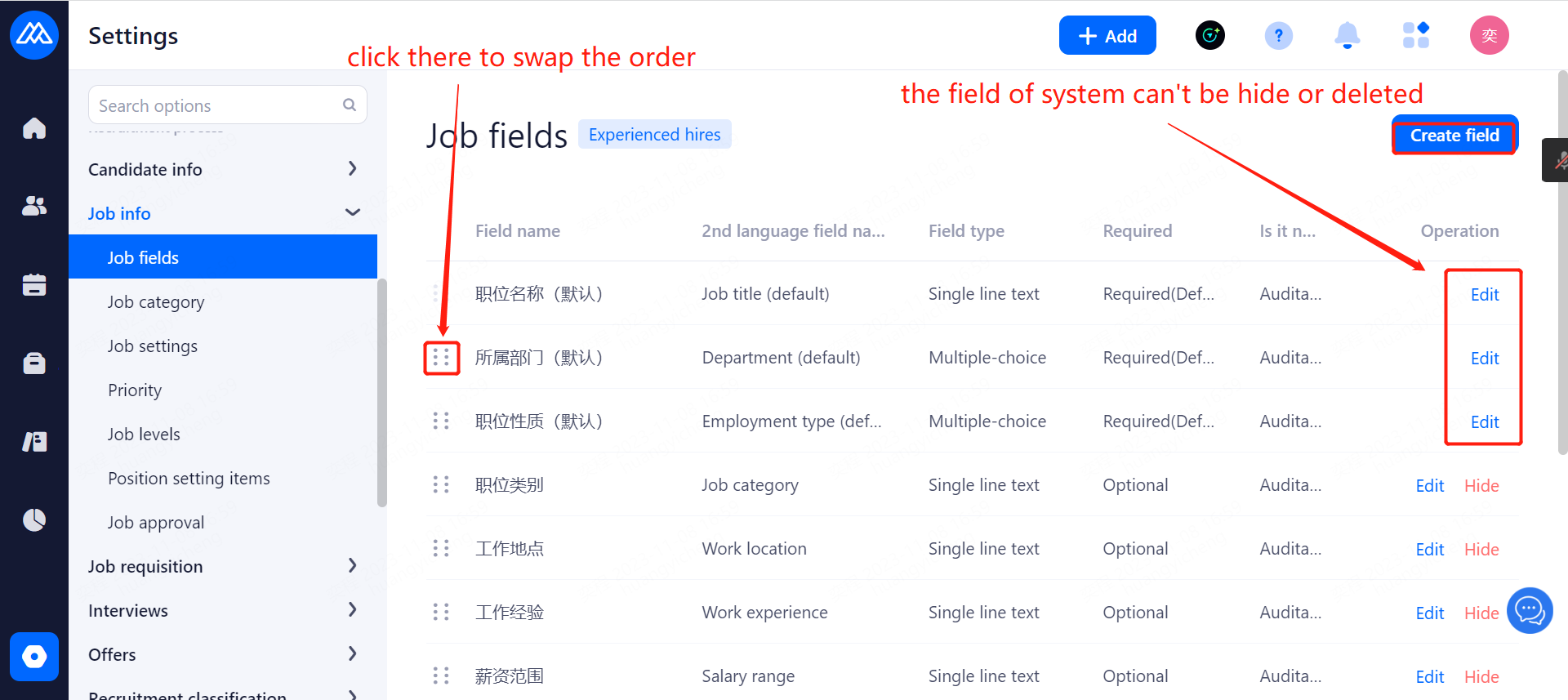
Configuration Notes:
configuration and notes are the same as Candidate Information Management.
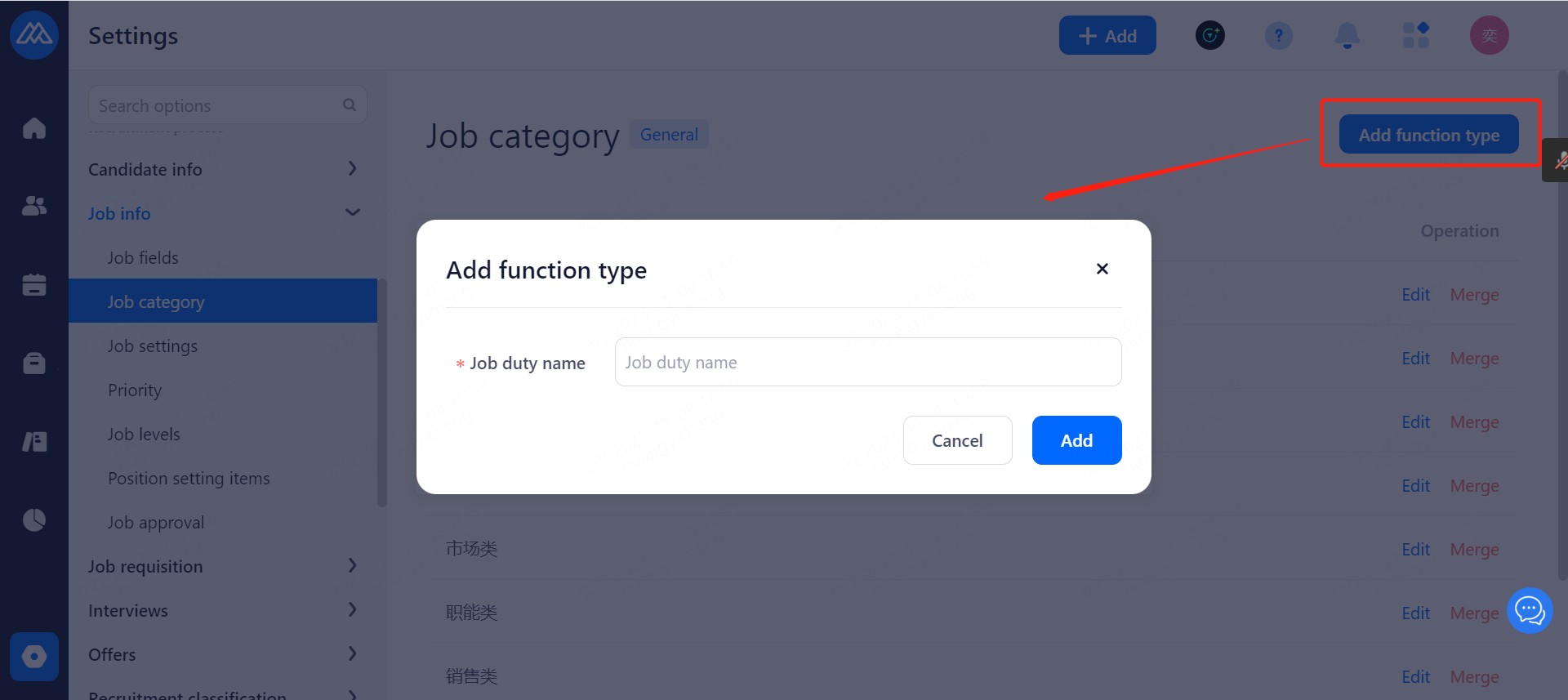
5.2.1.1.Function Type Added
5.2.1.2.Consolidation of Function Types
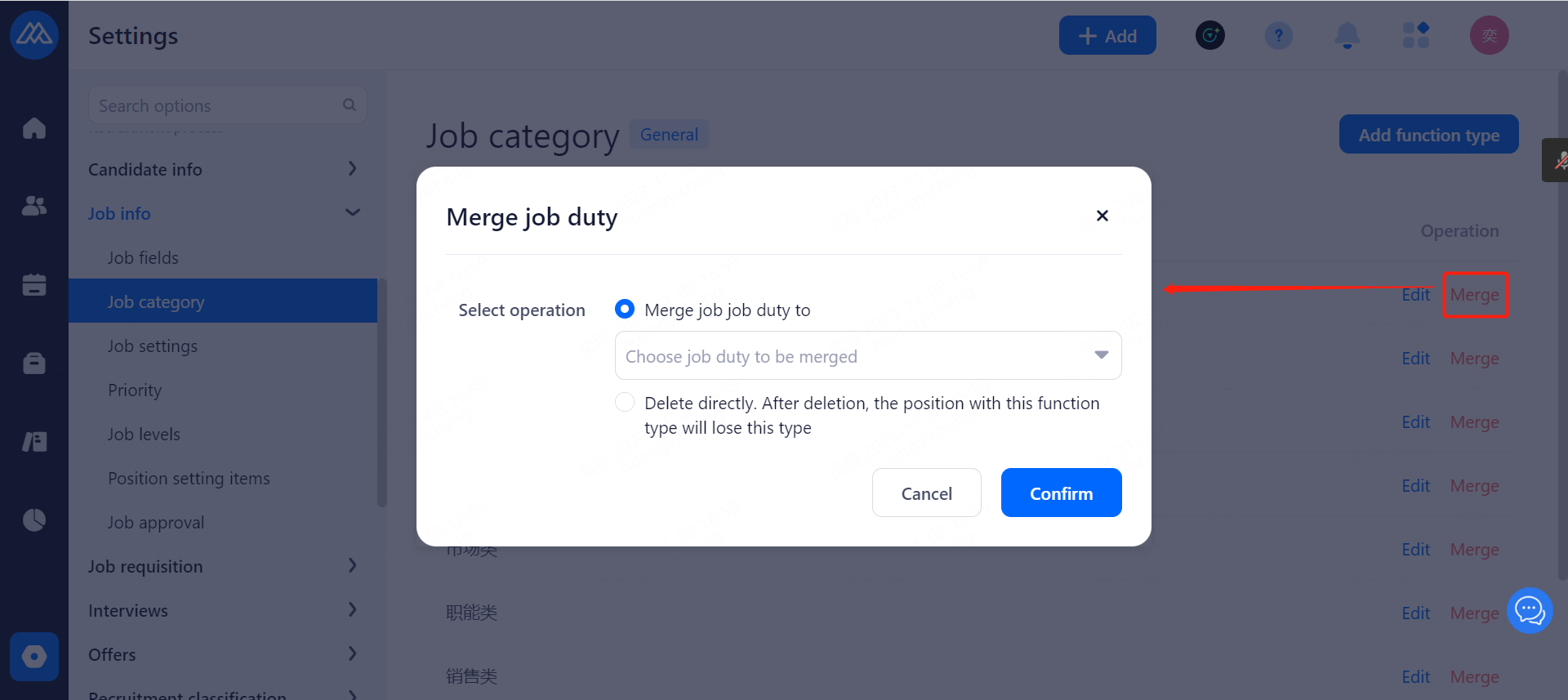
Configuration Notes:
Positions under the corresponding function type are merged when the function type is merged.
Deleting this function type directly will result in the position that owns this function type losing it and the function type under the position will be empty.
function type is easy to categorize jobs, query and statistics, mostly used for job categorization and screening in recruitment website.
5.2.2.Job Settings
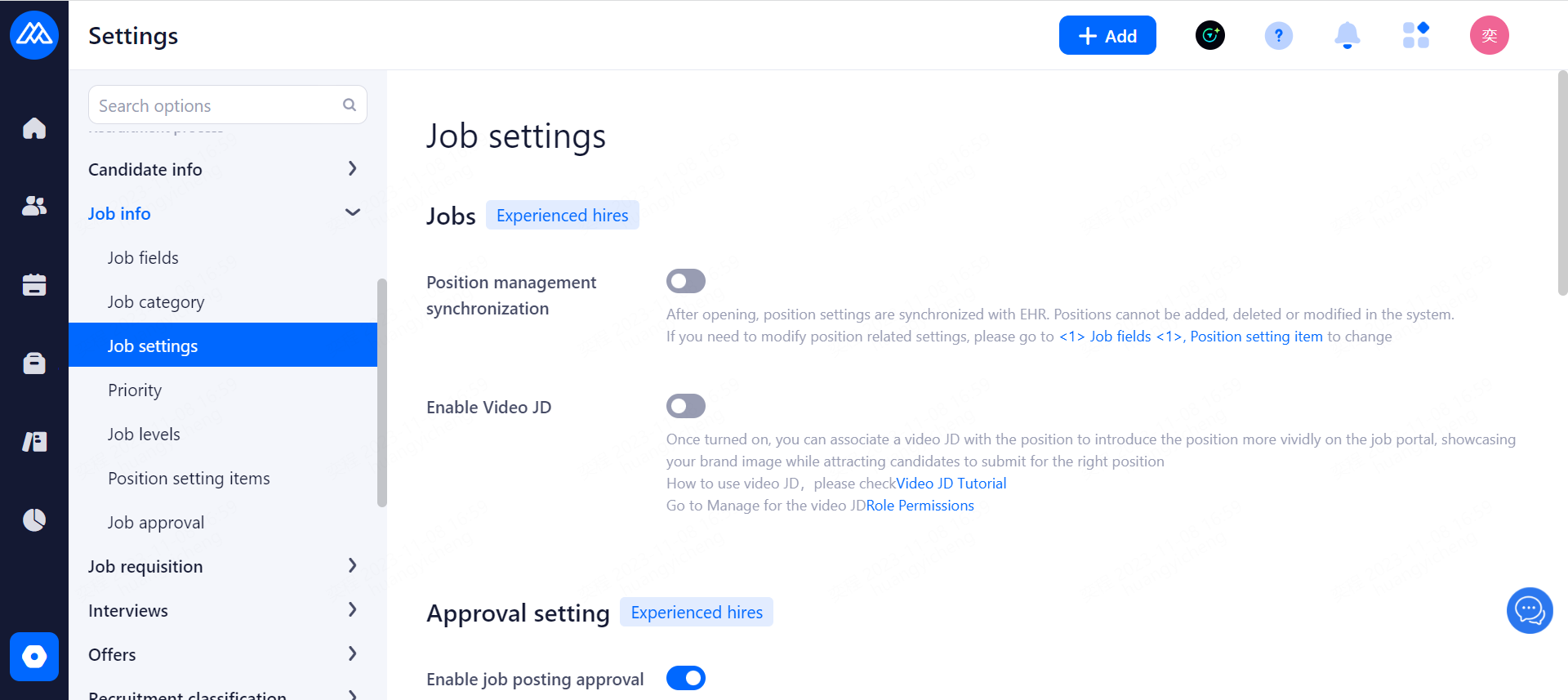
Configuration Notes:
using job posting application: after opening the HR without channel authority to create a job, you need to make an application and be approved by the relevant personnel before the channel can be published and operated.
Use job code: whether to use code when posting jobs to external channels.
5.2.3.Post Priority
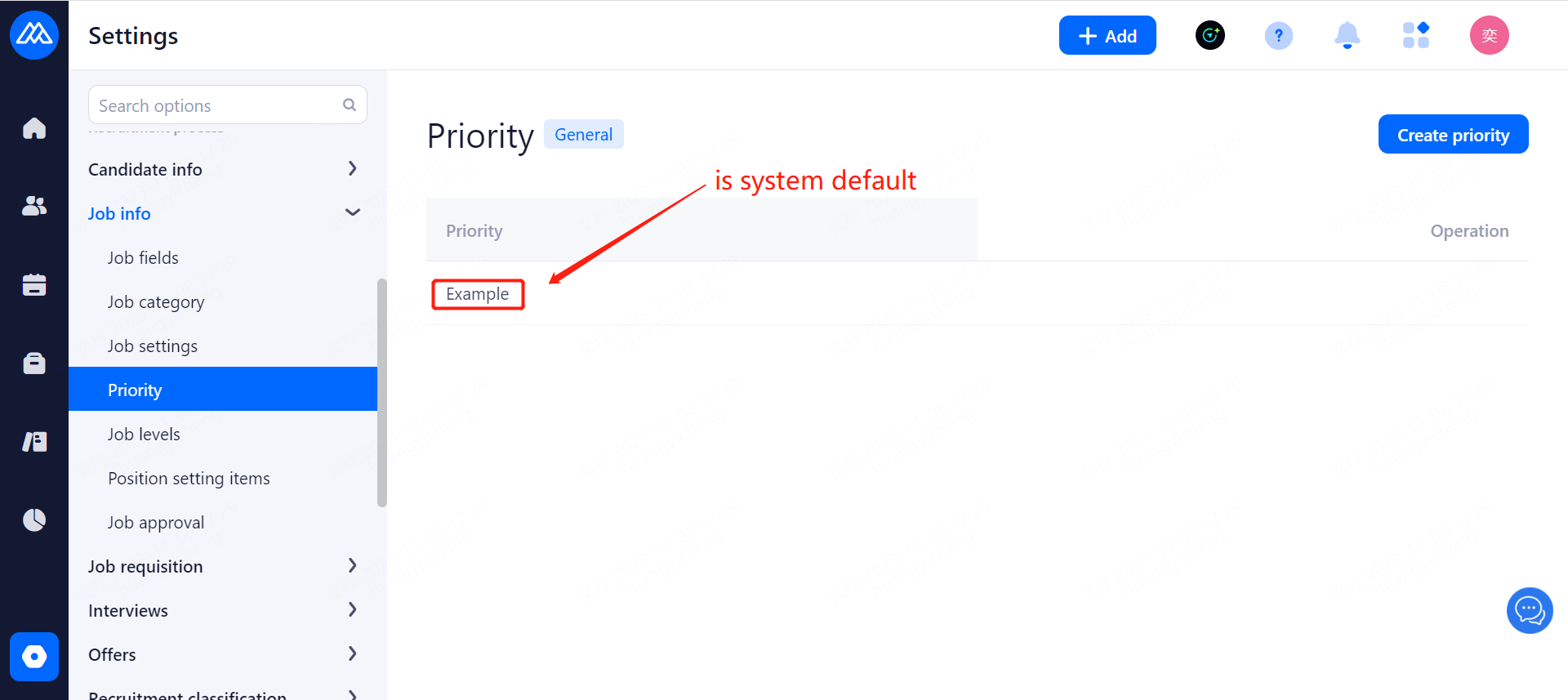
Configuration Notes:
Priority Recruitment: Positions can only be associated with other functions if the system's built-in "Priority Recruitment" is selected. Customized priority types are only used for conditional filtering and statistical analysis.
Job Priority is set in Add and Modify Job Settings.
Positions marked with "Priority Recruitment" are displayed in the following scenario:
Displaying Priority Recruitment: In the job management, jobs with priority recruitment are displayed at the top of the list and marked with a logo.
In recruitment website, the jobs with priority recruitment will be shown in the following aspects:
a) Displayed in the home page (PC, mobile), and there is a [priority] logo, mobile need to set the home page to display in accordance with the list of jobs.
b) Displayed in the job list (PC, mobile) to the front position, and there is a [priority] logo.
c) The latest jobs on the right side of the job list on PC.
d) The job title of the job details will also have the [Priority] logo.
5.2.4.Job Levels Management
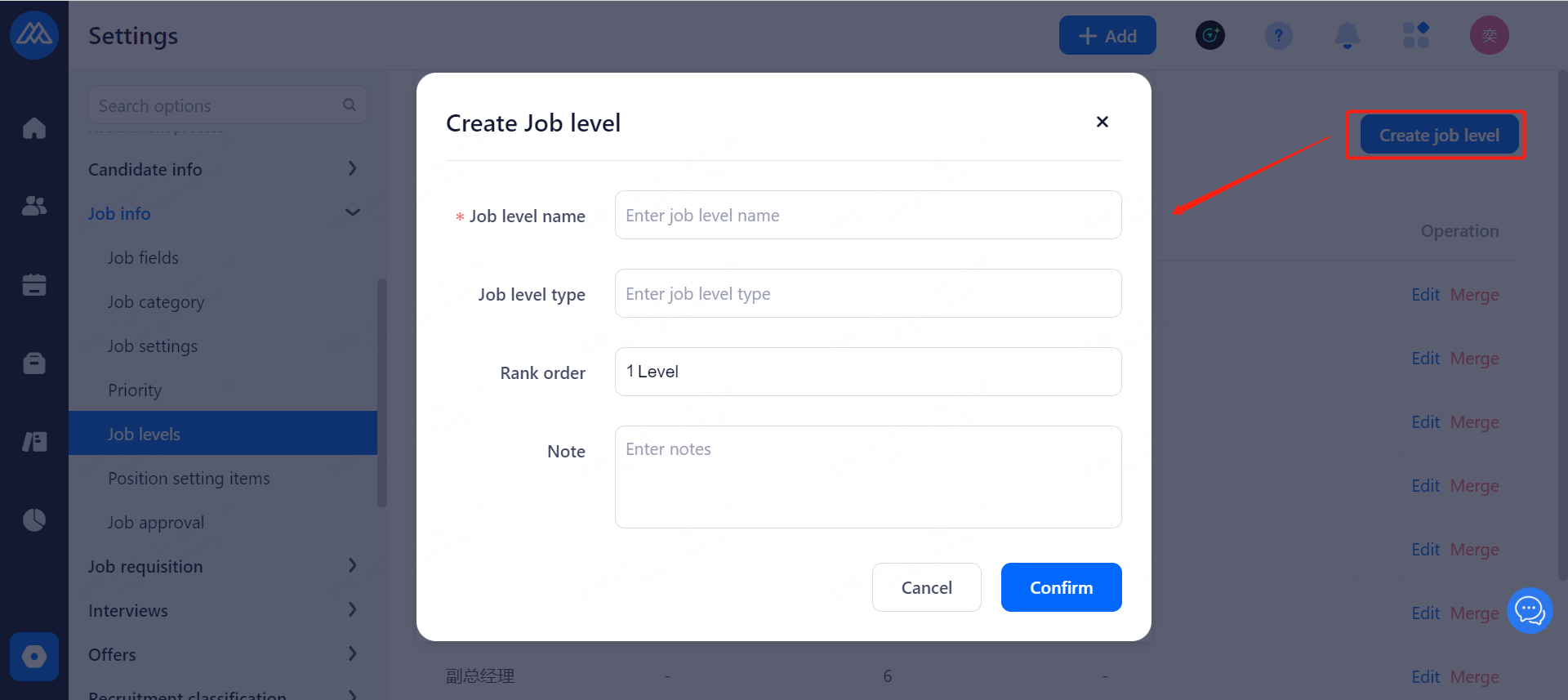
Configuration Notes:
Grade name: internal company grading.
grade category: the market grade reference, the company to get this grade is equivalent to what other companies, similar: P6, M3.
grade level: the position of the high and low order, currently supports 1-30 levels.
merged grade, the corresponding position is also merged under one grade, currently does not support deletion.
5.2.5. Job Setting Items
When adding a job, sometimes you forget to bind the interview evaluation form to the corresponding interview session, resulting in the interviewer not being able to receive the correct interview evaluation form template when scheduling an interview later, and the efficiency of the work will be affected if you go back to the job to bind the form and then send the interview notification again. This prevents users from forgetting to set the necessary options when creating/modifying jobs.
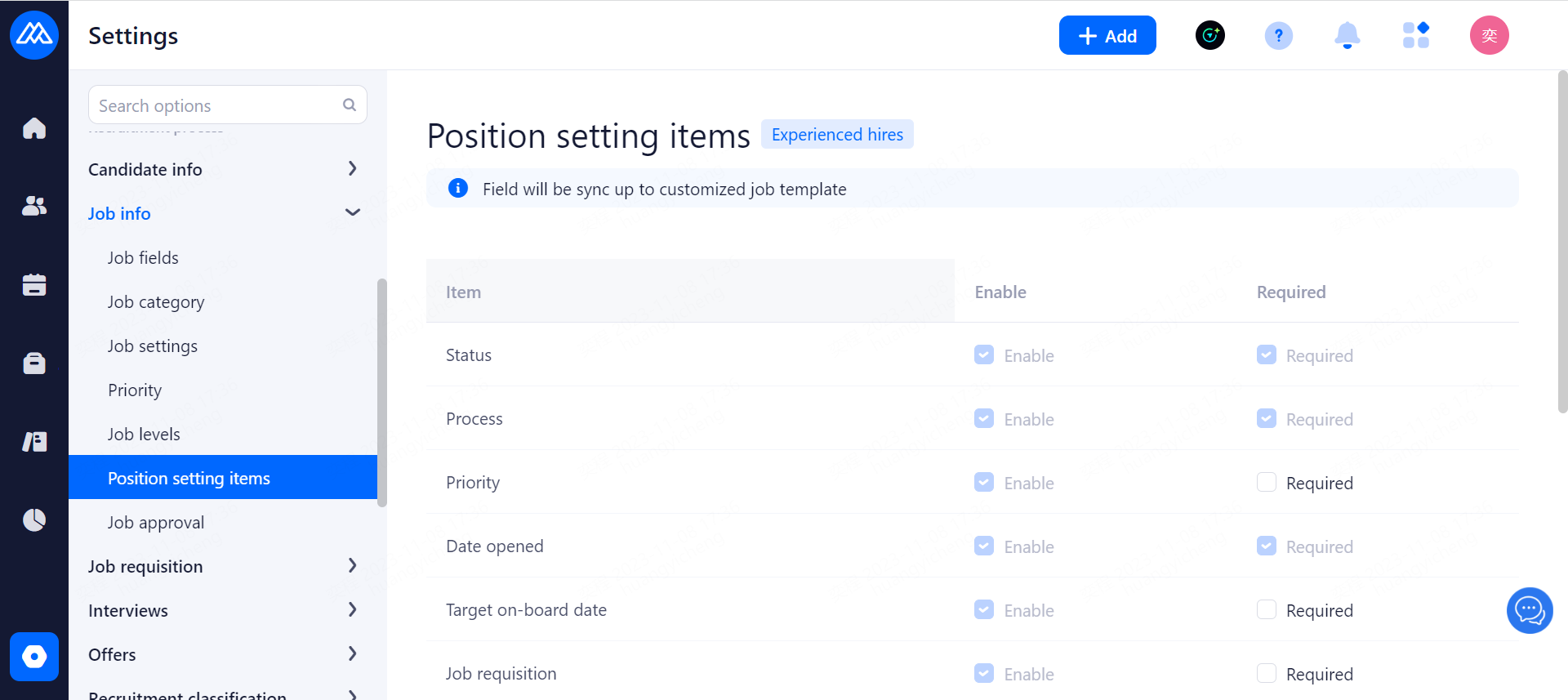
Configuration Notes:
can only control whether a setting item is required or not, it cannot be added or deleted.
Recruitment Status: system built-in field, not modifiable.
Recruitment Process: system built-in field, cannot be modified.
Position Priority: enabled by default, not modifiable; non-required by default, modifiable. When set as required:
Not selected when creating a new position: prompt "Please select the position priority".
Edit position: the "x" icon in the selection box is hidden, cannot be empty, and can only be switched to other options.
Recruitment start time: enabled by default, can not be modified; default non-required, can not be modified.
Target Completion Time: enabled by default, cannot be modified; default non-required, can be modified. When set as required:
Not selected when creating a new position: prompts "Please select a target completion time".
Edit Position: the "x" icon in the selection box is hidden, cannot be left empty, and can only be switched to other options.
Associated HC: enabled by default, not modifiable; default non-required, modifiable. When set to required:
not selected when creating a new post: prompts "Please associate at least one HC".
Take off HC when editing a post: when deleting the last HC, prompt "Please keep at least one HC".
Auto-filtering rules: enabled by default and cannot be modified; non-required by default and can be modified. When set to required:
not selected when creating a new job: prompt "Please select auto-filter rule".
Edit position: the "x" icon of the selection box is hidden, cannot be empty, and can only be switched to other options.
Interview Rounds and Interview Evaluation Form: enabled by default, cannot be modified; non-required by default, can be modified. When set as required:
No interview evaluation form is selected when creating a new position: prompts "Please select interview rounds and interview evaluation form".
When creates a new position and clicks Confirm in the pop-up box for selecting an evaluation form, if all the rounds are empty: "Please set up an interview evaluation form for at least one of the rounds", and the save is unsuccessful.
Edit position, when clicking on confirmation in the pop-up box for selecting evaluation forms, if all rounds are empty: "Please set up an interview evaluation form for at least one of the rounds", saving is unsuccessful.
Bulk Edit Interview Evaluation Form, when clicking on Confirm in the pop-up box for selecting evaluation form, if all rounds are empty: "Please set up an interview evaluation form for at least one of the rounds", saving is unsuccessful.
Offer Approval Process: Enabled by default, cannot be modified; Default non-required, can be modified. When set as required:
Not selected when creating a new position: prompt "Please select Offer Approval Process".
Edit Position: no process required.
Eliminate auto-filing: enabled by default, not modifiable; default non-required, modifiable. When set to required:
Not selected when creating a new position: prompts "Please select the talent pool to be eliminated from auto-filing".
Edit position without processing.
Candidate registration form: enabled by default, can be modified; default non-required, can be modified.
The setting is not enabled to not show this item when editing and creating new positions.
No action is required when is set to required.
application form: enabled by default, can be modified; default non-required, can be modified.
The setting is not enabled then the item is not displayed when editing and creating new posts.
No action is required when is set as required.
Trial Work Evaluation Form: enabled by default and can be modified; non-required by default and can be modified.
The setting is not enabled to not show this item when editing and creating new posts.
No action is required when is set to required.
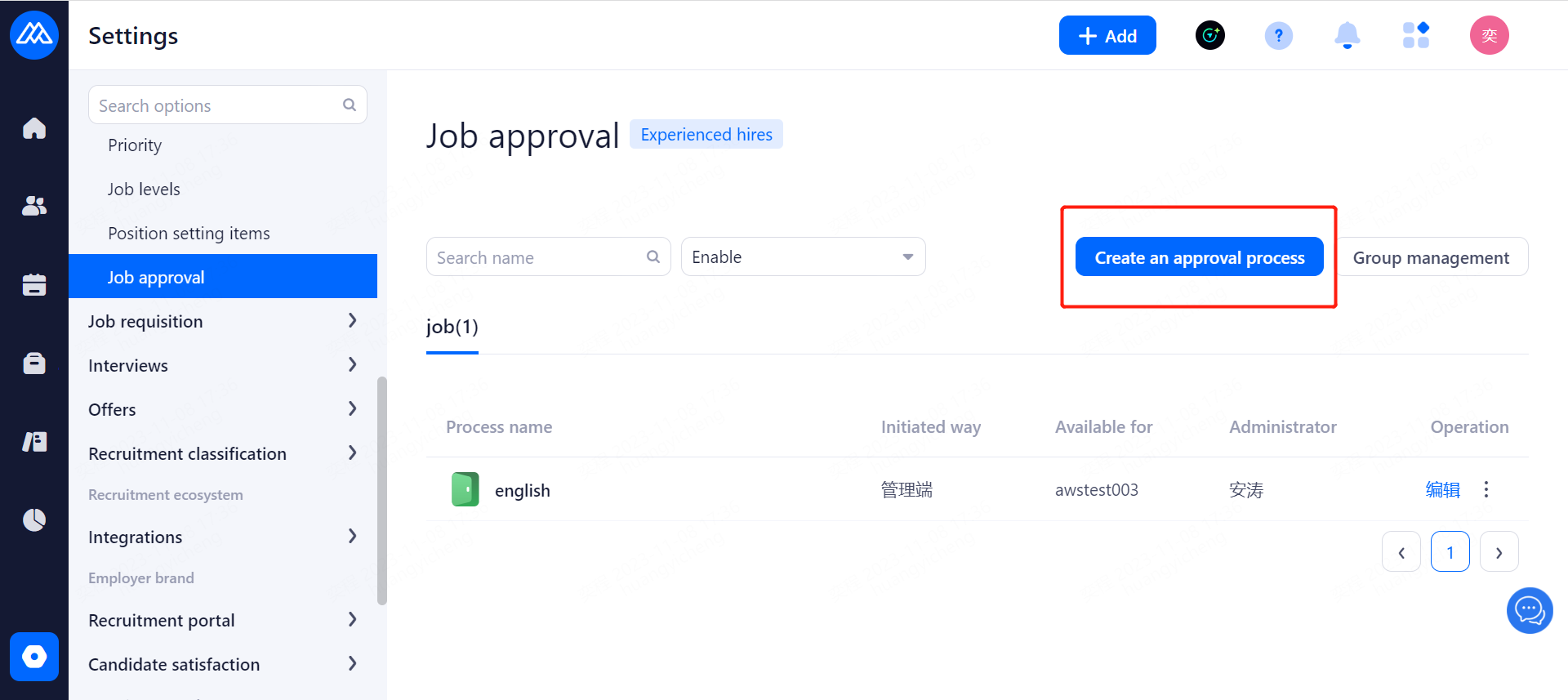
5.2.6 Position Approval Management
This function is mainly used, when HR in the posting of jobs, do not have job posting permissions, you need to click on the initiation of the application
It will flow to the corresponding approver for approval according to the set job approval process.
5.3. Job Requisition
5.3.1.Job Requisition Fields
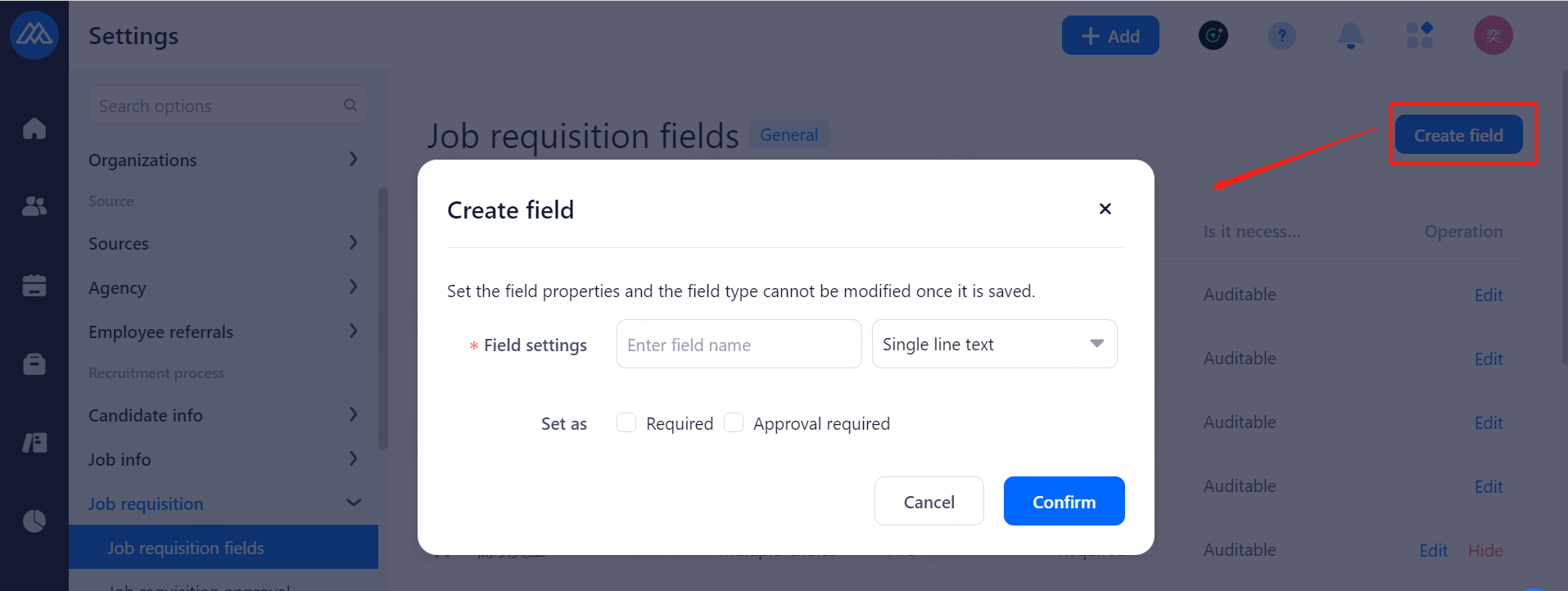
Configuration Notes:
There are three types of fields: system default, system built-in, and customized.
The system default field can only be edited for mandatory review or not.
system built-in fields can be edited whether they are mandatory or not, cannot modify the name, modify show/hide, and cannot be deleted.
custom fields can be manipulated at will.
new field optional field type: single line text, whether the question, multiple choice, time selection (year and month), time selection (year, month and day)
fields can not modify the field type after adding the field.
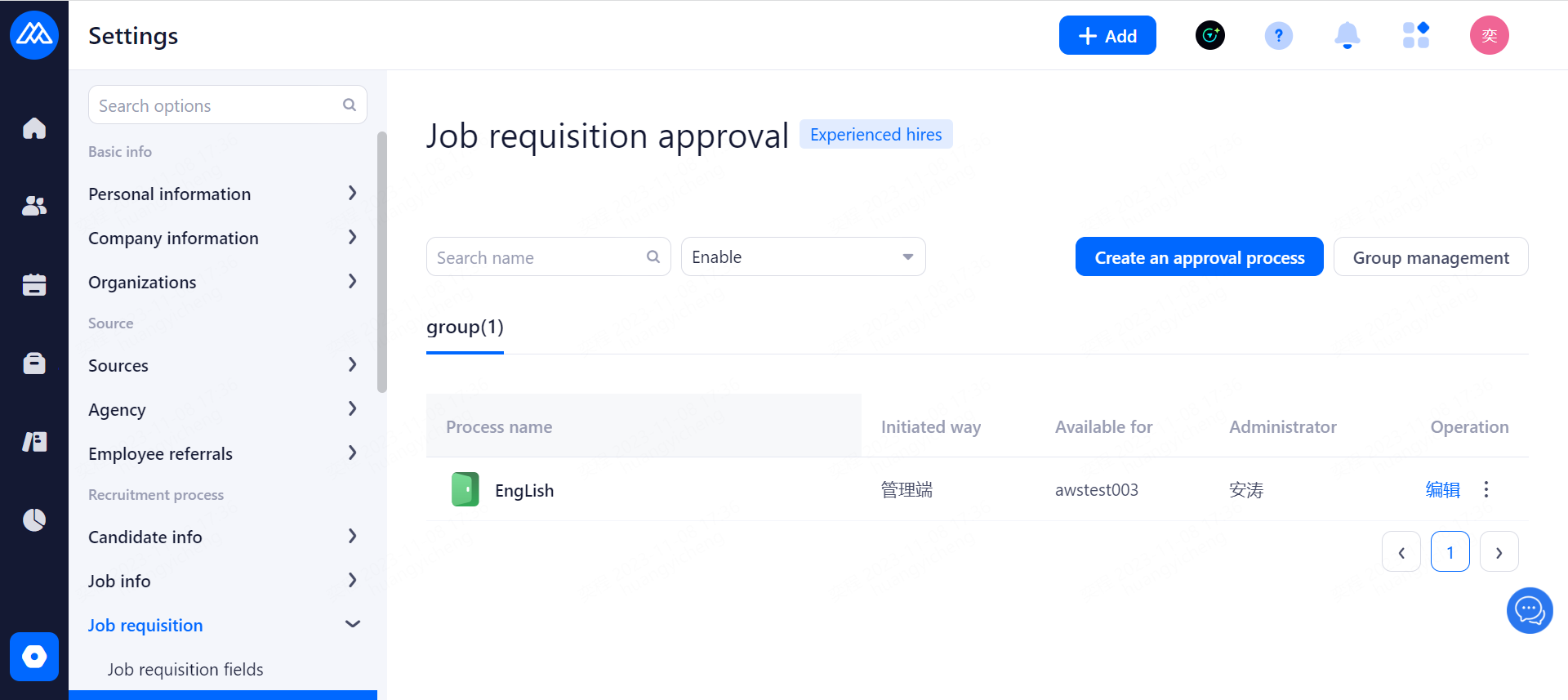
5.3.2.Job Requisition Approval
New, Edit, Deactivate Recruitment Requirements Approval Process Operations
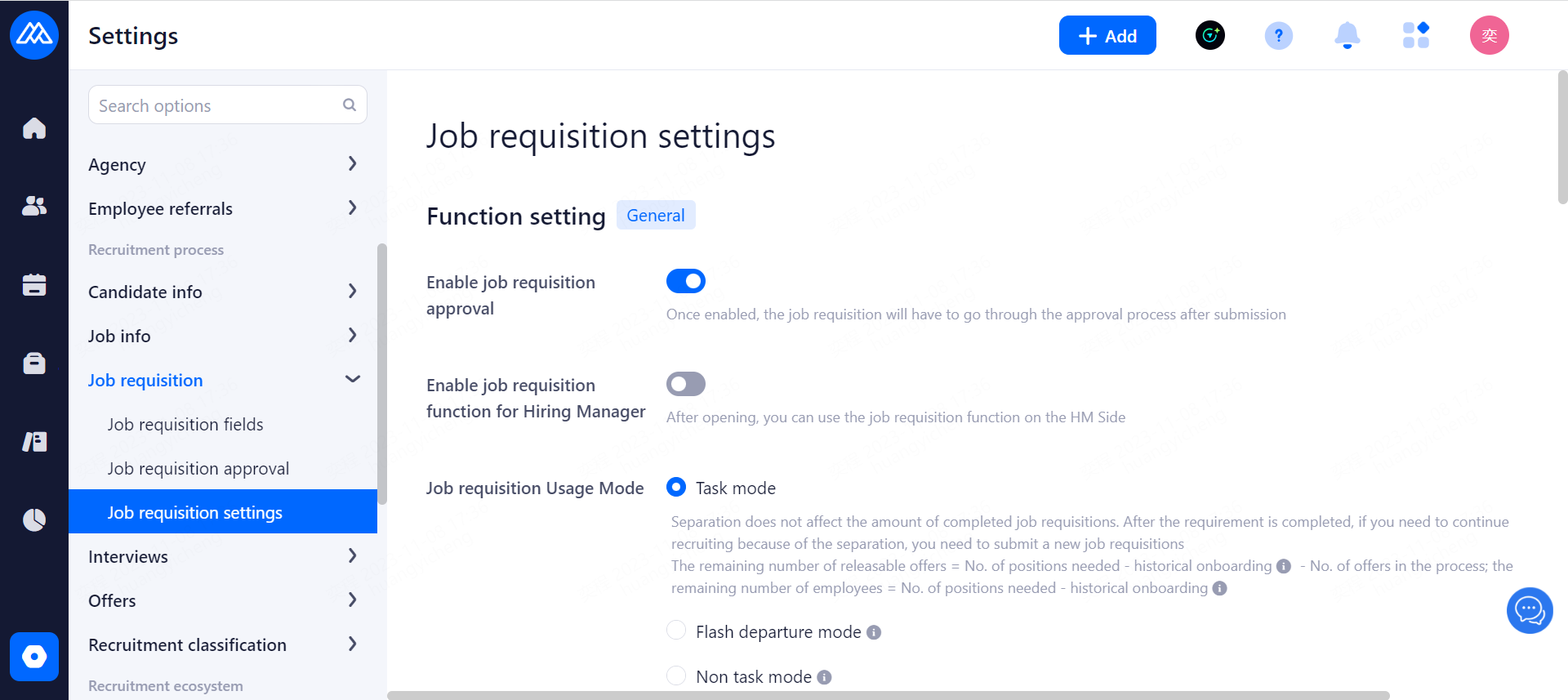
5.3.3.Job Requisition Settings
Function settings, management settings: you can set them according to your needs.
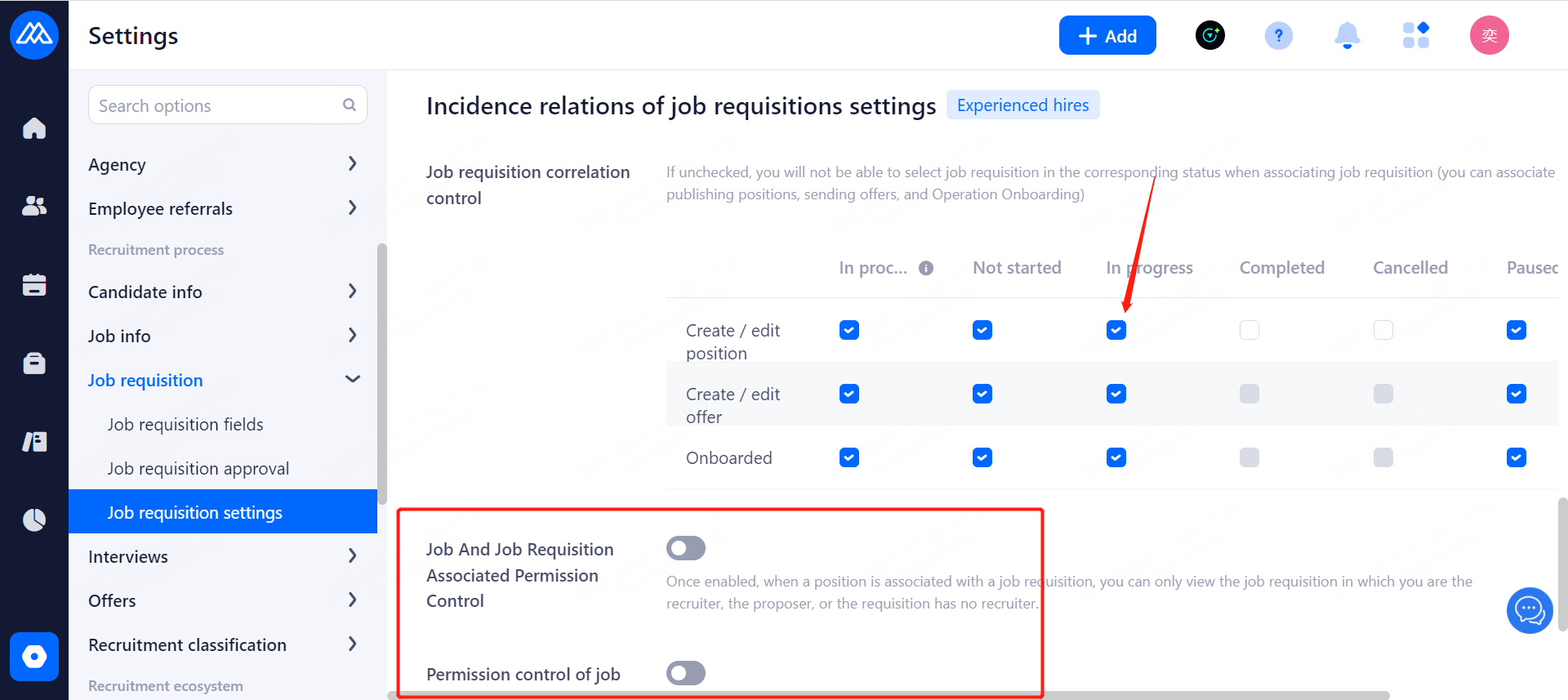
Recruitment Requirement Relationship Setting: When associating recruitment requirements, you can select the corresponding status of recruitment requirements according to the contents of the check box.
5.4. Interview Management
5.4.1 Interview Settings
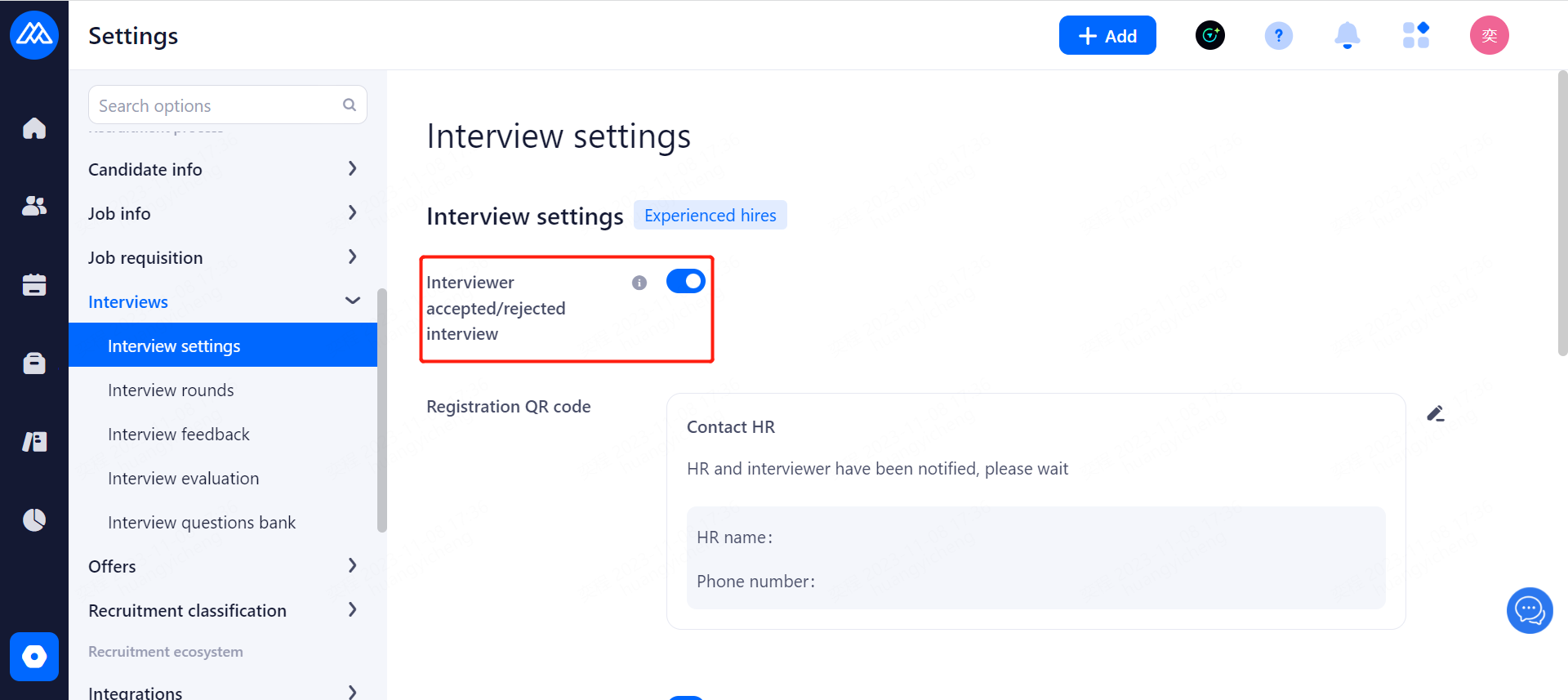
Interviewer Accept/Reject: Once enabled, the interviewer can choose to "accept" or "reject the interview" when sending notification to the interviewer.
5.4.2. Interview Feedback Settings
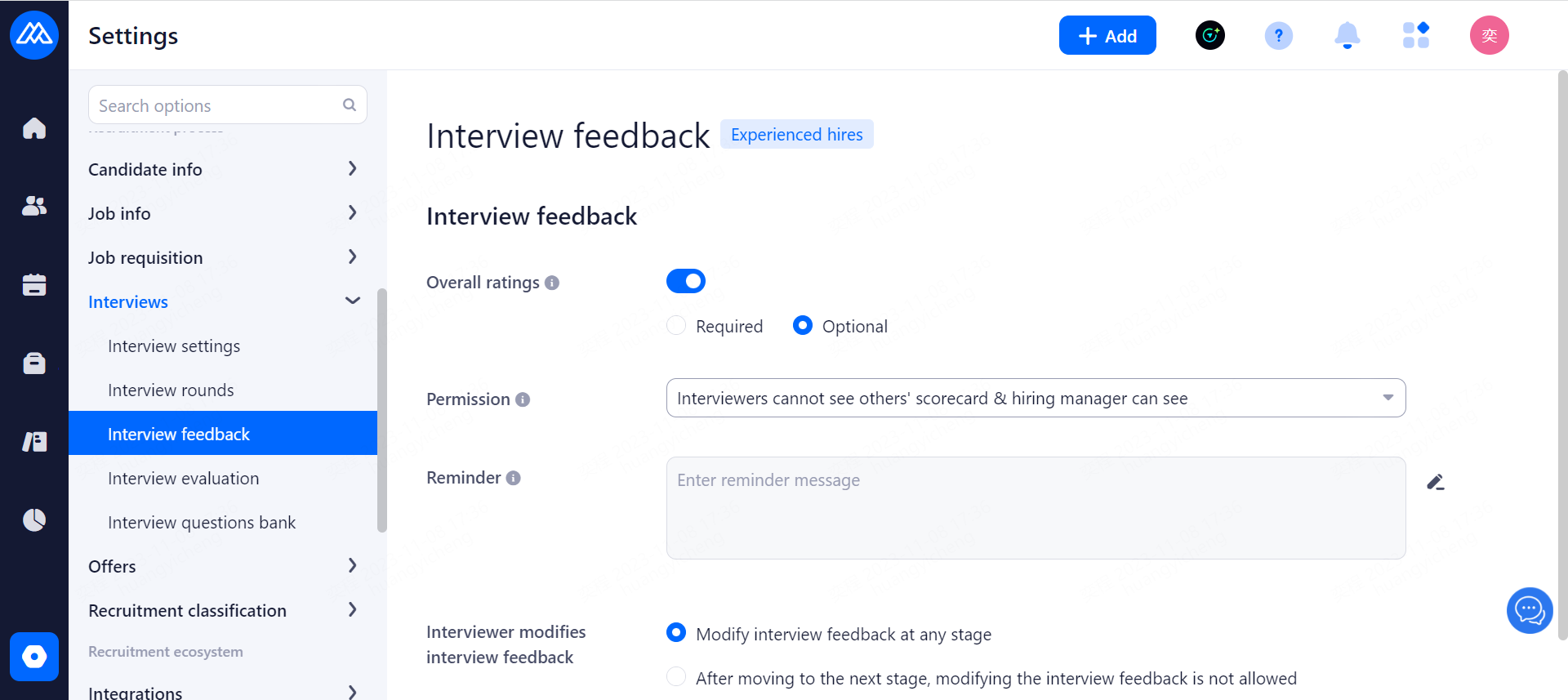
Comprehensive Evaluation Settings:
switch: when turned on, the Comprehensive Evaluation in Interview Feedback is displayed, when turned off, it is not displayed.
Interview Feedback Visibility: Whether or not the interview feedback of other people can be seen for the same candidate interview that the interviewer and hiring manager participated in.
The interviewer does not have visibility of other people's interview feedback, the hiring manager does.
Both the interviewer and the hiring manager can see everyone else's interview feedback.
Interviewers and hiring managers can see other people's interview feedback after they submit it.
Interviewers and hiring managers can only view interview feedback from the round they participated in and previous rounds.
Interviewers and hiring managers can only view feedback from interviews that they have scheduled and that require their own feedback.
Interview Feedback Prompts: Interviewers can customize and edit interview feedback prompts.
5.4.3.Interview Rounds
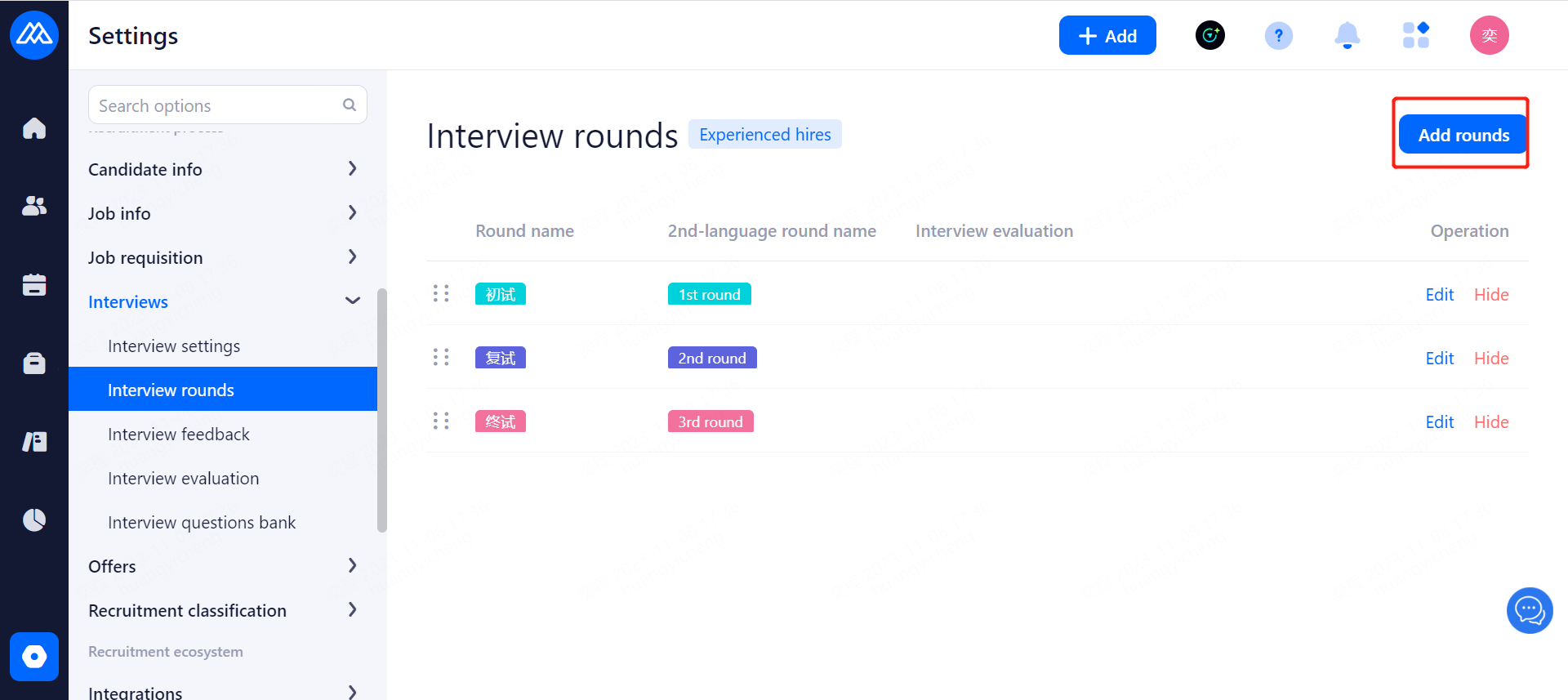
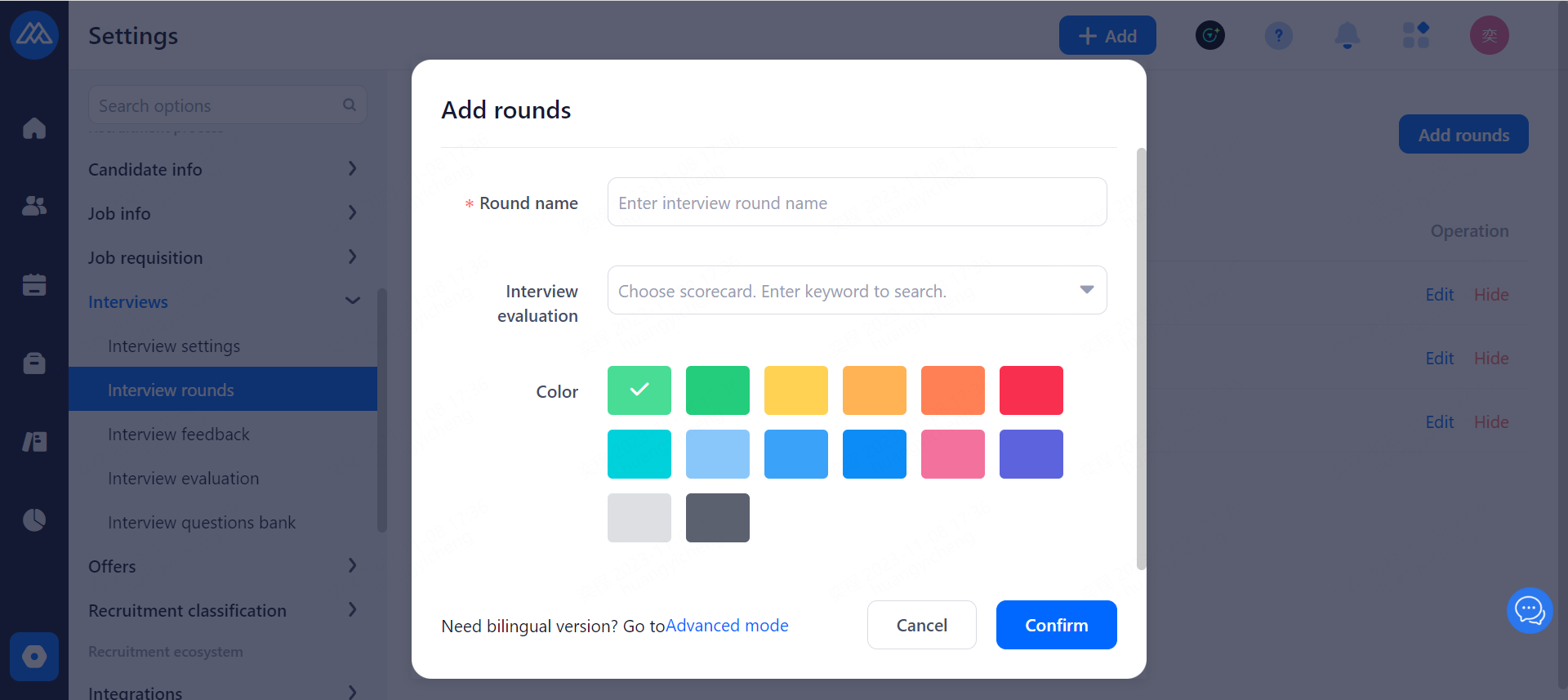
Configuration Notes:
new interview rounds
Round name: You can customize the name of the round, the name is required.
Interview Evaluation Form: you can select the interview evaluation form corresponding to the round, when setting up the round under Position Management, by default the evaluation form of the round is corresponding to this evaluation form, but when setting up the round under Position Management, you can still modify the interview evaluation form as well.
Color: you can select the color icon for the round.
Advanced Mode: when you need English mode, you can click Advanced Mode and fill in the name of the English interview round as a required field.
You can modify the name of the interview round, the name of the English interview round, the interview evaluation form, and the color of the round.
show and hide.
Show: When clicking [Show], the originally hidden rounds will be shown, and you can also select this round when adding new rounds under the position.
Hide: When clicking [Hide], the original display (i.e., the round being used) will be hidden, when arranging interviews, i.e., it will not be able to select the round, and when adding new rounds under the post, it will not be able to select the round that is hidden.
shows and hides, does not affect the interviews that have been scheduled, such as interview A has been scheduled, A has a round a, when the a hidden, will not affect the interview A.
Drag the list, you can arrange the order of the interview rounds. When you set the interview rounds under the job management, the interview rounds order is defaulted to this order, and you can change it.
5.4.4.Interview Evaluation
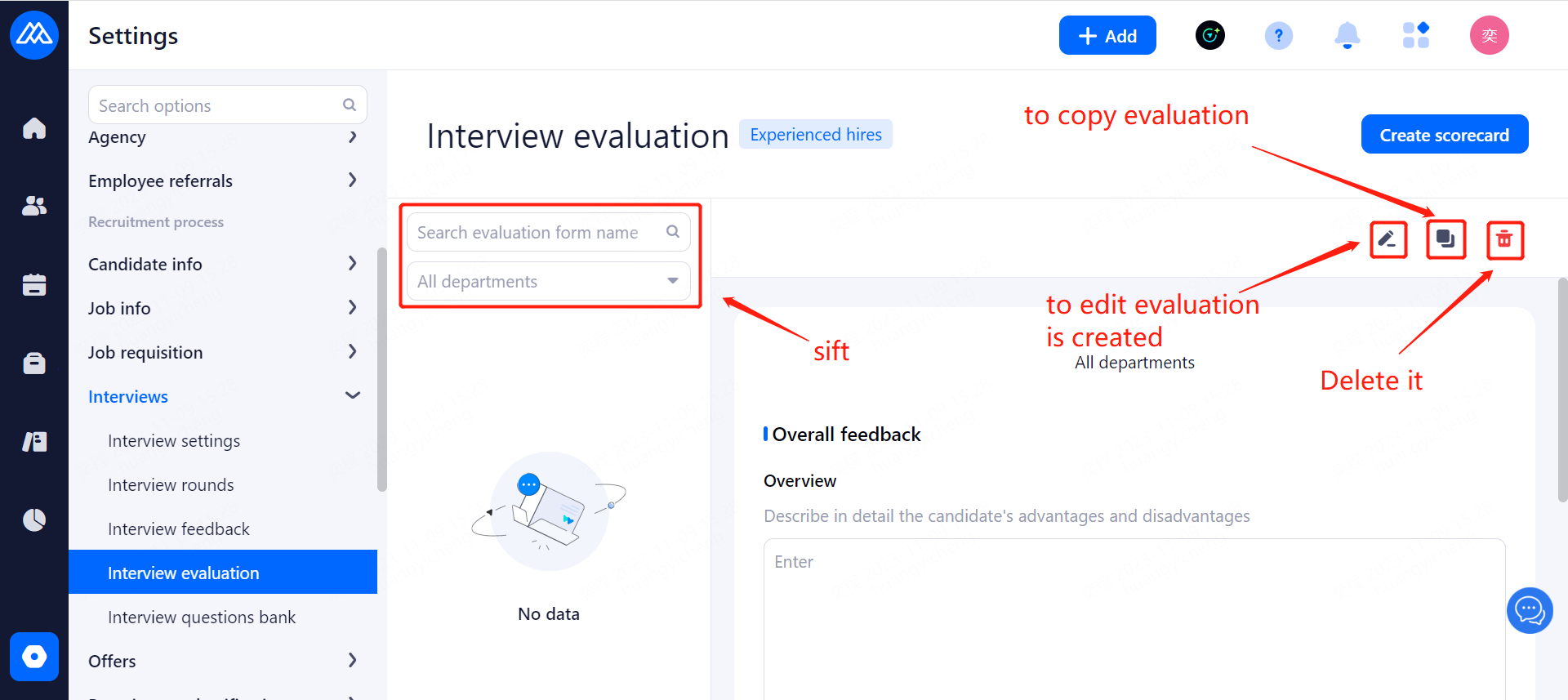
Fill in the name of the interview evaluation form: for the name of this interview evaluation form, is required;
Description: description for this form;
Select department: select the department for this form (if no department is associated with the interview evaluation form, all departments can use this interview evaluation form by default. After association, only the associated department can use this interview evaluation form)
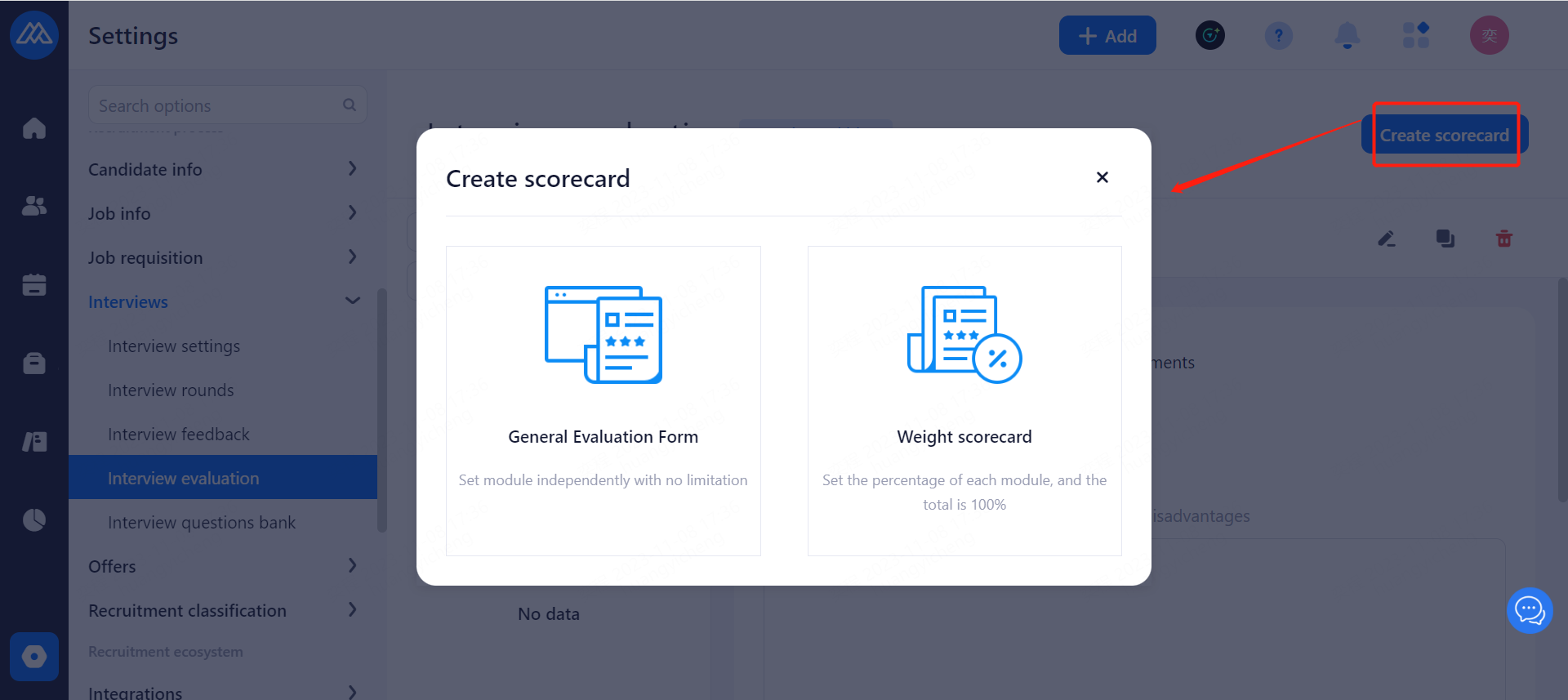
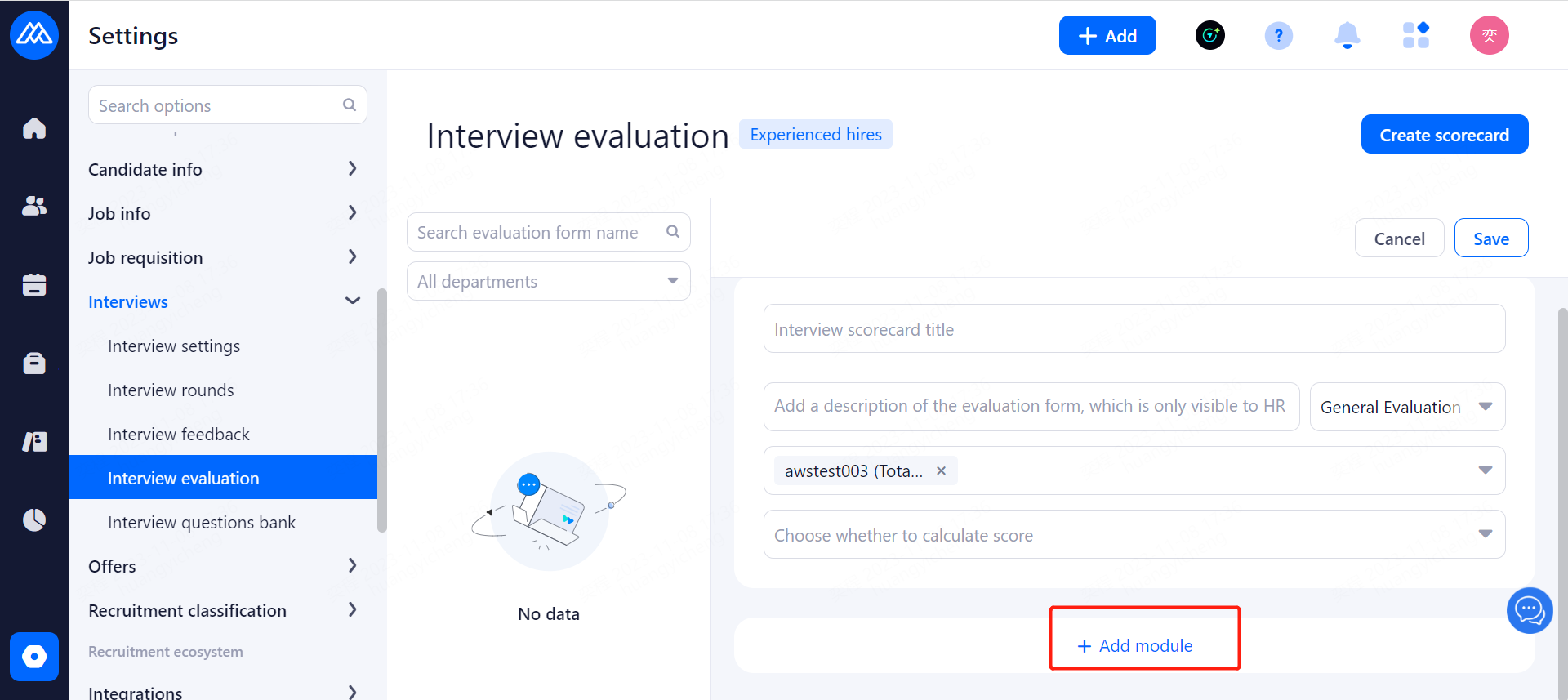
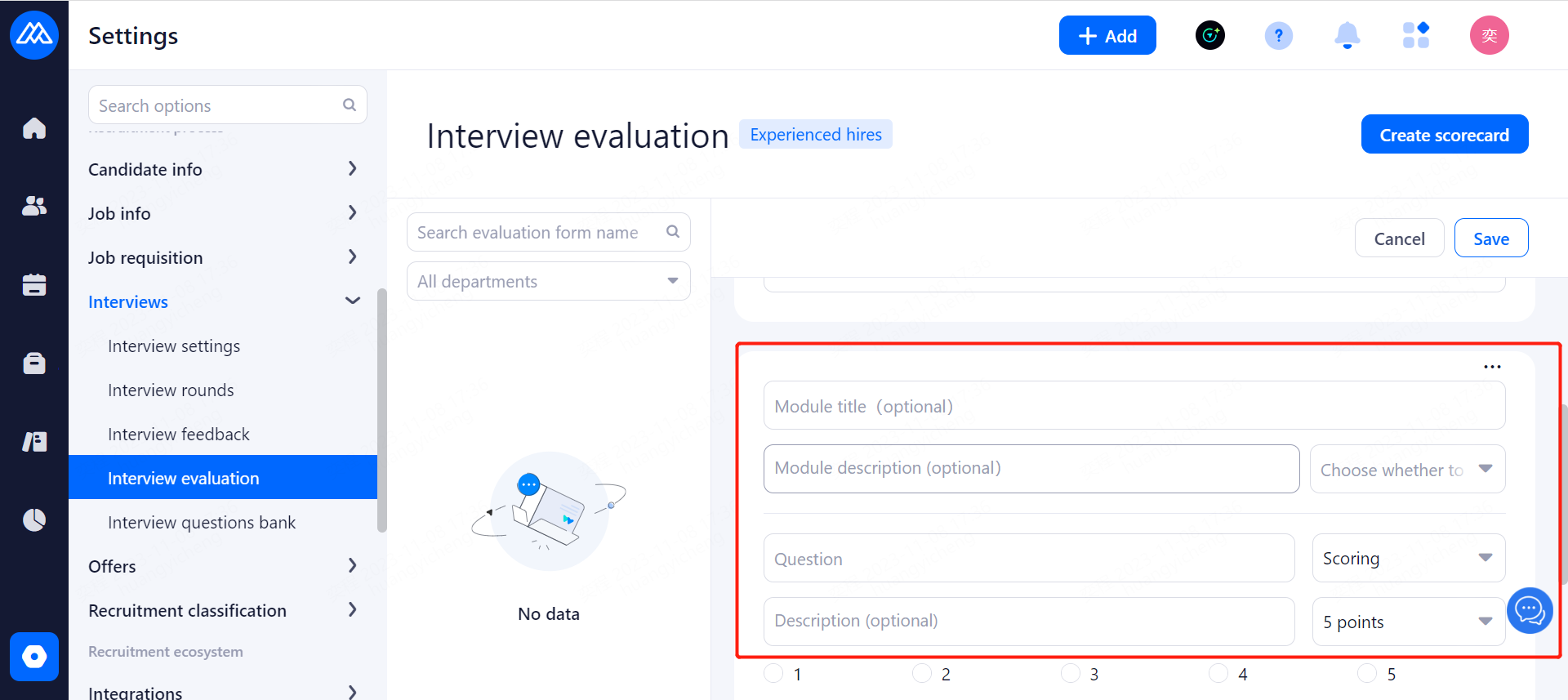
Module: Click Add Module to add a module (1). Module Title: the title of the module, which will be displayed when you fill in the interview feedback, required;
Module Description: a description for the module, which will be displayed under the module title when filling out the interview feedback, non-required;
Note:
Select the module score calculation rules: you can choose not to calculate the score, calculate the average score, calculate the total score, calculated for the scoring questions, if the module scoring questions, both the 5-point system, there are 10-point system, that is, not uniform, then you can not choose the average score;
Module settings: mousehover the upper right corner of the module, you can choose to delete the module, move up the module, move down the module
Delete module: click to delete module, can delete the whole module;
Move module up: click to move the module up, the first module can not be moved up;
Move module down: click to move the module down, the last module cannot be moved down;
Add topic: click add topic, then you can add questions under this module, the added questions will be displayed under this module when you fill in the feedback.
Title: fill in the title of the topic, required;
Description: describe the topic, non-required;
Select the type of questions: scoring questions, single choice questions, multiple choice questions, description questions;
Scoring questions: 5-point and 10-point systems can be selected;
Scoring overview: if you turn on the switch, then after scoring, an input box will appear to describe why you are scoring this way, if you turn off the switch, there is no such input box;
5.4.5.Interview Questions Bank
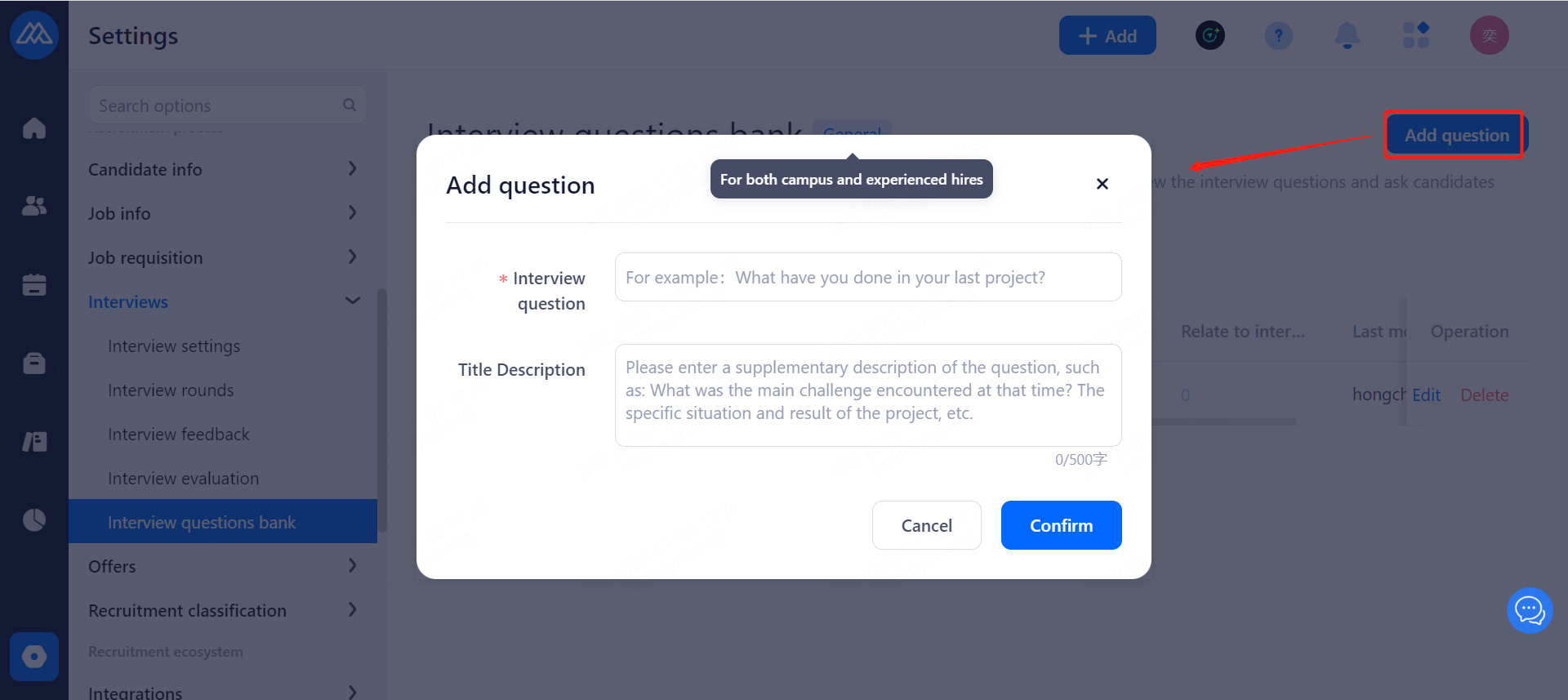
Note:
Questions under each interview dimension may not be repeated. They may be repeated under different dimensions.
All question types on the General Evaluation Form and the Weighted Evaluation Form can be associated with interview questions.
After checking Associated Interview Questions, at least one question must be associated. Up to 3 questions.
Deleted interview question bank, interview feedback filled by historical interviewer is not affected. However, when you open an interview evaluation form that has already been linked, you cannot see this question.
5.5.Offers
5.5.1Offer Fields
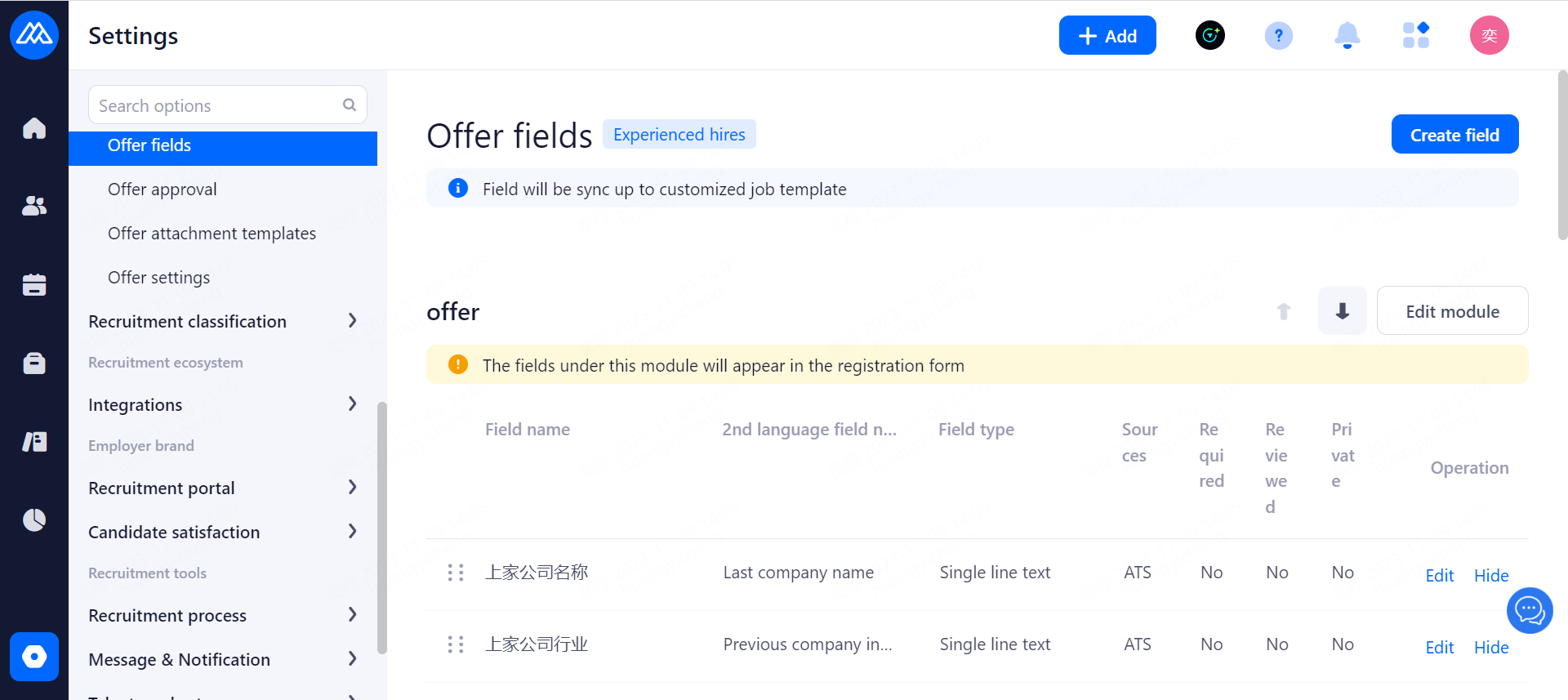
Configuration Notes:
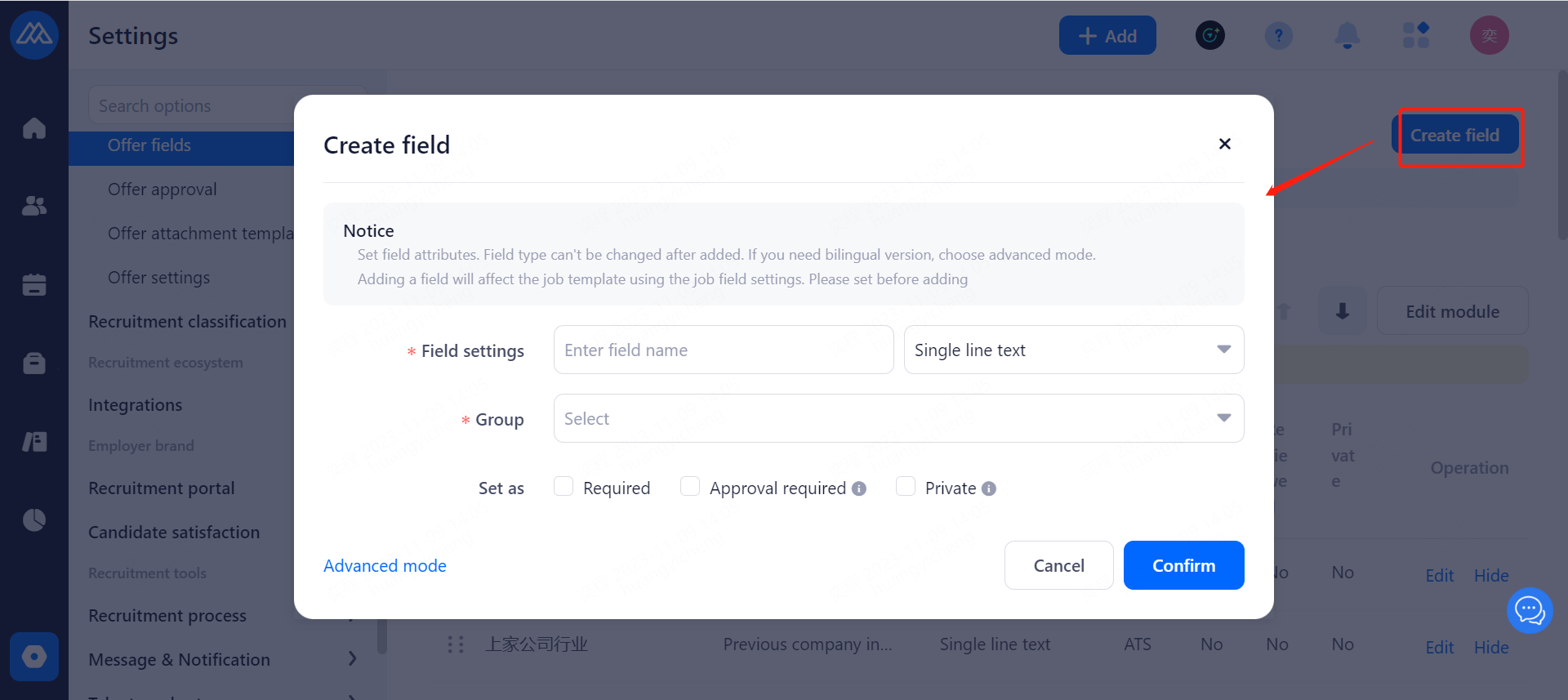
Add Field: set field properties, field type will not be able to be modified after it is successfully added in the field. If there is a need for English fields, you need to select the advanced mode.
Field Name: the name of the field, after confirming the saving, the name can still be modified. Field Type: Select the field type, after confirming the saving, the name will not be able to be modified.
Field types include single line text, multi-line text, whether the question, time period, time selection (year/month), time selection (year/month/day).
Mandatory: After checking, the field is mandatory when editing the offer.
Mandatory item: after checking, the field must be re-initiated for approval when its content is modified.
Private: if checked, you can set whether the private field is visible to the approver when creating an approval flow.
Advanced Mode: If there is a need for English fields, you can select Advanced Mode to fill in the English field names.
Modify Fields: You can modify, hide, delete, and change the order of the fields by dragging and dropping.
System built-in fields cannot be modified/deleted.
Customized fields can be added, deleted and changed.
5.5.2. Offer Approval Management
After the candidate's interview is completed, HR needs to take the lead in distributing the Offer, which will involve the approval of the employing department and the Leader of the relevant department to confirm whether the content of the Offer is perfect or not, so as to avoid the occurrence of unnecessary recruitment accidents and reduce the candidate's trust in the employer.
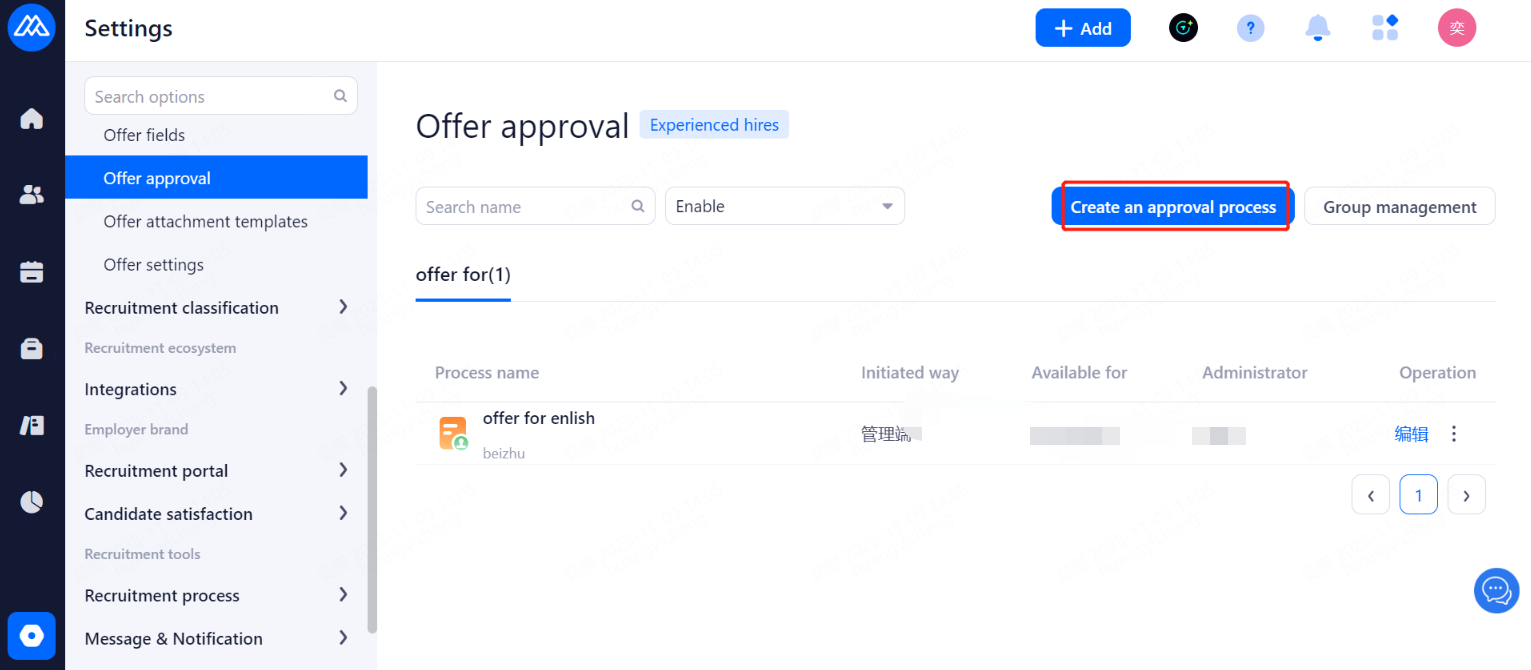
Configuration Notes:
Global Offer Approval, when turned on all positions must have offer approval.
There can be more than one approver for the same node, where one approval passes through this node and one rejects it.
Multiple departments can be selected when creating a new one.
Modify: You can modify the name, department, approver, approval node, and notes of the approval process.
Enable: When the approval process is enabled, it can be selected to the approval process in Position Management - Position Requirements and when selecting the approval process in Launch Offer.
Deactivated: after deactivation, the process will no longer be available, including for positions that are using the process, and the process cannot be selected when initiating an offer for approval. Offers that have already been initiated for approval are not affected.
5.5.3. Offer Attachment Template Settings
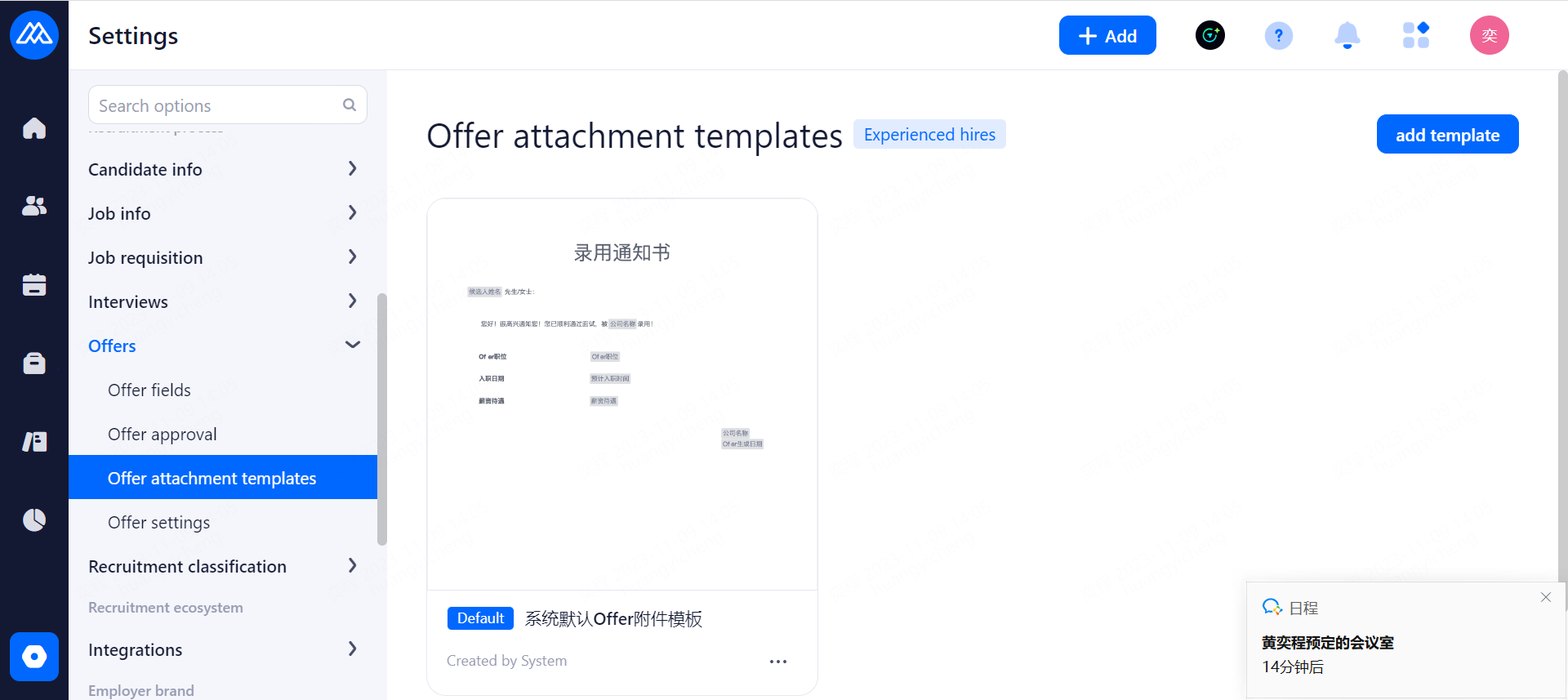
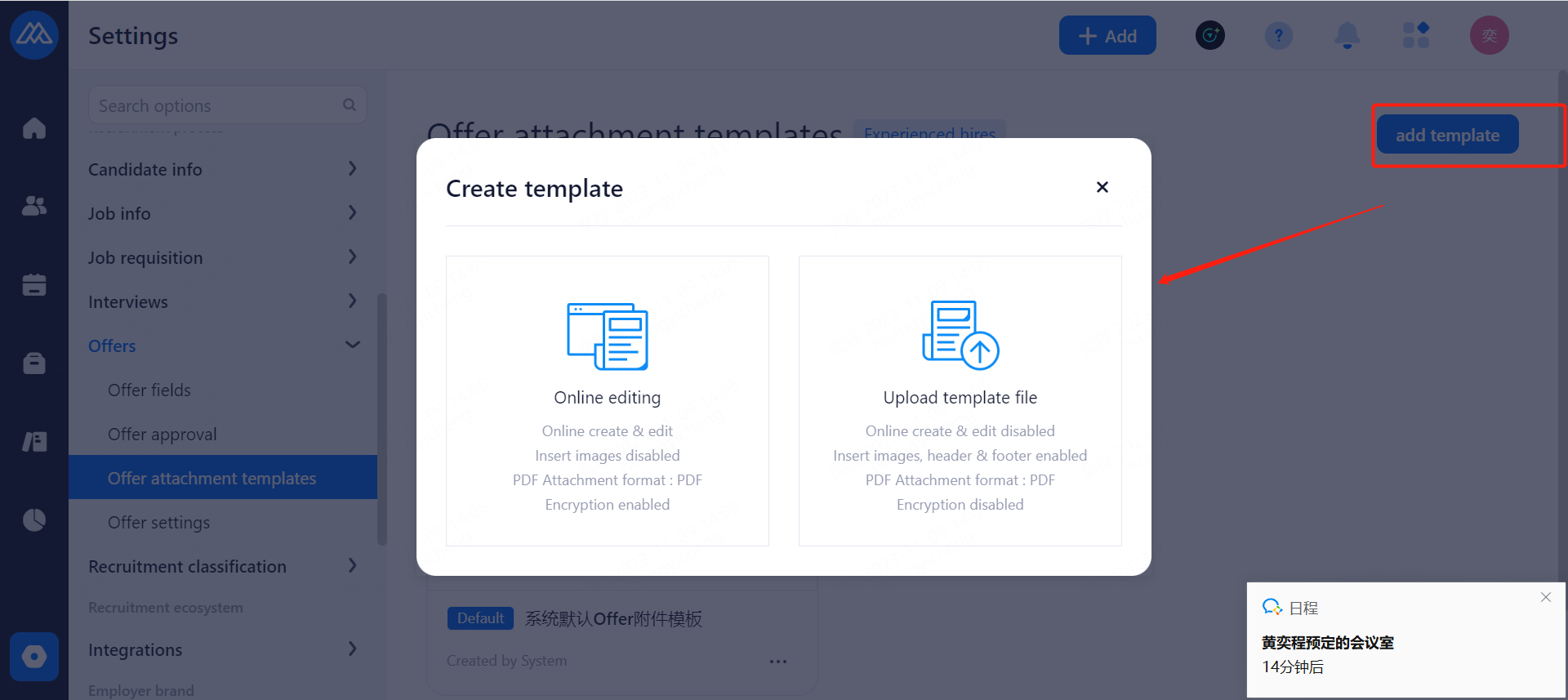
Configuration Notes:
The system supports two Offer template attachment setting methods: online editing and uploading template files.
online editing:
Holds online new creation and modification
Does not support the insertion of pictures
Generate attachments in PDF format
Encryption is supported
uploads template files:
Online editing is not supported
Support inserting images, headers and footers and other common elements
Generate attachments in word format
Does not support encryption
Online Editing
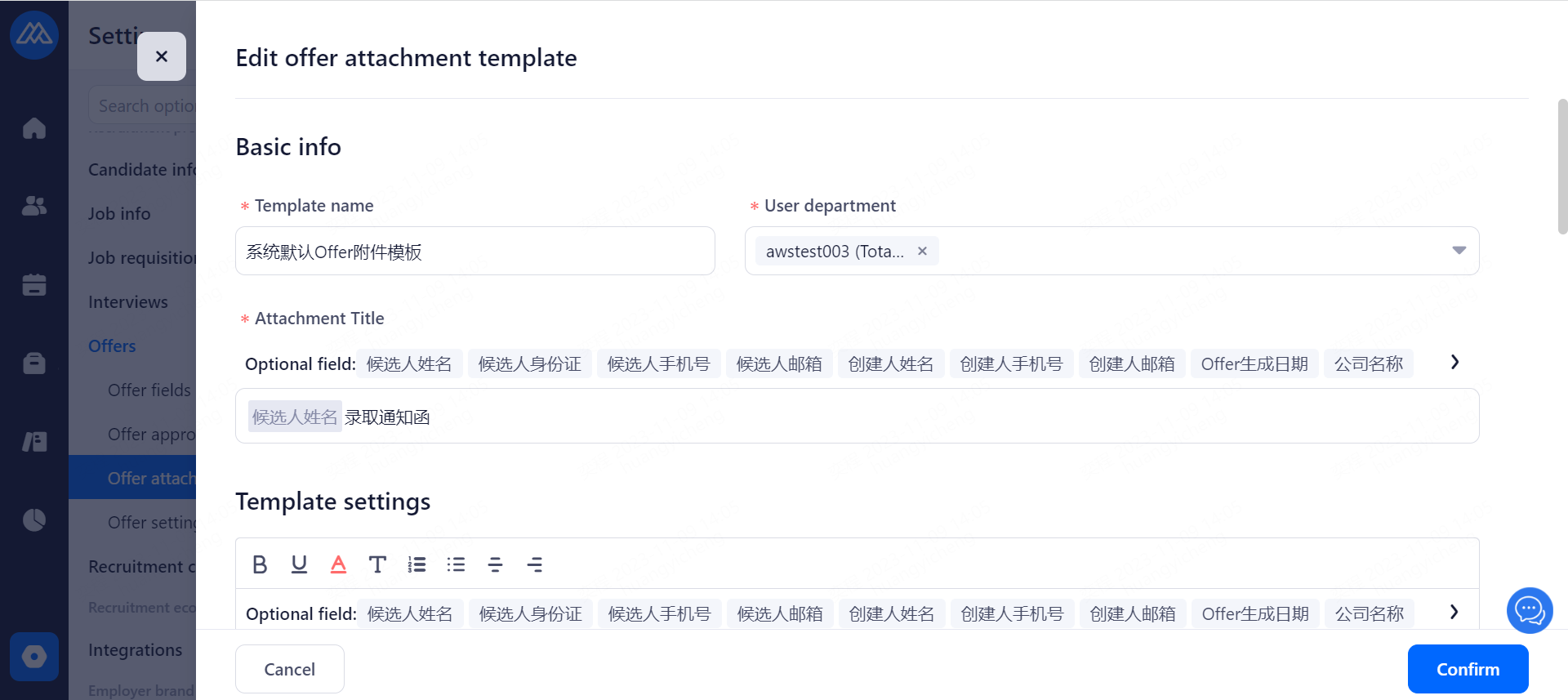
Configuration Notes:
The parameter fields selected by are automatically replaced with the corresponding values in the system when the Offer is generated.
Uploading template files
Configuration Notes:
Only one file can be uploaded to and it is in docx format and must not exceed 10M in size.
will occupy the position in the Word document where you need to fill in the Offer field information in the form of curly brackets, for example:Hello, {candidate's name}; the system detects it and translates the body text as:Hello, Zhang San. Only Offer fields that have been set up in the system can be used.
The system detects all information wrapped in curly brackets (i.e., placeholders) in the document and recognizes it as the corresponding Offer field.
If a placeholder is detected that does not exist in the system, the message "The document contains fields that do not meet the requirements: {name}, {email}, please check the instructions for creating the document or download the sample to see how to edit the document" cannot be saved.
Detected no placeholder, prompt "You have not set any offer field in the word file", but can be saved.
Successful upload with no false placeholders: you can send an email with this attachment to the user themselves to see what the attachment really looks like.
5.5.4.Offer Settings
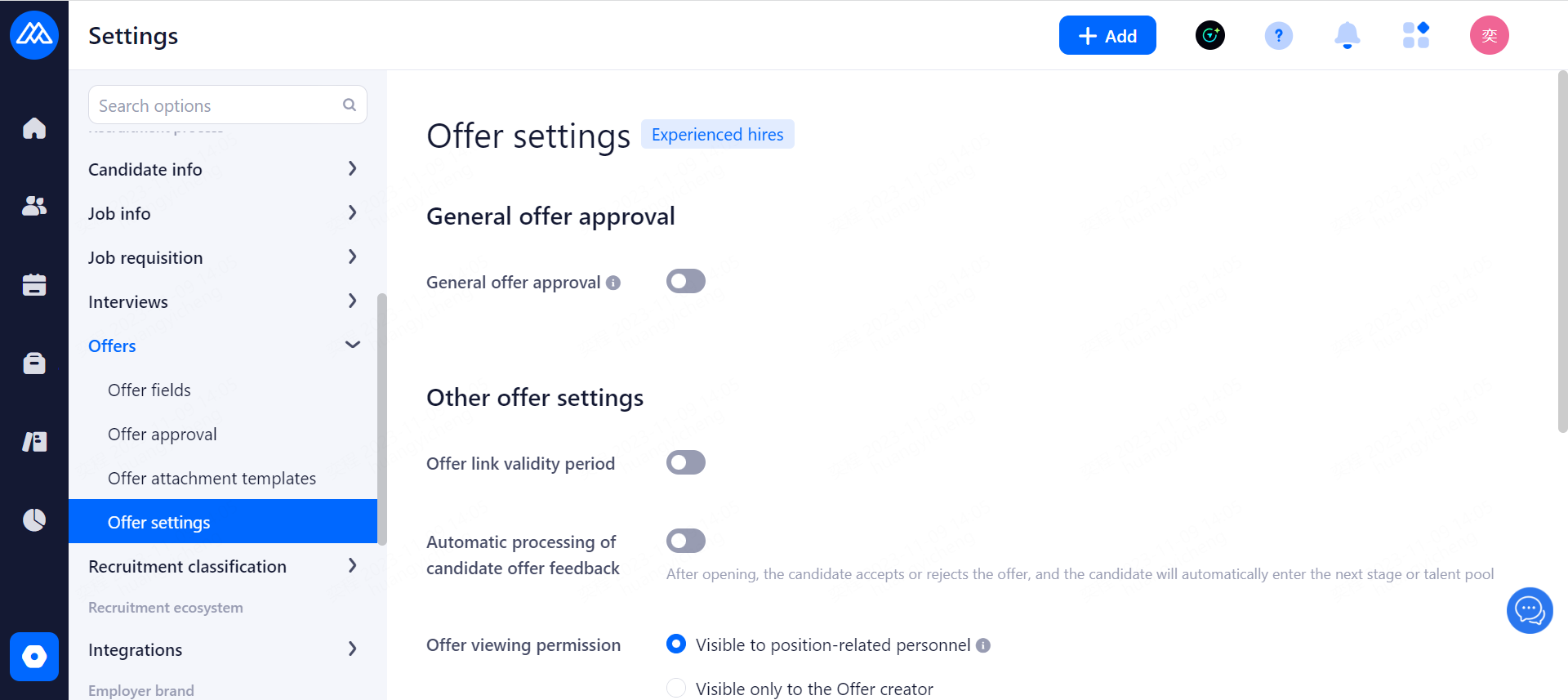
Configuration Notes:
Offer link validity: not enabled for 14 days validity, enabled validity time can be customized settings.
Candidate Offer Feedback Auto-Processing: When enabled, after the candidate accepts or rejects the Offer, the candidate will be automatically entered into the pending onboarding status or talent pool.
Offer only visible to the creator: only the creator of the offer, the reporting target and the supervisor have the permission to view the offer after it is enabled.
Required cc's when sending Offers: When enabled, the cc's must be specified when sending an Offer to a candidate.
Send notification to the hiring manager of the position after the candidate accepts the offer: when enabled, the candidate will send an email to the hiring manager of the position after he/she accepts the offer.
5.7.Recruitment Classification
5.7.1.Tags
Choose whether to manually label or smart label when you create it
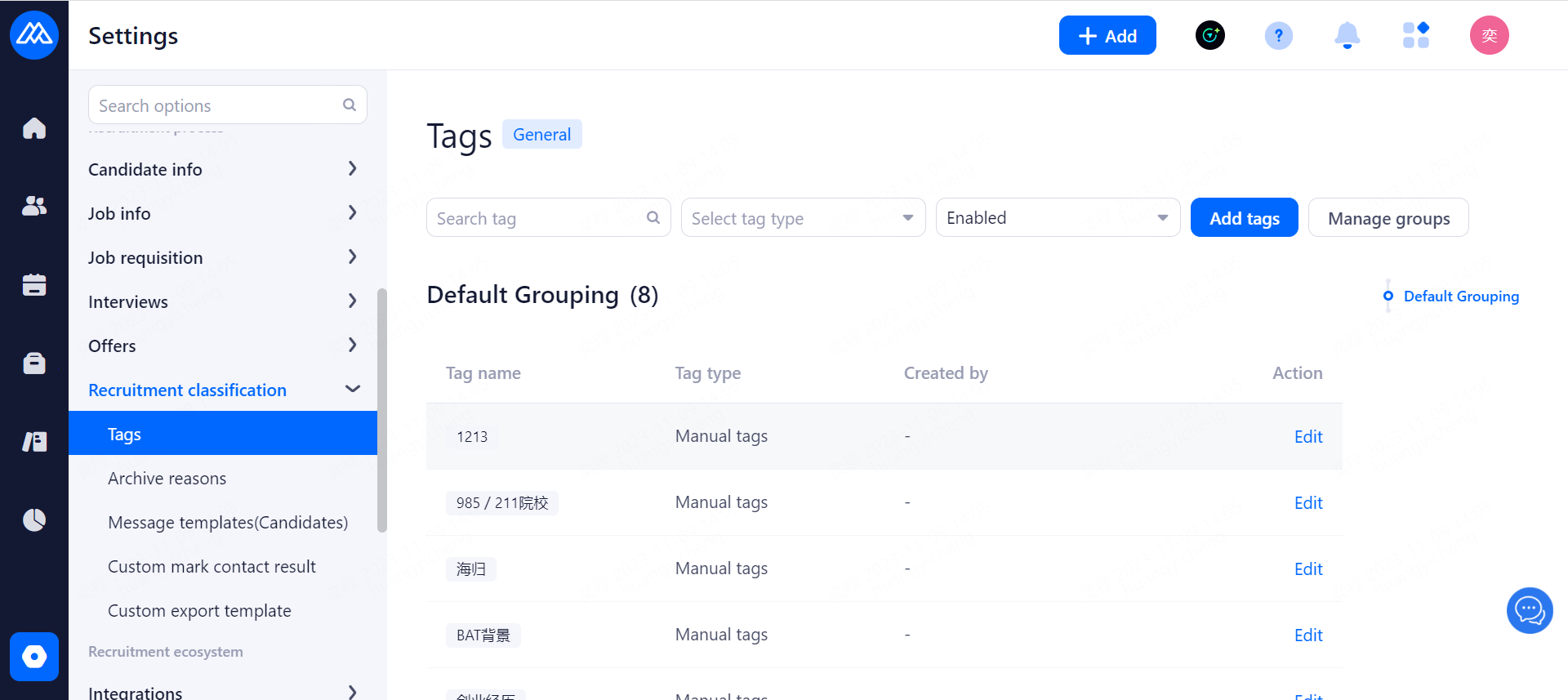
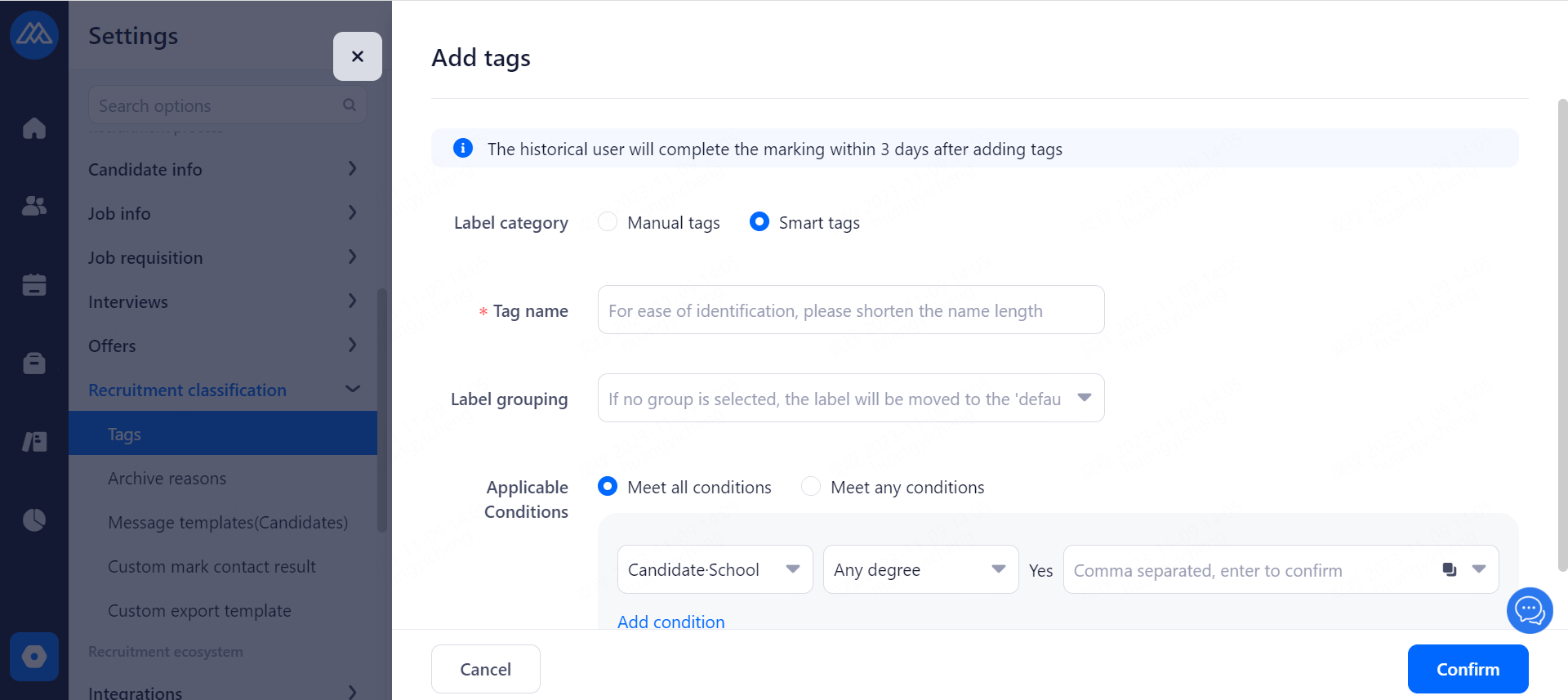
Configuration Notes:
Used for candidate categorization.
Quick filtering and querying based on candidate tags.
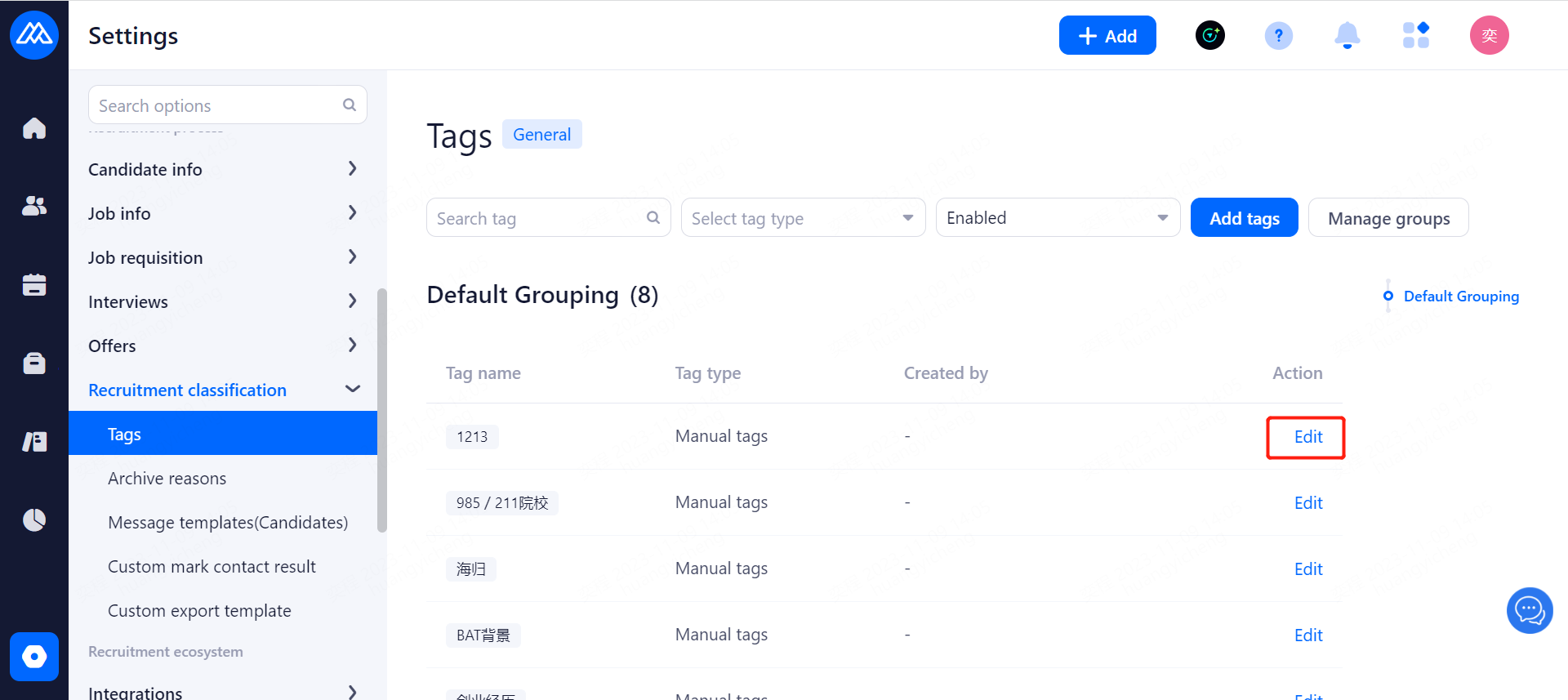
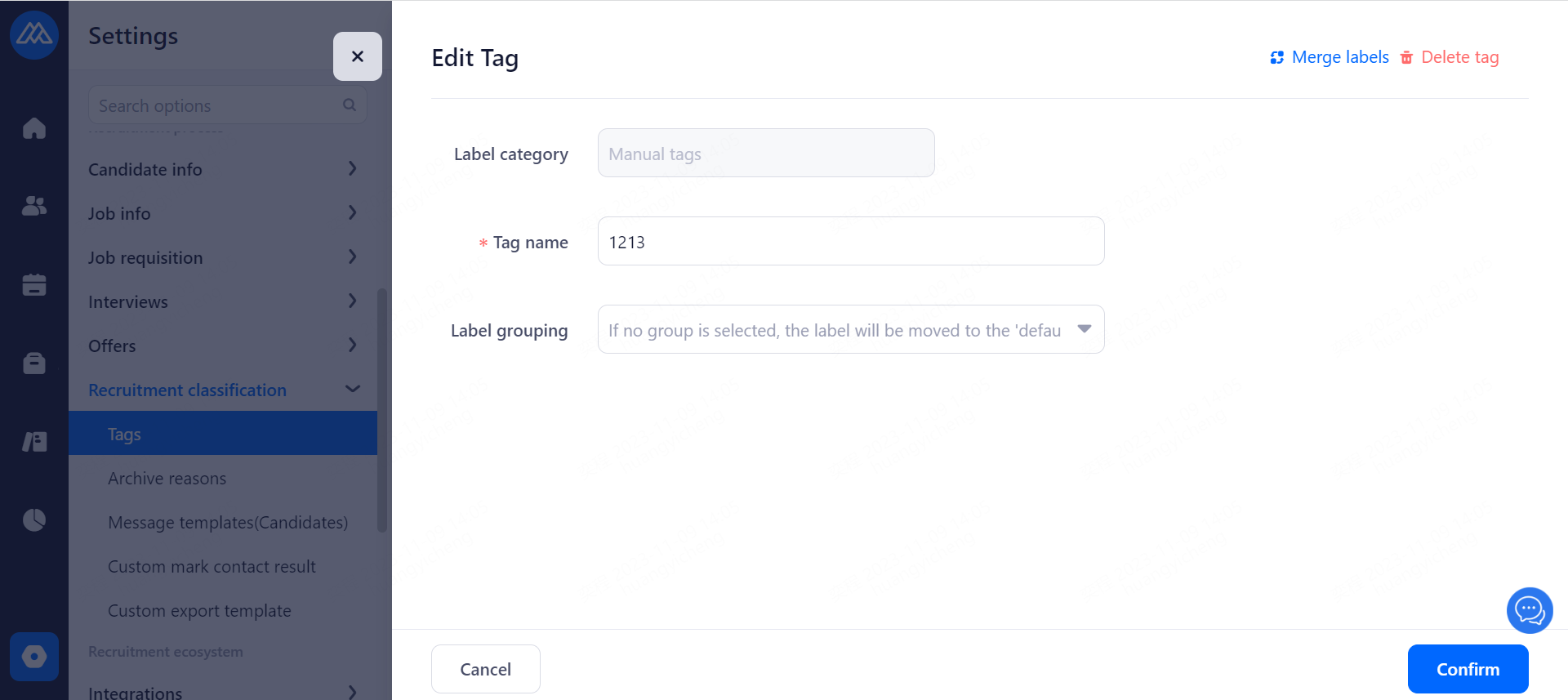
Hide: Hide the tabs from being displayed within the resume, in the wide list. However, resumes that enter the system will still be labeled
View: All conditions of the label can be viewed
Delete: after deletion, the label will not be applied to the resumes entering the system.
Rename: you can rename the label after selecting it, after renaming, the label name of the labeled resumes and new resumes entering the system will be changed to the new name.
5.7.2.Archiver Reasons
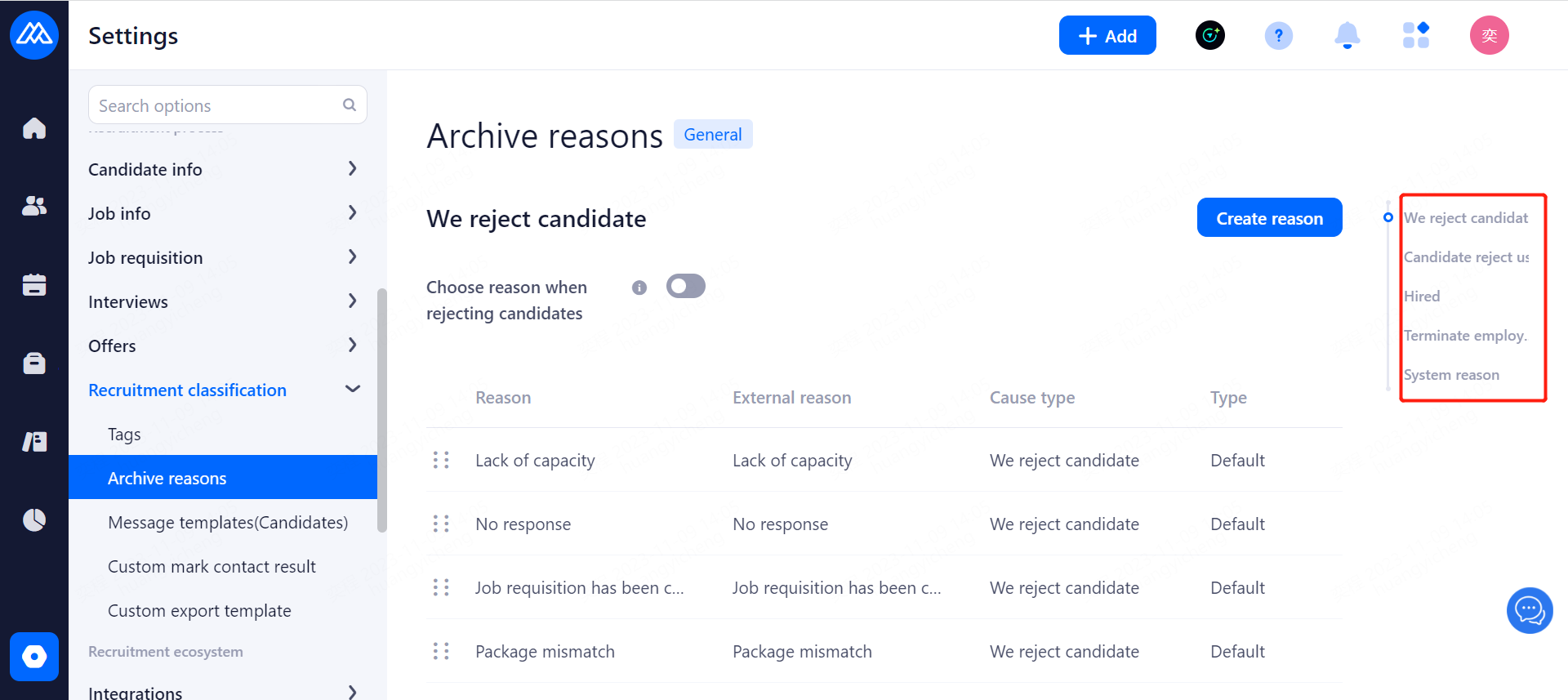
Configuration Notes:
Used to select the reason for filing when eliminating candidates for subsequent recruitment management analysis.
Select Reason when Eliminating Candidates: when turned on, when HR eliminates candidates and hiring managers reject candidates, the archiving reason is required; except for the initial screening stage.
System Reason: Automatically archive the reason when the system automatically processes it.
5.7.3.Message Templates(Candidates)
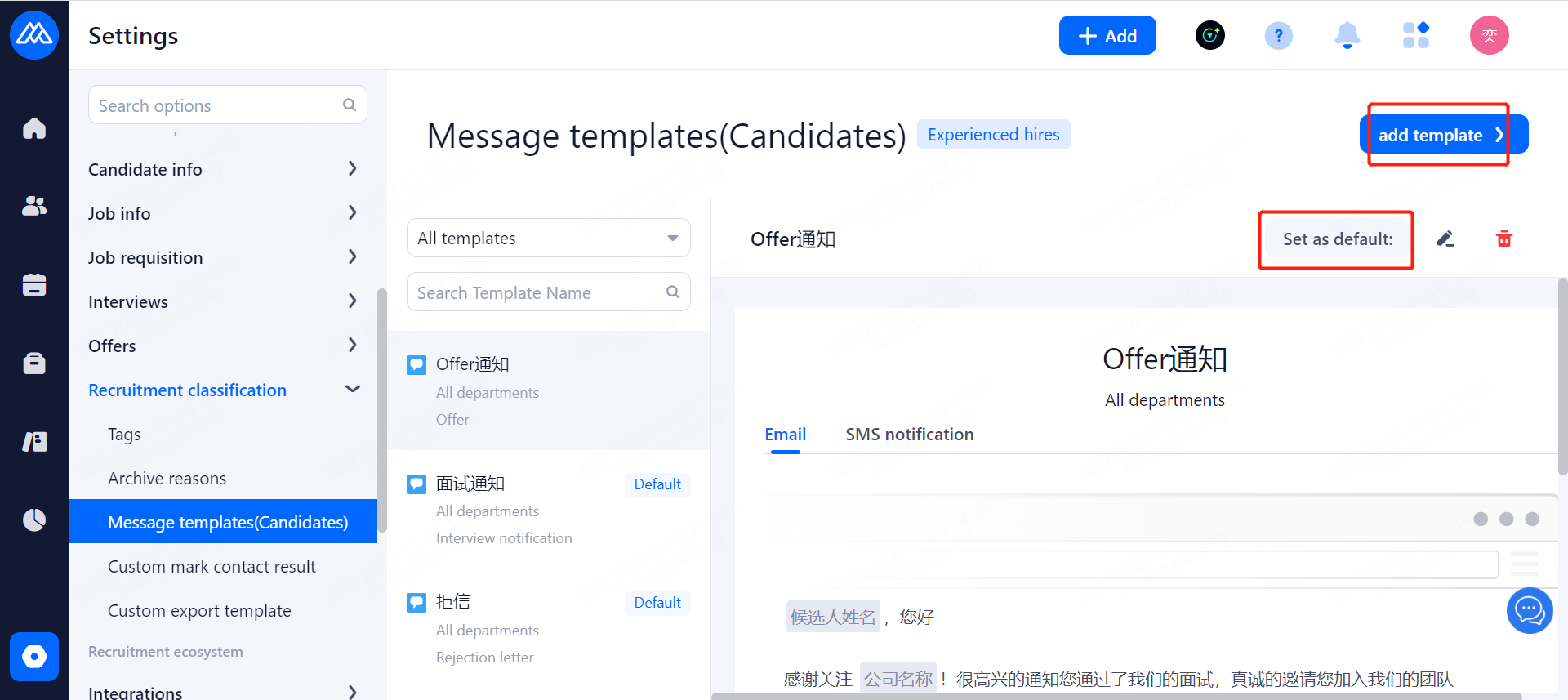
Configuration Notes:
sets up a template for the notification category of the recruitment management process.
A type can set a default template.
Currently, the system can set up notification type templates as follows: Interview notification template, Offer template, Rejection letter template, Manual resume activation template, Invitation to resume update template, Interview cancellation template, Notification of candidate template, Corporate networking recommendation template, Arrangement of test template, Arrangement of assessment template, Trial notification template, Trial cancellation template, Submission feedback email template, Candidate Selection time template, Confirmation and modification time template.
5.7.4.Custom Mark Contact Result
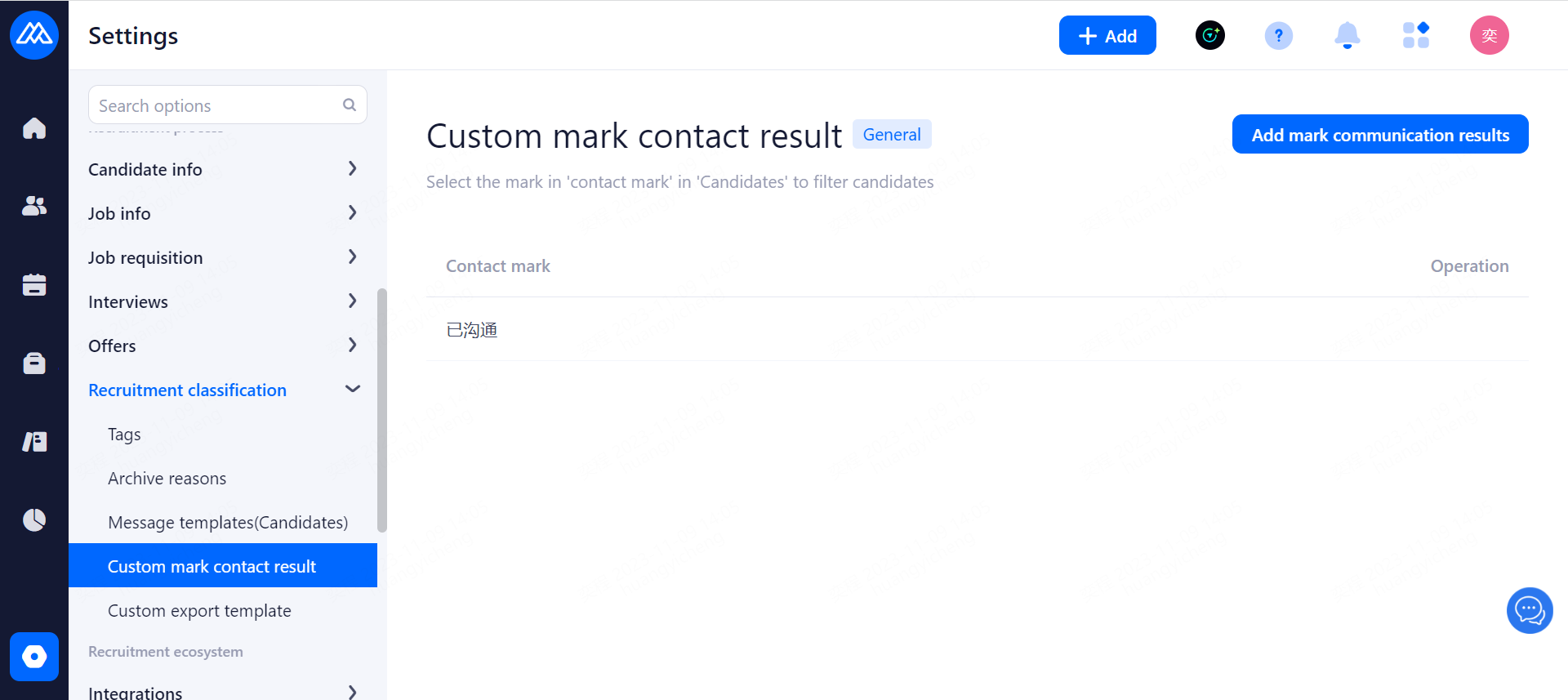
Configuration instructions: quickly mark the results of communication in recruitment management, easy to filter and statistical analysis
5.7.5.Custom Export Template
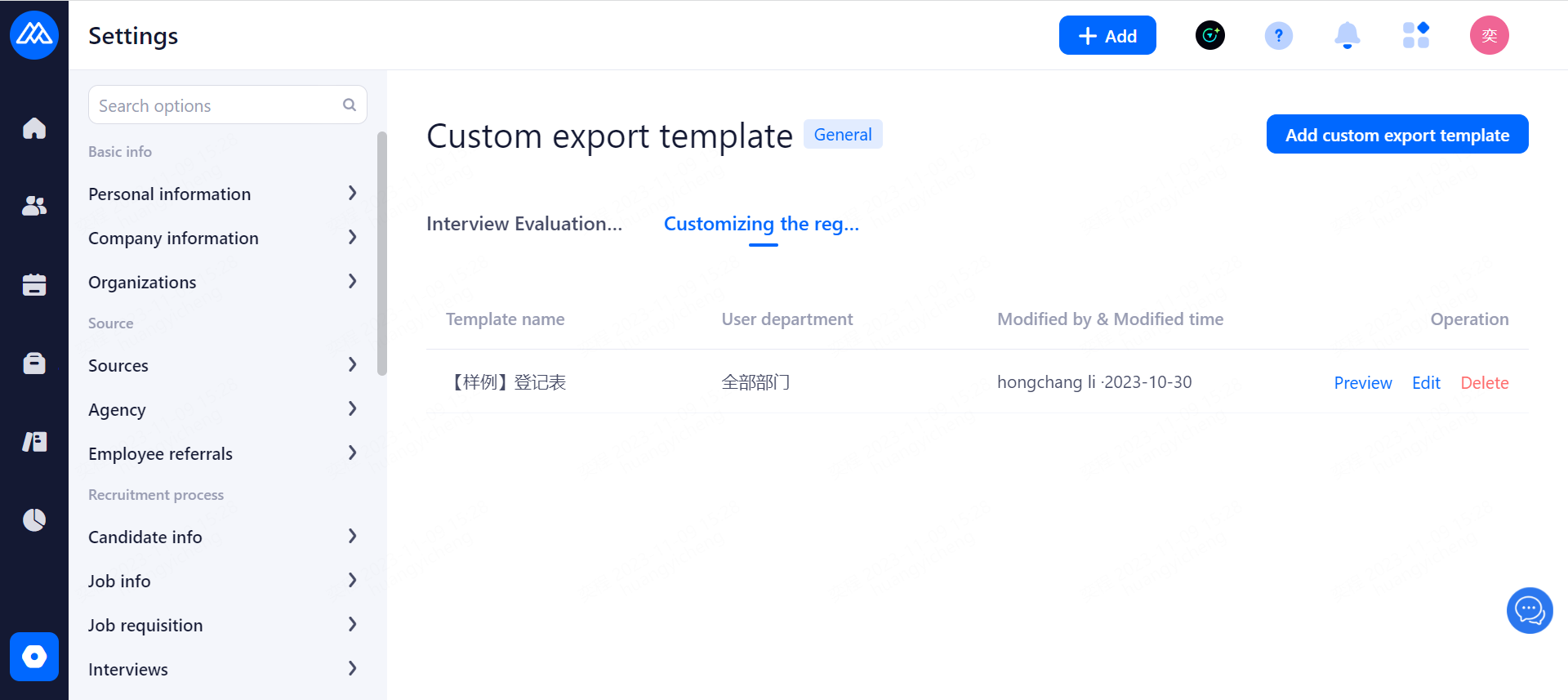
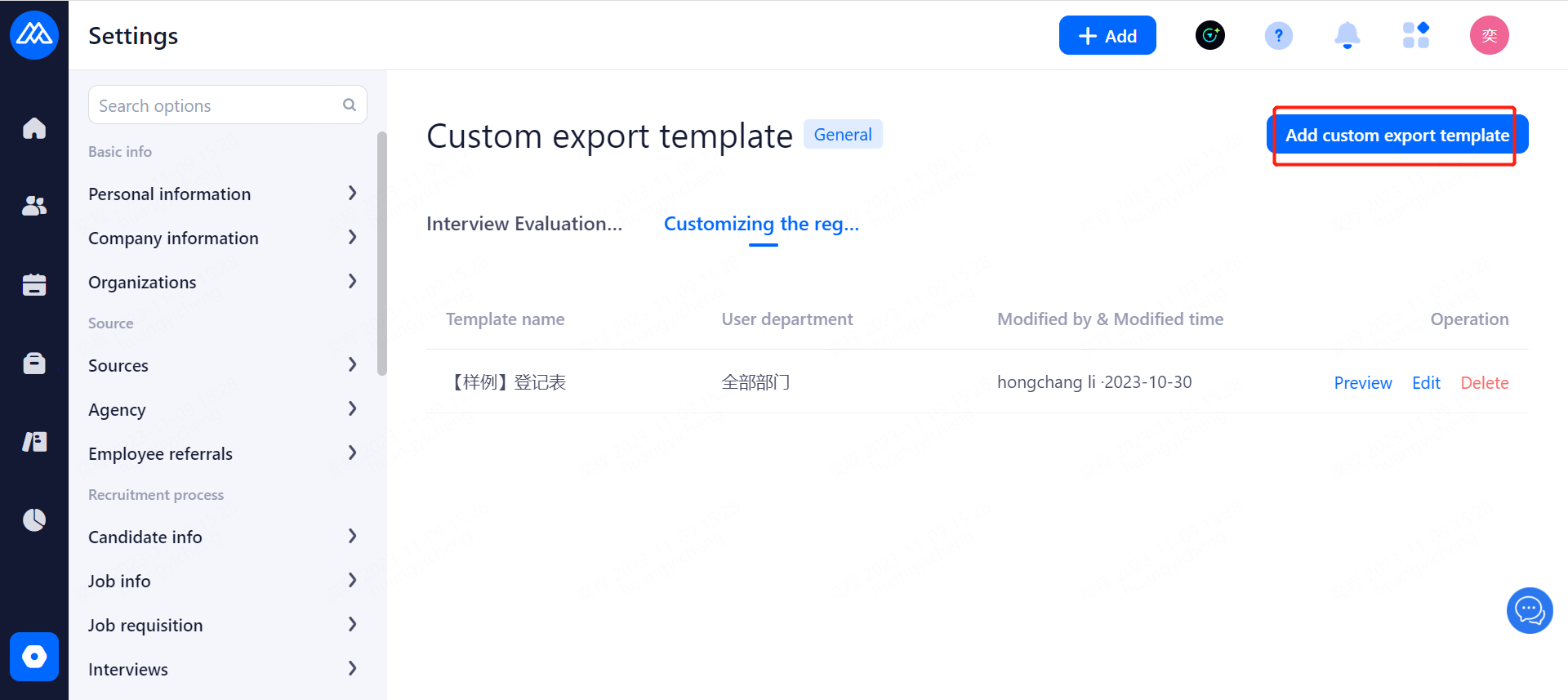
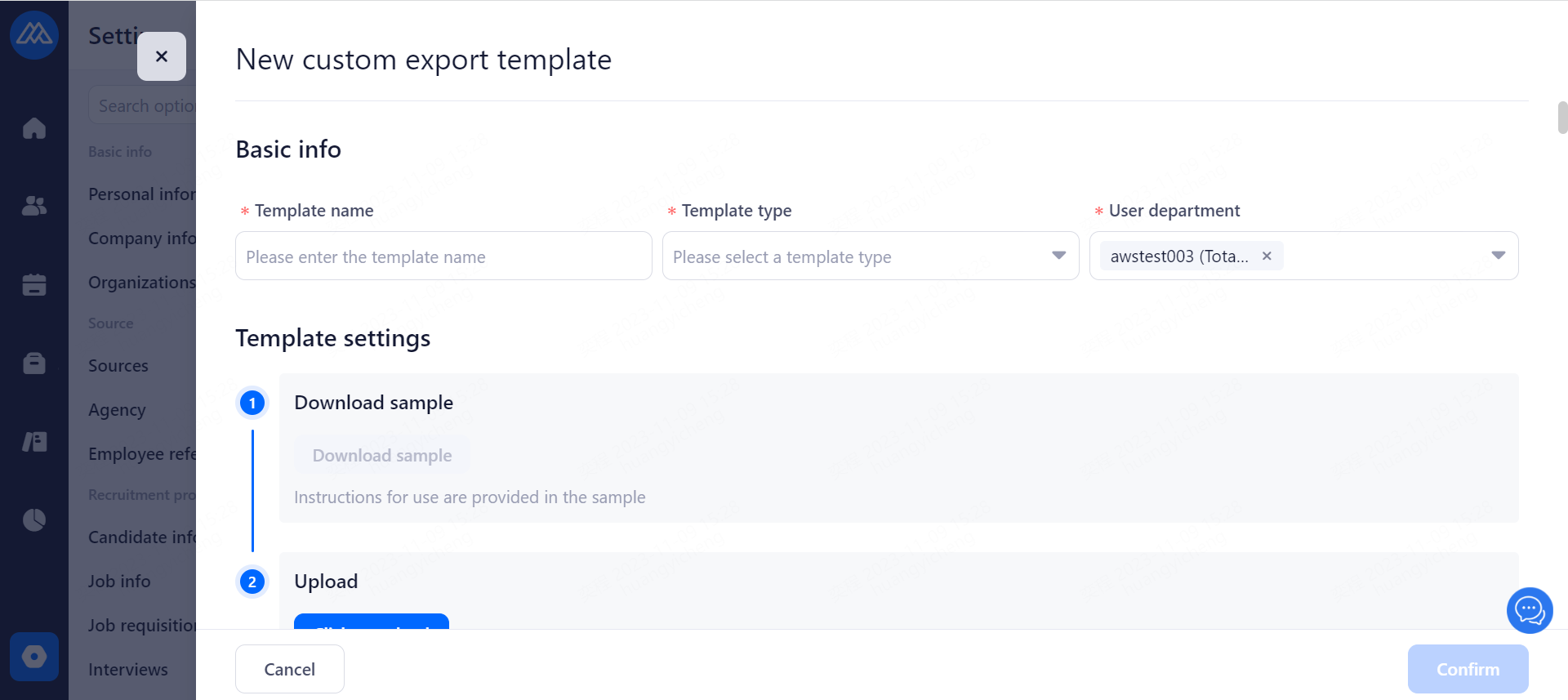
Configuration Notes:
The file format only supports .docx files; the file size can not exceed 10M
Selection of topic, time selection (month and year), time selection (month and year)
Field types cannot be modified after the field is added
6.Recruitment tools
6.1.Recruitment process
6.1.1.Recruitment stages
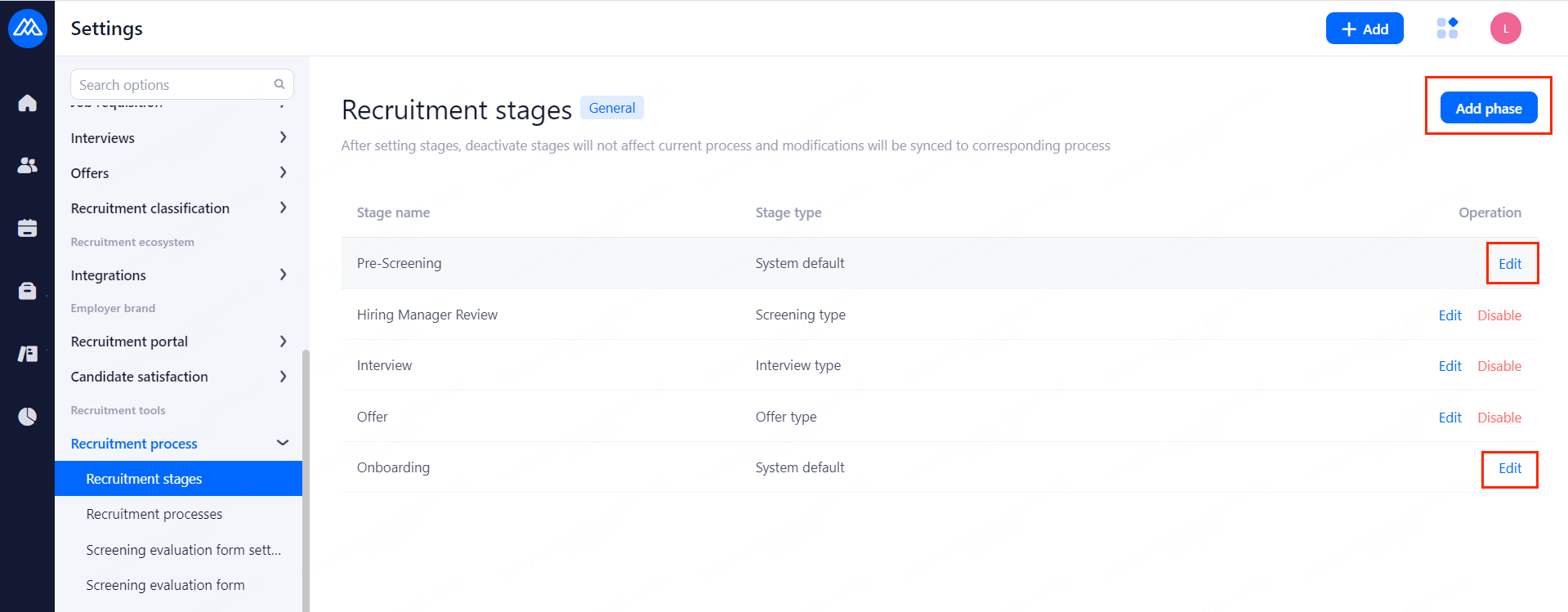
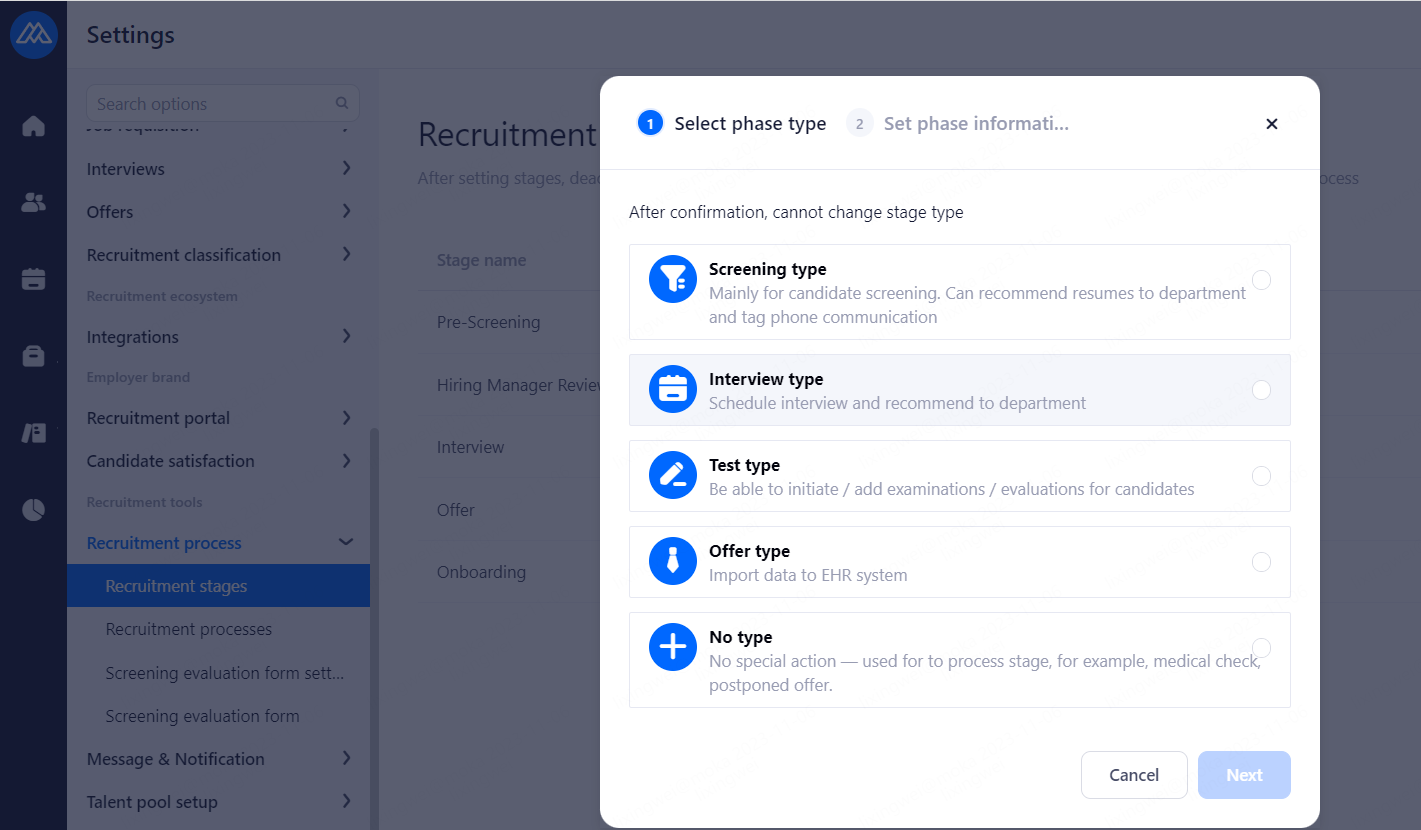
Configuration Notes:
After setting up a stage and selecting it in the hiring process, disabling the stage will not affect the existing process, and other modifications will be immediately synchronized to the process in which they are made.
Stage types are categorized as: Screening type, Interview type, Test type, Offer type, and No type. Each type has different functions that can be operated.
a.Screening type
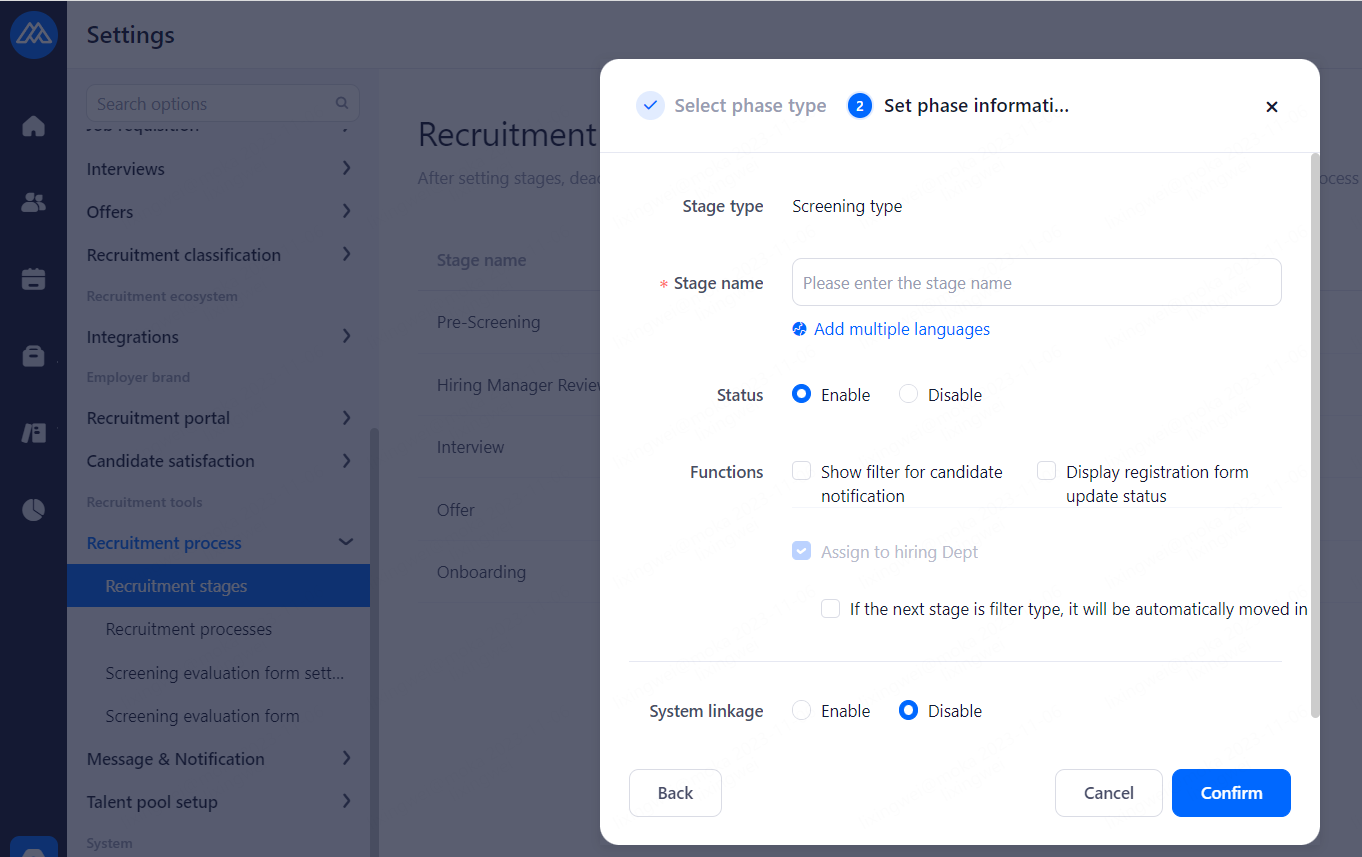
Configuration Notes:
Primarily conducts candidate screening, able to refer resumes to hiring departments, conducts phone calls for marking.
Optional features are: Show filter for candidate notification, Display registration from update status, and Assign to hiring Dept.
[If the next stage is filter type, it will be automatically moved in] When enabled, when the next stage is a Screening type, using Recommended Candidates to Hiring Managers will automatically move to the next stage.
Import third-party systems.
b.Interview type
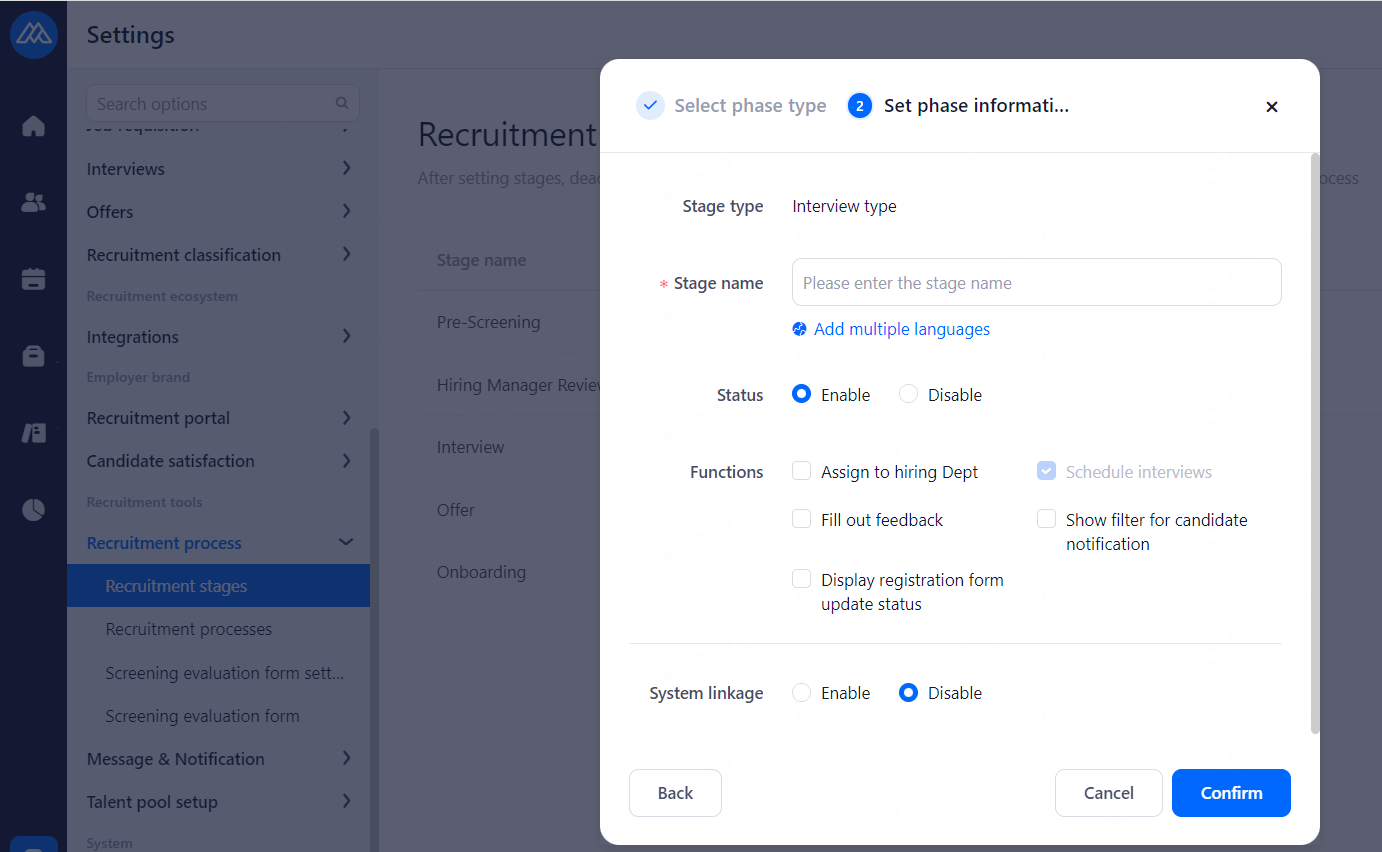
Configuration Notes:
Ability to schedule interviews and make referrals to hiring departments.
Optional features are: Assign to hiring Dept, Schedule interviews, Fill out feedback, Show filter for candidate notification and Display registration from update status.
Import third-party systems.
c.Test type
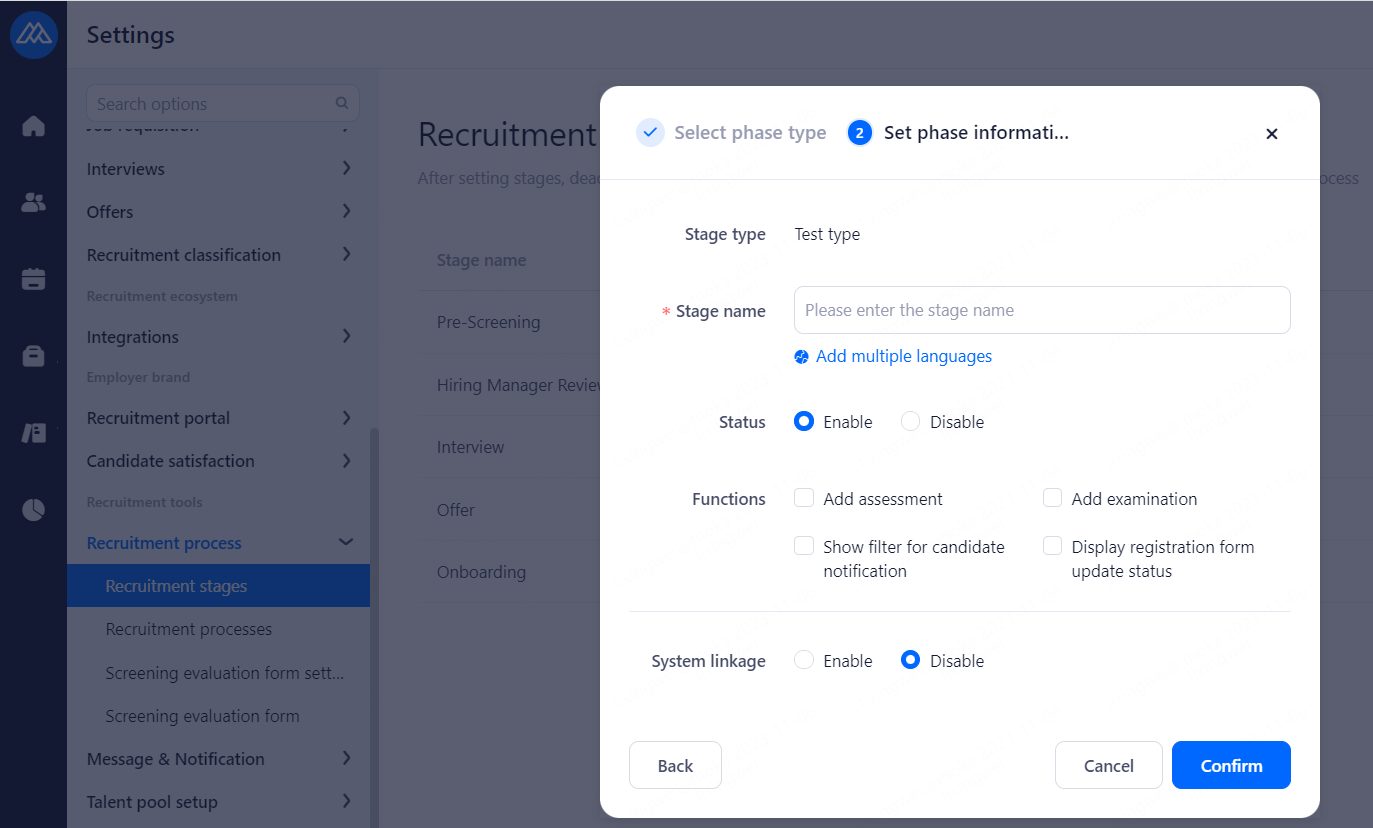
Configuration Notes:
Add assessment/examination of candidates.
Optional features are: Add assessment, Add examination, Show filter for candidate notification and Display registration from update status.
Import third-party systems.
d.Offer type
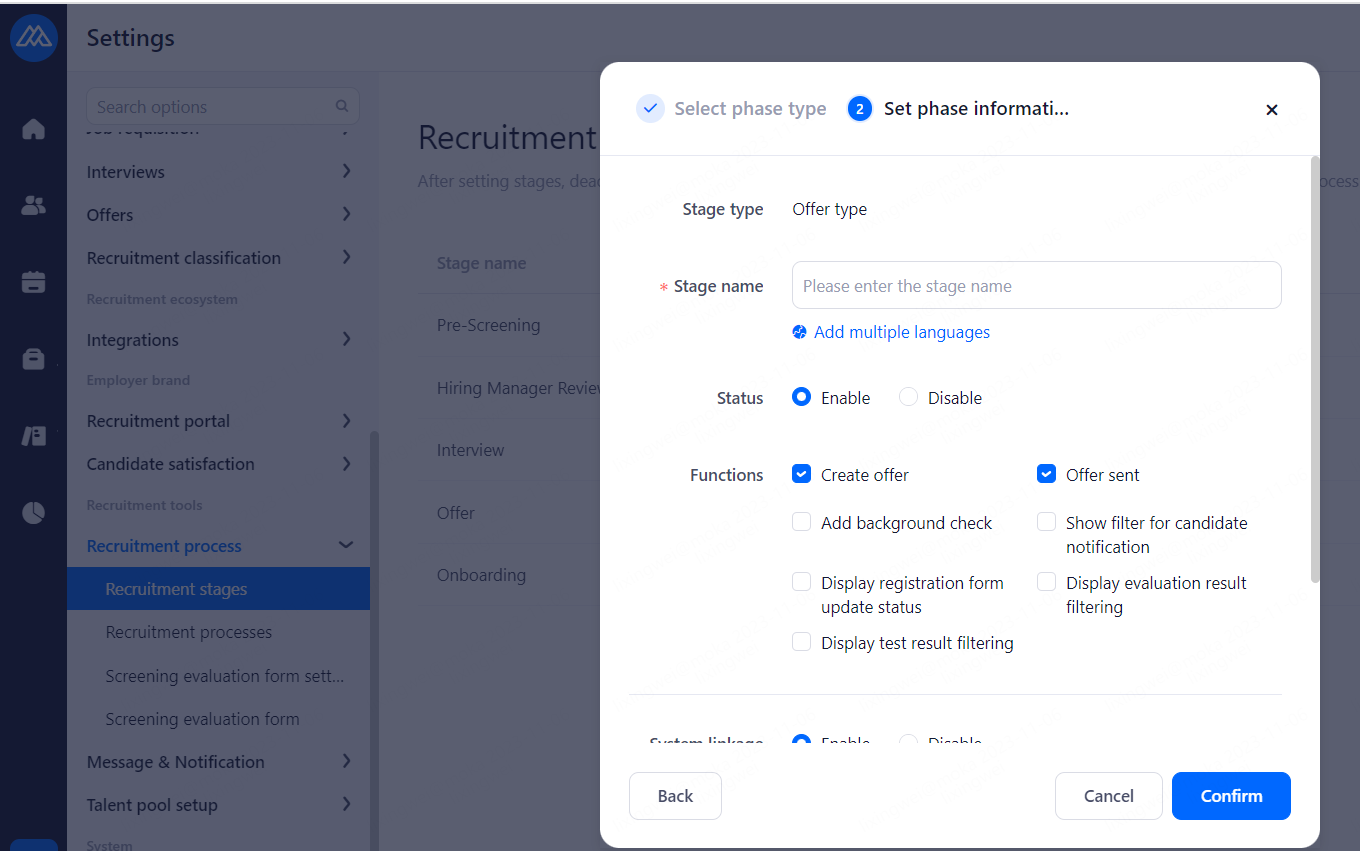
Configuration Notes:
Optional features are: Create Offer, Offer sent, Add background check, Show filter for candidate notification and Display registration from update status, Display evaluation result filtering, Display test result flitering.
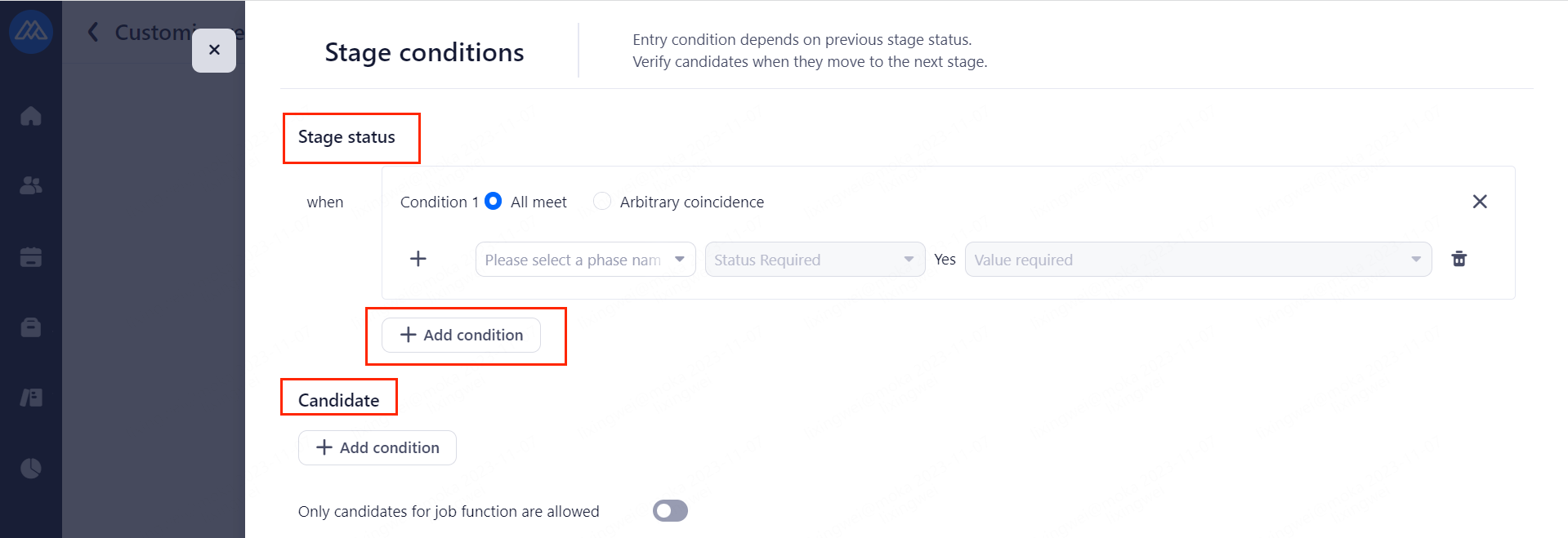
Stage entry conditions: Effective for this stage and subsequent stages, the functions of this stage can only be operated after either or all of the interview feedback or assessment/examination of candidates have been completed.
Import third-party systems.
e.No type
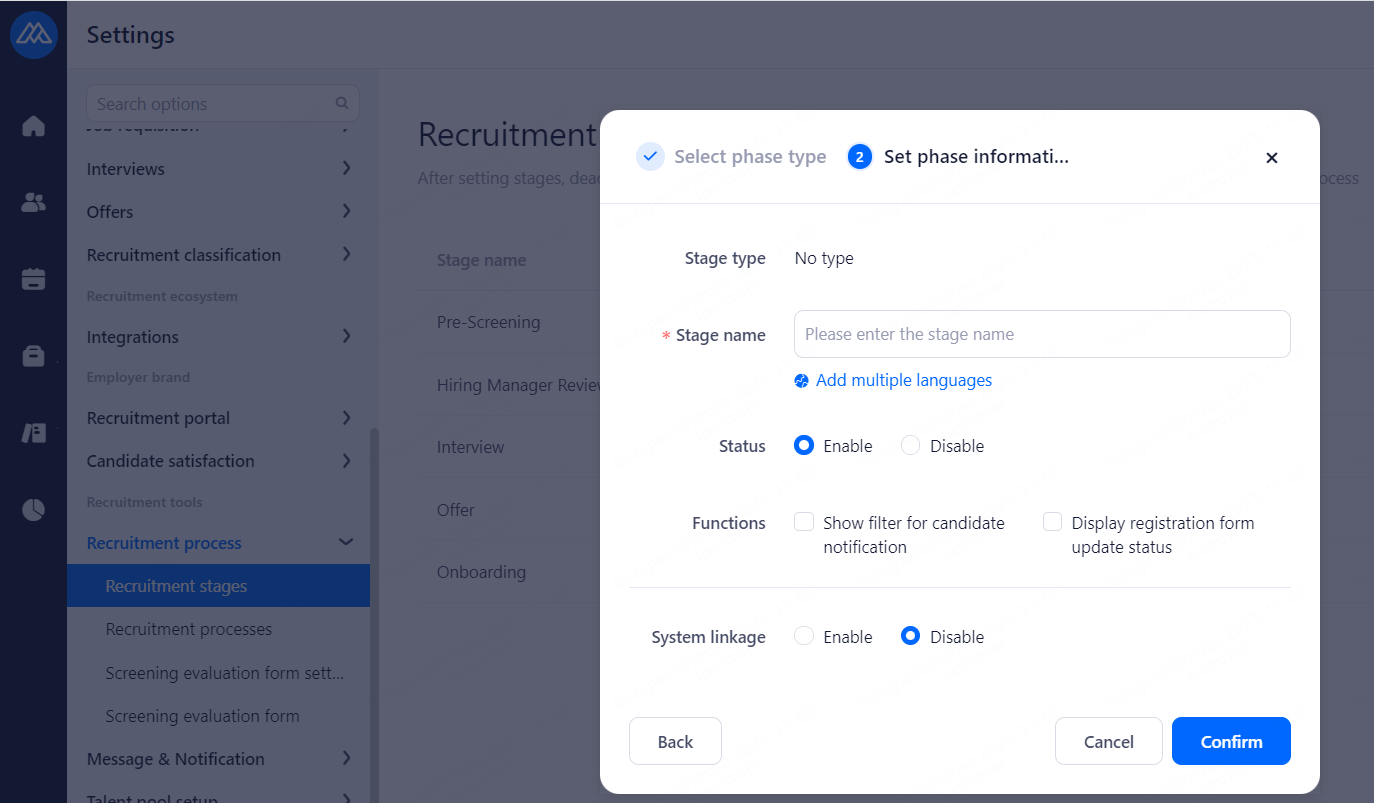
Configuration Notes:
No special operations, used for pending phases, e.g., medical examination, withholding of offers.
Optional features are: Show filter for candidate notification and Display registration from update status.
Import third-party systems.
6.1.2.Recruitment process
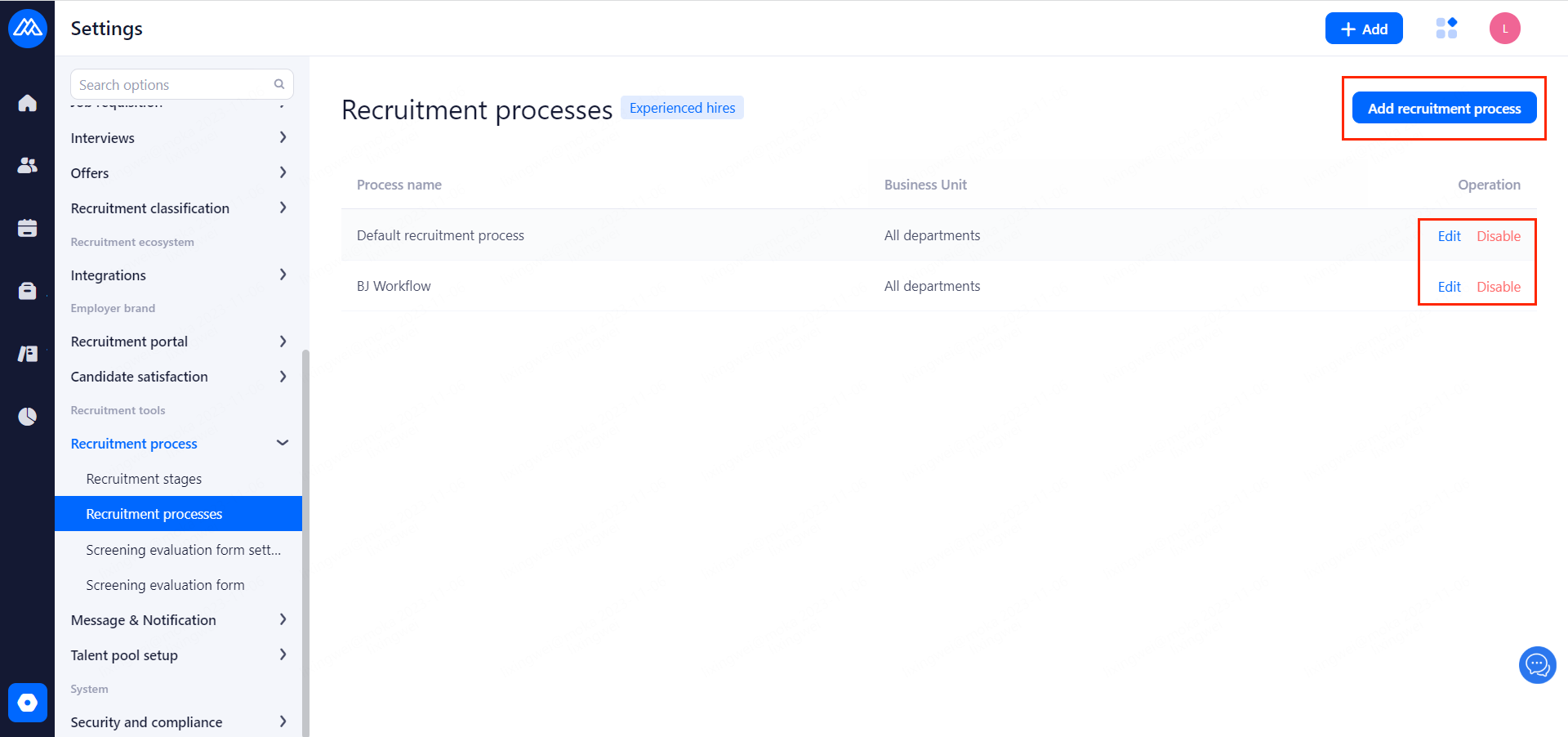
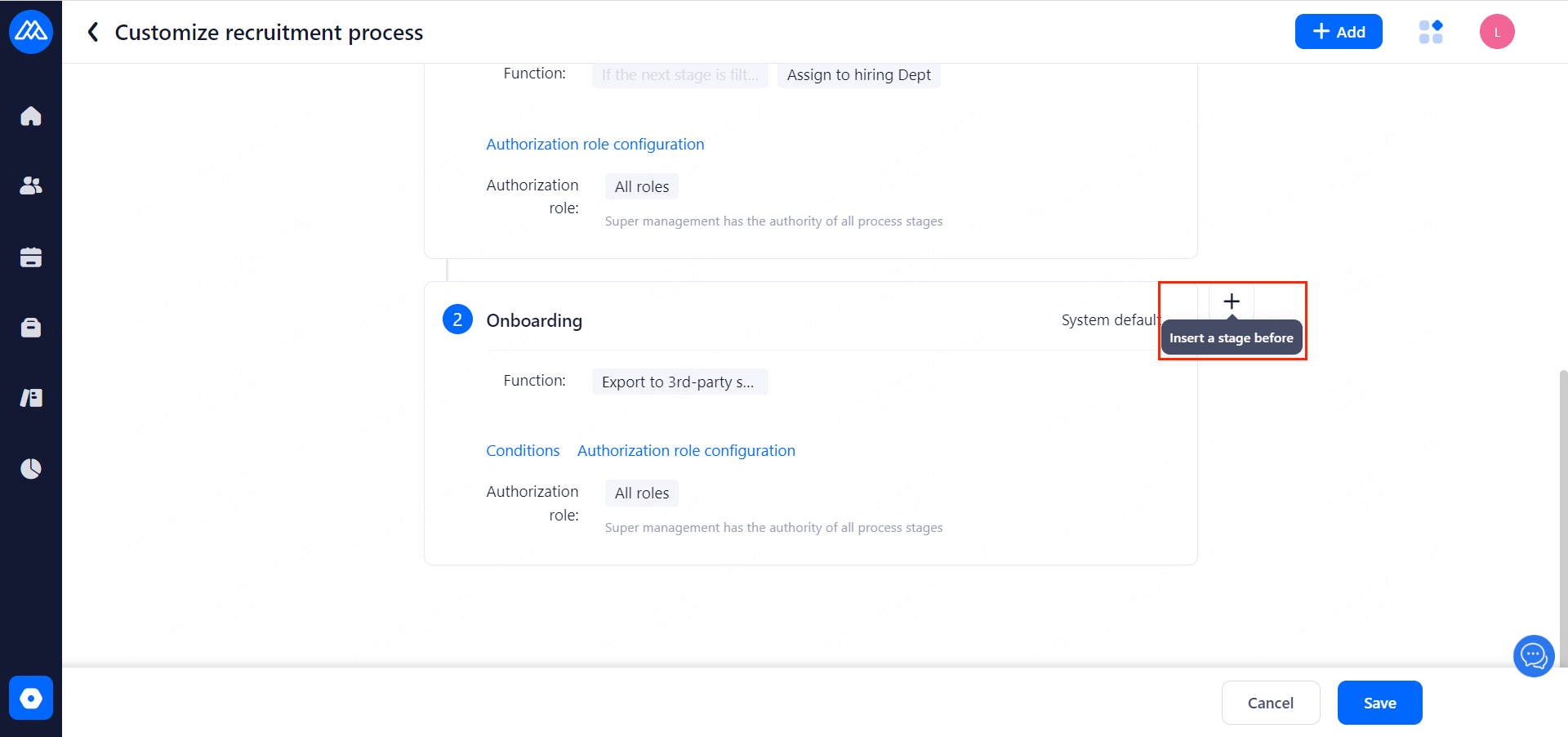
Configuration Notes:
Set up a default hiring process for a department or departments.
The first and last stages are fixed stages built into the system and cannot be canceled or repositioned.
The optional stages are those in the Recruitment Stage Setup.
Processes can be enabled, disabled and modified after they are added, but deletion is not supported.
Applications can be set to be accessible only for entity positions.
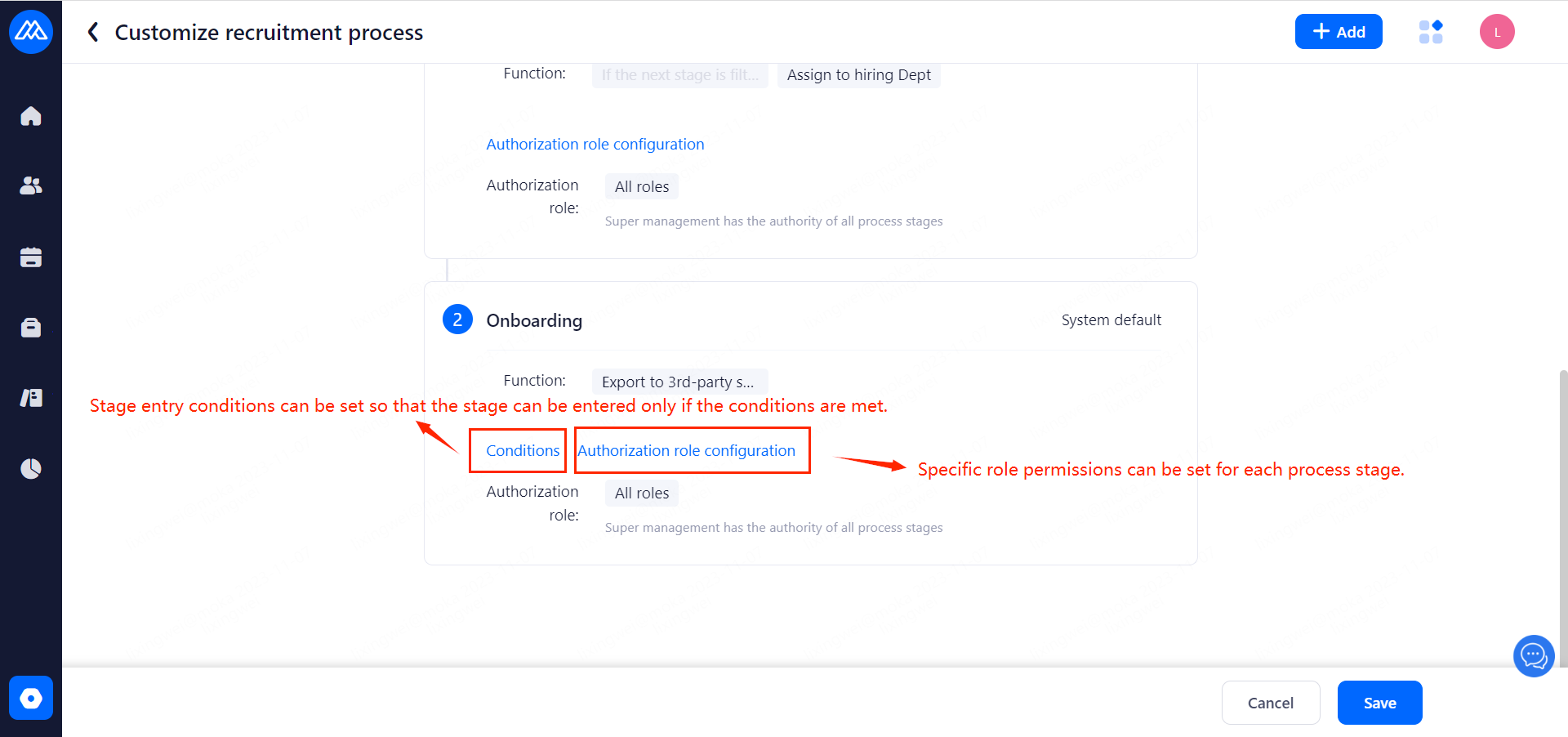
6.1.3.Screening evaluation form setting
Configuration Notes:
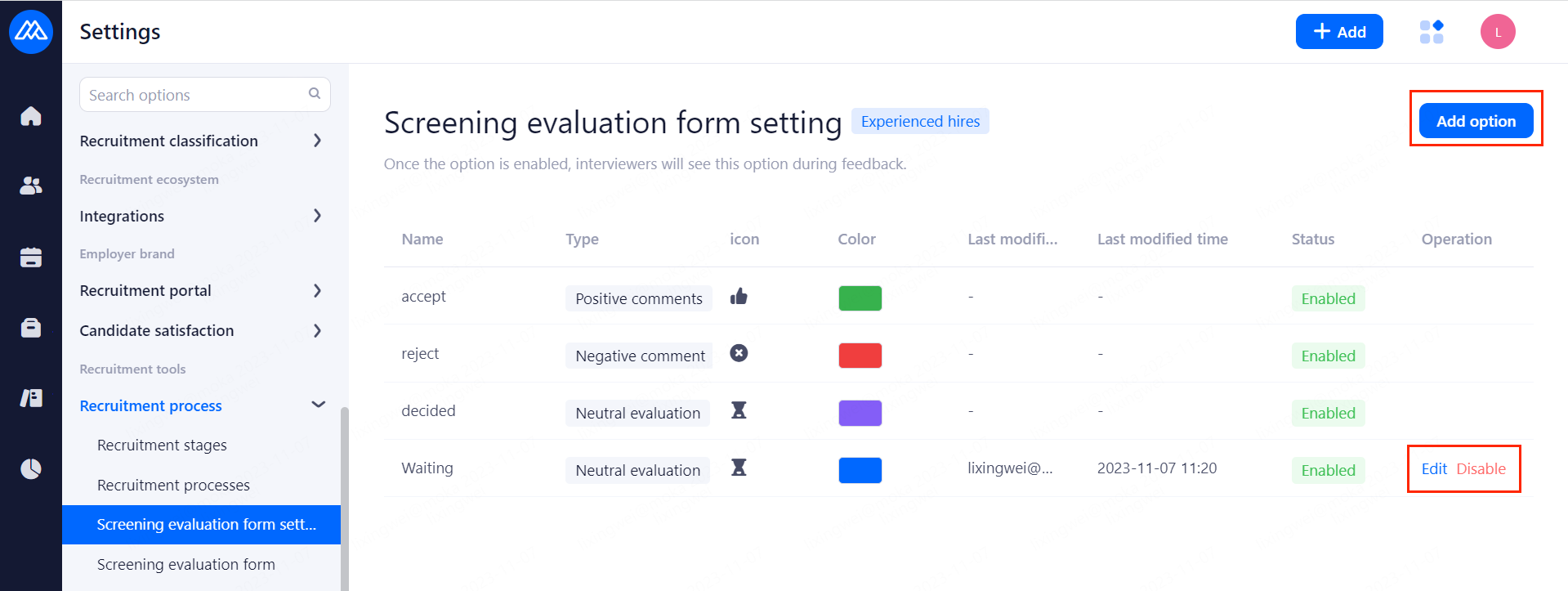
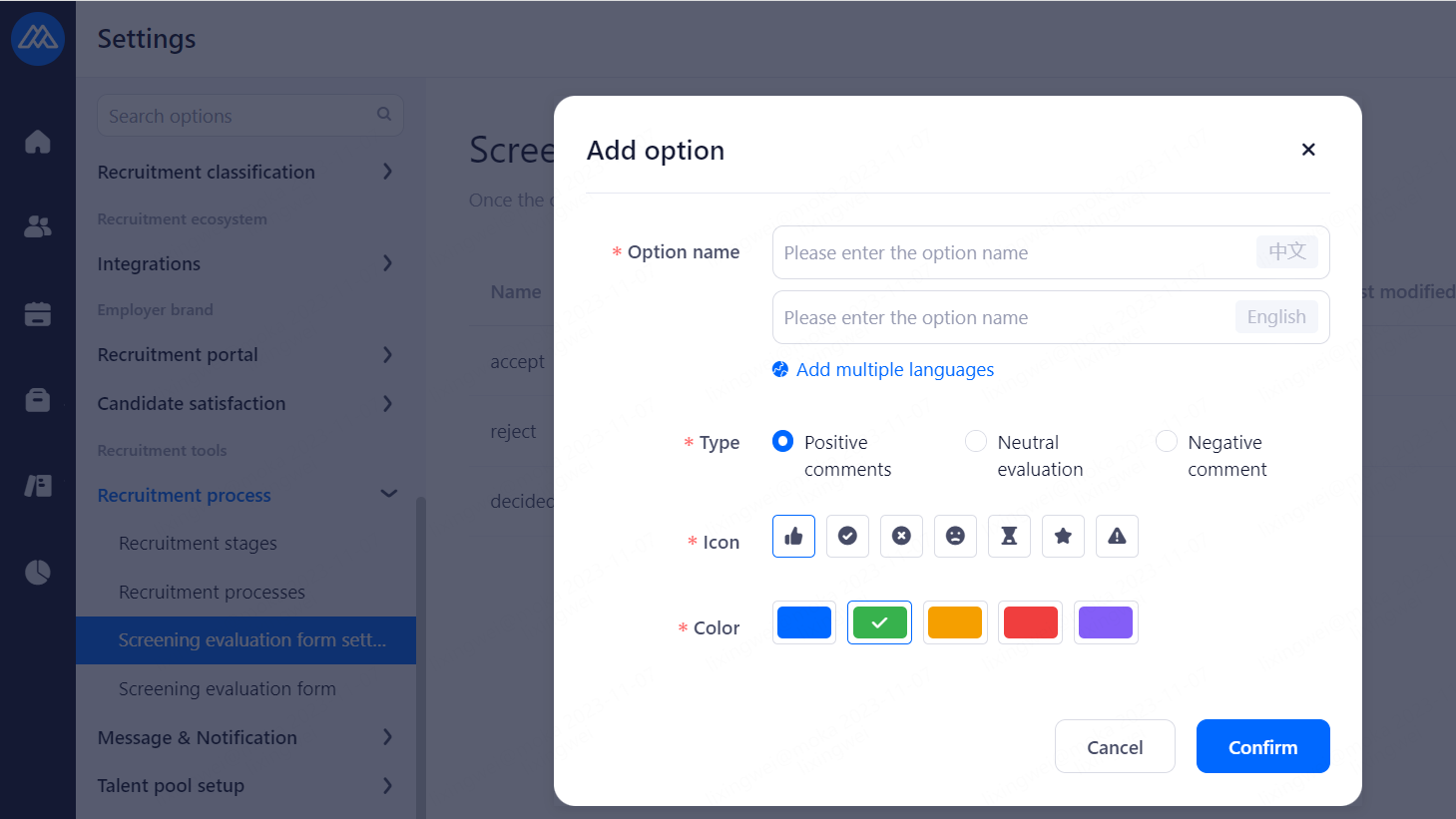
Set up Screening evaluation form for interviewers.
accept, reject and decided are fixed ratings built into the system and cannot be edited or deleted.
Enabling, disabling, and modifying can be done after adding a Screening evaluation form, but deletion is not supported.
6.1.4.Screening evaluation form
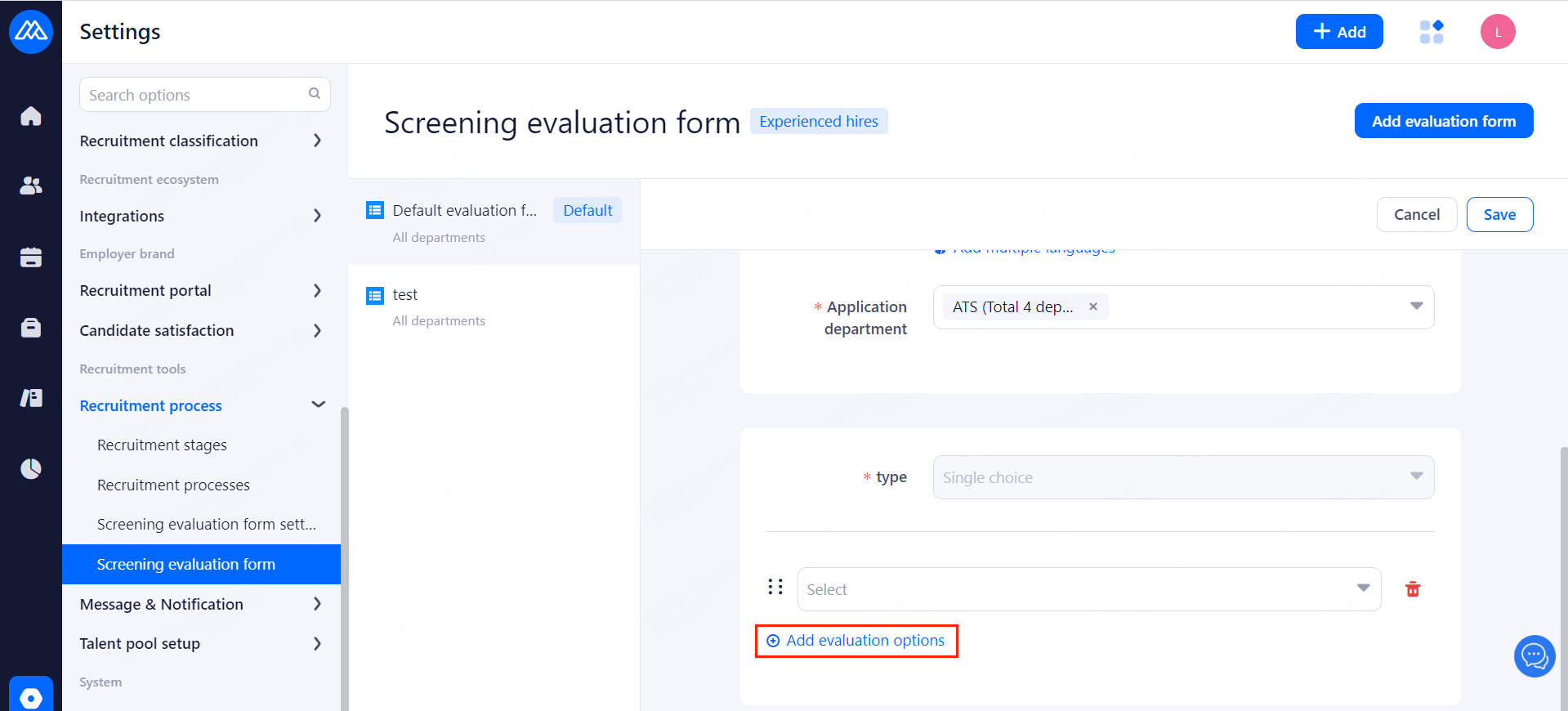
Configuration Notes:
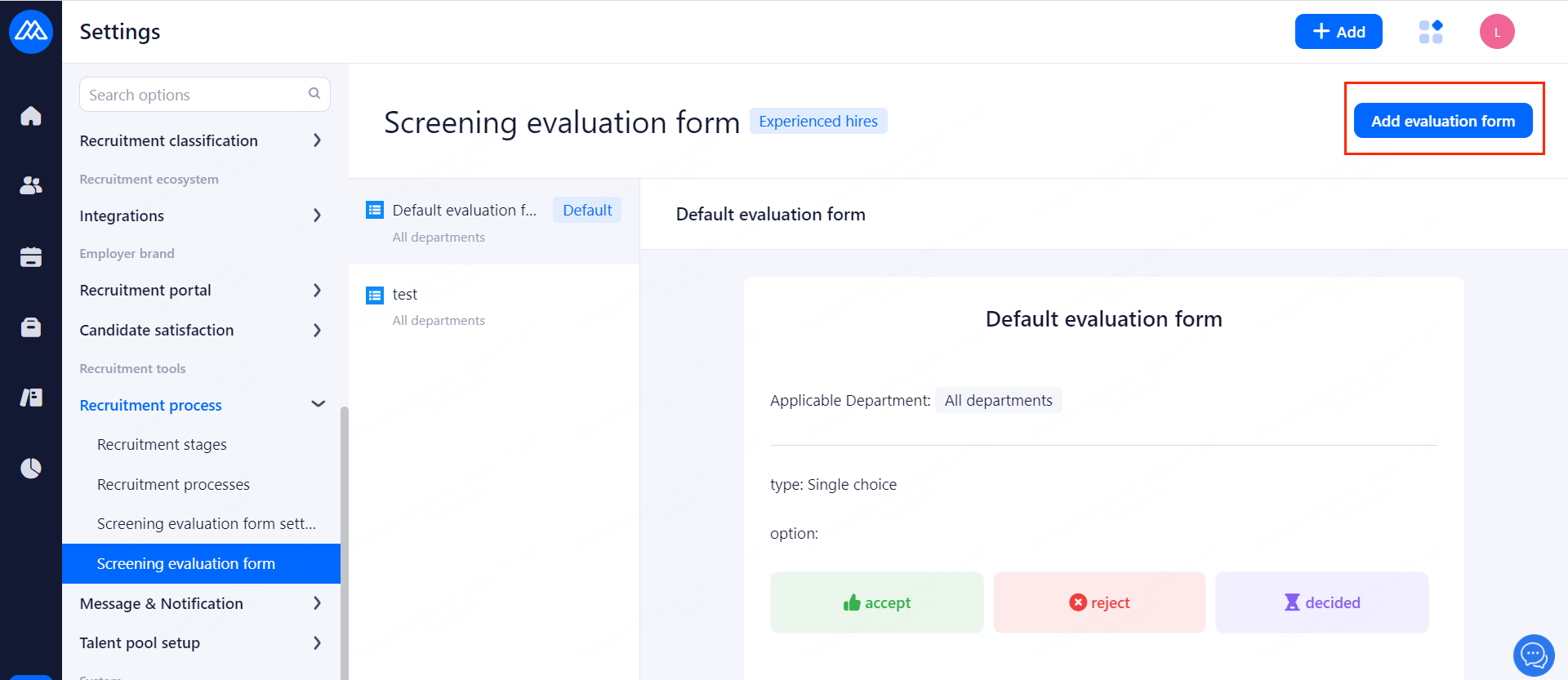
Set up Screening evaluation form for the department.
Default evaluation form is a fixed evaluation built into the system and cannot be edited or deleted.
Editing and deletion is possible after the conclusion of the Screening evaluation form for the new sector has been added.
6.2.Message & Notification
6.2.1.Message rule management
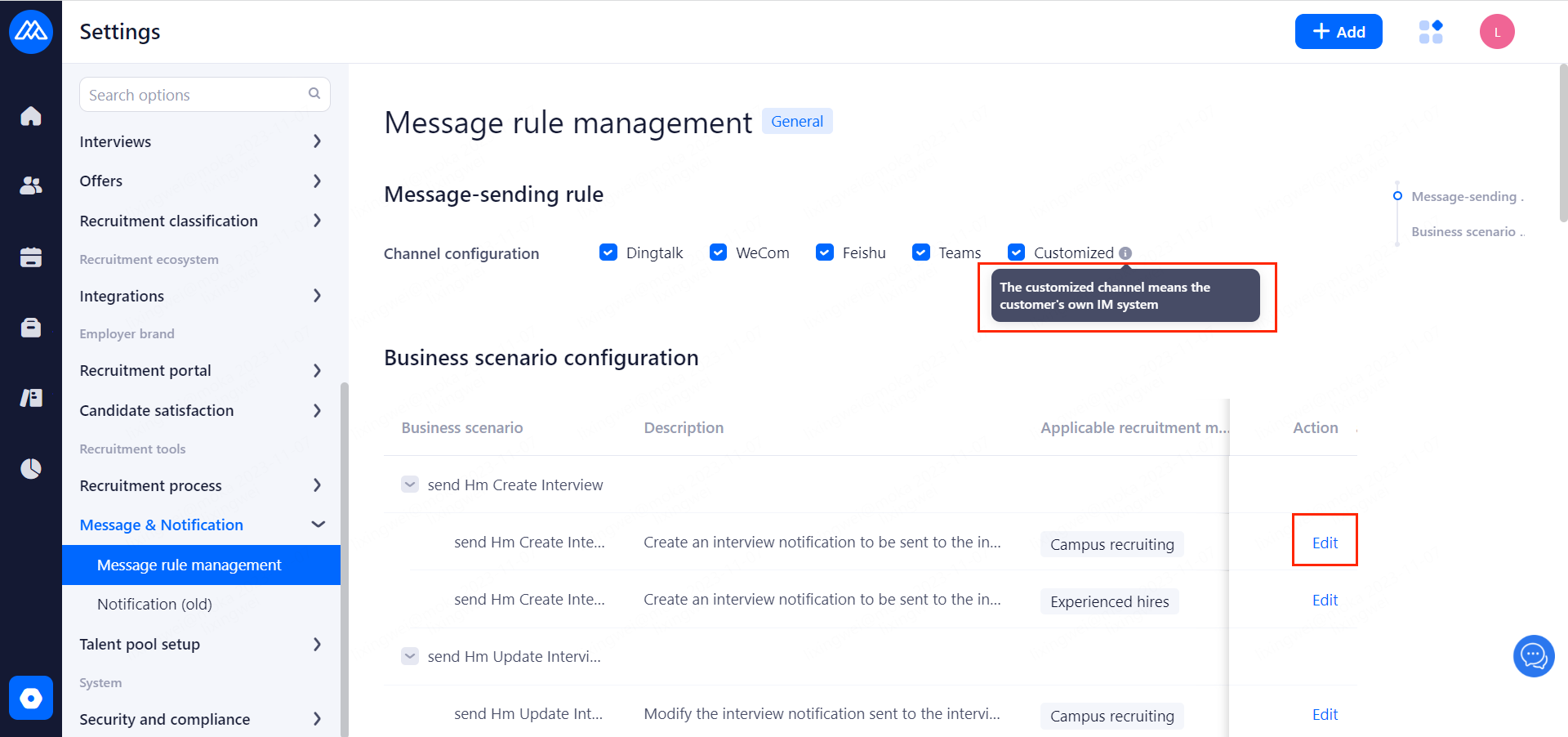
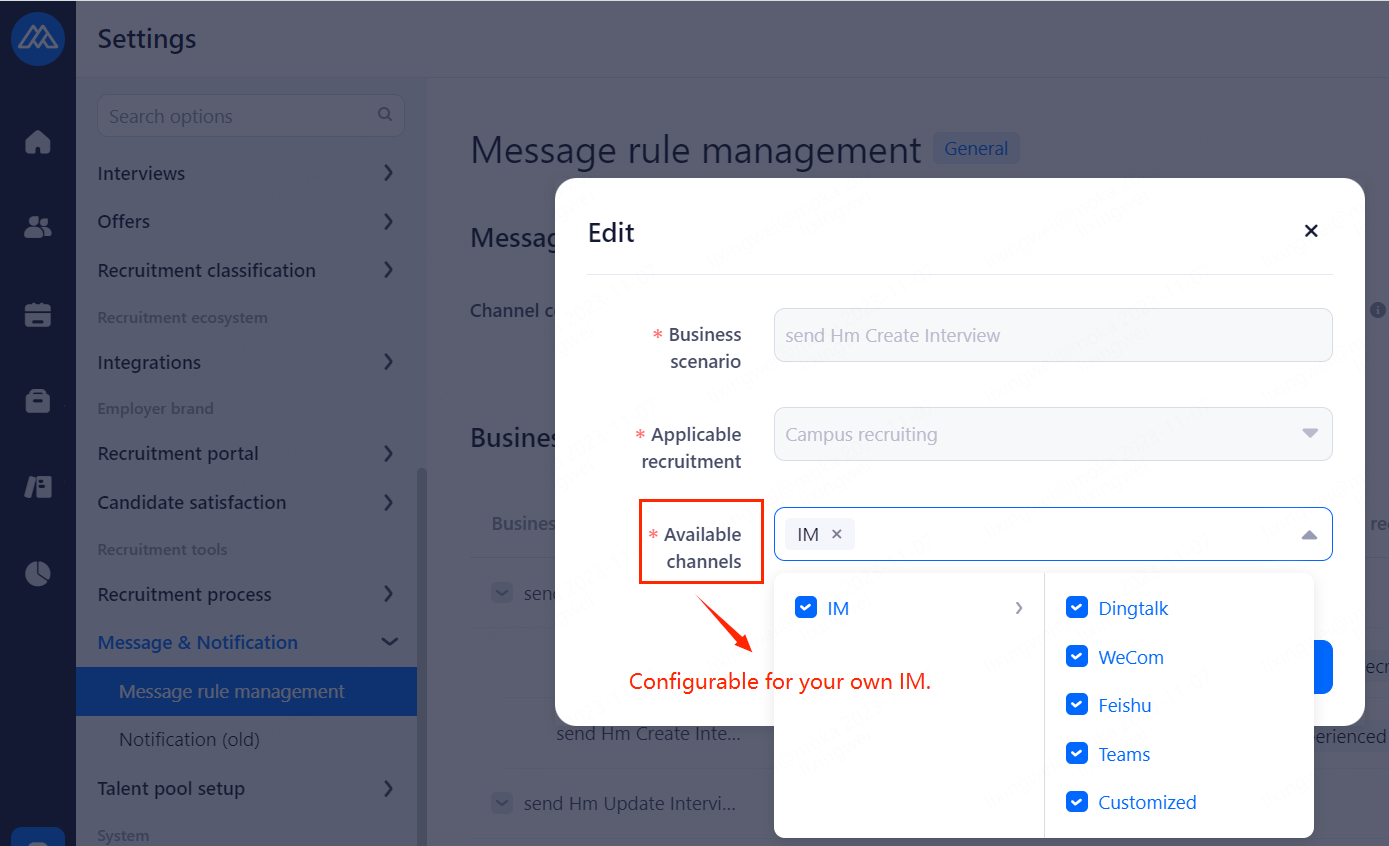
Configuration Notes:
Configurable for your own IM.
You can choose your available channels according to different business scenarios at the time of recruitment.
6.2.2.Notification (old)
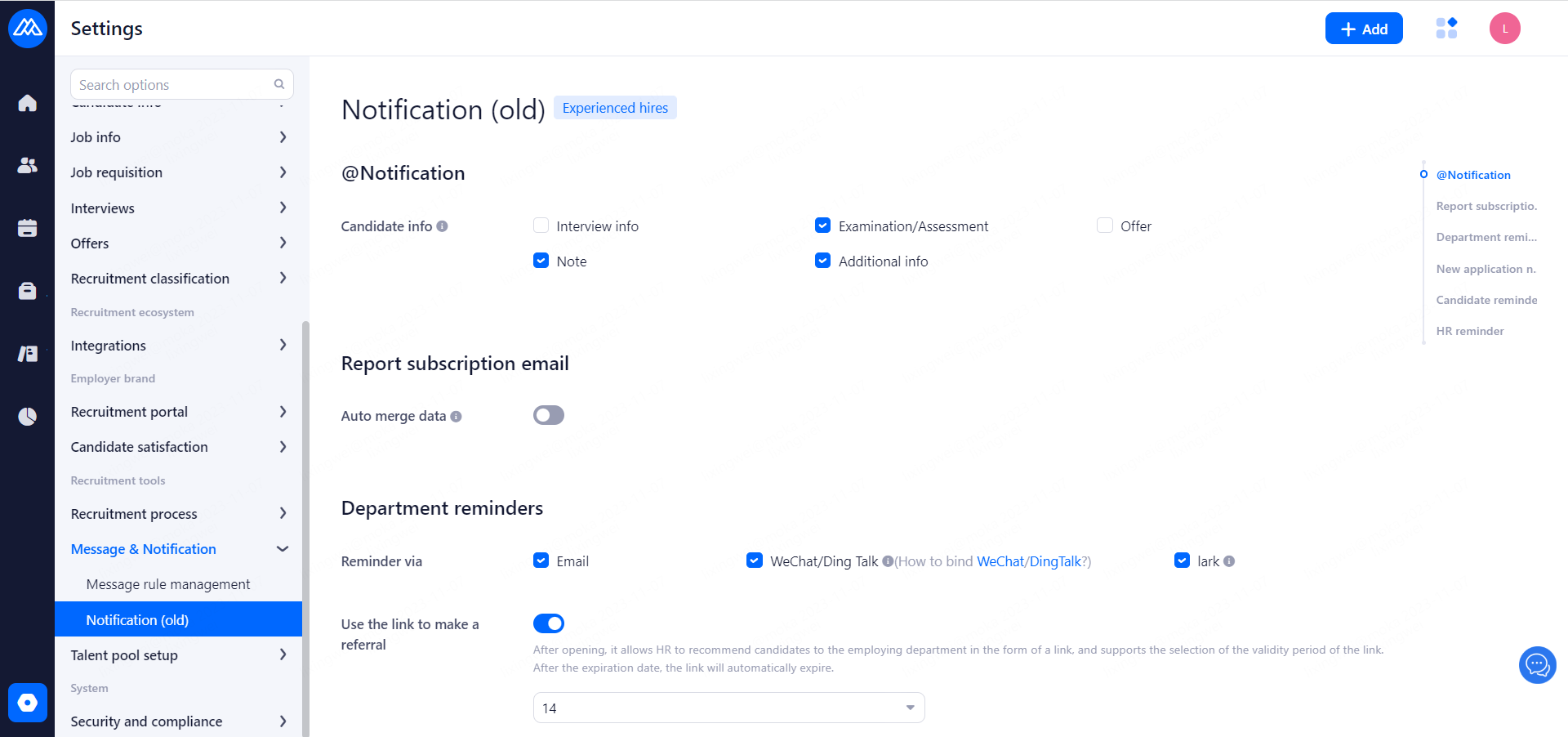
Configuration Notes:
Candidate info: Candidates info when you @ someone and do not show info when you @ agency.
Auto merge data: Enable to merge email with the same opeator、subscriber and subscribe time automatically. (multiple attachments)
Reminder via: This reminder is also used for reminders to hiring departments to recommend resumes, so please select at least one. Three options are currently offered: Email, WeChat/Ding Talk: Need to open related services, lark.
Use the link to make a referral: After opening, it allows HR to recommend candidates to the employing department in the form of a link, and supports the selection of the validity period of the link. After the expiration date, the link will automatically expire.
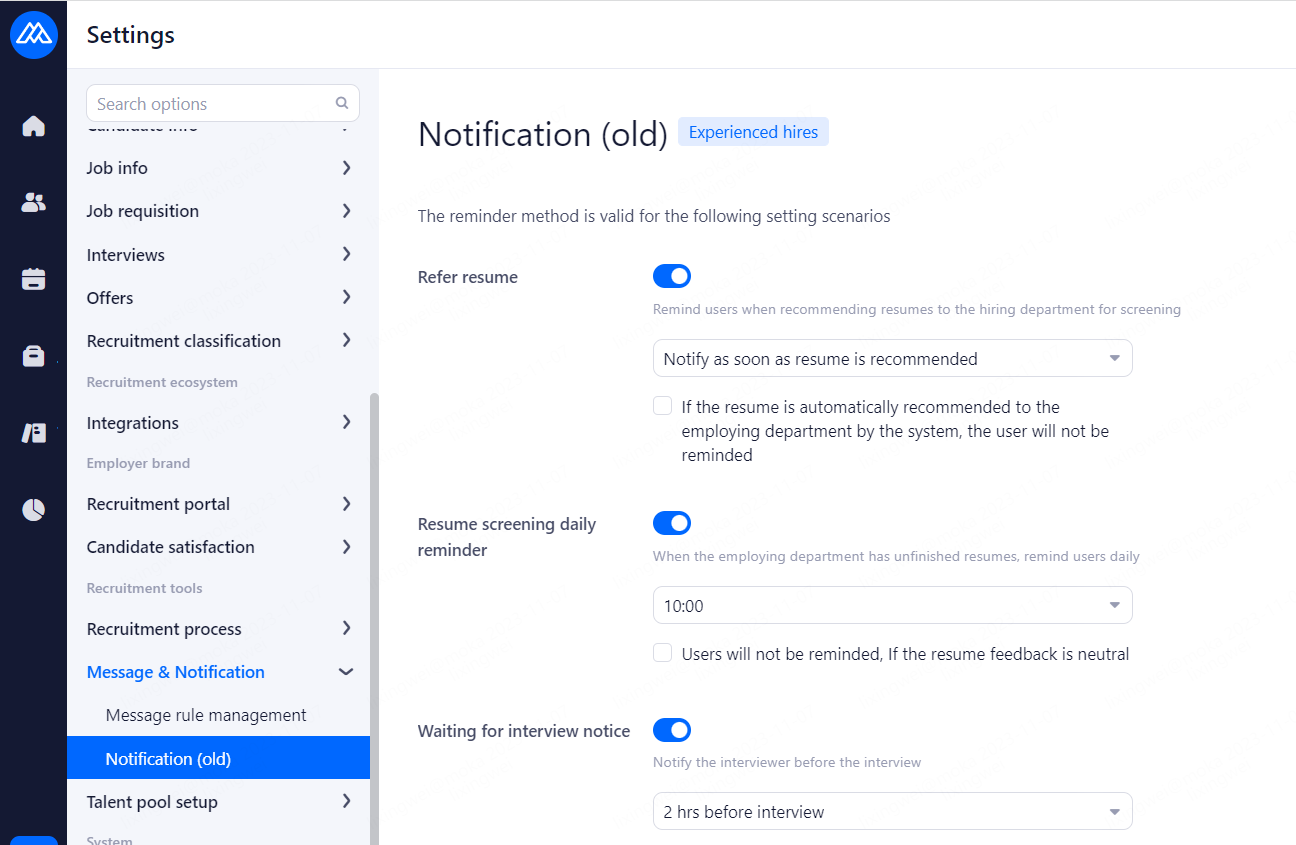
Refer resume: Email notification will be sent when the resume is sent to the employing department, and the system will send email notification by default when HR recommends the resume, and here you can set whether to send email notification when the system recommends the resume automatically. Notification methods:
Real-time notification (immediately after recommending a resume).
Automatic notification every 1, 2 or 4 hours, no no notification.
Resume screening daily reminder: Send email alerts to hiring departments when there are outstanding resumes.Notification methods:
Customization is not supported at some point between 7:00 and 19:00 every day.
You can set the user not to be alerted if the resume is returned as pending.
Waiting for interview notice: Send an email reminder to the interviewer before the interview begins.Notification methods:
Choose from 15 minutes, 30 minutes, 1 hour, 2 hours, and 6 hours; customization is not supported.
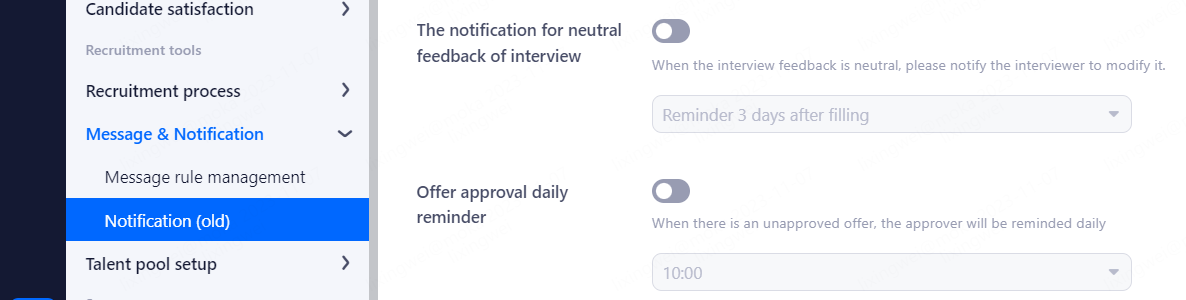
Interview feedback daily reminder: Send an email reminder to the interviewer when interview feedback has not yet been completed.Notification methods:
Customization is not supported at some point between 7:00 and 19:00 every day.
The notification for neutral feedback of interview: Send a reminder to the interviewer to revise the interview feedback when the interview result is pending. Notification methods:
Three, five, ten, or fifteen days are available, and customization is not supported.
Offer approval daily reminder: Offers with pending approvals are automatically emailed to the approver.Notification methods:
Customization is not supported at some point between 7:00 and 19:00 every day.
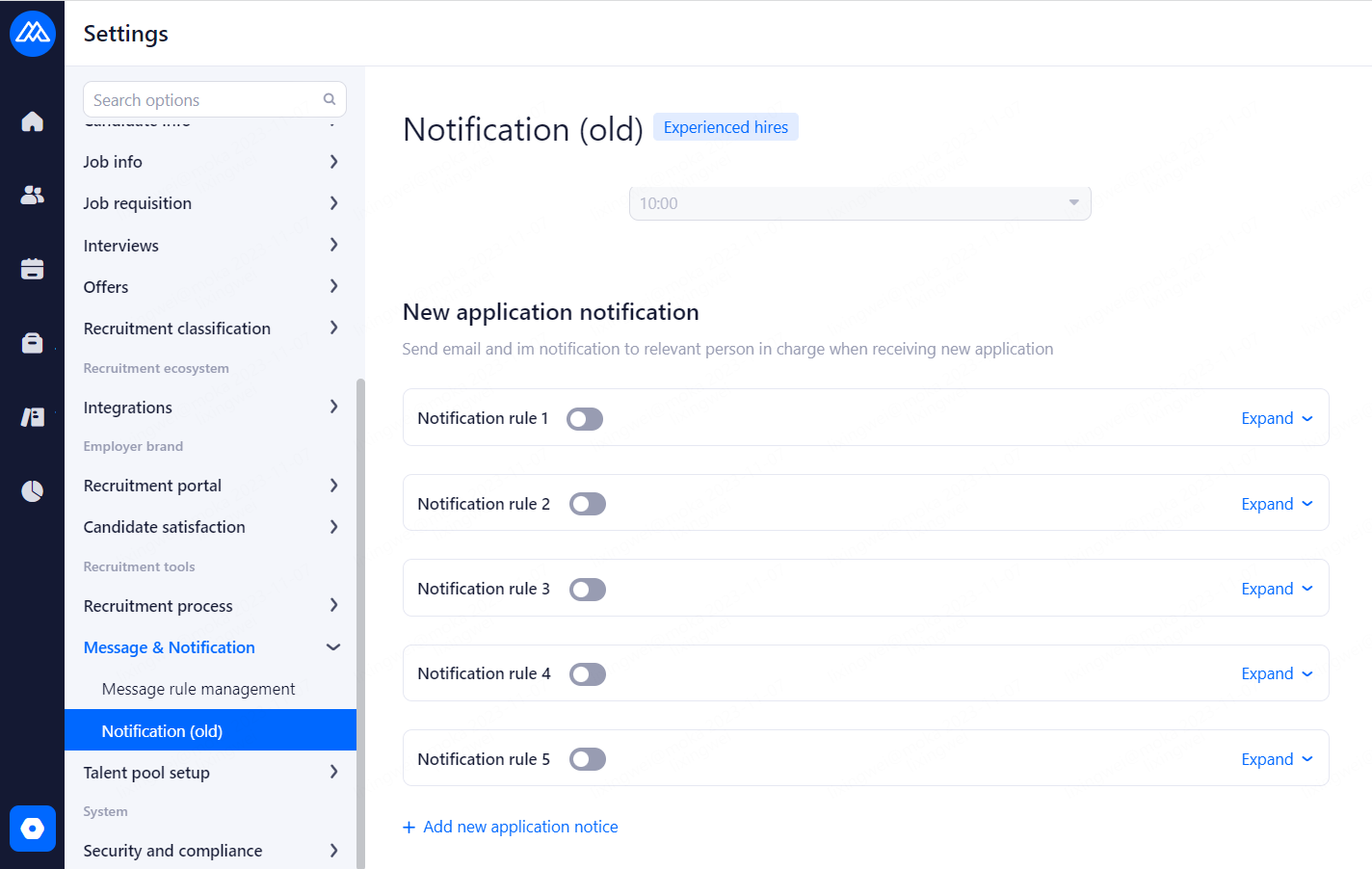
Add new application notice
Workflow: Optionally, a notification can be sent to the relevant responsible person when a new application is received in a particular recruitment process.
Notify user roles: Person roles for notifications can be selected.
Notification type: Summary notification, Instant reminder.
Summary notification time: Summarize the resumes received on the same day and notify the position holder at a specific time (optionally from 00:00 to 23:00 every day).
Notification method: Notification through Email, wechat / nailing and other communication tools bound by the user.
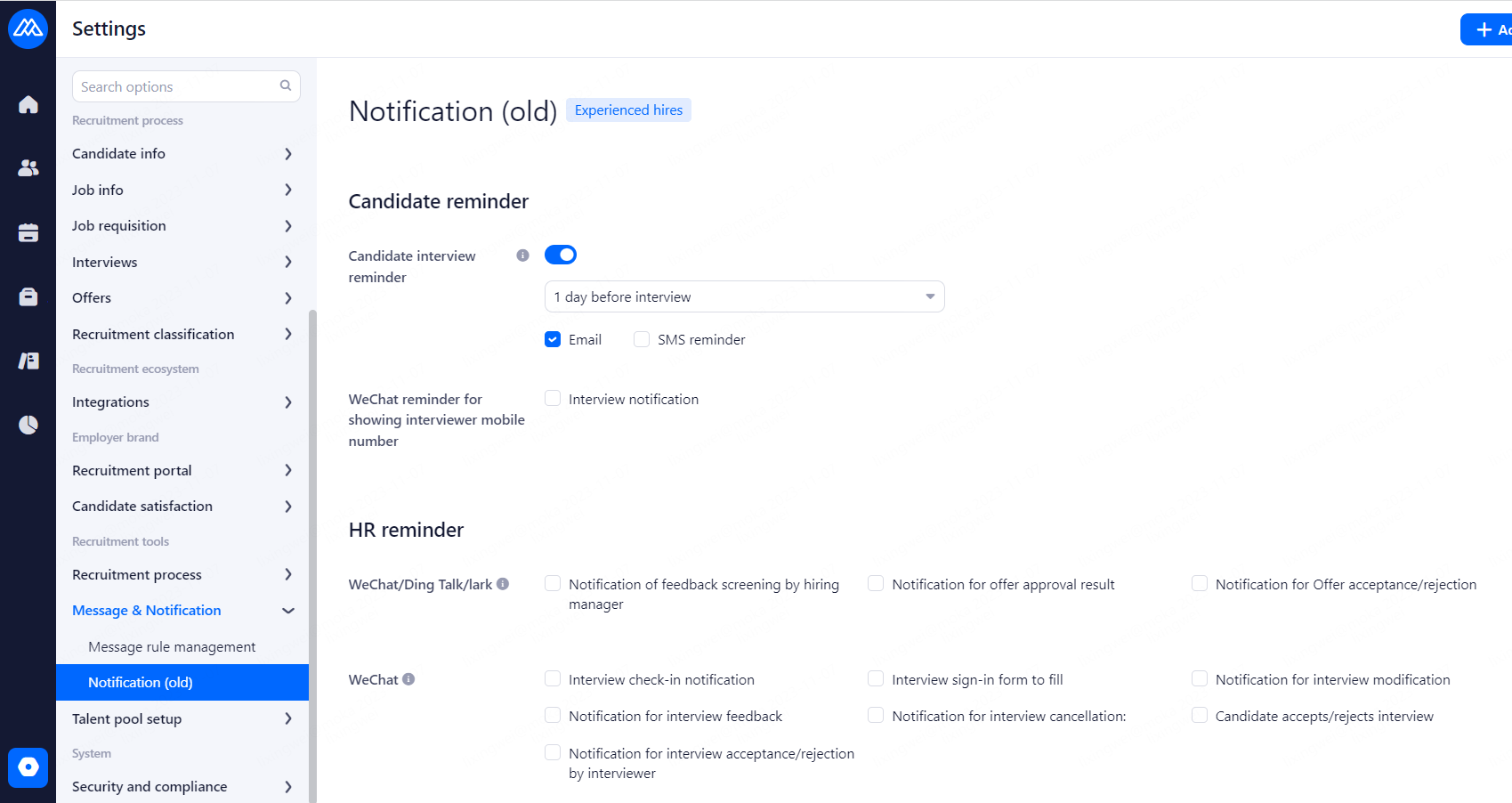
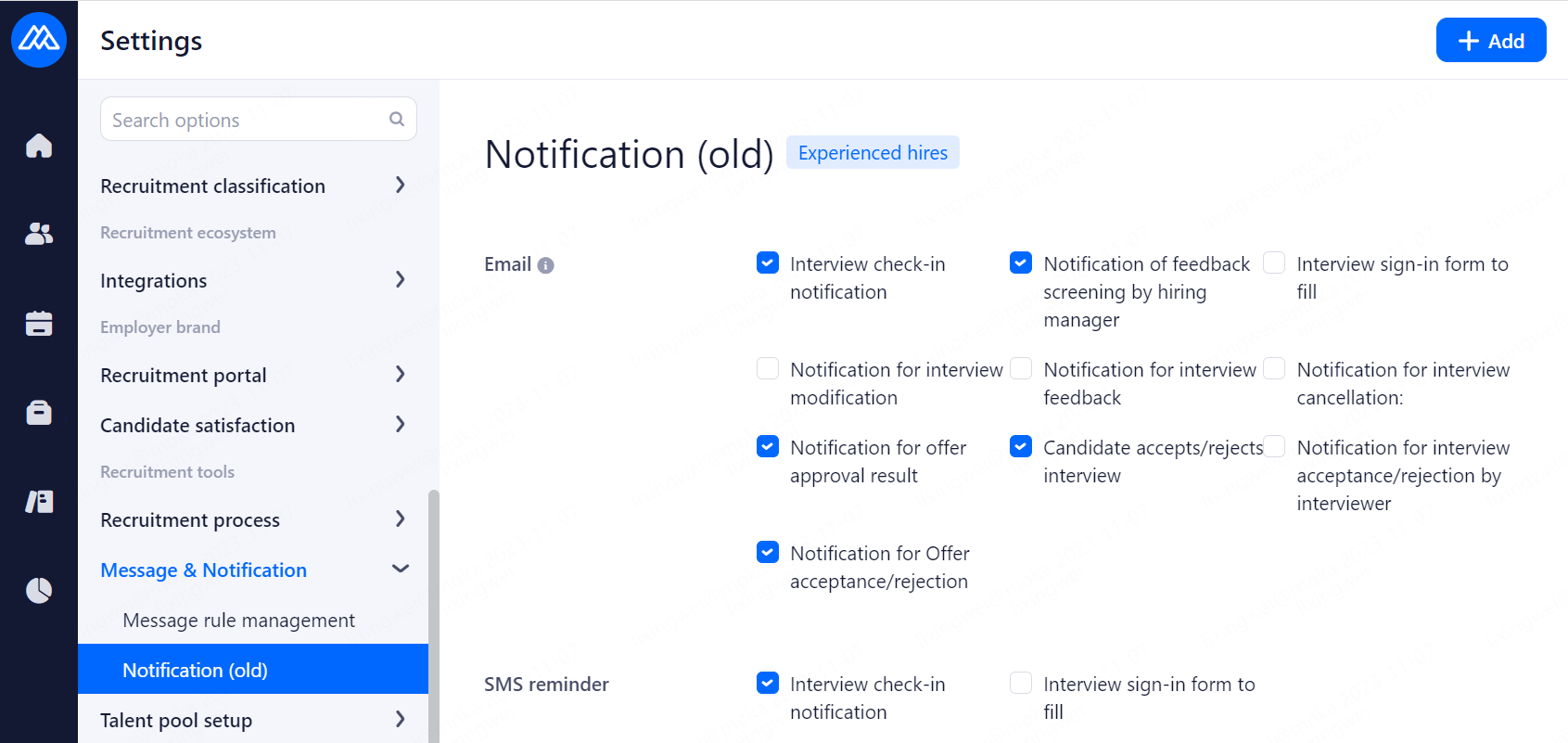
Candidate interview reminder:
Reminders are sent to candidates before the interview. Email and SMS reminders are available, and SMS reminders need to be purchased in advance. Notification time: 2 hours before the interview, 1 day before the interview, 2 days before the interview and 3 days before the interview.
WeChat reminder for showing interviewer mobile number: Candidates receive WeChat messages to create and modify interviews that include the interviewer's cell phone number.
HR reminder:
WeChat/Ding Talk/lark: Notify HR via WeChat、DingTalk and Lark when processing candidates status changed. Enable the service to use otherwise use email.
WeChat: Notify HR via WeChat when processing candidates status changed. Enable the service to use otherwise use email.
Email: Email related HR when processing candidates status changed.
SMS reminder: HR will be notified by SMS when the candidate signs in for the interview.
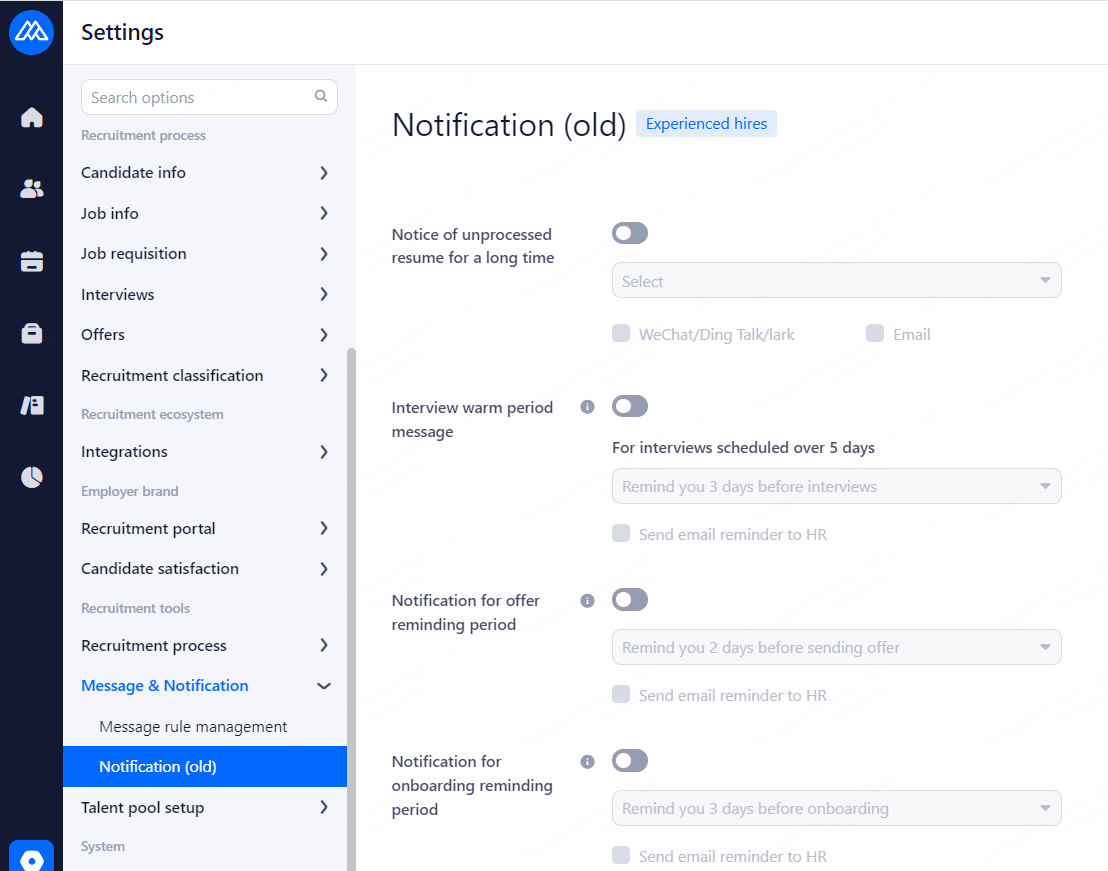
Notice of unprocessed resume for a long time: Choose from Recruitment Leader, Recruitment Facilitator and Candidate Owner.
Interview warm period message: Enable the warning period in the dashboard, Notify HR to contact candidates at a specific time for interviews period longer than 5 days. Notification time:
For interviews scheduled over 5 days.
Notification for offer reminding period: Enable the warning period in the dashboard, Notify HR to contact candidates at a specific time for the sent offer. Notification time:
Choose one of the options available 1-3 days before the interview.
Notification for onboarding reminding period: Enable the warning period in the dashboard, Notify HR to contact candidates.。Notification time:
Choose one of the options available 1-5 days before the interview.
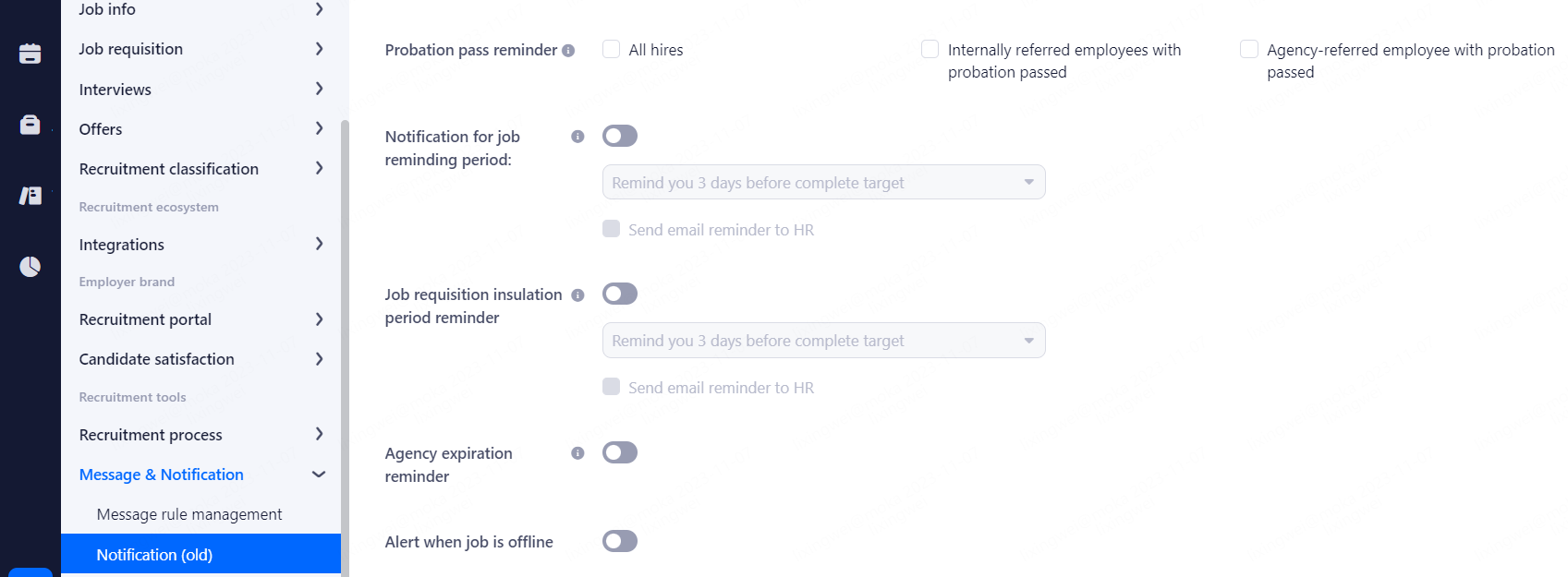
Probation pass reminder: Notify job owner to confirm candidates passed the probation when probation period ended.
Notification for job reminding period: Enable the warning period in the dashboard. Notification time:
Select one of the options of 3, 5, 10, or 15 days to goal completion.
Job requisition insulation period reminder: Turn on job job requisition holding period reminders in the general overview page. Notification time:
Select one of the options of 3, 5, 10, or 15 days to goal completion.
Agency expiration reminder: Agency contact HR receive email and notification before the contract expires within 30 days.
Alert when job is offline: When this feature is turned on, you can receive unprocessed emails or text messages from the set up recruitment channels.
6.3.Talent pool setup
6.3.1.Talent pool
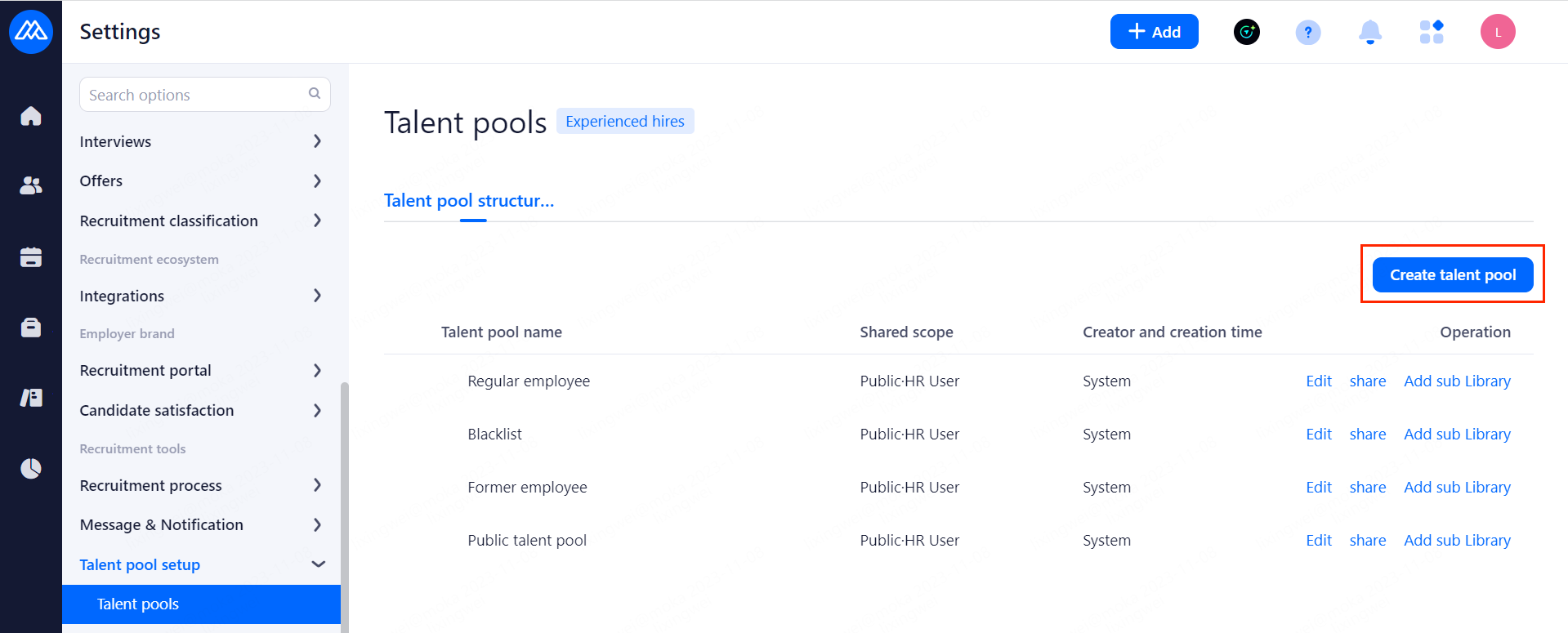
Configuration Notes:
Create a new customized talent pool, you can choose to associate a parent pool or add a sub-pool directly.
Public pools are visible to everyone, and confidential pools are viewable only to authorized users. (Super administrators have access to all pools)
Shared Objects: Support by department, role, account authorization to the corresponding user's viewing privileges. System public, on-boarding, off-boarding, blacklisted talent pool only super administrator can set up private, subordinate talent pool.
6.3.2.Talent pool setup
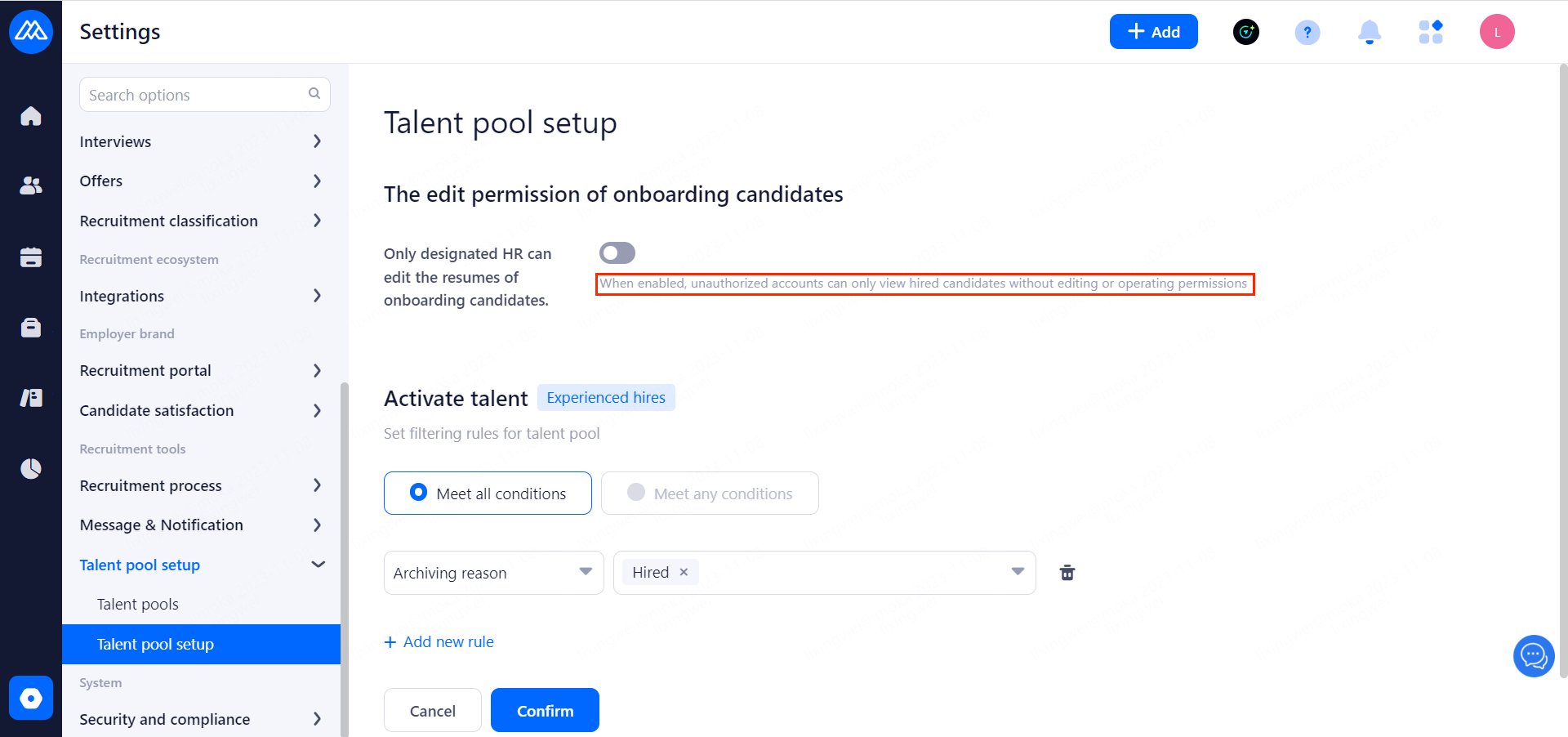
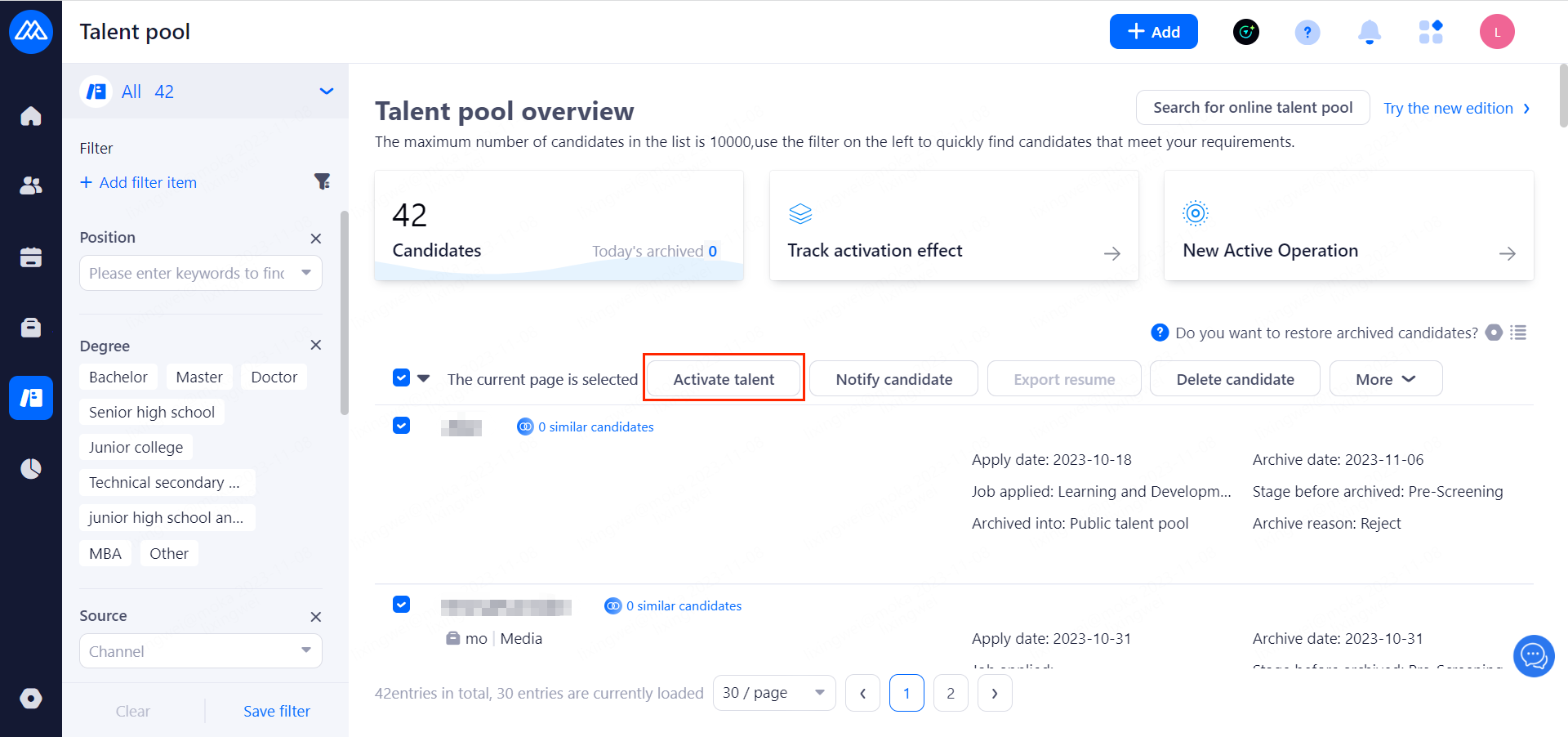
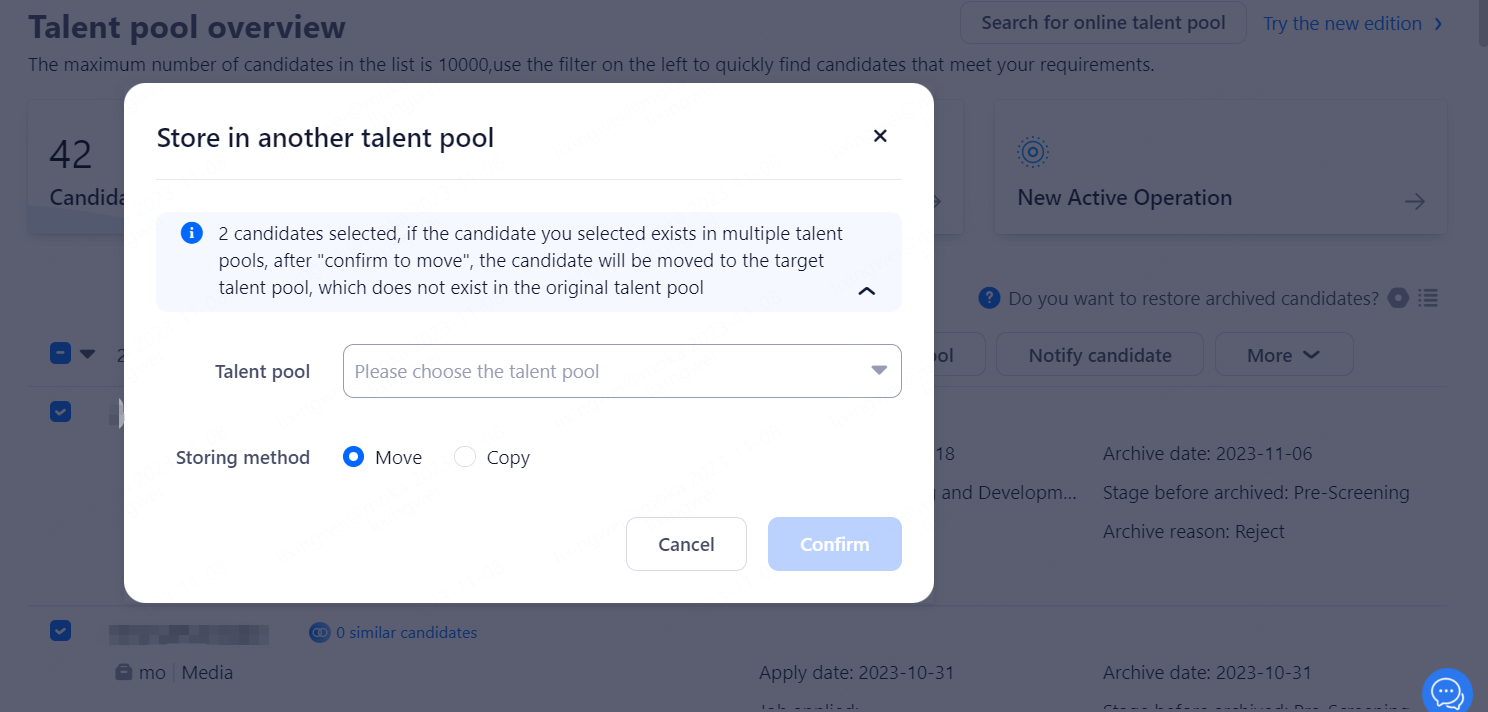
Configuration Notes:
When enabled, unauthorized accounts can only view hired candidates without editing or operating permissions.
You can choose between meeting all conditions and meeting any conditions.
You can set up filtering rules for new activations in the talent pool.
You can select any talent pool and reserve candidates from the pool to other pools (you can choose to move or copy)
7. System
7.1.Security and compliance
7.1.1.Privacy Agreement Settings

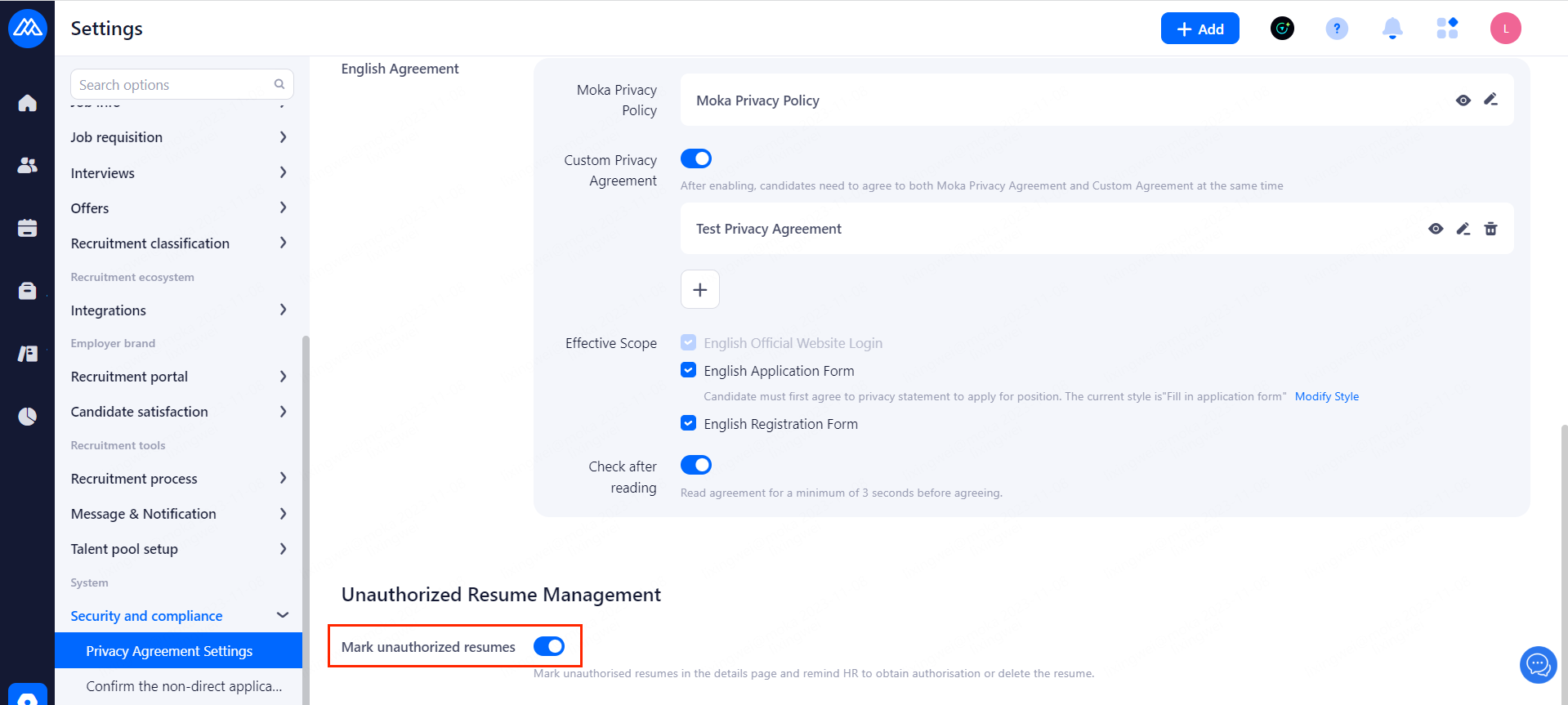

Configuration Notes:
Set the privacy agreement that candidates will be required to agree to when logging in to the official website, applying for positions, and submitting registration forms
Custom Privacy Agreement: After enabling, candidates need to agree to both Moka Privacy Agreement and Custom Agreement at the same time.
Effective Scope: Candidate must first agree to privacy statement to apply for position. The current style is"Fill in application form".
Check after reading: Read agreement for a minimum of 3 seconds before agreeing.
Mark unauthorized resumes: With this feature enabled, Mark unauthorised resumes in the details page and remind HR to obtain authorisation or delete the resume.
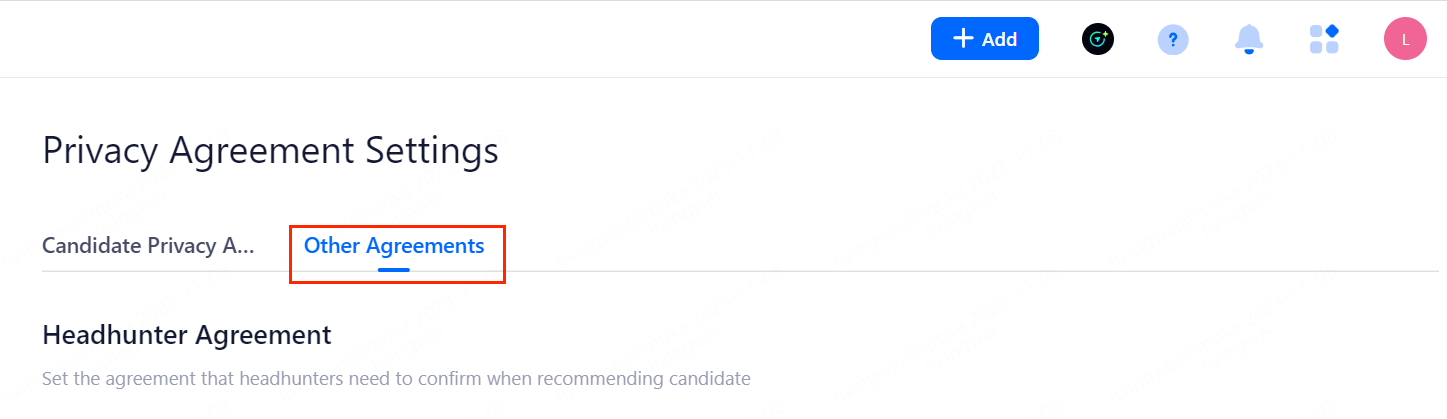
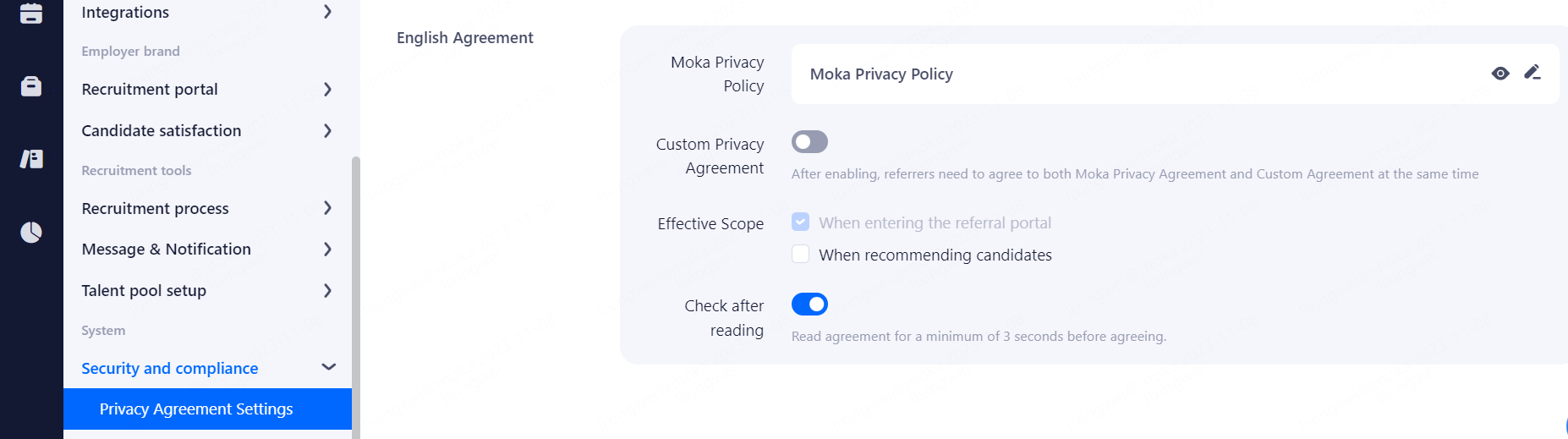
Configuration Notes:
Set the agreement that headhunters need to confirm when recommending candidate
Custom Privacy Agreement: After enabling, candidates need to agree to both Moka Privacy Agreement and Custom Agreement at the same time.
Effective Scope: "When selecting a service company" and "When recommending candidates".
Check after reading: Read agreement for a minimum of 3 seconds before agreeing.
7.1.2.Confirm the non-direct application
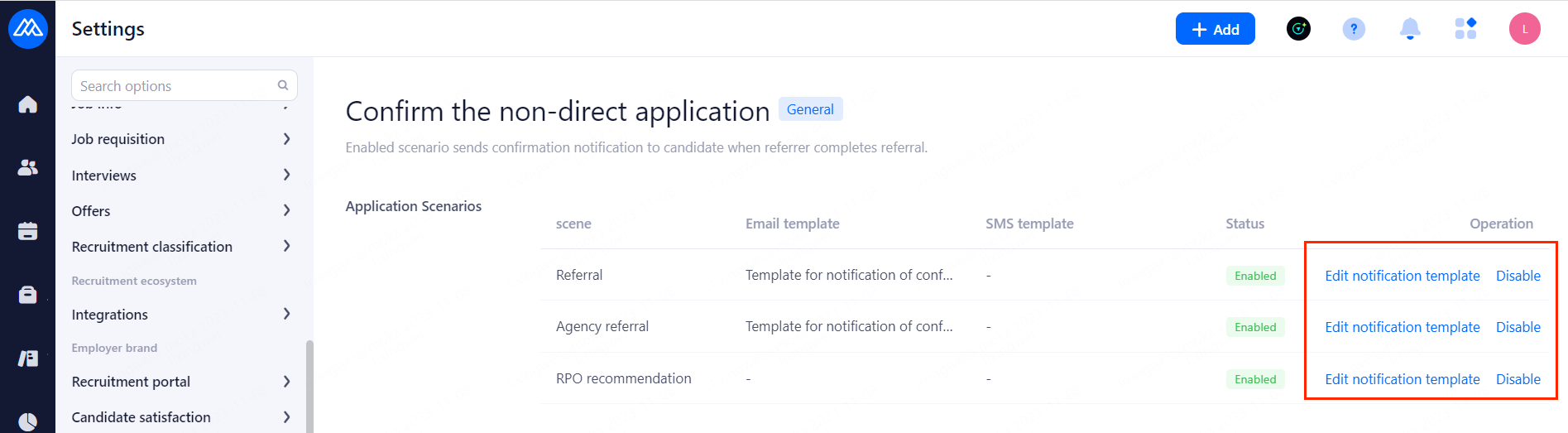
Configuration Notes:
When the referrer completes the referral, the scenario sends a confirmation notification to the candidate.
Referral, Agency referral and RPO recommendation are fixed ratings built into the system and cannot be edited or deleted.
Application scenarios can be enabled, disabled and modified, but deletion is not supported.
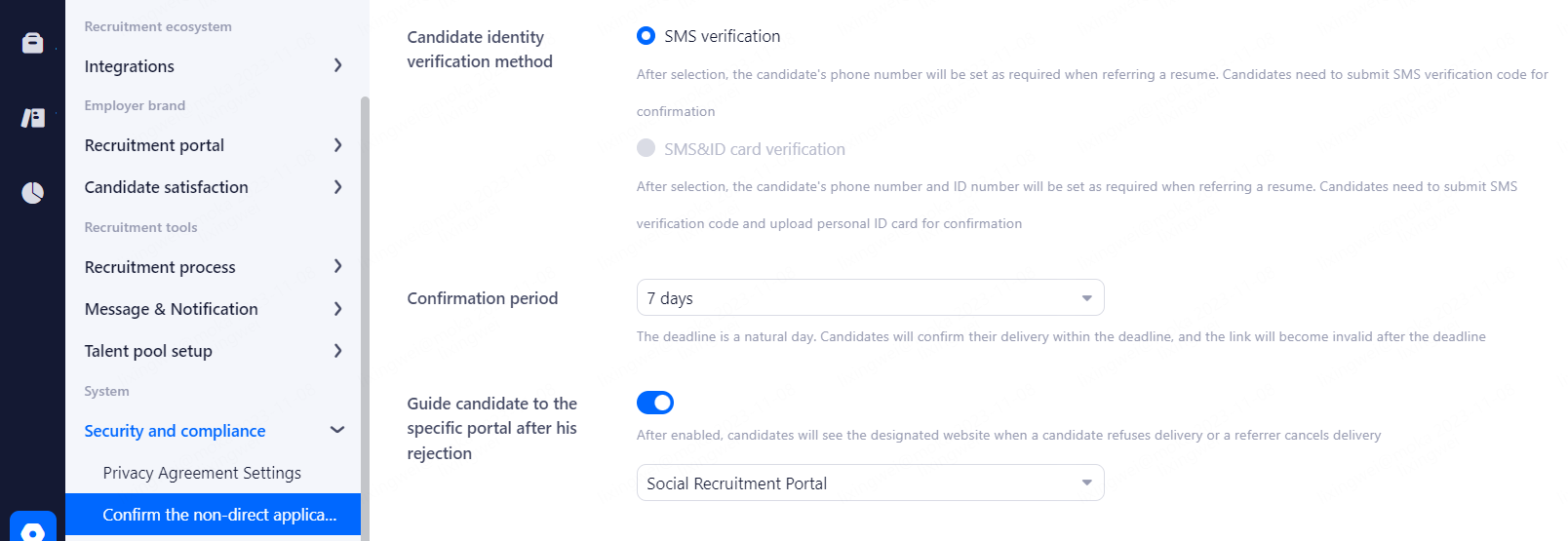
Configuration Notes:
Candidate identity verification method: After selection, the candidate's phone number will be set as required when referring a resume. Candidates need to submit SMS verification code for confirmation
Confirmation period: The deadline is a natural day. Candidates will confirm their delivery within the deadline, and the link will become invalid after the deadline
Guide candidate to the specific portal after his rejection: After enabled, candidates will see the designated website when a candidate refuses delivery or a referrer cancels delivery
7.1.3.Data Retention Period
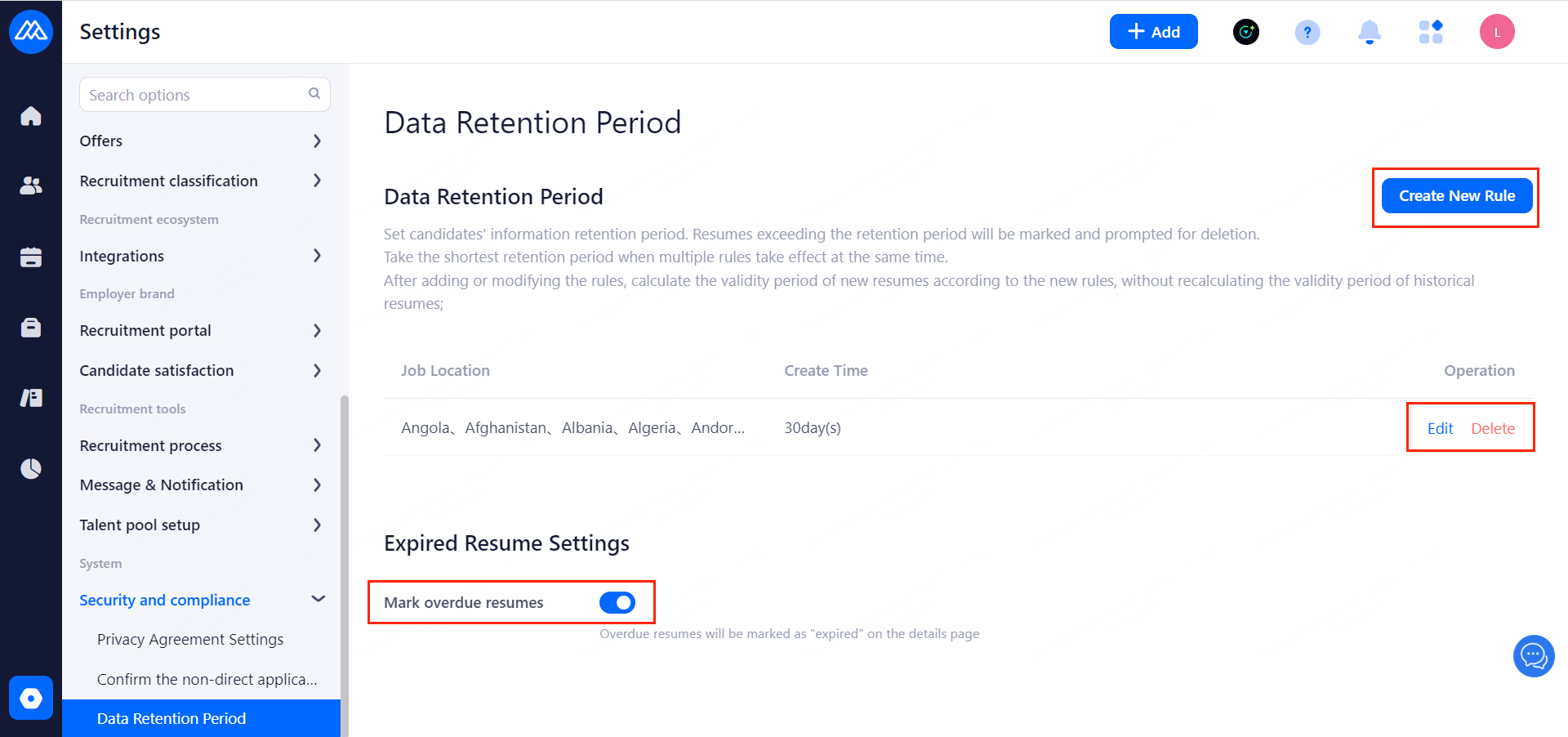
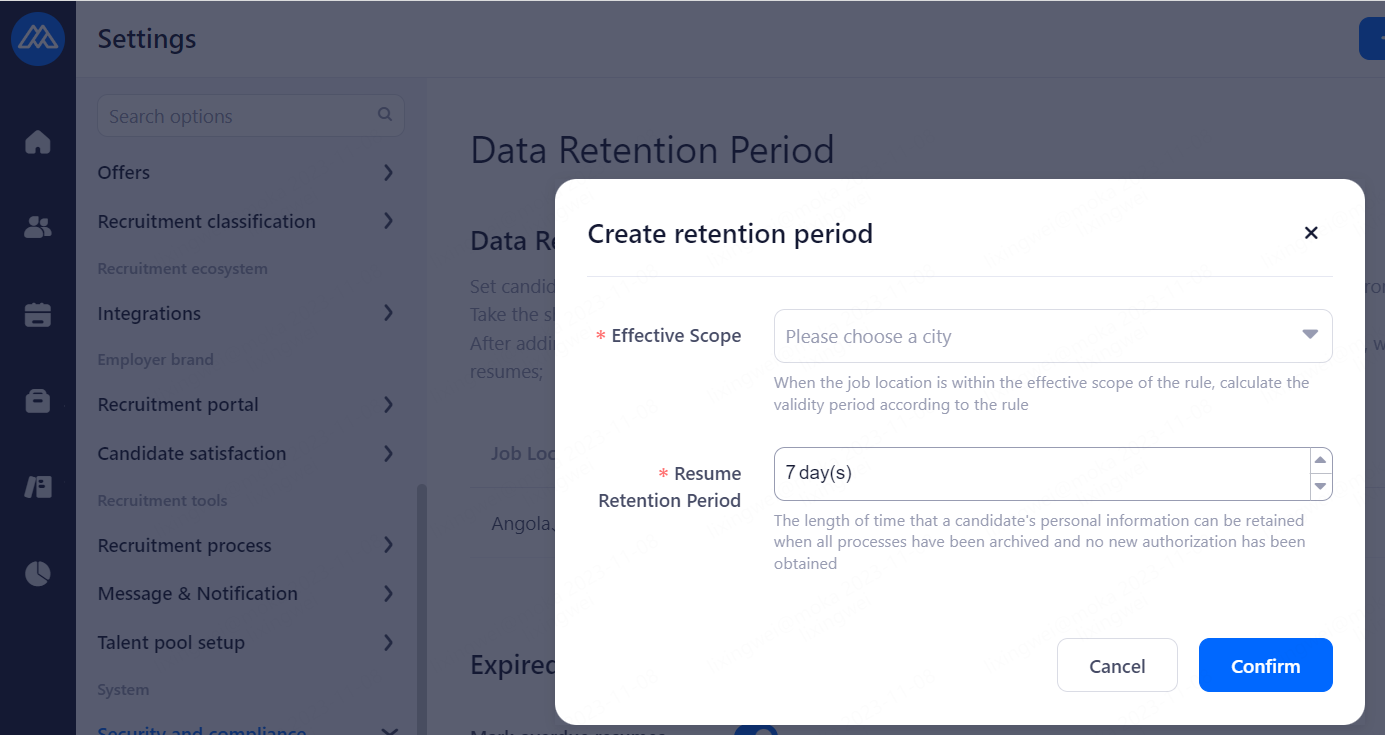
Configuration Notes:
Set candidates' information retention period. Resumes exceeding the retention period will be marked and prompted for deletion.
Take the shortest retention period when multiple rules take effect at the same time.
After adding or modifying the rules, calculate the validity period of new resumes according to the new rules, without recalculating the validity period of historical resumes;
Effective Scope: When the job location is within the effective scope of the rule, calculate the validity period according to the rule
Resume Retention Period: The length of time that a candidate's personal information can be retained when all processes have been archived and no new authorization has been obtained
New rules can be modified and deleted after they are created.
Overdue resumes will be marked as "expired" on the details page
8. Installation of the "Simple Collection" plugin
plugin role: After installation, it supports one-click refresh, posting jobs to job boards, and job board searches for resumes available for one-click entry.
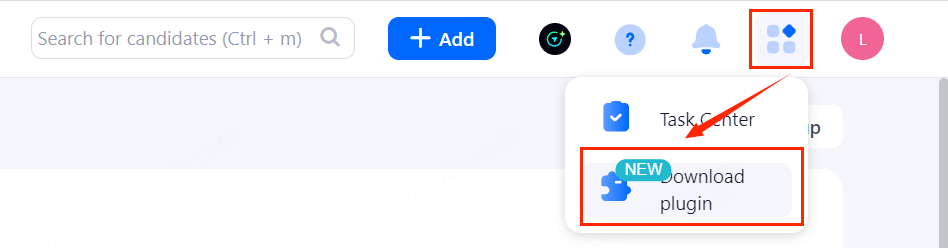
Installation Methods: Click "Download Plugin" in the upper right corner of the system, click the last manual installation method, download the plugin, unzip it into a folder and place it in the browser extension.
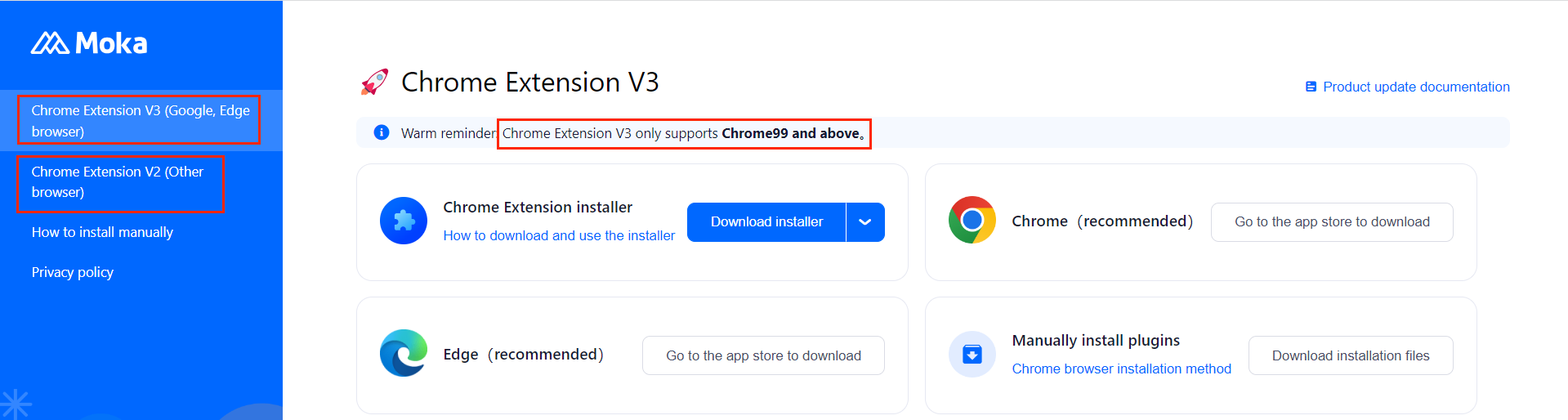
Note: The JianCang plugin currently supports
360 Browser/360 Extreme Support Installation V2
(https://mokahr.udesk.cn/hc/articles/148961)
Chrome 99 and above can install V3