


1. Product Introduction
The Moka Intelligent Analysis Platform utilizes the data modeling and multidimensional analysis power of traditional business intelligence tools to manage, present, and analyze data in-depth (including hiring leakage, team efficiency, channel management, and quality of candidates, etc.) based on the data generated in the hiring process.
2. Instruction
2.1. Data Source
Data source is literally the origin of data, providing the original configuration for data needed to create a report. The data source stores all the information about the connections between entities that are needed to create the dataset. Modifications to the connections between entities in a data source directly affect the report. The same data source can be used as a data model to build multiple reports.
2.2. Entity
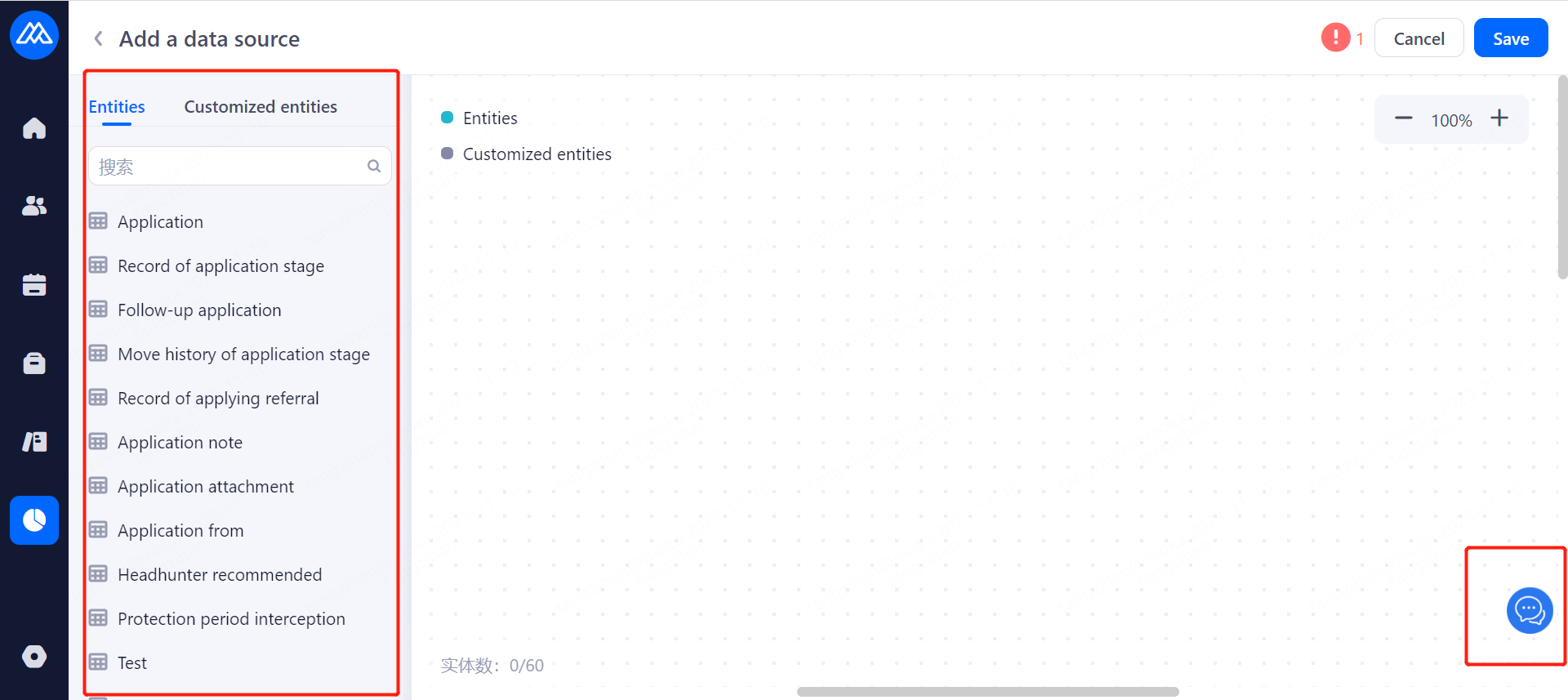
There are currently 30+ entities available in the system.
2.3. Fields
2.3.1. System Fields
There are 500+ system fields supporting in Moka Intelligent Analysis Platform.
The custom fields under modules of job, candidate, offer and HC Field Management are created by the ATS backstage users.
For a detailed list of fields, please refer to Attachment 1 - List of Fields, which can be obtained by logging into the system and clicking on the bottom right to go to the online customer service.
2.3.2. Custom Fields
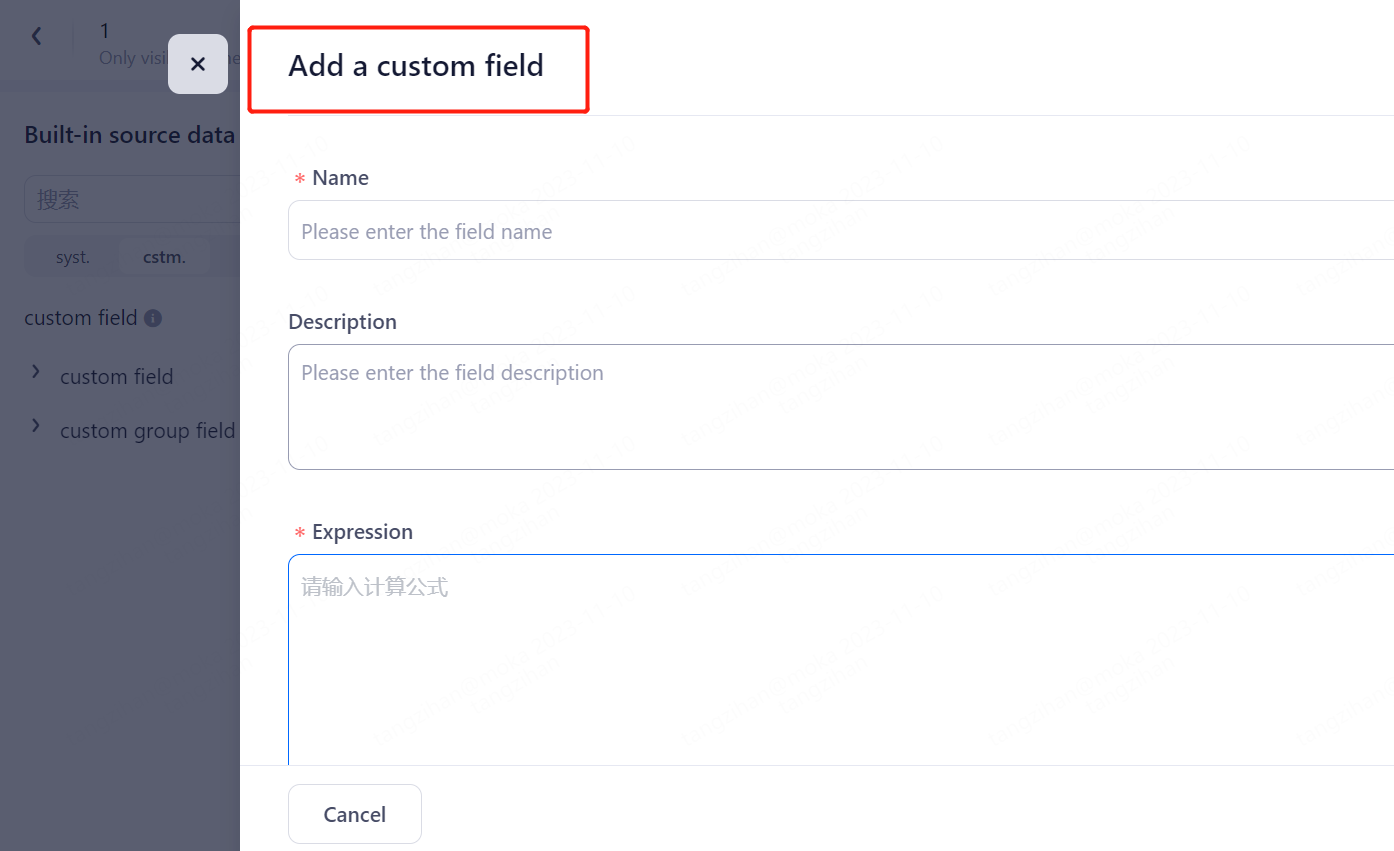
Users are allowed to define specific business fields according to their actual needs, i.e., in addition to the system fields, users can add more fields.
2.4. Report
Report, built on data sources, is a concrete representation of the data. Reports only take effect when the data source is specified. With data sources switched, the custom fields and configurations in the report will not be available.
2.4.1. Instruction
2.4.1.1. Create a Report
Create a report > (Data Source Configuration) > (Create Custom Fields) > Edit report configuration > Report viewing
Enter Report jump to homepage.
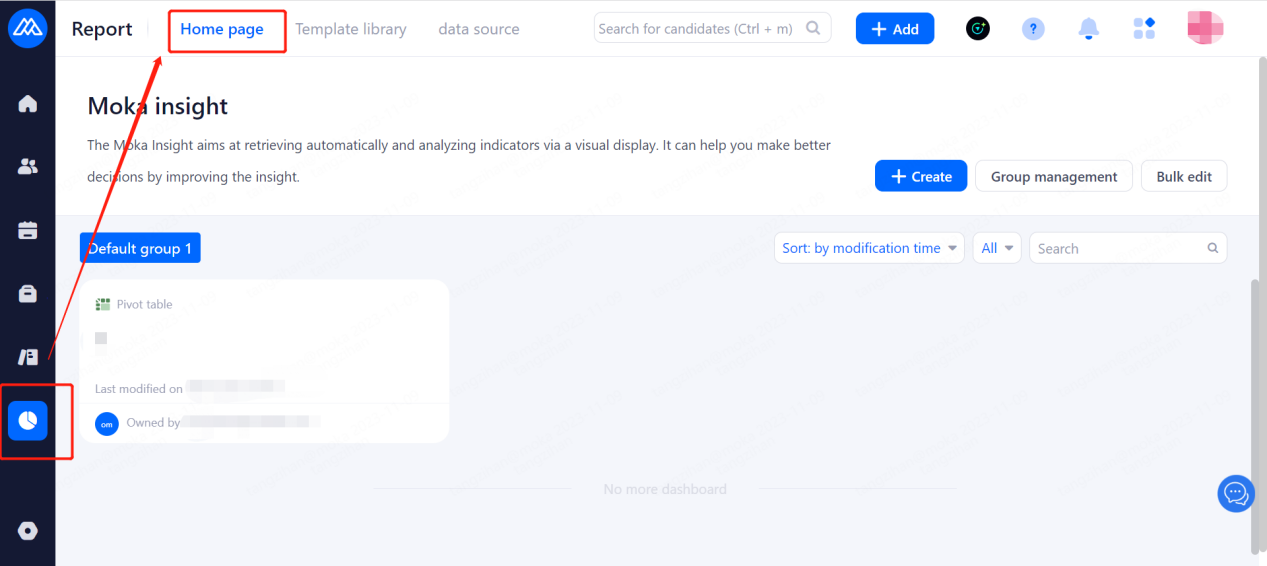
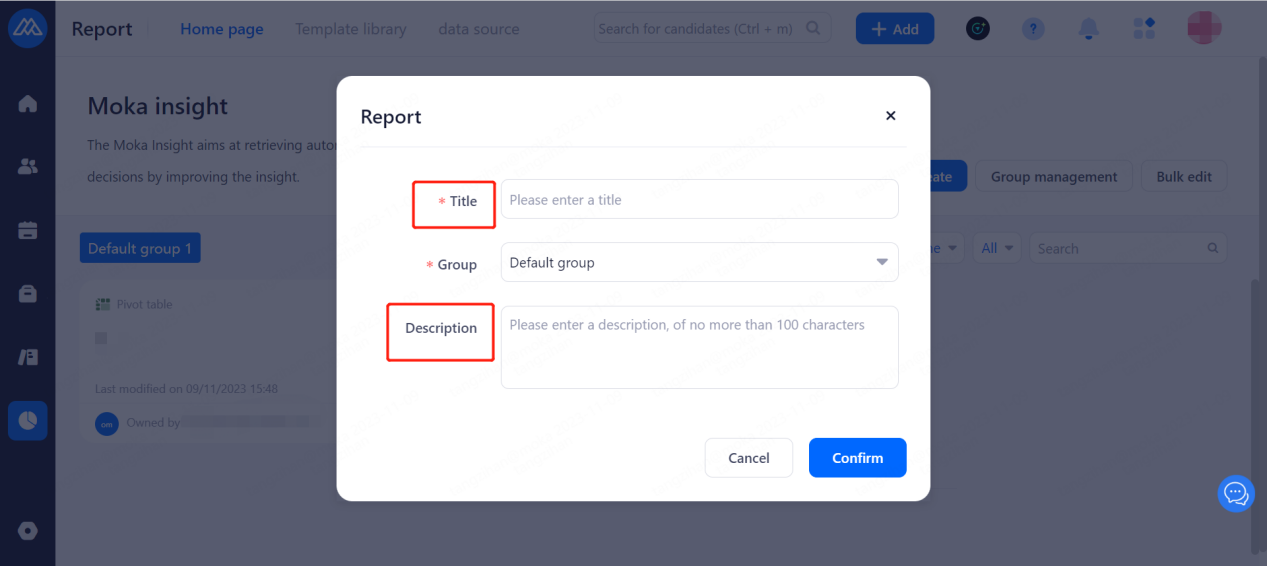
Create a New Report
HR can create reports.
Title: The name of the report can be custom.
Description: Description can be added by the owner of the report, for example, what the report is used for can be addressed.
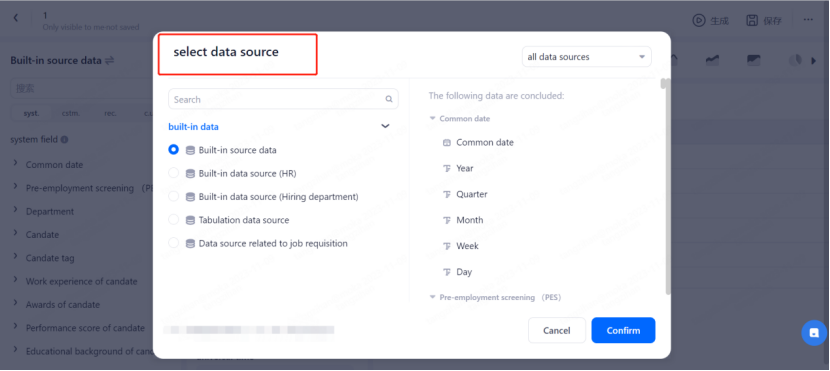
Go to the report editing page and select the data source. The data source can be switched, as shown in the figure:
After the fields are configured, create a report
Drag and drop the fields into the configuration (you can add custom fields).
Click Create and the data will be updated in real time.
Click Save, and the report will be saved under the user's account and can be viewed in report center.
2.4.1.2 Creating Reports Using the Template Library
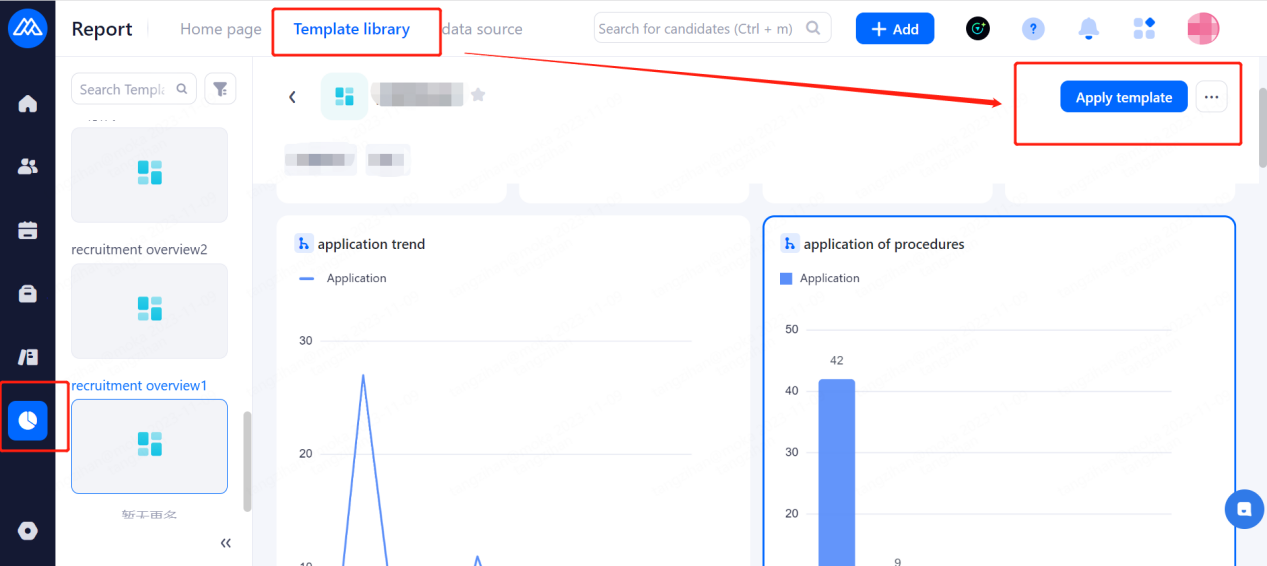
Template library: It provides a library of the most commonly used report templates that can meet various needs of most companies for HR, which includes recruitment progress, channel effectiveness, face-to-face interview analysis, on-boarding analysis, trend analysis, efficiency of the department, inward promotion statistics, etc.
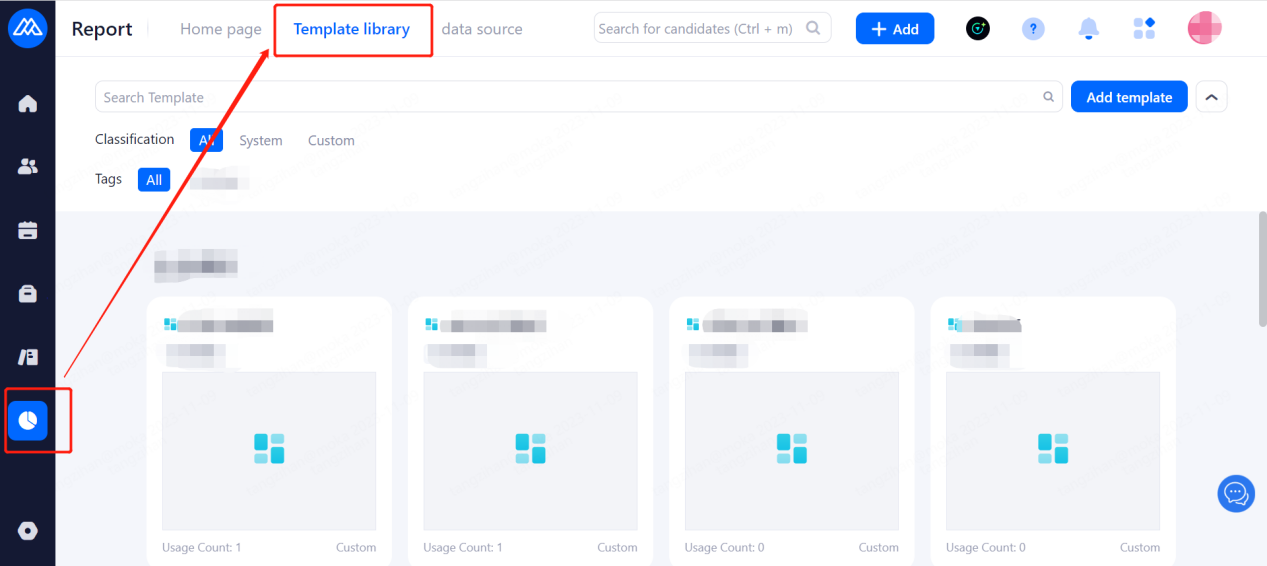
You can select the template you want and click "Use this template" to view provided recruitment data in this report, which can also be edited.
2.4.2. Data Source Configuration
When modeling data by configuring a data source, it is necessary to drag one or multiple entities to the canvas and establish the connection between entities based on the lookup columns between entities.
The data source relationships are shown in Appendix 2 - Data Source Entity Relationships, which can be requested by clicking the bottom right corner to go to the online customer service.
2.4.3 Custom Field Editing
Custom fields can be added to the report editing page. When editing, you only need to enter the formula and filter conditions for the field.
2.4.4. Introduction of Value-added Functions
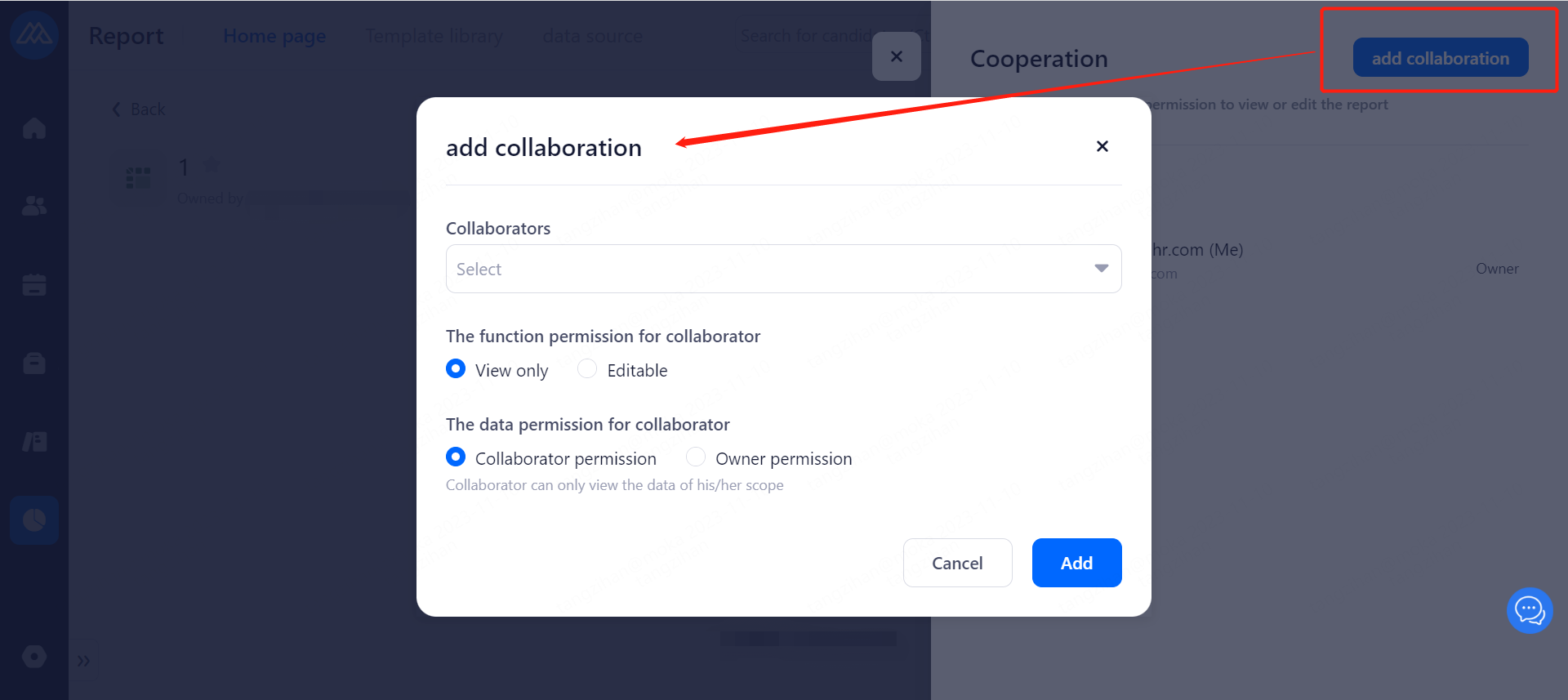
2.4.4.1. Share a Report
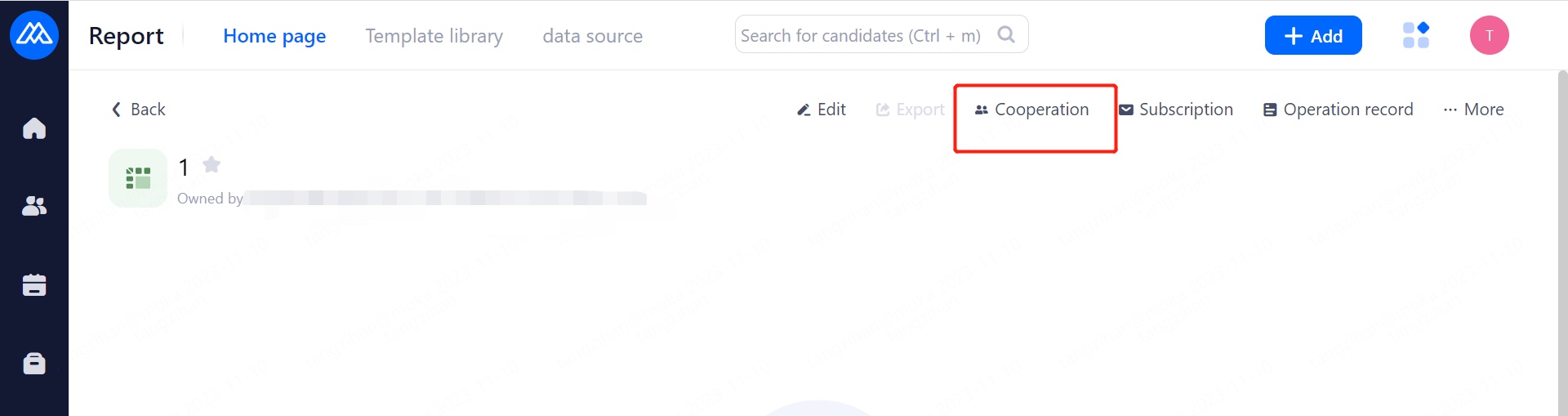
The data seen by the shared user depends on the permissions of the person being shared. And shared users can't edit, subscribe or share the shared reports with others.
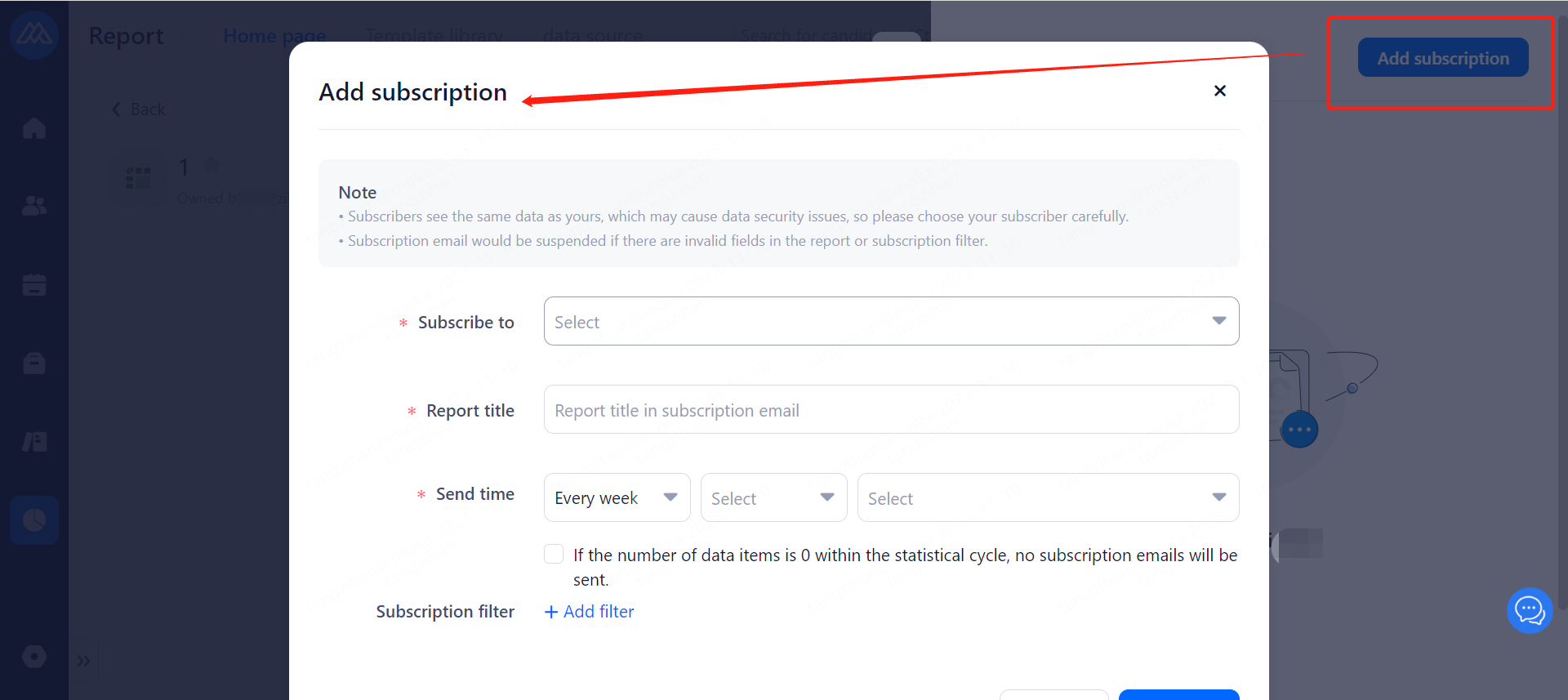
2.4.4.2. Subscribe a Report
Different subscription filters can be set.
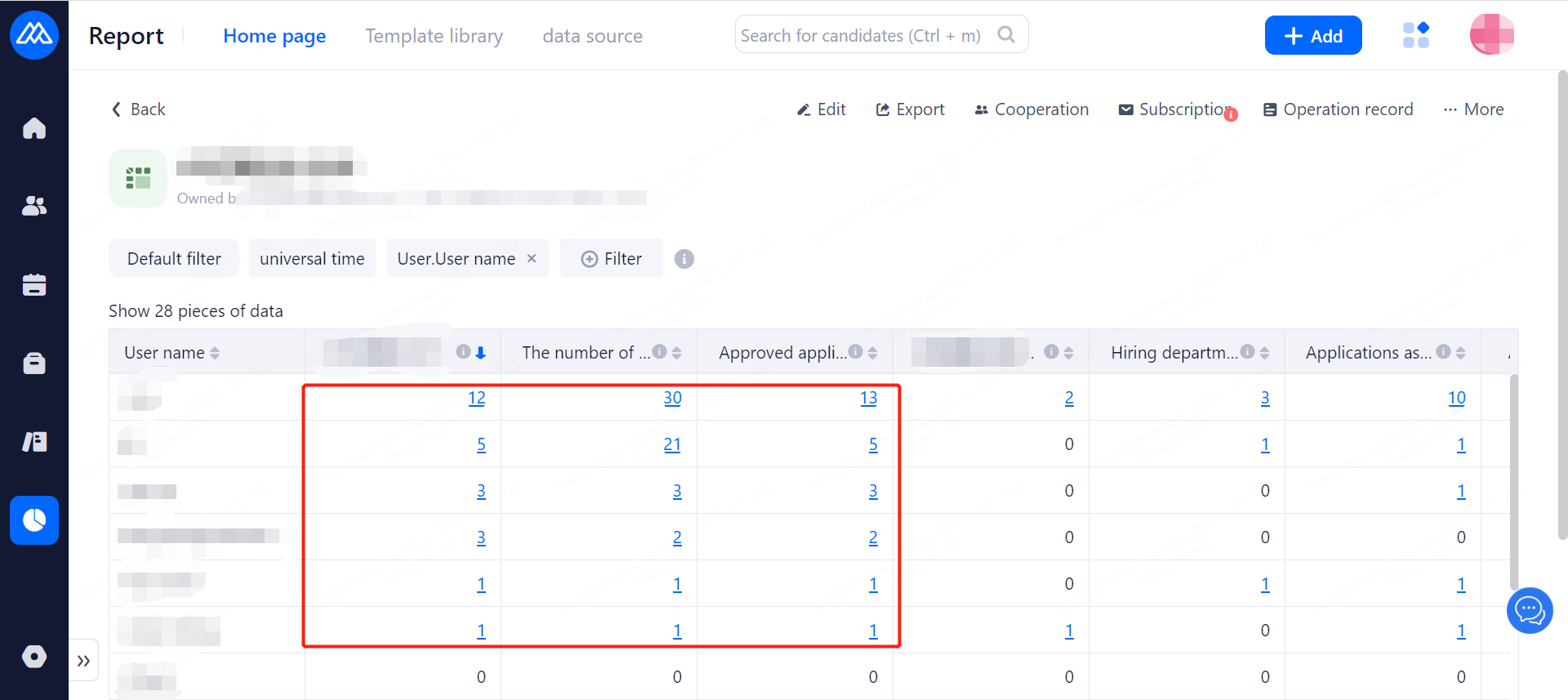
2.4.4.3. Data Penetration
Generate report with penetrable numbers in blue and you can click to go to the penetration page concerning details of candidates.
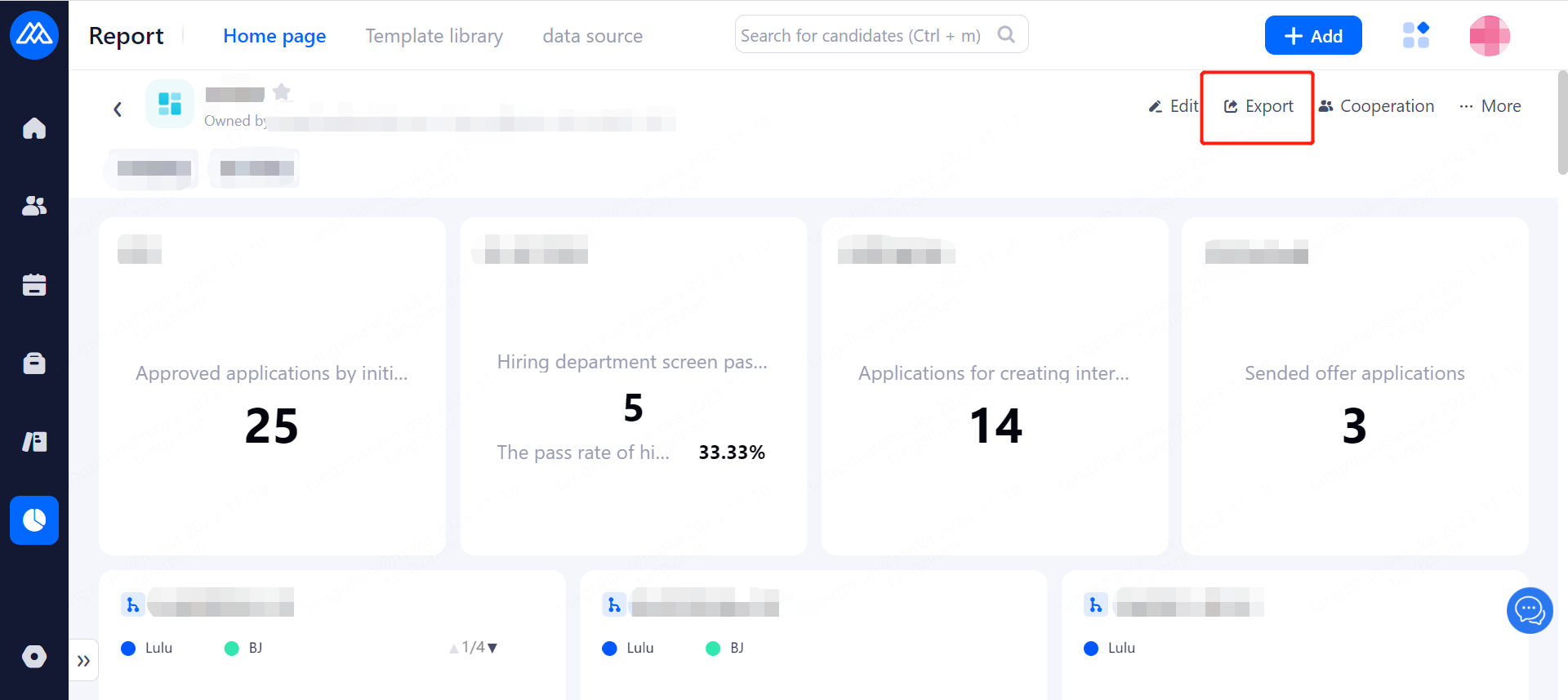
2.4.4.4. Export a report
For a detailed understanding of the use of the data analysis platform and the relationship between field configurations, you can log in to the Moka Recruitment System and click on the bottom right to visit the online customer service, or contact the manager who is interfacing with your organization for further assistance.